How to Enable or Disable Variable Refresh Rate for Games in Windows 11

This guide covers Variable Refresh Rate (VRR) in Windows 11 and what you need in place before you can turn it on or off. In current versions of Windows 11, the switch is in Settings under System Display Graphics. It takes less than a minute if your hardware supports it.
Open Settings , go to System Display Graphics Advanced graphics settings, then toggle Variable refresh rate on or off. The change takes effect immediately without restarting.
What is Variable Refresh Rate (VRR)?
Normally a monitor refreshes at a fixed rate, such as 60 or 144 times per second. A game’s frame rate often doesn’t match that, and the mismatch causes screen tearing or stutter. VRR lets the monitor change its refresh rate to match the frames the game is producing, so motion looks smoother.
If your monitor and graphics card both support it, Windows 11 can use VRR to improve games. The Windows setting mainly helps games that run in a window or in borderless mode. Games running in exclusive full screen usually use the VRR settings in your graphics driver instead.
Before You Begin
Check these things first, because they are the usual reasons the option is missing or doesn’t work:
- Your monitor must support VRR. Check the monitor’s specifications for FreeSync, G-SYNC or “Adaptive-Sync”. Many monitors also have VRR switched off in their own on-screen menu, so look there if everything else checks out.
- Your graphics drivers must be up to date. Install the latest driver from AMD, Nvidia or Intel, or through Windows Update . An old or generic driver can hide the option.
- Your PC and monitor must both support VRR. If either one doesn’t, you won’t see the option in Windows 11. It is not greyed out, it simply isn’t listed. The cable matters too, as VRR normally needs a DisplayPort or HDMI connection that supports it.
Changing the setting does not normally need a restart. If you turn it off, any game that was using it goes back to a fixed refresh rate, and you can switch it back on the same way at any time.
Summary
Windows 11 VRR helps games look smoother by syncing your monitor’s refresh rate with your game’s frame rate, preventing screen tearing and stuttering for a better experience. VRR works best with compatible monitors and up-to-date graphics drivers, ensuring your games run as smoothly as possible.- VRR helps your monitor show smoother games. It matches the screen refresh rate to the game’s frame rate.
- It works best on VRR-supported monitors and with updated graphics drivers.
- You can easily turn VRR on or off in Windows 11 Settings. Go to System Display Graphics Advanced graphics settings.
- Advanced users can also use Registry Editor to enable or disable VRR.
Learn More
For official details, check out the Microsoft Dev Blog.
How to Turn VRR On or Off Using Windows Settings
You can easily turn Variable Refresh Rate (VRR) on or off in Windows 11 using the Settings app. This feature makes games look smoother by matching your monitor's refresh rate to the game's speed, improving your gaming visuals without complex steps.- Open Windows Settings. Click the Start button. Then click the Settings gear icon. Or press Windows key + I on your keyboard.
- In Settings, click on System on the left side.
- Click on Display on the right side.
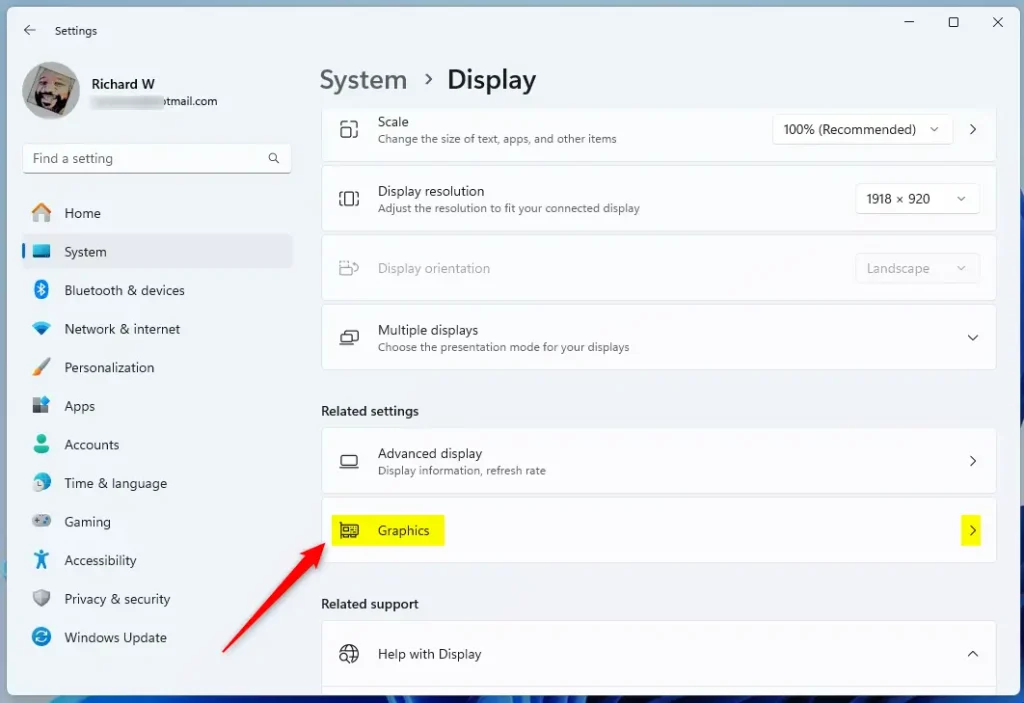
- Scroll down. Find Related settings. Then click on Graphics.
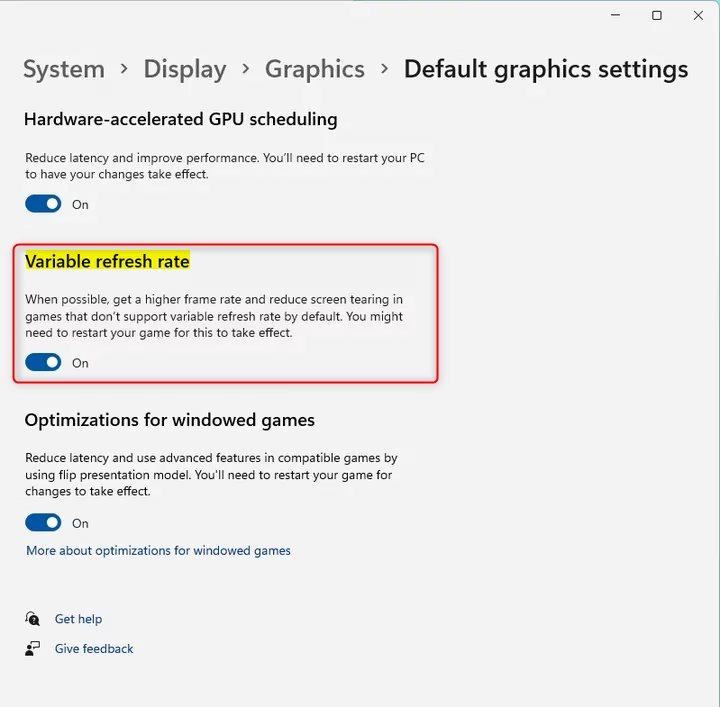
- Scroll down. Click Advanced graphics settings.
- Find the option Variable refresh rate. Switch it On to enable VRR.
- To turn it off, just switch the toggle back to Off.

How to Turn VRR On or Off Using Registry Editor (Advanced Users)
If you're comfortable with advanced settings, you can change Variable Refresh Rate (VRR) on or off in Windows 11 using the Registry Editor. This method requires administrator rights and lets you control VRR by changing specific system files when standard settings aren't enough.
⚠️ Admin Privileges Required
- Open the Registry Editor Registry Editor:
- Press Windows key + R to open the Run box.
- Type
regeditand press Enter.
- Navigate to this path:
HKEY_CURRENT_USER\Software\Microsoft\DirectX\UserGpuPreferences - If
UserGpuPreferencesdoes not exist, right-click on DirectX. Select New Key. Name itUserGpuPreferences. - In the
UserGpuPreferencesfolder, right-click on the right side. Select New String Value. - Name the new string
DirectXUserGlobalSettings. - Double-click this new string. Set its Value data:
- Enter
VRROptimizeEnable=1to turn VRR On. - Enter
VRROptimizeEnable=0to turn VRR Off.
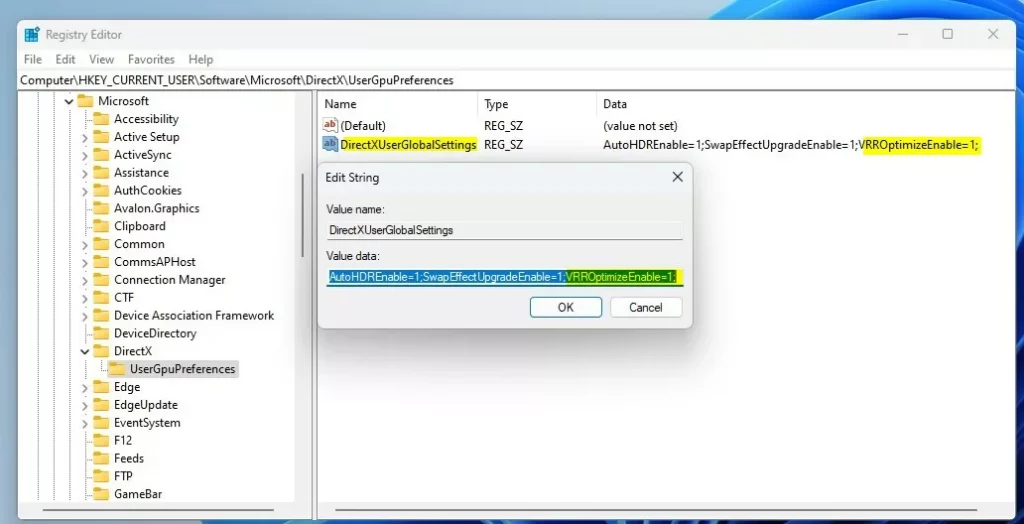
Windows UserGpuPreferences Variable Refresh Rate string value - Enter
Back up the registry, a central database for system settings, before making any modifications to prevent potential data loss or system instability.
Summary
Windows 11 VRR helps games look smoother by syncing your monitor's refresh rate with your game's frame rate, preventing screen tearing and stuttering for a better experience. VRR works best with compatible monitors and up-to-date graphics drivers, ensuring your games run as smoothly as possible.- VRR helps your monitor show smoother games. It matches the screen refresh rate to the game's frame rate.
- It works best on VRR-supported monitors and with updated graphics drivers.
- You can easily turn VRR on or off in Windows 11 Settings. Go to System Display Graphics Advanced graphics settings.
- Advanced users can also use Registry Editor to enable or disable VRR.
Learn More
For official details, check out the Microsoft Dev Blog.
Have a question about this guide?
Answered by AI from this guide. Good questions may be added to this page — please don't include personal details.
Did this guide fix your problem?

About the Author
Richard
Tech Writer, IT Professional
Richard is a writer at Geek Rewind who turns complex IT tasks into clear, step-by-step guides. He draws on years of hands-on experience in system administration and enterprise IT operations, focusing on Windows, Linux and WordPress: the problems people actually run into, and the fixes that work. His server and WordPress guides come from systems he runs himself. Richard builds and maintains the platform behind Geek Rewind, from its Ubuntu servers and Nginx configuration to its custom WordPress plugins. Many new tutorials start with readers' questions, and he's always glad to answer them in the comments.
No comments yet — be the first to share your thoughts!