How to Enable or Disable Dynamic Refresh Rate in Windows 11

Dynamic Refresh Rate (DRR) in Windows 11 changes your screen speed automatically. It shifts between 60Hz and up to 120Hz depending on what you are doing. When you are reading or looking at a static page, it drops the refresh rate to save laptop battery. When you scroll, write with a pen or watch fast motion, it goes back up to 120Hz so everything looks smooth.
You can turn this feature on or off in your display settings. That lets you choose between longer battery life and a fixed, maximum-smoothness refresh rate. The change takes effect straight away and does not need a restart.
Open Settings , go to System Display, click Advanced display, find the Refresh rate dropdown, and select Dynamic (60 Hz or 120 Hz). If the option does not appear, your display hardware does not support Variable Refresh Rate at 120Hz or faster.
What is Dynamic Refresh Rate?
Dynamic Refresh Rate is a power-saving feature. It adjusts your screen refresh speed based on what you are doing. It speeds up when you need smooth motion and slows down during static tasks to save battery life.
You need a laptop display that supports Variable Refresh Rate (VRR) and runs at 120Hz or faster. You also need a recent version of Windows 11 (22H2 or later) and a display driver that supports the feature. If any of these is missing, the Dynamic option simply does not appear. It works the same way in Windows 11 Home and Pro.
Dynamic Refresh Rate reduces power use on your laptop while keeping the screen responsive when you need it. A screen running at 120Hz all the time uses more power than one running at 60Hz. DRR gives you the high rate only while something on screen benefits from it. That usually means a bit more time away from the charger.
Most desktop monitors and many laptops do not meet this, so this is mainly a feature of newer laptops.
How to Turn On Dynamic Refresh Rate
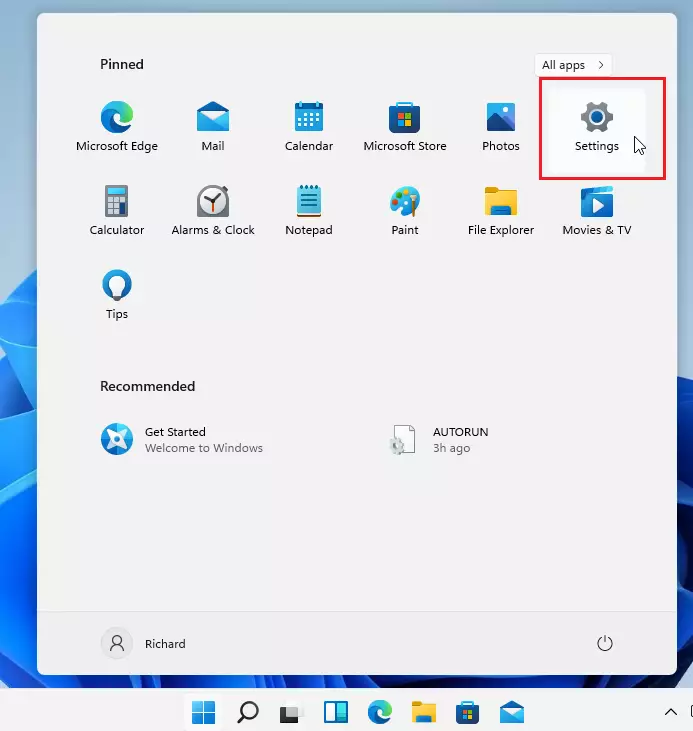
- Click the Start Menu (the Windows icon at the bottom left of your screen), then click Settings. You can also press the Windows key + I to open Settings directly. The Settings window should now open.
windows 11 settings button - In the Settings window, click System, then select Display. System is in the left menu, and Display is in the list on the right. You should now see your display options, such as brightness and scale.
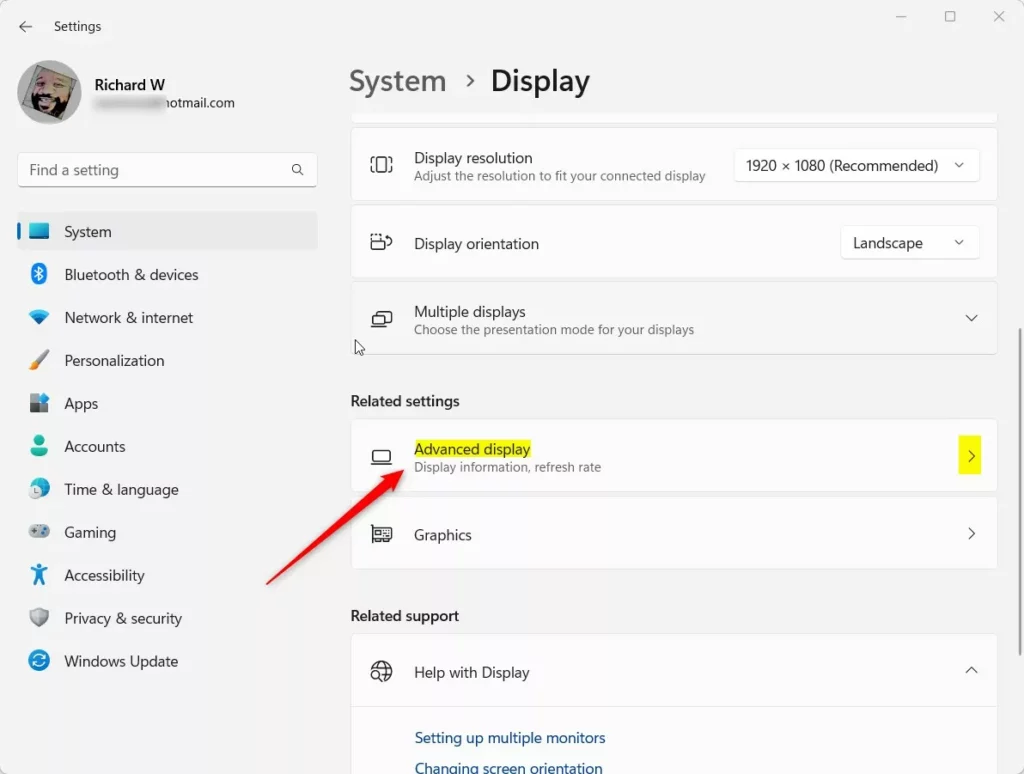
- Scroll down and click Advanced display. It sits under the Related settings area near the bottom of the page. The Advanced display page opens and shows details about your screen.
Windows Advanced display tile in Settings - Find the Refresh rate dropdown menu. On some builds it is labelled "Choose a refresh rate". Click it and choose Dynamic (60 Hz or 120 Hz) if you see this option. The screen may go black or flicker for a second, then the new setting applies.

Dynamic refresh rate setting in Windows 11
If you have more than one display connected, check that the correct one is selected at the top of the Advanced display page. The refresh rate setting applies to the display shown there. Only the built-in laptop screen is likely to offer the Dynamic option.
To turn on Dynamic Refresh Rate in Windows 11, open Settings, go to System, and select Display. Click Advanced display, find the Refresh rate dropdown menu, and choose the Dynamic option. If you do not see this choice, your display hardware does not support the feature.
Before you give up on a missing option, do two quick checks. First, run Windows Update and install any display driver updates, since the feature needs a current driver. Second, confirm that your laptop panel is actually a 120Hz or faster VRR panel by checking the manufacturer's spec sheet. If both are fine and the option is still absent, the hardware or driver does not support it.
How to Turn Off Dynamic Refresh Rate
If you want to turn off Dynamic Refresh Rate, follow the same steps above, but select a fixed refresh rate from the dropdown menu instead. Pick 60 Hz if you want to favor battery life, or the highest value listed (such as 120 Hz) if you want constant smoothness. The screen may flicker briefly when the change applies, and no restart is needed.
To undo this later, return to Settings System Display Advanced display and choose the Dynamic option again.
Summary
- Dynamic Refresh Rate helps your computer save power and work smoothly by changing how fast your screen updates.
- It works only on laptops with screens that support Variable Refresh Rate and have 120Hz or higher refresh rates.
- You can turn it on or off easily in the Display settings under Advanced display, and no restart is needed.
- If you don't see the option, your computer screen might not support this feature. Update your display driver and Windows before you rule it out.
Dynamic Refresh Rate in Windows 11 automatically balances battery life and display smoothness by changing screen refresh speeds on compatible hardware. You can turn it on or off through the Advanced display menu in Settings. If the option is missing, your screen lacks the required hardware support, or your driver or Windows version is too old to offer it.
Have a question about this guide?
Answered by AI from this guide. Good questions may be added to this page — please don't include personal details.
Did this guide fix your problem?

About the Author
Richard
Tech Writer, IT Professional
Richard is a writer at Geek Rewind who turns complex IT tasks into clear, step-by-step guides. He draws on years of hands-on experience in system administration and enterprise IT operations, focusing on Windows, Linux and WordPress: the problems people actually run into, and the fixes that work. His server and WordPress guides come from systems he runs himself. Richard builds and maintains the platform behind Geek Rewind, from its Ubuntu servers and Nginx configuration to its custom WordPress plugins. Many new tutorials start with readers' questions, and he's always glad to answer them in the comments.
No comments yet — be the first to share your thoughts!