What to Do When Windows Update Gets Stuck Downloading at 0 Percent

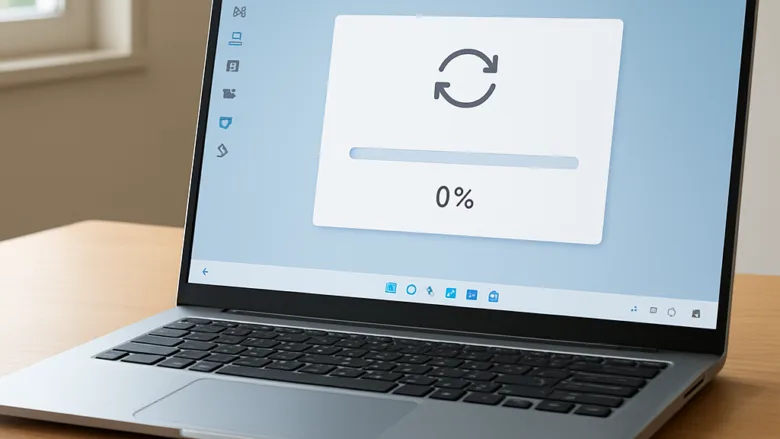
A Windows update stuck at 0 percent usually means the background service that handles system downloads has stopped responding. It happens often on Windows 10 and 11, but it rarely points to a failing hard drive or a dead internet connection.
You can usually fix a frozen update by restarting the Windows Update service or by clearing the stuck temporary files from your 📁C:\
When Windows Update gets stuck downloading at 0 percent, you can fix it by running the built-in Windows Update troubleshooter. Open the Settings app, go to System or Update and Security, select Troubleshoot, and then click the Run button next to Windows Update to let your computer automatically repair stuck services.
Why Does Windows Update Get Stuck at 0 Percent?
Windows Update usually sticks at 0 percent for one of three reasons. A background helper service has frozen, the temporary download cache is corrupted, or your connection dropped for a moment while Windows was reaching Microsoft’s servers. These helper programs manage the download. When one hangs, the whole installation stays frozen until you restart the service or clear the stuck files.
A corrupted temporary file can also interrupt the download. So can the main update service freezing while it handles several tasks at once. In both cases the download manager cannot move forward, and the percentage display stays at zero. Restarting the update service or clearing the temporary files fixes either one.
Common culprits include:
- Temporary glitches in the Windows Update service.
- Corrupted files sitting inside the Windows download folders.
- Interference from third-party antivirus software.
- Network hiccups that block your computer from reaching update servers.

Start with the easiest fixes and move to the advanced ones only if the download is still stuck.
Basic Checks Before You Start
Begin with the basic checks. Rule out simple network and hardware problems before you change any system settings. A quick router restart or unplugging a thumb drive can get the download moving.
- Check your internet connection: Open a few web pages and make sure they load normally. If your internet is out or very slow, Windows Update cannot download its files. If pages load slowly, restart your router and try again.
- Disconnect extra devices: Unplug unnecessary USB devices, external hard drives and game controllers. Occasionally, extra hardware can confuse the setup process.
- Give it a little time: Large updates, such as major feature upgrades, can sit at 0 percent for a long time while the computer prepares the files behind the scenes. If you only started the update a few minutes ago, walk away and check back in fifteen minutes. If the number still has not moved, continue with the steps below.
Method 1Run the Built-In Windows Update Troubleshooter
The built-in Windows Update troubleshooter scans for common update problems and repairs many of them automatically. It is the safest fix to try first because it only changes update-related settings and services.
- Click the Start button and open the Settings app (the gear icon).

- Click System. On Windows 10, click Update & Security instead.
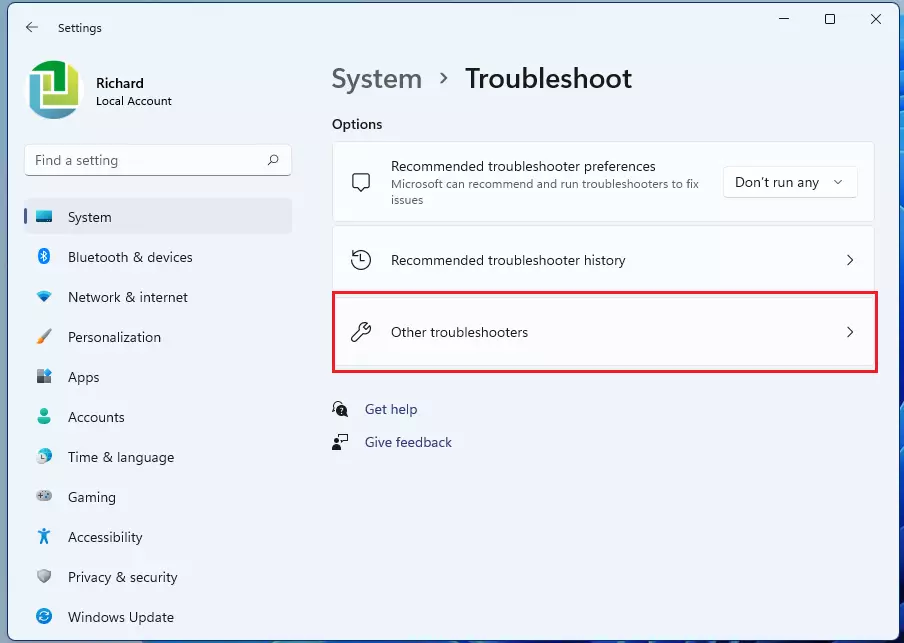
- Click Troubleshoot, then select Other troubleshooters. On Windows 10, the second item is called Additional troubleshooters. On Windows 11 the path is Settings System Troubleshoot Other troubleshooters
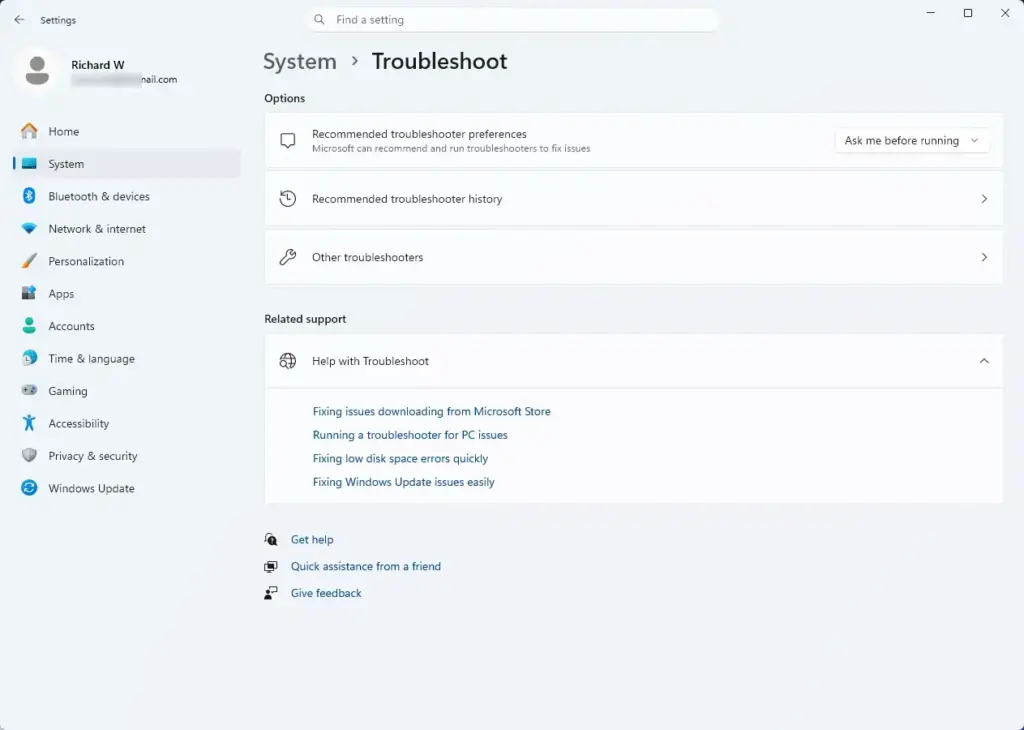
- Find Windows Update in the list. You should see a button next to it.
- Click Run next to it. On Windows 10 the button is Run the troubleshooter.
If your computer prompts you, enter your administrator password or click Yes to let the tool make changes.
If the troubleshooter asks you questions, follow the on-screen instructions. When the scan finishes, it tries to repair any broken settings or stuck services it found and shows a summary of what it fixed. Restart your computer afterwards and check whether the updates start downloading.
Method 2Restart the Windows Update Services
Restarting the Windows Update services gives the download components a fresh start. Three services matter here: Windows Update, Background Intelligent Transfer Service (BITS) and Cryptographic Services. If one of them has hung, restarting it often clears the block.
- Click the Start button, type Services in the search bar, and click the Services app. A window with a long alphabetical list opens.
- Scroll down until you find the service named Windows Update.
- Right-click Windows Update and choose Restart. If Restart is greyed out, the service is not running, so choose Start instead.
- Find Background Intelligent Transfer Service (BITS). Right-click it and choose Restart.
- Find Cryptographic Services. Right-click it and choose Restart.
You may need to confirm your choice or sign in with an administrator account.
Once all three services have restarted, close the Services window and restart your computer. Then open Windows Update and try the download again.
Method 3Clear the Windows Update Download Cache
If the services restart did not help, the cached update files are probably corrupted. Clearing the Windows Update download cache deletes those temporary files, which are stored in the SoftwareDistribution folder. Windows then downloads fresh, clean copies of the update.
Windows Update uses the SoftwareDistribution and catroot2 system folders while it downloads and installs patches. Files in use cannot be deleted, so you must stop the update services first. Do this from an administrator Command Prompt with the command net stop wuauserv, followed by net stop bits.
- Click the Start button, type Command Prompt, right-click it, and choose Run as administrator. Click Yes if Windows asks for permission.
- Type net stop wuauserv and press Enter. You should see a message that the Windows Update service was stopped successfully.
- Type net stop bits and press Enter. You should see a similar message for the Background Intelligent Transfer Service.
- Open File Explorer and go to C:\Windows\SoftwareDistribution.
- Select the contents of the folder and delete them. Delete the files inside, not the SoftwareDistribution folder itself. If Windows says a file is in use, make sure both services from the earlier steps are stopped.
Note: You need an administrator account for this fix. It stops system services and changes files inside the protected C:\Windows folder.
Restart your computer. The services start again on their own, and Windows Update rebuilds the folder. The first check for updates may take a little longer than usual. This is normal.
If the update is still stuck, damaged system files may be the cause. You can repair them with the SFC (System File Checker) and DISM tools, run from an administrator Command Prompt. Let both scans finish and do not close the window early. Each scan can take up to 20 minutes, depending on your computer's speed.
After both scans are complete, close the Command Prompt window, restart your computer, and check your update settings again.
Unique Expert Tips: Hidden Causes and Advanced Fixes
If the download is still stuck at 0 percent after the basic fixes and built-in troubleshooters, one of a few less obvious causes may be responsible. The two most common are security software and a damaged network setup.
1. Third-Party Antivirus Interference
Security programs from outside Microsoft can be overprotective and treat incoming update data as suspicious. When Windows downloads large files from Microsoft's servers, this software may block them or scan them for too long. Windows Update then thinks the download has stalled and leaves the progress bar at 0 percent.
To test this, follow these steps:
- Open your third-party antivirus program.
- Temporarily turn off its real-time protection. The setting name varies by product.
- Run Windows Update again and see whether the download moves.
- Turn real-time protection back on right away, whatever the result.
If the update only works with the antivirus off, check your antivirus settings for an exclusion or a Windows Update option. Do not leave protection off.
2. Resetting the Network Stack
Resetting the network stack clears old routing data and gives your connection a fresh start. It helps when your PC has trouble talking to your router or to Microsoft's servers. You do it from an administrator Command Prompt.
- Click the Start button, type Command Prompt, right-click it, and select Run as administrator.
- Type the following command to reset your internet protocol settings, then press Enter:
Codenetsh int ip reset - Type the following command to reset your network socket settings, then press Enter:
Codenetsh winsock reset - Type the following command to clear your DNS cache, then press Enter:
Command Promptipconfig /flushdns
Note: This step requires administrator privileges.
After the commands finish, restart your computer. The restart forces your network card to set up a clean connection to your router and the internet. The reset can also clear custom network settings, so reconnect to your Wi-Fi if Windows asks you to.
What to Do if Nothing Else Works
If every other step has failed, install the update manually. The Microsoft Update Catalog is a public website run by Microsoft. You can open it in any web browser and download the update file directly, which bypasses the stuck automatic installer.
- Open Settings Windows Update and note the update's KB number. It starts with the letters "KB" followed by a string of numbers.
- Open the Microsoft Update Catalog website in your browser and search for that KB number.
- Pick the entry that matches your version of Windows and your system type, such as 64-bit.
- Download the file to your desktop.
- Run the downloaded file like a normal program and follow the prompts to install the update.
Most updates need a restart to finish, so save your work first.
Summary
A Windows Update frozen at 0 percent usually comes down to a frozen background service, a corrupted temporary download cache or a minor network hiccup, and all three are fixable. Run the built-in troubleshooter, restart the core background services, clear the temporary update folders, or download the missing update manually from Microsoft.
If you need a quick reminder of the cache-clearing fix, here it is in short form:
- Click the Start button, type Command Prompt, right-click it, and choose Run as administrator.
- Stop the Windows Update service by typing net stop wuauserv and pressing the Enter key. Stop BITS the same way with net stop bits.
- Delete the contents of C:\Windows\SoftwareDistribution.
Note: You need an administrator account for this step. The process stops essential system services and modifies files inside the protected C:\Windows folder, and without administrator rights Windows shows permission errors.
Restart your computer one more time, then check for updates in Settings Windows Update
Method 4: Fix Corrupted System Files Using Command Tools
SFC (System File Checker) and DISM repair deeper operating system errors that can make the update manager stall at zero percent. Run them from an administrator Command Prompt. They scan your system and replace damaged files, so you don't need to reinstall Windows.
- Click the Start button, type Command Prompt, right-click it, and choose Run as administrator.
- Run the SFC scan first and let it finish.
- Run the DISM scan second and let it finish.
Be patient and keep the window open. Each scan can take up to 20 minutes, depending on your computer's processor performance and, for DISM, your internet speed. Closing the window early can interrupt the repair.
After both scans are complete, close the Command Prompt window, restart your computer, and check your update settings again.
Unique Expert Tips: Hidden Causes and Advanced Fixes
If the download is still stuck at 0 percent after the basic fixes and built-in troubleshooters, one of a few less obvious causes may be responsible. The two most common are security software and a damaged network setup.
1. Third-Party Antivirus Interference
Security programs from outside Microsoft can be overprotective and treat incoming update data as suspicious. When Windows downloads large files from Microsoft's servers, this software may block them or scan them for too long. Windows Update then thinks the download has stalled and leaves the progress bar at 0 percent.
To test this, open your third-party antivirus program, temporarily turn off its real-time protection, and run Windows Update again. The setting name varies by product. Turn protection back on immediately after testing, whatever the result.
2. Resetting the Network Stack
Resetting the network stack clears old routing data and gives your connection a fresh start. It helps when your PC has trouble talking to your router or to Microsoft's servers. You do it from an administrator Command Prompt.
- Click the Start button, type Command Prompt, right-click it, and select Run as administrator.
- Type the following command to reset your internet protocol settings, then press Enter:
Codenetsh int ip reset - Type the following command to reset your network socket settings, then press Enter:
Codenetsh winsock reset - Type the following command to clear your DNS cache, then press Enter:
Command Promptipconfig /flushdns
Note: This step requires administrator privileges.
After the commands finish, restart your computer. The restart forces your network card to set up a clean connection to your router and the internet. If Windows asks you to reconnect to your Wi-Fi, do so.
What to Do if Nothing Else Works
If every other step has failed, install the update manually. The Microsoft Update Catalog is a public website run by Microsoft. You can open it in any web browser and download the update file directly, which bypasses the stuck automatic installer.
Search the catalog for the update's package number. You can usually find it on your Windows Update settings screen. It starts with the letters "KB" followed by a string of numbers. Choose the entry that matches your version of Windows and your system type, and download the file to your desktop. Then run it like a normal program to install the update. Save your work first, because most updates need a restart.
Summary
A Windows Update frozen at 0 percent usually comes down to a frozen background service, a corrupted temporary download cache or a minor network hiccup, and all three are fixable. Run the built-in troubleshooter, restart the core background services, clear the temporary update folders, or download the missing update manually from Microsoft.
Have a question about this guide?
Answered by AI from this guide. Good questions may be added to this page — please don't include personal details.
Did this guide fix your problem?

About the Author
Richard
Tech Writer, IT Professional
Richard is a writer at Geek Rewind who turns complex IT tasks into clear, step-by-step guides. He draws on years of hands-on experience in system administration and enterprise IT operations, focusing on Windows, Linux and WordPress: the problems people actually run into, and the fixes that work. His server and WordPress guides come from systems he runs himself. Richard builds and maintains the platform behind Geek Rewind, from its Ubuntu servers and Nginx configuration to its custom WordPress plugins. Many new tutorials start with readers' questions, and he's always glad to answer them in the comments.
No comments yet — be the first to share your thoughts!