Stop Windows from Automatically Finishing Device Setup After Updates

Windows 11 can sign you in on its own after an update restarts your PC. This post shows how to turn that off in Settings, so the PC stops signing in for you and waits at the sign-in screen.
The setting is named Use my sign-in info to automatically finish setting up after an update or restart. It lives at Settings Accounts Sign-in options It applies to the account you are signed in with, so repeat the steps for each account that should stop using it.
Turning it off takes less than a minute and needs no restart. The sections below explain what the setting does, how to switch it off, and what to check if the option is missing or greyed out.
To stop Windows 11 from signing you in automatically after an update restart, open Settings , select Accounts, then Sign-in options. Under Additional settings, turn off “Use my sign-in info to automatically finish setting up after an update or restart.” The PC then waits at the sign-in screen. Repeat this for each account on the PC.
What Windows does when this setting is on
After a Windows update , the PC restarts one or more times to finish installing . With the setting on, Windows uses your sign-in details to sign you in automatically during that restart. It finishes the setup work that needs a signed-in user. Then it locks the screen, so nobody can use the session without your password, PIN or other sign-in method.
Usually you return to a lock screen with your apps already open, not to a half-finished update. Windows calls the underlying feature Automatic Restart Sign-On (ARSO). The name shows up in Microsoft documentation, not on screen.
This setting is separate from the full-screen “Let’s finish setting up your device” prompt that asks you to confirm things like Microsoft account backup. If that screen is what bothers you, read how to disable “Let’s finish setting up your device” in Windows 11 instead.
Why you might want to turn it off
The main reason is security. While the PC is signing you in during the restart, your session is briefly active without you sitting at the keyboard. The screen locks again afterwards, but some people, especially those with shared or portable PCs, prefer that no sign-in happens until they type their credentials.
Other reasons are practical. Some people want the PC to go straight to the sign-in screen after an update, so they know exactly when it has finished. Others find that apps reopen on their own after an update and prefer to open them by hand.
Turning the setting off has a cost. After an update restart, the PC waits at the sign-in screen until you enter your credentials, and the finishing work happens after you sign in. Expect a slightly longer wait the first time you use the PC after each update.
Before you start
Check three things first, because they decide whether you see the option at all.
- Windows version. The steps below are for Windows 11. The wording differs slightly between Windows 11 builds (the numbered versions of the system). Some builds say “…finish setting up after an update or restart” and Windows 10 adds the words “my device”.
- Account type. The toggle appears for the account you are signed in to. It does not appear for every kind of account, especially accounts that an organisation manages. See If the option is missing or greyed out below.
- Who manages the PC. A work or school PC may hide or lock this setting. If an administrator controls it, you cannot override it from Settings.
Turn off “Use my sign-in info” in Settings
This works for every edition of Windows 11, including Home and Pro. The steps below stop Windows from trying to automatically finish setting up a PC after an update or restart. Each step does one thing, and the note after it tells you what you should see.
Steps to turn the setting off
Follow these steps to turn the setting off:
- Open Settings . Press Win+I. The Settings window opens with a list of categories on the left.

- Select Accounts. It is in the left pane. The right pane shows your account details and a list of account pages.
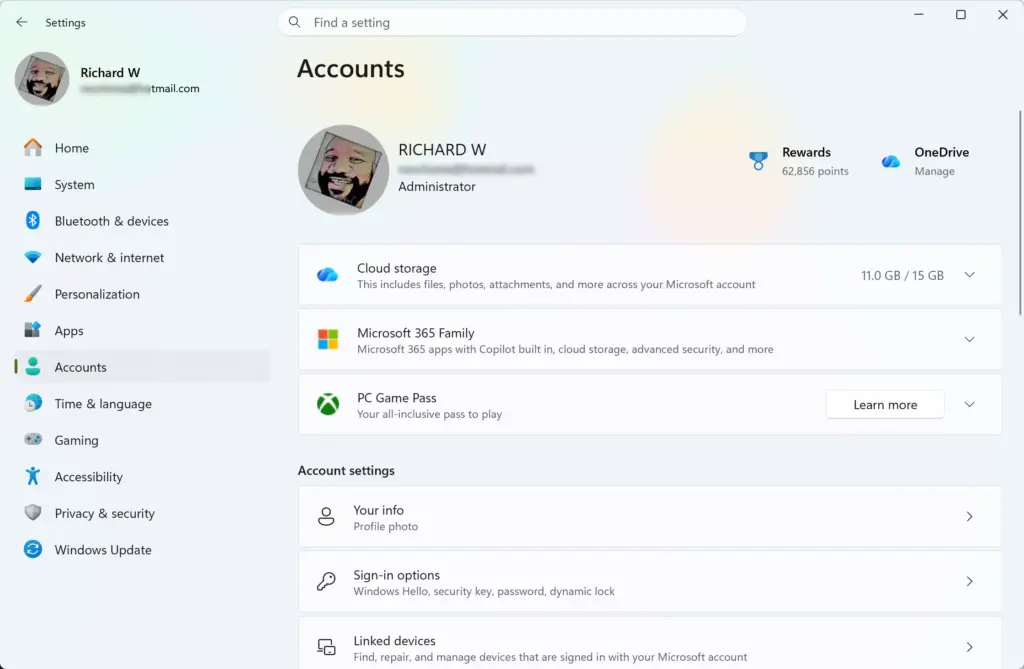
Settings › Accounts - Select Sign-in options. This page lists the ways you can sign in, such as PIN, password and security key.
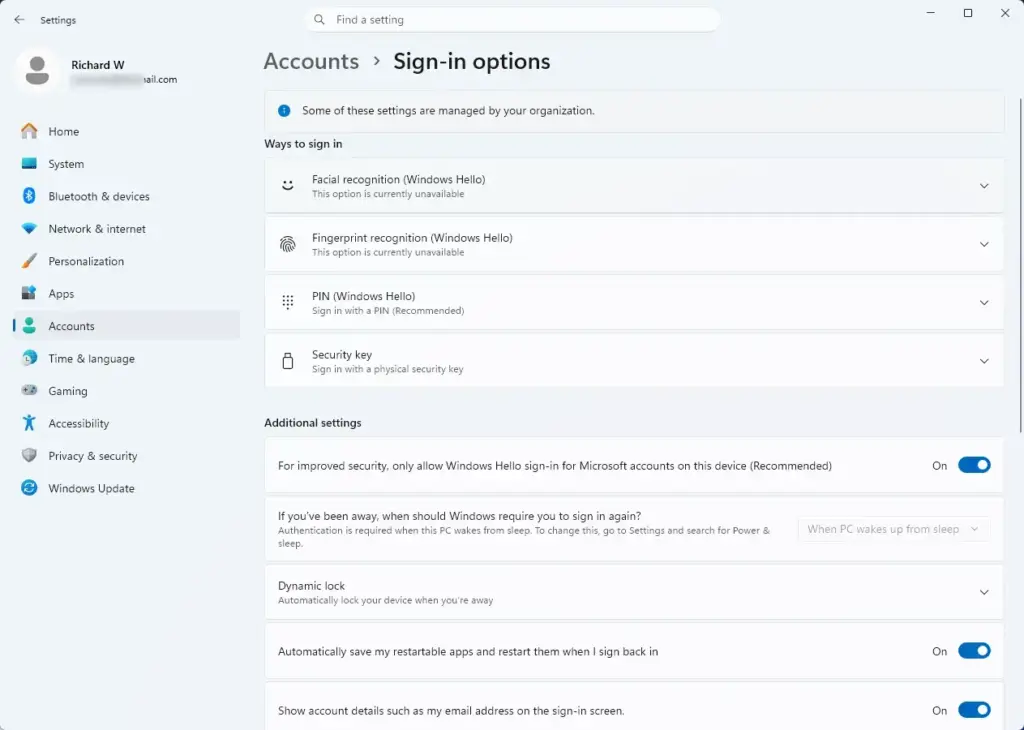
Settings › Accounts › Sign-in options - Scroll down to Additional settings. This heading sits below the list of sign-in methods. Select it if it is collapsed so the settings underneath expand.
- Find the toggle that starts with Use my sign-in info to automatically finish setting up. The text may continue “after an update or restart”. If you cannot find it, go to the troubleshooting section below.
- Set the toggle to Off. The label beside the switch changes from On to Off.
- Close Settings. Windows saves the change at once, and you do not need to restart.
The next time an update restarts the PC, Windows stops at the sign-in screen and waits for you instead of signing you in itself.
How to check that the change worked
The setting only has an effect during an update restart, so you cannot see the result straight away. The fastest check is to reopen Settings Accounts Sign-in options Additional settings and confirm the toggle still reads Off. If it does, the setting is saved.
To see it in action, wait for a Windows update that needs a restart. After the restart, you should land on the sign-in screen, not on a locked desktop with your apps already open.
The automatic sign-in only applies to restarts that Windows triggers for update installation.
If the option is missing or greyed out
This is the most common problem. This problem is common, so it gets its own section here. The cause is nearly always who controls the account or the PC.
The option does not appear on the Sign-in options page
The setting is not offered on every device. If the PC is joined to a domain (a company network that controls sign-in), or if a work or school account manages the device, Windows may hide the toggle. In that case the sign-in behaviour comes from the organisation, not from you.
Try this check first:
- Open Settings Accounts Your info. Check whether the account shows a work or school address, or the “Local account” or “Microsoft account” label that you expect.
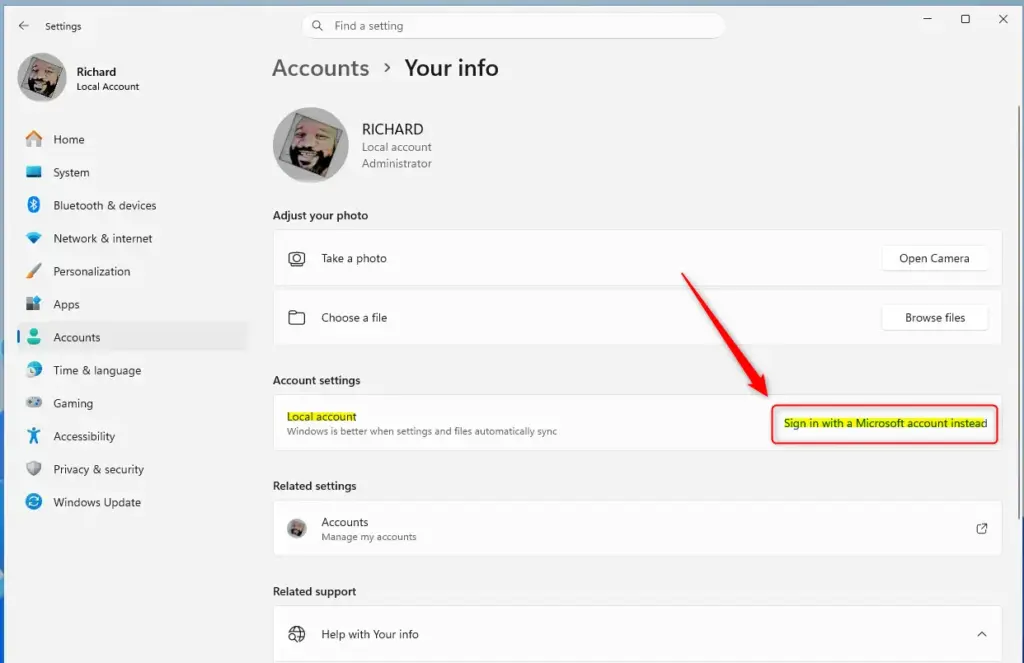
Windows 11 prompt to sign in with a Microsoft account. - Open Settings Accounts Access work or school. If a work or school account is connected, it may control this setting.
- Ask your IT administrator whether a policy manages the sign-in behaviour. A personal PC with a normal Microsoft or local account should show the toggle.
If you removed a work or school account and the option is still missing, restart the PC and check again. Settings pages sometimes keep old information until the next restart.
The toggle is greyed out or reverts to On
A greyed-out toggle means someone else controls the setting, most often through a policy (a rule an administrator sets). Windows may also show a message such as “Some settings are managed by your organization”.
If you manage the PC yourself, check whether an earlier change set a policy that still applies. Windows Pro, Enterprise and Education include the Local Group Policy Editor (a settings tool for administrators), where administrators can set this option for every user. Windows Home does not include that editor, so a locked toggle on Home usually points to a work or school connection.
Guessing at them in a system tool can cause problems. If you manage the PC and need those details, confirm them against Microsoft’s documentation before you change anything.
The setting turns itself back on
If the toggle returns to On after a restart or update, a policy or a management tool is most likely resetting it. Personal PCs rarely do this. Check the connected work or school accounts listed above, and ask your administrator if the PC is managed.
Reduce other things that happen after updates
Turning off automatic sign-in stops one behaviour. Several related settings control what else happens around an update restart, and you may want to adjust them too.
- App reopening. Windows can reopen apps when you sign back in. Read how to turn on or off automatic app restart when you sign back in to control it.
- Restart notices. Windows shows alerts before and after an update restart. Managing Windows 11 update restart notifications covers those.
- Update timing. If you want to stop updates from installing without your say, see how to disable automatic Windows updates in Windows 11. Pausing updates leaves the PC without security fixes, so treat it as a short-term step.
The automatic sign-in setting is a good one to change first, because it does not delay updates or leave the PC unpatched. It only changes who signs in during the restart.
Turn the setting back on
Reversing the change takes the same route and has no risk. Use it if you find the longer wait at the sign-in screen is not worth it.
- Open Settings. Press Windows + I.
- Select Accounts in the left pane.
- Select Sign-in options.
- Scroll to Additional settings and expand it if needed.
- Set the Use my sign-in info to automatically finish setting up toggle to On. The label changes from Off to On.
Windows saves the change immediately. Your next update restart will use the automatic sign-in again.
When to leave it on
For a PC that only you use, kept in a private place with a strong sign-in method, the default is a reasonable choice. The screen locks again after the update, and your work resumes with fewer interruptions.
Turning it off makes more sense on a laptop you carry around, a PC in a shared space, or any device where a briefly active session worries you. It also helps if you want to watch for update problems yourself, since you see the PC reach the sign-in screen cleanly.
If the update itself is the problem, such as a driver that breaks after a restart, a different setting matters more. Turning driver updates with Windows Update on or off controls that part.
If you still see a setup prompt after updates
If a full-screen setup prompt keeps appearing after updates, the cause is the "Let's finish setting up your device" screen, not this setting. Read guide to disabling "Let's finish setting up your device" to turn that off. If you want to control when updates check and install, disabling the Check for updates button is the closest related task.
Have a question about this guide?
Answered by AI from this guide. Good questions may be added to this page — please don't include personal details.
Did this guide fix your problem?

About the Author
Richard
Tech Writer, IT Professional
Richard is a writer at Geek Rewind who turns complex IT tasks into clear, step-by-step guides. He draws on years of hands-on experience in system administration and enterprise IT operations, focusing on Windows, Linux and WordPress: the problems people actually run into, and the fixes that work. His server and WordPress guides come from systems he runs himself. Richard builds and maintains the platform behind Geek Rewind, from its Ubuntu servers and Nginx configuration to its custom WordPress plugins. Many new tutorials start with readers' questions, and he's always glad to answer them in the comments.
No comments yet — be the first to share your thoughts!