How to Turn On or off Automatically Restart Apps When You Sign Back In on Windows 11

Automatically restarting apps in Windows 11 reopens the programs you had running, along with your File Explorer tabs, as soon as you sign back in to your account. You pick up where you left off instead of rebuilding your workspace by hand. Starting with Windows 11 version 25H2, turning this feature on also saves your open folder tabs in File Explorer automatically.
You can turn the feature on or off in your sign-in settings, depending on whether you want your apps back or a clean desktop at every login. The setting is per user account. Changing it on your account does not affect other people who use the same PC. The steps below work the same on Windows 11 Home and Pro.
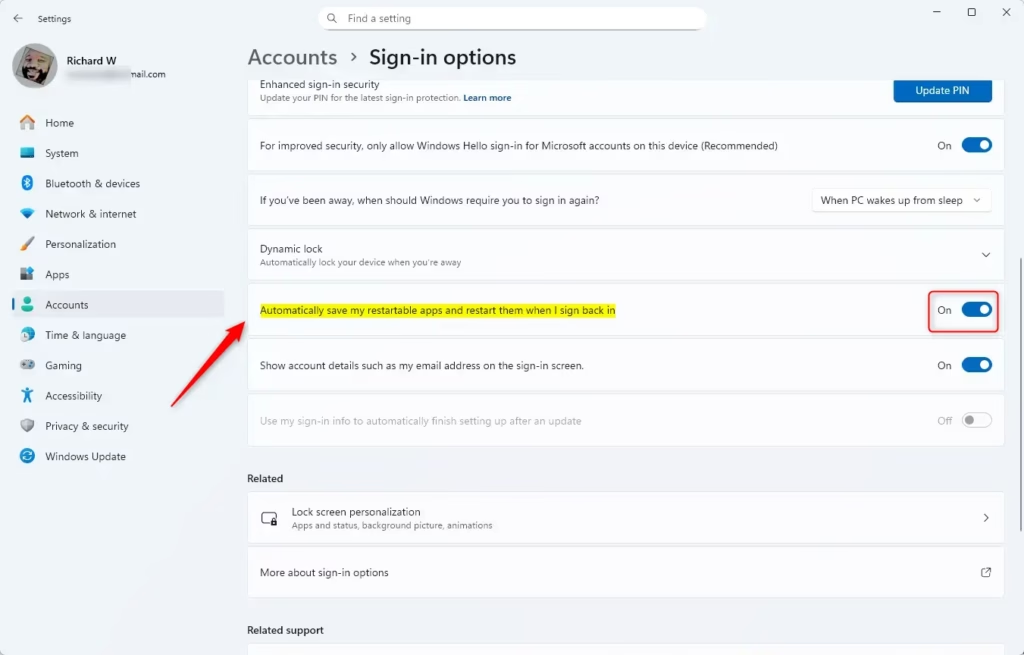
Open Settings Accounts Sign-in options, scroll to Additional settings, and toggle Automatically save my restartable apps and restart them when I sign back in to On. Your apps reopen when you next sign in, with no restart required.
Option 1Turn On or Off Automatically Restart Apps Using Settings
- Press Win+I on your keyboard to open Settings. You should see the Settings window with a list of categories on the left.
- Click Accounts on the left side.
Then click Sign-in options on the right side. The page now shows your sign-in methods, such as PIN, password or security key. - Scroll down to Additional settings and find the option called Automatically save my restartable apps and restart them when I sign back in.
- Switch it On to enable this feature or Off to disable it. The change applies immediately, and you don’t need to restart the PC.
- Close the Settings window when you’re done.
This built-in feature lets your computer remember which programs were open when you shut down or signed out, and reopen them when you sign back in. To change it, open Settings , go to Accounts, then Sign-in options, and switch the restartable apps setting on or off to suit you.
A few things to know:
- Only apps that support being restarted come back. Some programs will still open empty or not reopen at all.
- If you don’t see the option, your PC is probably on an older build of Windows 11. Run Windows Update and check again.
- If the option is greyed out or switches itself back, a work or school policy may be managing the setting. Ask your administrator.
- To undo the change, open the same page and flip the switch back. Nothing else needs to be reset.

Option 2Turn On or Off Automatically Restart Apps Using the Registry (for advanced users)
You can also change this setting using the Registry Editor (a database for system settings). Be careful when making changes here, because a wrong edit can cause problems that are hard to trace. Before you start, create a restore point or export a backup of the registry so you can roll back if something goes wrong. You need an administrator account to make changes. After you edit the setting, sign out and sign back in, or restart the PC, so Windows reads the new value. To undo the change, set the value back to what it was or restore your backup.
To Turn On Automatically Restart Apps:
reg add "HKEY_CURRENT_USER\SOFTWARE\Microsoft\Windows NT\CurrentVersion\Winlogon" /v RestartApps /t REG_DWORD /d 1 /fTo Turn Off Automatically Restart Apps (default setting):
reg add "HKEY_CURRENT_USER\SOFTWARE\Microsoft\Windows NT\CurrentVersion\Winlogon" /v RestartApps /t REG_DWORD /d 0 /fSummary
Automatically restart apps Windows 11 is a helpful feature that gets your workspace back the way you left it after a reboot. You can turn this setting on or off quickly through the main Windows Settings app depending on how you like your computer to start up. It also remembers open File Explorer tabs so you do not lose your place when signing back in.- Easy to change: Use Windows Settings or the Registry Editor to turn this feature on or off.
- Keeps your apps ready: Automatically saves and reopens apps so you can continue working faster.
- File Explorer tabs: Windows 11 now also remembers your open File Explorer tabs when you sign back in.
- Flexible: You can choose to use this feature or not depending on your preference.
- User-friendly: Windows Settings gives you a simple way to find and change this option.
Frequently asked questions
When I login into my laptop some apps automatically open so how to change it?
Open Settings with Win+I, then go to Accounts Sign-in options. Scroll to Additional settings and turn off Automatically save my restartable apps when I sign out and restart them when I sign in. Apps that launch on their own are controlled separately under Settings Apps Startup
(function(){ var DEBUG = false; var MARGIN = "600px 0px"; var t0 = (window.performance && performance.now) ? performance.now() : 0; function log(){ if (DEBUG && window.console) console.log.apply(console, arguments); } function fill(box){ if (box.dataset.grFilled) return; box.dataset.grFilled = '1'; if (DEBUG) { var ms = ((window.performance && performance.now ? performance.now() : 0) - t0) | 0; var name = (box.className.match(/gr-ad--([a-z0-9]+)/) || [])[1] || '?'; log('%c[gr-ads] hydrated "' + name + '" at +' + ms + 'ms after page load', 'color:#0b6bcb;font-weight:600'); box.style.outline = '2px dashed #d97706'; box.style.outlineOffset = '2px'; } // Move the unit out of into the live DOM FIRST, so the // push that follows lands on this and not some other one. var tpl = box.querySelector('template.gr-ad-tpl'); if (tpl) { box.appendChild(tpl.content.cloneNode(true)); tpl.parentNode.removeChild(tpl); } try { (adsbygoogle = window.adsbygoogle || []).push({}); } catch(e) {} } function start(){ var boxes = document.querySelectorAll('.gr-ad[data-gr-lazy]'); if (DEBUG) { var eagerLive = document.querySelectorAll('.gr-ad:not([data-gr-lazy]) ins.adsbygoogle').length; log('%c[gr-ads] ' + eagerLive + ' eager unit(s) live in DOM, ' + boxes.length + ' deferred unit(s) waiting in . Lead margin: ' + MARGIN + (MARGIN === '0px' ? ' (STRICT — units fill exactly as they enter view)' : ' (production — units fill before you reach them)'), 'color:#0b6bcb;font-weight:600'); } if (!boxes.length) return; if (!('IntersectionObserver' in window)) { // No observer support — load them all rather than show blanks. for (var i = 0; i < boxes.length; i++) fill(boxes[i]); return; } var io = new IntersectionObserver(function(entries){ entries.forEach(function(en){ if (en.isIntersecting) { fill(en.target); io.unobserve(en.target); } }); }, { rootMargin: "600px 0px" }); for (var j = 0; j < boxes.length; j++) io.observe(boxes[j]); } if (document.readyState === 'loading') { document.addEventListener('DOMContentLoaded', start); } else { start(); } })();What apps wouldforce 🪟 Windows 11 to turn back on automatically?
Windows reopens the apps you had open when you signed out, as long as the Automatically save my restartable apps setting is on. Apps set to start with Windows, such as OneDrive or Microsoft Teams, can also open at sign-in. To stop those, check Settings Apps Startup
How to restart app upon win 11 turning on?
Turn on the restart setting under Settings Accounts Sign-in options Additional settings. Once it's on, Windows reopens your running apps after each sign-in. Starting with version 25H2, your File Explorer folder tabs are saved as well. Press Windows key + I to open Settings.
How to undo a desktop app automatic sign in?
Press Ctrl + Shift + Esc to open Task Manager, then select the Startup apps tab. Click the app, then click Disable. It stops opening at sign-in. You can turn it back on the same way, and the app itself is not removed.
How to auto login Windows , then log back out to auto load programs?
Auto sign-in skips the password prompt, so anyone who turns on the PC can reach your files. Use it only on a private PC. To set it up, press Windows key + R, type netplwiz, clear Users must enter a user name and password to use this computer, and click OK. Then turn on the restart setting under Sign-in options.
Can 🪟 Windows 11 when booting open previously opened applications?
Yes, but only if the restart setting is on. Windows reopens your apps when you sign in, not on the boot screen itself. Turn it on under Settings Accounts Sign-in options Additional settings. Turn it off there if you want a clean desktop at each login.
Still have a question?
Answered by AI from this guide. Good questions may be added to this page — please don't include personal details.
Did this guide fix your problem?

About the Author
Richard
Tech Writer, IT Professional
Richard is a writer at Geek Rewind who turns complex IT tasks into clear, step-by-step guides. He draws on years of hands-on experience in system administration and enterprise IT operations, focusing on Windows, Linux and WordPress: the problems people actually run into, and the fixes that work. His server and WordPress guides come from systems he runs himself. Richard builds and maintains the platform behind Geek Rewind, from its Ubuntu servers and Nginx configuration to its custom WordPress plugins. Many new tutorials start with readers' questions, and he's always glad to answer them in the comments.
No comments yet — be the first to share your thoughts!