What Breaks When You Turn Off Automatic App Restart in Windows 11 Resume Settings

Turning off automatic app restart in Windows 11 stops your computer from reopening your last used programs when you sign back in. Normally, Windows saves a list of your open apps and launches them again after a restart so you can pick up where you left off. The setting lives under Settings Accounts Sign-in options.
Disabling this feature gives you a clean desktop every time you turn on your PC. That can speed up startup and save memory. The trade-off is that your open browser tabs, document windows, and chat windows will not come back on their own after a shutdown or reboot. Apps with their own recovery feature may still offer to restore unsaved work, but Windows will no longer launch them for you.
Turning off automatic app restart in Windows 11 Resume settings stops Windows from reopening your last apps and windows at sign-in, leaving you with a clean desktop. Nothing vital breaks: updates, files, networking and games keep working. What you lose is automatic recovery, so browser tabs and document windows stay closed until you reopen them yourself.
What Happens When You Turn Off Automatic App Restart?
Turning off this setting changes what happens the moment you sign back in. The sections below cover the changes you will notice first.
1Your Desktop Stays Clean and Empty
Your desktop stays clean and empty because Windows stops reopening your previous work session at sign-in. Instead of a dozen windows appearing at once, you get a blank desktop and an empty taskbar every time you turn on the machine.
This is the quickest way to tell the setting has taken effect. Restart once and check. If you only see the apps you chose to run at startup, the change worked.
2Your Computer Might Boot Up Faster
Your PC may boot up faster, because Windows no longer has to relaunch several heavy programs at once. Less load on the processor, memory, and disk right after sign-in makes the system feel more responsive.
How much faster depends on what you normally keep open. If you usually have a browser, an email client, and a few large documents running, the difference is noticeable. On a PC with a fast SSD and little open, you may barely see it.
3You Have to Open Your Apps Manually
You have to open your apps yourself, because Windows no longer remembers your previous workflow. You will click desktop shortcuts, taskbar icons, or search the Start menu to get back to email or the web.
If you open the same three or four programs every morning, pin them to the taskbar so they are one click away. To do that, right-click an open app’s taskbar icon and choose Pin to taskbar. Most people find this a small price to pay for a cleaner, quicker start.
What Actually “Breaks” (or Stops Working)
Nothing vital breaks when you turn off automatic app restart in the Resume settings. Windows will not crash, and your important programs keep working normally. Updates still install, files still open, the network still connects, and games still run.
What you lose is the convenience of automatic recovery. Windows stops remembering which apps you had open before a restart or shutdown, so your open folders, documents, and browser windows will not reopen when you sign back in. After an update or a power loss, you open your work apps manually, which adds a few steps to your routine.
Here is what changes in practice:
- Automatic Session RestorationWindows no longer remembers which windows, documents, or apps you had open when you shut down. That session information is ignored.
- Update-Triggered App LaunchesAfter a restart that follows an update, Windows can reopen your apps once you sign in. With this setting off, your apps stay closed, even after an update. Windows also has a separate option on the same Sign-in options page, Use my sign-in info to automatically finish setting up my device after an update. It is a different toggle, so turning off app restart does not change it. If apps still come back after an update, check that option too.
- Third-Party App PersistenceSome programs register with Windows so they can be restarted automatically. With the setting off, these apps stay closed until you open them yourself. On current builds, only apps that register for restart are affected. An app that never registers is not reopened by Windows in the first place.
- Unsaved WorkWindows does not save your documents for you. If an app has its own recovery feature, it may offer to restore a draft. Do not rely on that, and save your work before you shut down.
None of these items is a critical system failure. Your hardware, security settings, and core functions are unaffected.
How to Change Your Sign-In and Restart Settings in 🪟 Windows 11
You change this setting in the main Settings app, and no advanced skills are needed. The steps are the same on Windows 11 Home and Pro. On current Windows 11 the toggle is under Accounts Sign-in options Additional settings. You do not need to restart afterward. The new behavior applies the next time you sign out, restart, or shut down.
Follow these steps to adjust your sign-in options:
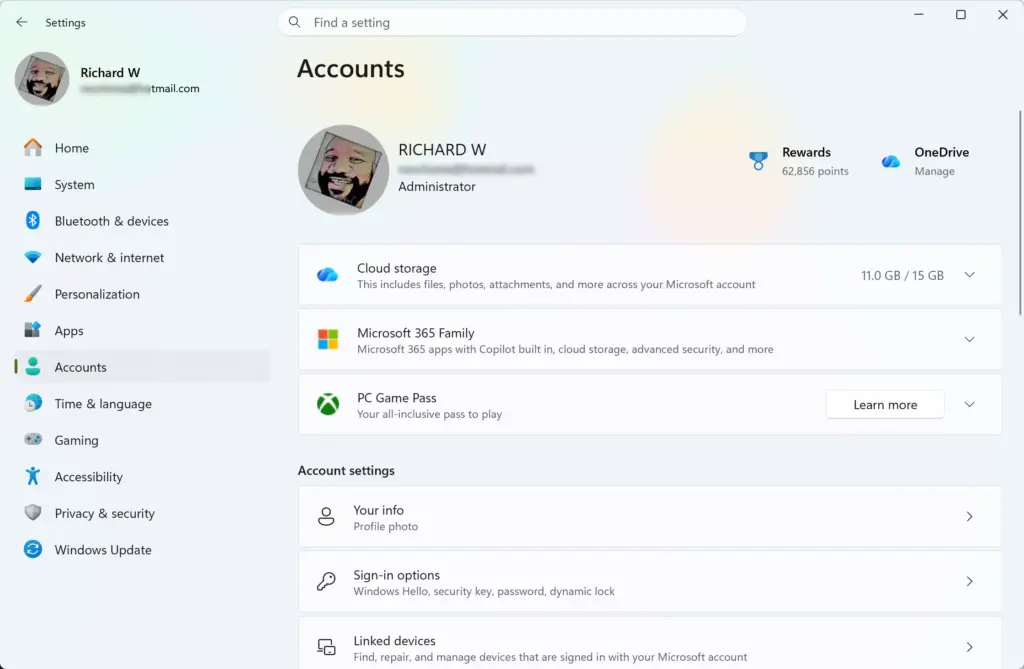
- Click the Start button on your taskbar. The Start menu opens.

- Click the Settings app icon, which looks like a small gear. You can also press Win+I to open Settings directly. The Settings window appears.

- In the Settings window, click Accounts in the menu on the left.
- Scroll down the list on the right and click Sign-in options. The page shows your sign-in methods, such as PIN, password, and security key.
- Scroll down to the section labeled Additional settings.
- Find the setting called Automatically save my restartable apps and restart them when I sign back in. The wording can vary slightly between Windows 11 builds.
- Set the toggle to Off. The switch moves to the left and the label reads Off.
That’s it. Windows now stops saving your open app state when you sign out, restart, or shut down, and your future reboots will start clean.
On the same page, look at Use my sign-in info to automatically finish setting up my device after an update. This option is separate from the one you just changed. If you want a fully clean start after updates, set it to Off as well.
If you only want a clean start once, you do not have to change the setting. Choosing Shut down instead of Restart already avoids reopening apps in some cases. A full shutdown does the same: hold Shift while you click Shut down, or run shutdown /s /t 0 from a command prompt. The result can vary by build and by app, so the toggle is the dependable fix.
Unique Angle: How Background Services and Startup Apps React Differently
Background services and startup apps behave differently from restartable apps. Many people expect that no apps will open on their own after they turn this setting off. But cloud storage sync tools, chat applications, and antivirus software may still appear when you turn on your PC. That happens because they follow separate startup rules.
Those programs are configured as Startup Apps, not restartable session apps. Windows treats the two very differently:
- Restartable AppsThese are the apps you had open while working, such as a web browser, a text file, or a calculator. Windows temporarily remembered them at shutdown. Turning off the Resume setting stops these from coming back.
- Startup AppsThese are programs that you, or their installers, allowed to launch every time Windows starts, no matter what you had open before.
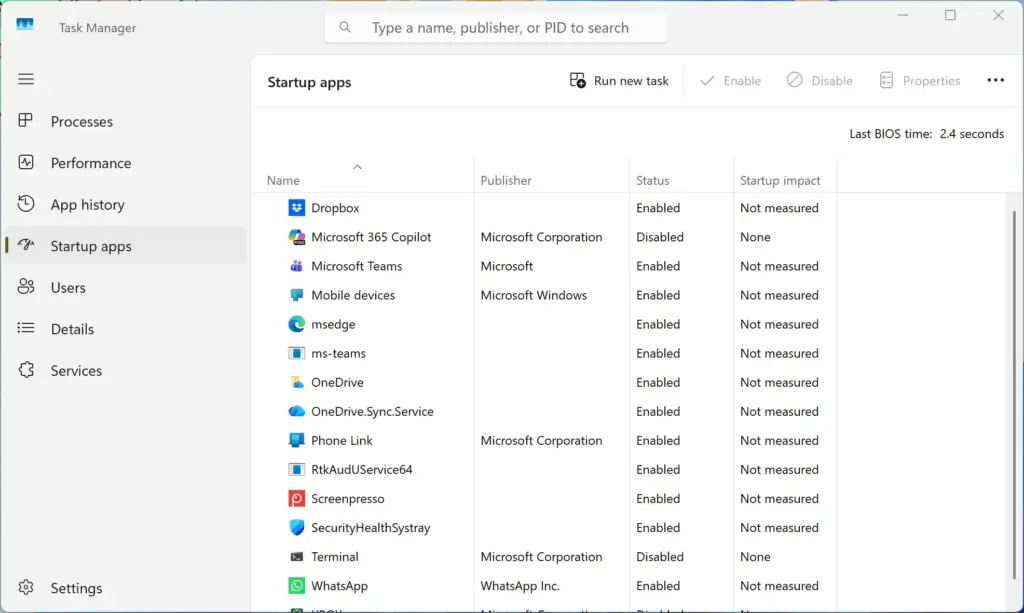
To stop startup apps from opening, you need to manage your startup list separately. One way is Task Manager. Press Ctrl+Shift+Esc to open Task Manager, click Startup apps in the left sidebar, select any program you do not want to run automatically, and click Disable. You can also use the Settings app, as shown below.
- Press Win+I to open the Settings app.
- Click Apps in the menu on the left.
- Click Startup in the list on the right. A list of apps that can start with Windows appears. Each one has a toggle and a startup impact label such as Low, Medium, or High.
- Look through the list and find any app you do not want running right away.
- Click the toggle next to that app to change it from On to Off. The label next to the switch changes to Off.
That’s it. The app you switched off no longer launches when Windows starts, and it stays installed.
Turning off the restartable apps toggle is a separate step, and you do it under Accounts and then Sign-in options, as described earlier. By managing both the Resume setting and the Startup list, you control what your computer does when it turns on.
Unique Angle: The Hidden Impact on Temporary Files and Browser Sessions
Browsers handle their sessions differently from other apps, because they have their own recovery tools for bringing back tabs. With the Windows restart setting off, your browser will not be relaunched for you after a restart. What it does when you open it yourself depends on its own settings.
For browsers like Google Chrome and Mozilla Firefox, Windows no longer reopens the browser at sign-in. If your device loses power or restarts for an update, you may need to reopen your websites yourself. Whether the tabs come back depends on the browser’s own startup option.
- No More Forced Browser RestorationYour browser will not open by itself when you sign in to Windows.
- Manual Tab RecoveryWhen you open your browser later, it may show a blank page or your homepage instead of your old tabs. Press Ctrl+Shift+T to reopen recently closed tabs or windows. You can also set the browser to continue where you left off in its own startup settings.
- Slightly Less Shutdown WorkWindows no longer has to record which apps were open, so there is a little less activity at shutdown. The difference is small. Do not expect noticeable gains in hardware life from this setting.
Turning off this feature does not break browsing. It gives you a choice about when your browser loads and what it opens.
Summary
Turning off automatic app restart in Windows 11 stops your computer from reopening your previous apps when you sign back in, and it does not weaken your system security. Nothing crucial breaks, your desktop stays clean, and your boot times may improve. If you miss the old behavior, turn the toggle back on under Accounts and Sign-in options.
Have a question about this guide?
Answered by AI from this guide. Good questions may be added to this page — please don't include personal details.
Did this guide fix your problem?

About the Author
Richard
Tech Writer, IT Professional
Richard is a writer at Geek Rewind who turns complex IT tasks into clear, step-by-step guides. He draws on years of hands-on experience in system administration and enterprise IT operations, focusing on Windows, Linux and WordPress: the problems people actually run into, and the fixes that work. His server and WordPress guides come from systems he runs himself. Richard builds and maintains the platform behind Geek Rewind, from its Ubuntu servers and Nginx configuration to its custom WordPress plugins. Many new tutorials start with readers' questions, and he's always glad to answer them in the comments.
No comments yet — be the first to share your thoughts!