What to Do When Windows 11 Resume Settings Fail to Reopen Your Apps After a Reboot

- 32 steps
- Needs administrator rights
- Includes a restart or sign-out
Windows 11 resume settings decide whether your open apps come back on their own after a restart. When the feature fails, you get an empty desktop instead of your previous workspace. The cause is usually a switched-off sign-in setting, a broken app, a stuck desktop shell, or Fast Startup holding on to an old session.
The fixes below use built-in Windows tools and take a few minutes each. Work through them in order and test with a restart after each one. Windows only reopens apps that support restarting. Some programs never reopen, whatever your settings are, so check a few different apps before you decide the feature is broken.
When Windows 11 fails to reopen your apps after a restart, first check that the sign-in option to finish setup and reopen apps is turned on in Settings Accounts Sign-in options Additional settings. If it’s already on, restart Windows Explorer by pressing Ctrl+Shift+Esc, finding Windows Explorer in Task Manager, and clicking Restart. Then restart your computer to test.
Checking Your Core Sign-In Options and Privacy Settings
Start with your sign-in options. After a restart, Windows uses your account sign-in to finish setting up the device, and it can reopen the apps you had running. If that setting is off, Windows does not remember your windows and starts with a blank desktop every time.
Check the setting like this:
- Click the Start button on your taskbar.
- Select Settings, the small gear icon. The Settings window opens.
- Click Accounts in the left-hand menu.
- Scroll down and click Sign-in options.
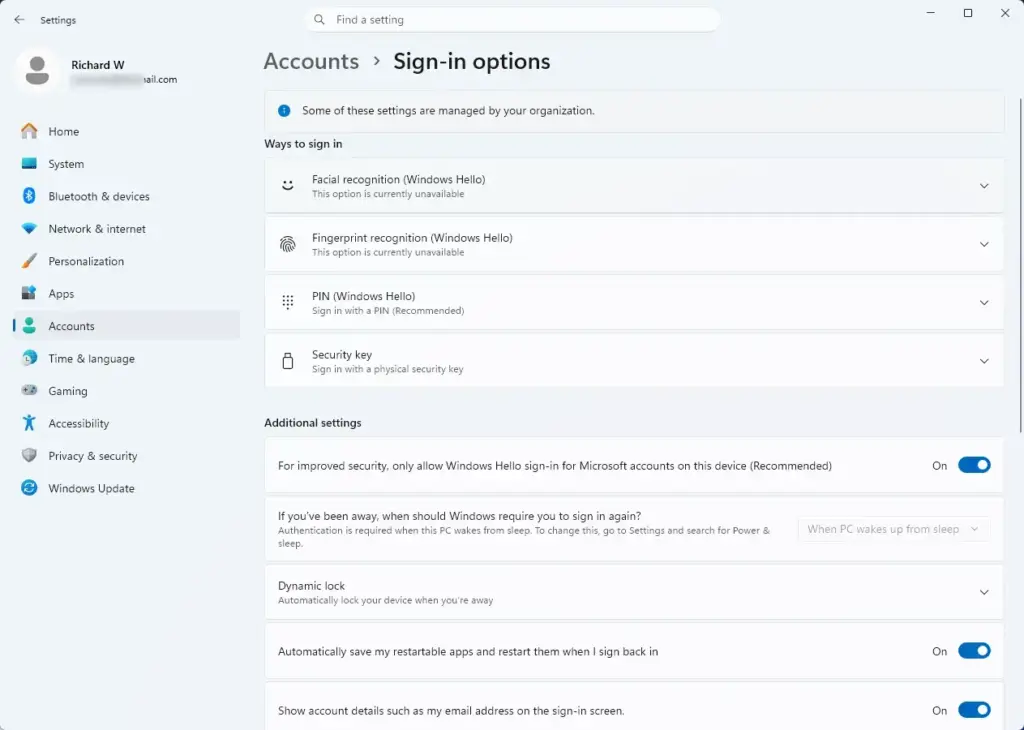
Settings › Accounts › Sign-in options - Scroll to the Additional settings area. Look for the option that uses your sign-in info to finish setting up your device and reopen your apps after an update or restart. On some builds there is also a switch to automatically save your restartable apps and restart them when you sign back in. The exact wording differs between Windows 11 versions.
- Turn the switch On. If it is already on, leave it as it is.
Restart your computer and see whether your apps reopen. If the switch was off, this is often the whole fix. If the option is missing or greyed out, your PC may be managed by a work or school policy. In that case your administrator controls it. If nothing changes, move on to the next section.
Fixing and Resetting Individual Apps That Fail to Open
If most of your apps reopen but one stays closed, the problem is that app, not Windows 11. Windows has built-in repair and reset tools for it, so you do not need to reinstall anything yet.
To repair an app that fails to reopen:
- Click the Start button on your taskbar.
- Select Settings.
- Click Apps in the left menu.
- Click Installed apps. You now see a list of the programs on your computer.
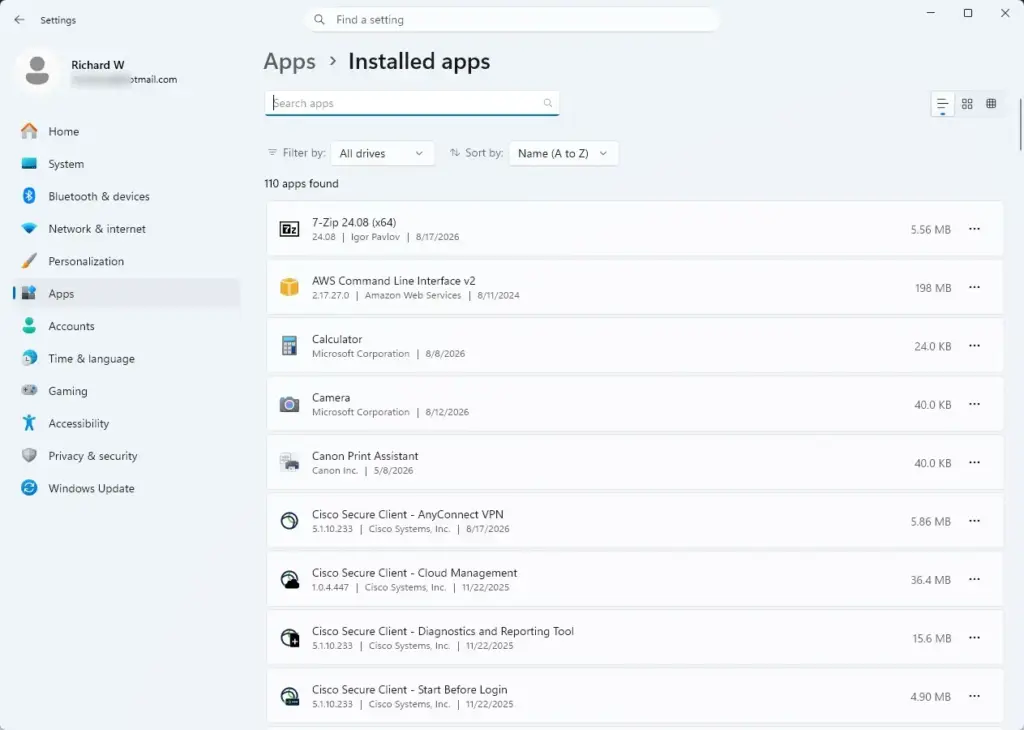
Settings › Apps › Installed apps - Scroll the list, or use the search box, to find the app that is not reopening.
- Click the More button, the three dots next to the app name.
- Select Advanced options. If you only see Modify and Uninstall, the app has no built-in repair page. Use the Control Panel method below instead.
- Scroll down and click Repair. Windows tries to fix the app without touching your personal data or saved files. A checkmark appears beside the button when it finishes.
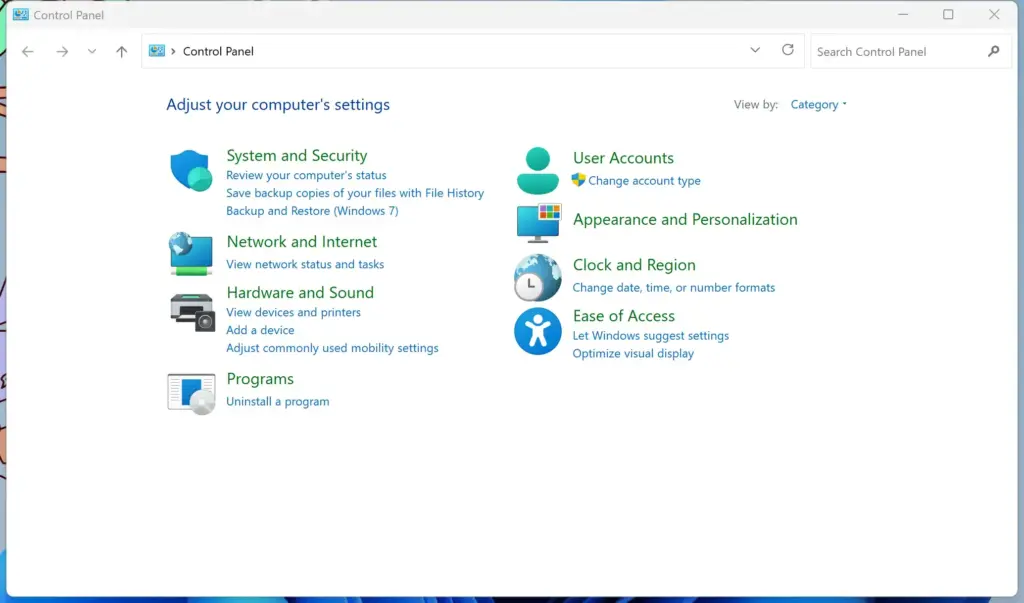
For older desktop software, you can use the Control Panel instead. Type control panel into the search box on your taskbar and select Control Panel. Click Programs and Features and select your program. Then click Uninstall or Change, which opens the installer’s repair options if the program offers them. Not every program has a Change button.
Resolving Start Menu and Taskbar Glitches That Block Restarts
A stuck desktop interface can stop Windows from saving your open apps before a reboot. If your taskbar freezes or Settings crashes, restart the main Windows desktop process. Doing so clears temporary glitches and lets Windows save your workspace properly.

The process is called Windows Explorer. It controls your taskbar, Start menu, and desktop background. Restarting it does not close your other apps or lose your files.
To restart Windows Explorer:
- Press Ctrl, Shift, and Esc at the same time. Task Manager opens.
- If Task Manager opens in a small view, click More details at the bottom to see the full window.

Task Manager - Click the Processes tab on the left-hand side.
- Scroll down the list until you find Windows Explorer. It has a yellow folder icon next to it.
- Click Windows Explorer to select it.
- Click the Restart task button in the top right corner of the Task Manager window. You can also right-click the entry and choose Restart.
Your screen and taskbar disappear for a second and then come back. That means the desktop has refreshed. Once the taskbar returns, restart your computer normally and see whether your apps reopen.

Disabling Fast Startup to Ensure Clean Reboots
On Windows 11 version 22H2 and later, turning Fast Startup off makes your computer clear its memory fully at shutdown. This fixes the problem for many people. Fast Startup applies to Shut down, not Restart, so it matters most if you notice the problem after shutting down and powering back on. The steps are the same on Home and Pro.
Follow these steps. You need administrator privileges:
- Click the Start button on your taskbar.
- Type control panel into the search box and select the Control Panel app.
- In the top right corner of the Control Panel window, change View by to Large icons or Small icons.
- Click Power Options.
- In the left-hand menu, click Choose what the power buttons do.
- Click Change settings that are currently unavailable near the top. Windows may ask for an administrator password or confirmation. Once you confirm, the greyed-out options at the bottom become available.
- At the bottom of the window, find Turn on fast startup (recommended) and uncheck the box next to it. If the option is not listed, hibernation is probably turned off on your PC, and Fast Startup is not active.
- Click Save changes.
Restart your computer and give Windows a moment to boot cleanly. Then check whether your apps open automatically. To undo the change, follow the same steps and tick the box again. The first boot after the change can feel slightly slower.
Checking User Account Control and Startup Folder Interferences
User Account Control (UAC) protects your computer from unauthorized changes, and it can also block apps from launching on their own after a reboot. If an app needs administrator permission every time it opens, Windows will not start it silently at sign-in. You will usually see this with third-party desktop tools that never reopen after a restart.
Task Manager shows which apps are allowed to start with Windows:
- Press Ctrl + Shift + Esc to open Task Manager.
- Click Startup apps on the left-hand side, the icon that looks like a speedometer.
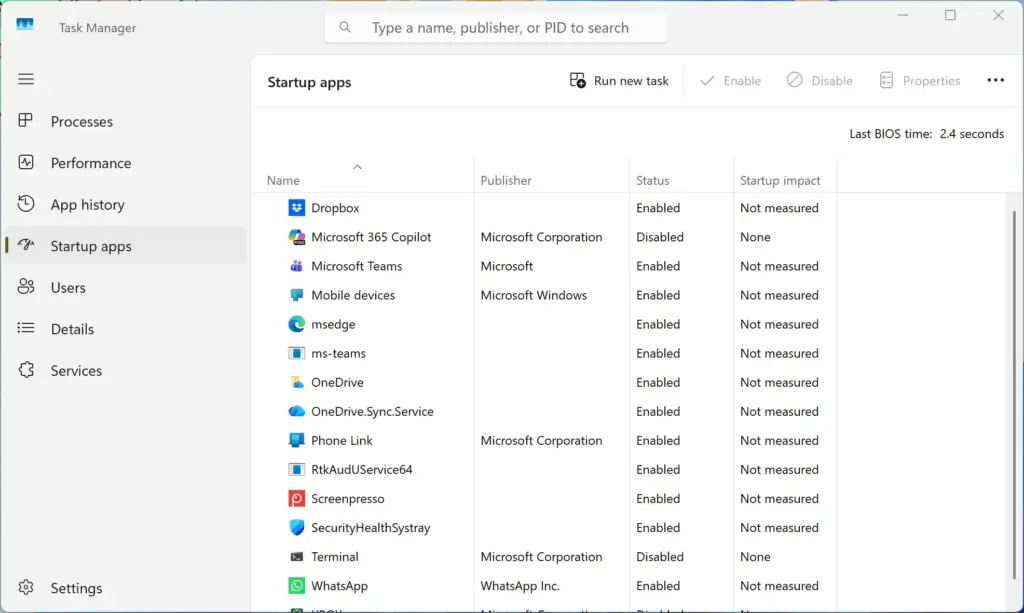
Task Manager › Startup - Review the list of apps set to start when your computer turns on.
- Check the Status column for the app that fails to reopen. It should say Enabled. The Startup impact column only tells you how much the app slows down boot. It does not control whether the app starts.
If the app shows Disabled, Windows will not launch it at startup, and the resume feature cannot help that program. Click the app and select Enable in the top right corner. If the app is not in the list at all, it does not register itself to start with Windows. Check the app’s own settings for a “start with Windows” option. If the app needs administrator rights to run, you may have to start it by hand after each reboot.
Summary
Broken resume settings can slow down your day, but the fix is usually simple. Check your sign-in options, repair the app that misbehaves, restart the desktop shell, and turn off Fast Startup. Also confirm that the app is enabled in Startup apps. Test with a restart after each step so you know which change solved it, and your workspace should be waiting for you after the next reboot.
Have a question about this guide?
Answered by AI from this guide. Good questions may be added to this page — please don't include personal details.
Did this guide fix your problem?

About the Author
Richard
Tech Writer, IT Professional
Richard is a writer at Geek Rewind who turns complex IT tasks into clear, step-by-step guides. He draws on years of hands-on experience in system administration and enterprise IT operations, focusing on Windows, Linux and WordPress: the problems people actually run into, and the fixes that work. His server and WordPress guides come from systems he runs himself. Richard builds and maintains the platform behind Geek Rewind, from its Ubuntu servers and Nginx configuration to its custom WordPress plugins. Many new tutorials start with readers' questions, and he's always glad to answer them in the comments.
No comments yet — be the first to share your thoughts!