How to Configure Automatic App Resume After Sign-In in Windows 11 Resume Settings

Automatic app resume in Windows 11 reopens the apps you had running before you signed out, restarted, or shut down, as soon as you sign back in. It puts your desktop back where you left it, so you don’t have to open each app by hand.
You turn this on in Settings Accounts Sign-in options, under the Additional settings section. One toggle there tells Windows to save and restore your open apps every time you sign in. It works on both Home and Pro editions, and you don’t need to restart to turn it on.
Open Settings Accounts Sign-in options, scroll to Additional settings, and turn on “Automatically save my restartable apps and restart them when I sign back in.” Windows then reopens supported apps such as Microsoft Edge, Word, and File Explorer windows after you sign out, restart, or shut down. The toggle needs Windows 11 version 22H2 or later, and no restart is required to enable it.
What Automatic App Resume Does in 🪟 Windows 11
When this setting is on, Windows keeps a record of which apps were open when you signed out, restarted, or shut down your PC. The next time you sign in, Windows relaunches those apps instead of leaving you at a blank desktop.
You don’t have to reopen your browser, email client, or document editor one by one. Windows does it as part of the sign-in process.
Microsoft Edge, Word, File Explorer windows, and many Microsoft Store apps support it. Older desktop apps that don’t register with the Restart Manager won’t reopen automatically, even with the setting turned on. That’s a limitation of the app, not something you can fix from Settings.
Where to Find the Resume Setting
This setting lives inside sign-in options, not in the general Apps section of Settings. The location catches people off guard because the name suggests it should be elsewhere.
Check your Windows version first. The toggle isn’t in the original Windows 11 release (version 21H2, build 22000). You need Windows 11 version 22H2 (build 22621) or later. Versions 24H2 (build 26100) and 25H2 are the current releases. To see what you’re running, press Win+R, type winver, and press Enter. The dialog that opens shows your version and OS build. If you’re on something older, run Settings Windows Update and install the pending feature update before you continue.
Know there are two similar toggles. The Additional settings section can hold two separate switches, and they do different jobs:
- Automatically save my restartable apps and restart them when I sign back in is the one this tutorial covers. It reopens your supported apps after you sign out, restart, or shut down.
- Use my sign-in info to automatically finish setting up my device and reopen my apps after an update or restart is a separate toggle. It controls whether Windows uses your sign-in info to finish setup and reopen apps after an update or restart. Turning one on or off doesn’t change the other, so check both if apps aren’t coming back after updates.
Here’s how to get to the page:
- Open Settings by pressing Win+I. You’ll see the main Settings home page.
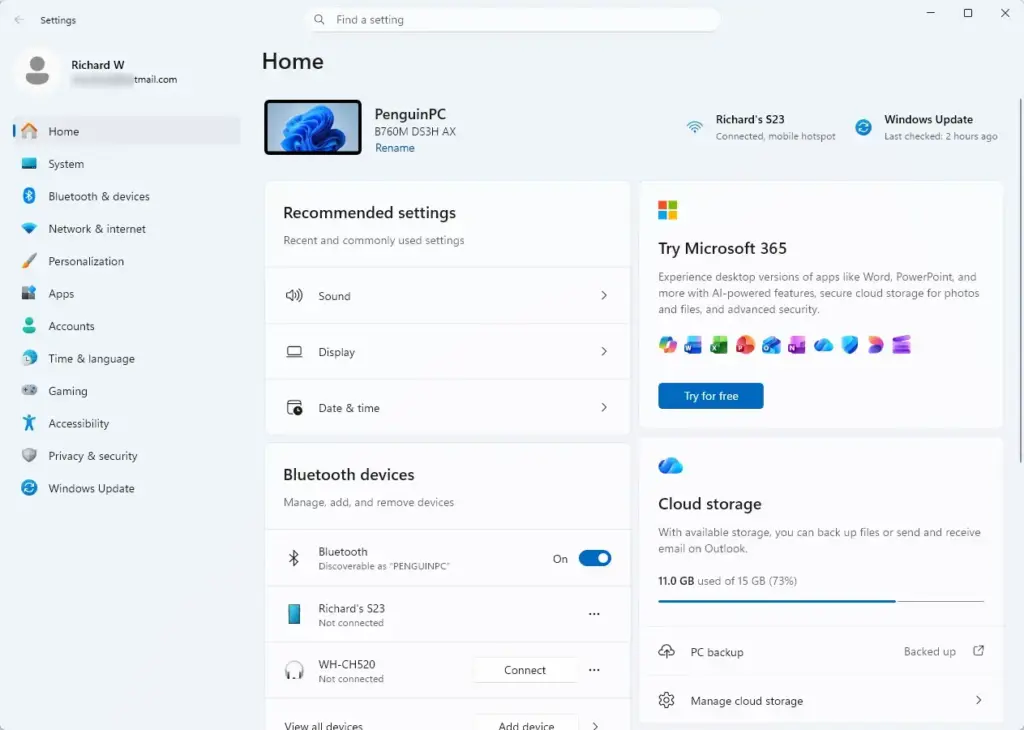
Settings › Home - Select Accounts from the left-hand navigation list. The account settings page opens, with options like Your info, Email & accounts, and Sign-in options.
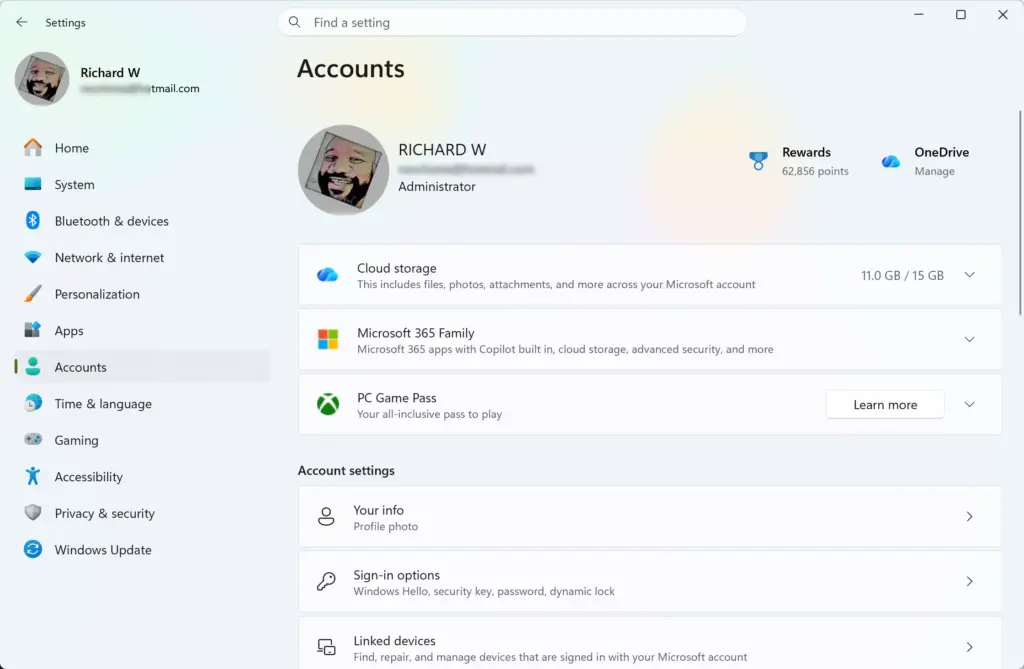
Settings › Accounts - Select Sign-in options. The page lists Windows Hello, PIN, security key, and password options, with an Additional settings section further down.
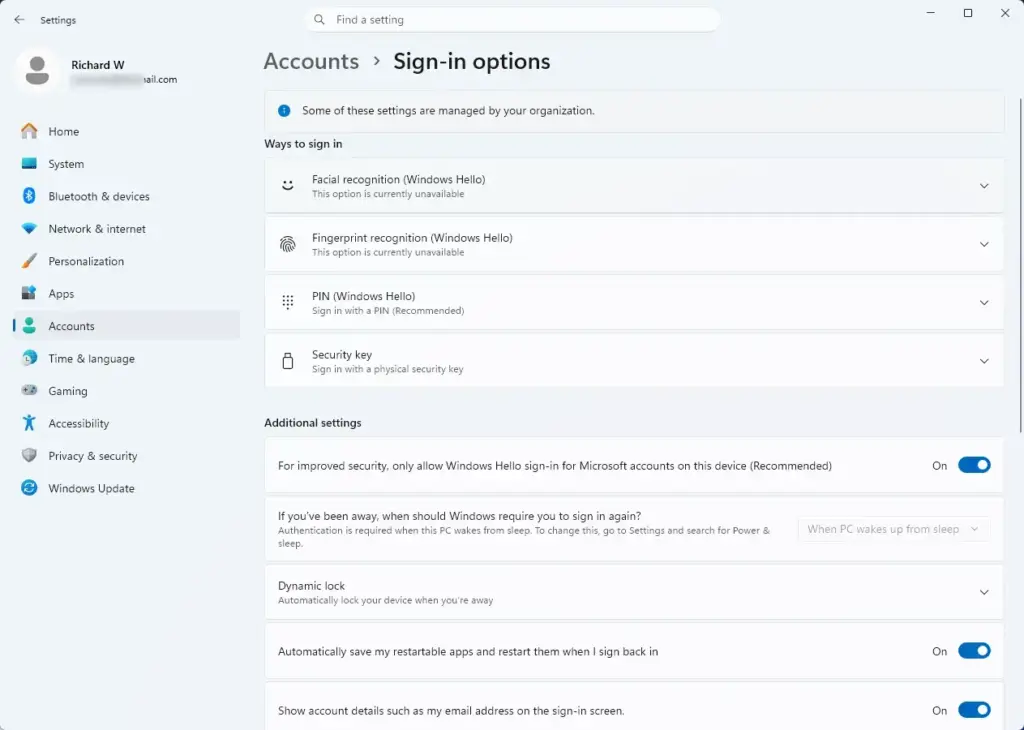
Settings › Accounts › Sign-in options - Scroll down to Additional settings. You’ll see the toggle for automatically saving and restarting your apps when you sign back in, and possibly the separate sign-in info toggle described above.
How to Turn On Automatic App Resume
This toggle doesn’t require administrator privileges on a personal device, since it only affects your own user profile.
- Go to Settings Accounts Sign-in options, following the steps above.
Settings › Accounts › Sign-in options - Scroll to the Additional settings section near the bottom of the page.
- Turn on the toggle labeled Automatically save my restartable apps and restart them when I sign back in. Once it’s on, the switch turns blue (or your accent color) and shows as enabled.
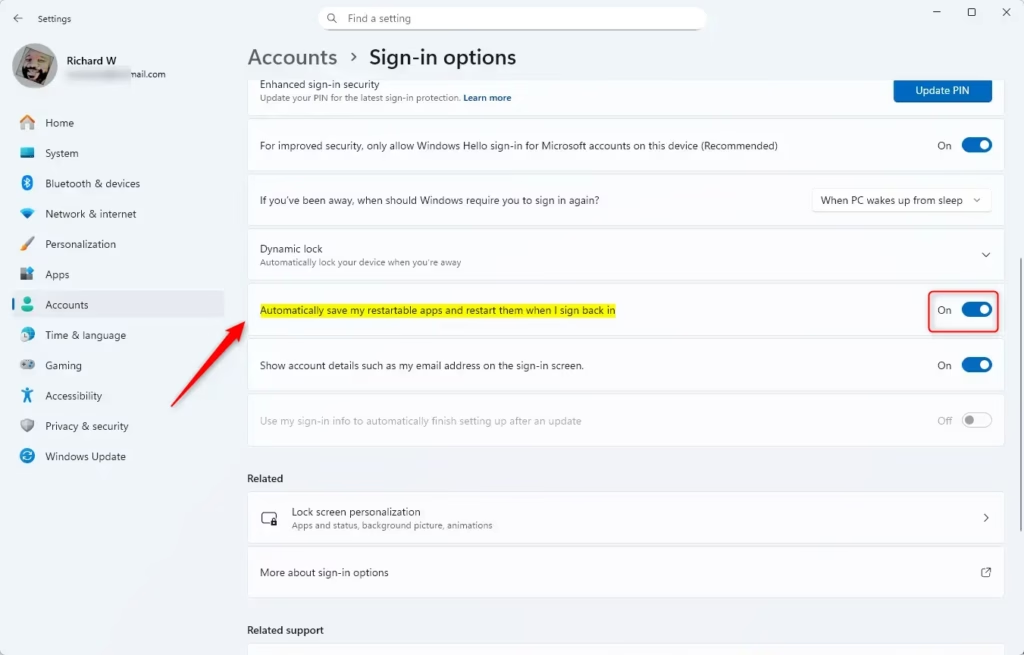
- Sign out or restart your PC to test it. Open a couple of supported apps first. Microsoft Edge with a few tabs is a good test case. Then sign out and sign back in. Windows should relaunch those apps within a few seconds of reaching your desktop.
You won’t see a confirmation dialog or progress bar while Windows reopens apps. It happens quietly in the background right after your desktop loads. If you have several apps set to resume, give it 10–15 seconds before assuming it didn’t work.
If you also want apps to reopen after Windows installs an update and restarts, check the separate toggle Use my sign-in info to automatically finish setting up my device and reopen my apps after an update or restart in the same section. Turning on the restartable-apps toggle doesn’t turn that one on for you.
How to Turn Off Automatic App Resume
If the feature reopens apps you don’t want cluttering your desktop every time you sign in, you can turn it off the same way you turned it on.
- Open Settings Accounts Sign-in options
- Scroll to Additional settings.
- Turn off the toggle labeled Automatically save my restartable apps and restart them when I sign back in. The switch turns grey, and Windows stops saving your open-app state going forward.
Turning it off doesn’t close any apps that are currently open. It just stops Windows from reopening them on your next sign-in. If you sign out right away, apps that were queued to resume may still reopen once more before the change fully takes effect.
If apps still reopen after updates once this toggle is off, that’s likely the separate Use my sign-in info to automatically finish setting up my device and reopen my apps after an update or restart toggle. Switch it off in the same section if you want to stop that too. To undo either change, flip the toggle back on.
Why the Setting Might Be Greyed Out or Missing
Two things commonly cause this, and neither one is something you can fix by clicking around Settings:
- Your Windows 11 version is too old. The toggle isn’t in the original Windows 11 release. Run winver to check your version. You need 22H2 (build 22621) or later, and 24H2 and 25H2 are current. If you’re behind, open Settings Windows Update , install any pending feature updates, then look again.
- Your device is managed by an organization. On a work or school PC, IT administrators can lock sign-in behavior through policy. That greys out the toggle and may show text saying some settings are managed by your organization. If so, you’ll need your IT department to change it. There’s no local workaround.
Stick to the Settings app instead of hunting through the registry. A wrong edit there risks breaking sign-in behavior entirely, which is much harder to undo than flipping a toggle back.
Automatic App Resume vs Startup Apps
It’s easy to confuse this with the Startup apps list, but they do different jobs.
Automatic app resume (Sign-in options) restores whatever was open when you last signed out: the specific documents, tabs, and windows from your last session. Startup apps, found under Settings Apps Startup, launches a fixed list of apps every time you sign in, regardless of what you had open before. It launches them fresh rather than restoring previous windows or tabs.
If you want the same handful of apps to open every single sign-in no matter what, use Startup apps. If you want Windows to pick up where you left off, use the sign-in resume toggle covered here. You can have both turned on at once without a conflict. Startup apps just launch alongside whatever resumes from your last session.
Troubleshooting: Apps Not Resuming After Sign-In
If you've turned the toggle on and apps still don't come back, work through these in order:
- Confirm you signed out or restarted, not just locked the screen. Locking your PC with Windows key + L doesn't trigger the save-and-resume behavior. Only a full sign-out, restart, or shutdown does.
- Check that you're on a supported Windows 11 version. Run winver and make sure you're on 22H2 (build 22621) or later. If the toggle isn't on the Sign-in options page at all, update Windows first.
- Check which toggle you turned on. If apps only fail to return after a Windows update, look at Use my sign-in info to automatically finish setting up my device and reopen my apps after an update or restart in the same Additional settings section. It's separate from the restartable-apps toggle.
- Check whether the app supports resume. Some third-party apps, especially older ones without a modern installer, don't register with Windows' session-save feature. These will never reopen automatically, regardless of this setting.
- Rule out Fast Startup interference. Fast Startup can change how Windows treats shutdown versus restart under the hood. If resume behaves inconsistently after a shutdown specifically, try restarting instead of shutting down to see if that's more reliable.
- Re-toggle the setting. Turn it off, sign out and back in once, then turn it back on. This can clear out stuck session data Windows may have saved incorrectly.
What to Do Next
Once this is working the way you want, check your Startup apps list too, so you're not double-launching the same programs from both sign-in resume and startup. If you're troubleshooting unrelated restart or shutdown oddities on the same PC, rule out Fast Startup and power settings before assuming the resume feature is at fault. The two interact more than people expect.
Have a question about this guide?
Answered by AI from this guide. Good questions may be added to this page — please don't include personal details.
Did this guide fix your problem?

About the Author
Richard
Tech Writer, IT Professional
Richard is a writer at Geek Rewind who turns complex IT tasks into clear, step-by-step guides. He draws on years of hands-on experience in system administration and enterprise IT operations, focusing on Windows, Linux and WordPress: the problems people actually run into, and the fixes that work. His server and WordPress guides come from systems he runs himself. Richard builds and maintains the platform behind Geek Rewind, from its Ubuntu servers and Nginx configuration to its custom WordPress plugins. Many new tutorials start with readers' questions, and he's always glad to answer them in the comments.
No comments yet — be the first to share your thoughts!