How to Download and Install Microsoft PC Assist app in Windows 11

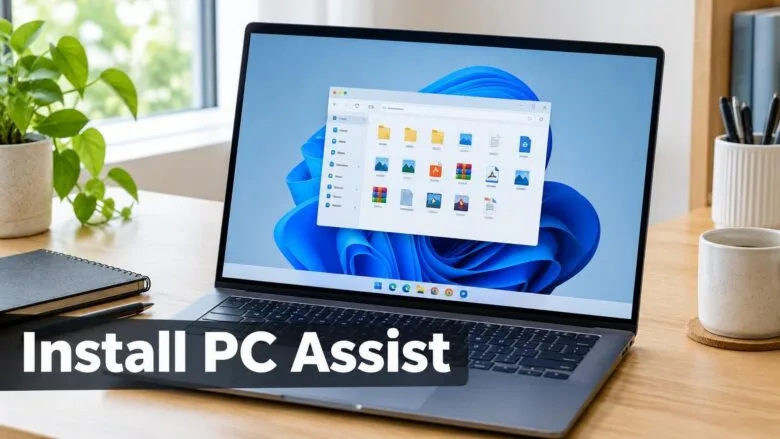
Microsoft PC Assist is a free app from Microsoft that uses AI (artificial intelligence, software that answers questions and suggests actions) to help you find and fix problems on your Windows PC. It finds problems, guides you through fixes, and helps with everyday tasks. This tutorial shows you how to download and install it in Windows 11.
Select the Download button on the Microsoft PC Assist page, save PCAssistInstaller_en_v0.4.4.0.exe, then run it and follow the on-screen steps. Watch the Optional Microsoft Bing setting: if you turn it on, the installer adds the Microsoft Bing HomePage extension to every browser on your PC. Once installed, open the Start menu and select Microsoft PC Assist.
Once it installs, look for Microsoft PC Assist in the Start menu.
PC Assist – Your AI-Powered PC Assistant | Microsoft
Here’s how to install it:
- Select the Download button below. It opens the Microsoft PC Assist webpage and downloads PC Assist.
Download - Save the PCAssistInstaller_en_v0.4.4.0.exe file to your desktop or any folder you prefer.
- Run the PCAssistInstaller_en_v0.4.4.0.exe file to start the installation.
- Follow the on-screen steps to install Microsoft PC Assist. The installer includes an Optional Microsoft Bing setting. If you turn it on, the installer also adds the Microsoft Bing HomePage extension to all the web browsers installed on your PC.
- Explore the sections of the PC Assist app:
- Assist – Gets you help with PC tasks and issues. The troubleshooters are links that open in the Get Help app, if allowed.
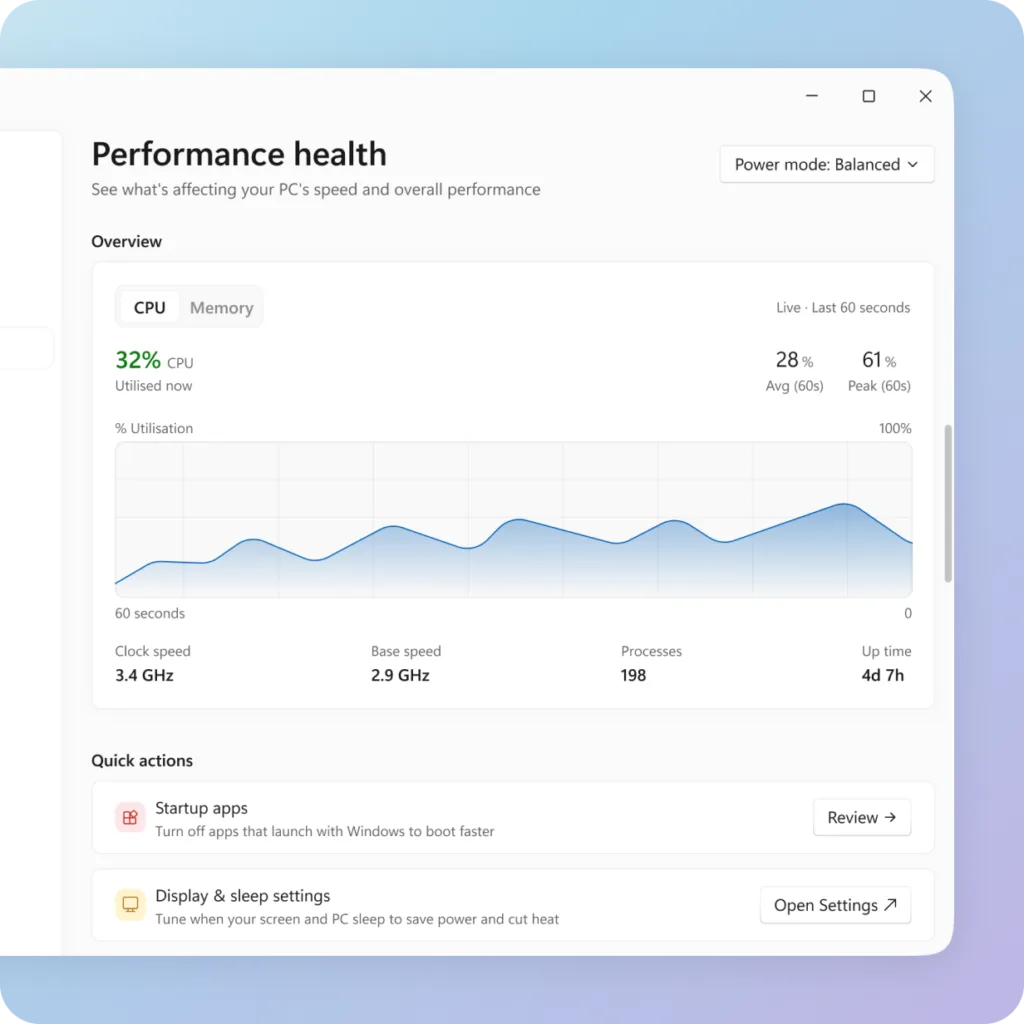
- Performance health – Shows what affects your PC’s performance and how to keep it running smoothly.
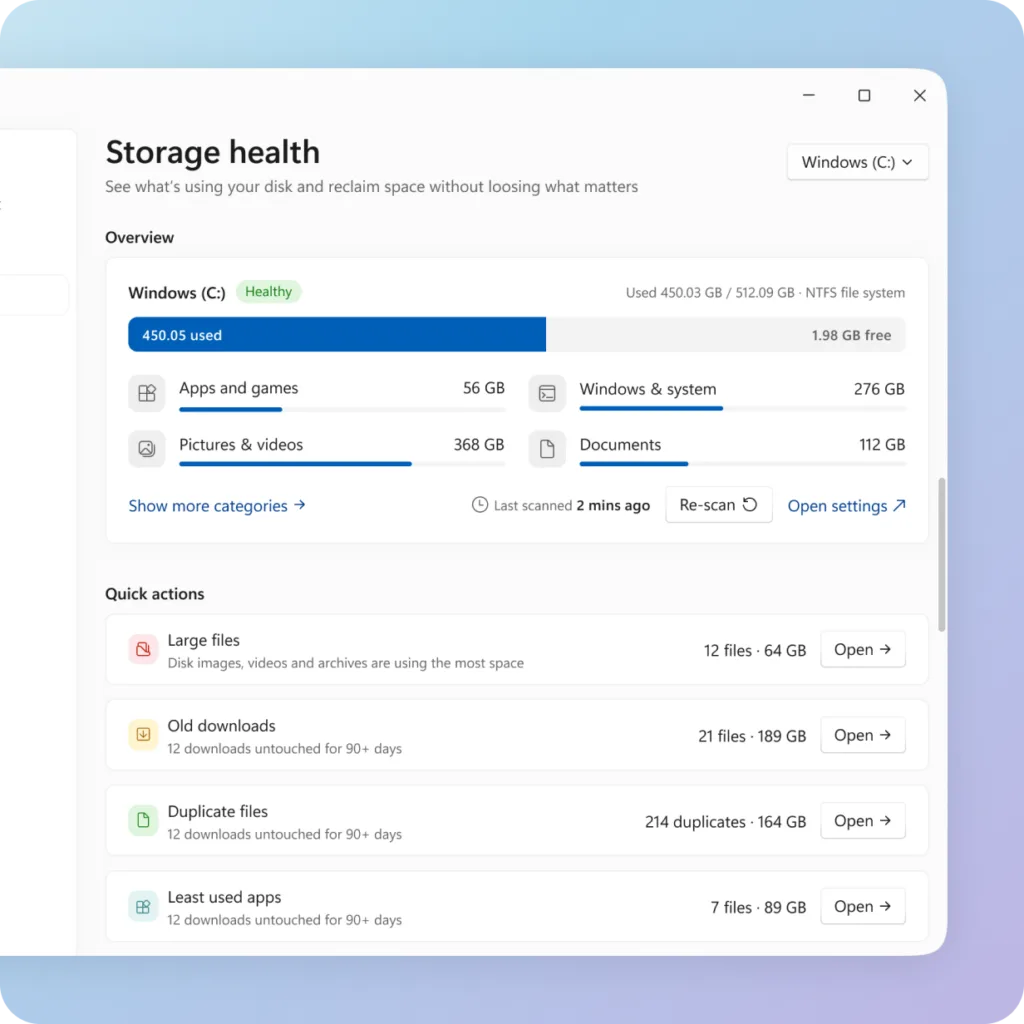
- Storage health – Shows your available space, storage condition and potential drive issues.
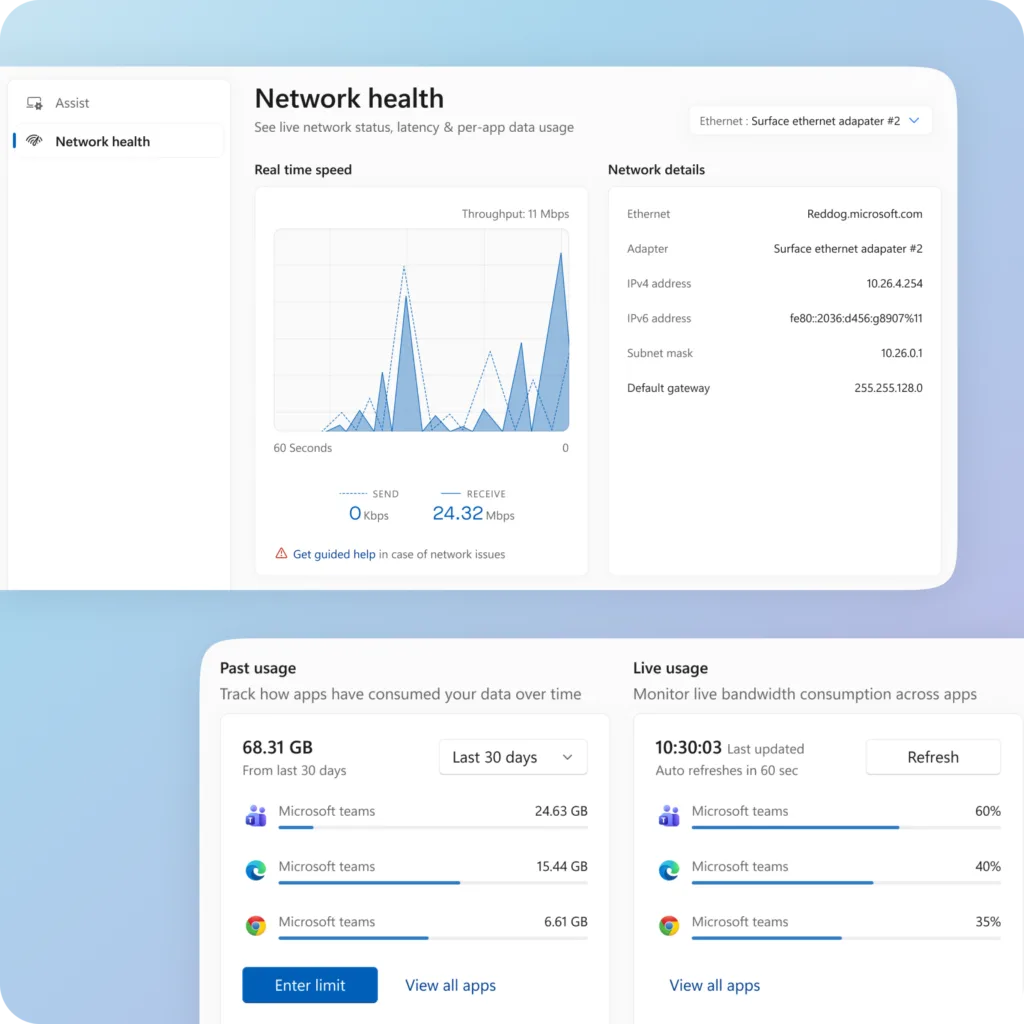
- Network health – Shows live network status, latency and per-app data usage in real time. You can also set data limits here.
- Utility Tools – Gives you access to everyday tools from Microsoft Bing.
- About – Lets you select a display language for PC Assist, shows the current version of PC Assist and links to legal information.
- Open the Start menu and select Microsoft PC Assist to launch the app.
What to do next
If you have a specific problem to fix, start with the Assist section, which is built for fixing one problem at a time.
Have a question about this guide?
Answered by AI from this guide. Good questions may be added to this page — please don't include personal details.
Did this guide fix your problem?

About the Author
Richard
Tech Writer, IT Professional
Richard is a writer at Geek Rewind who turns complex IT tasks into clear, step-by-step guides. He draws on years of hands-on experience in system administration and enterprise IT operations, focusing on Windows, Linux and WordPress: the problems people actually run into, and the fixes that work. His server and WordPress guides come from systems he runs himself. Richard builds and maintains the platform behind Geek Rewind, from its Ubuntu servers and Nginx configuration to its custom WordPress plugins. Many new tutorials start with readers' questions, and he's always glad to answer them in the comments.
No comments yet — be the first to share your thoughts!