How to Download and Install Themes in Windows 11

Give your Windows 11 desktop a fresh look by downloading and applying a custom theme. This guide covers where themes live, how to get new ones from the Microsoft Store, how to apply and remove them, and how to tweak individual parts afterward.
Open Settings Personalization Themes, then click Browse themes to open the Microsoft Store. Find a theme you like, click Get, wait for the download to finish, then click Launch. Click the theme in the list to apply it to your desktop immediately.
What is a Theme?
A Windows 11 theme bundles wallpapers, colors, sounds, and mouse pointers into a single visual package. Microsoft includes several pre-installed options, but over 100 additional packages wait for download in the Microsoft Store.
Themes work the same on Windows 11 Home and Pro. Applying one does not need a restart, and you can switch back at any time.
How to Change Themes on 🪟 Windows 11
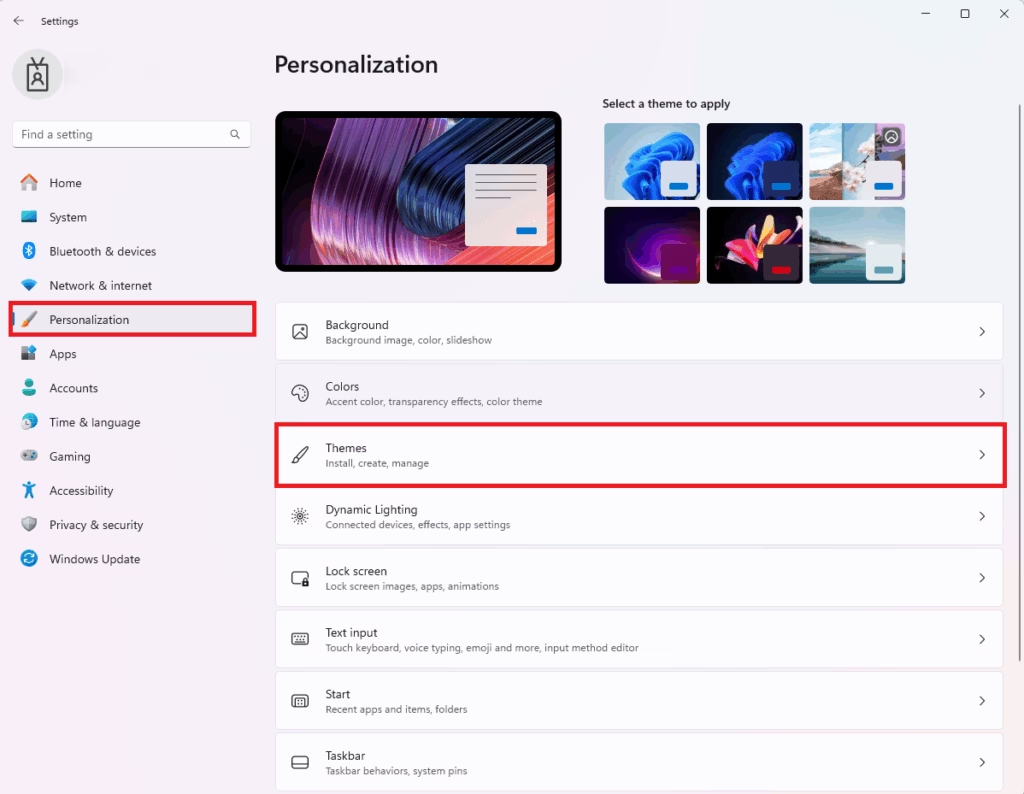
All theme controls are in one place: Settings Personalization Themes Here is how to get there.
- Open Settings : Click the Start button (the Windows icon on the taskbar ), then click Settings. Or press Win+I on your keyboard to open Settings quickly. The Settings window opens with a menu down the left side.
- Click Personalization in the left side menu. The right side now shows a preview of your current look and a list of options.
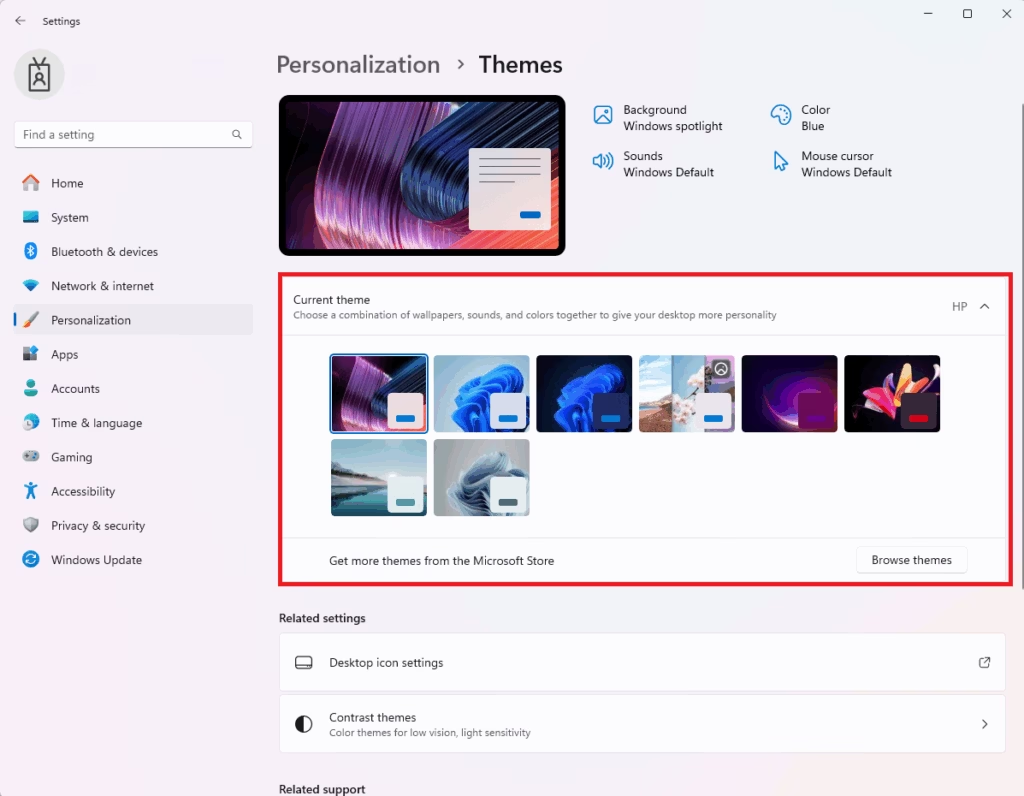
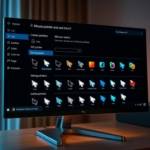
- Click Themes on the right side. You should see a “Current theme” area at the top, a row of theme thumbnails below it, and a Browse themes button.
If the Personalization options are greyed out or show a message about activation, your copy of Windows is probably not activated. Activate Windows first (Settings System Activation), then come back.
Windows 11 comes with several default themes from Microsoft. Click any thumbnail in the list and it applies immediately, so you see the result on the desktop right away. For instance, clicking the “Sunrise” theme instantly shifts the background and accent colors.
Nothing is permanent here. If you don't like the result, click another thumbnail, such as the default Windows (light) theme, and the old look comes back.
How to Download New Themes from Microsoft Store
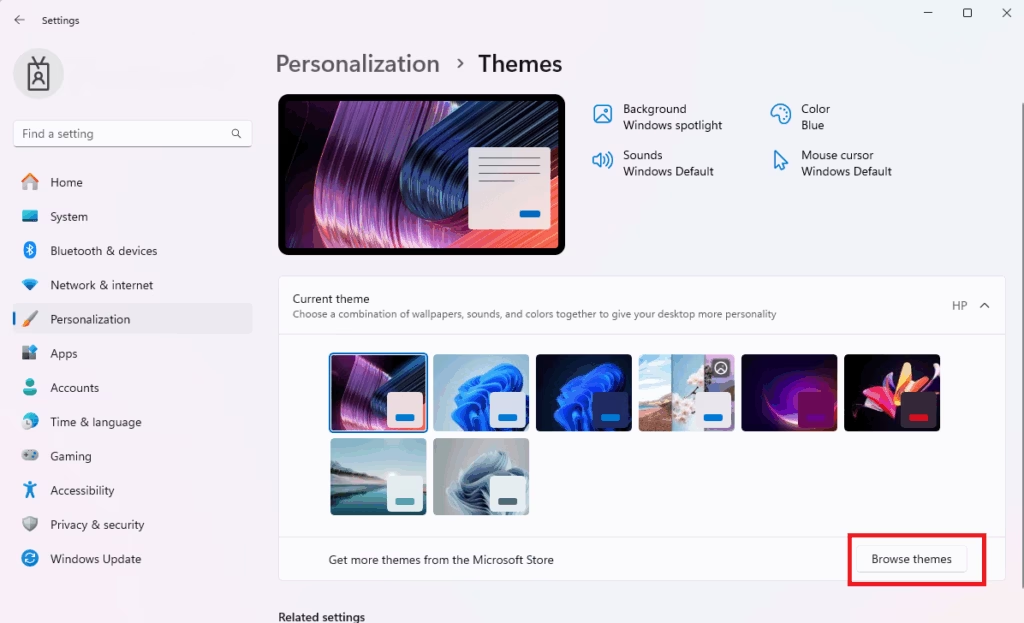
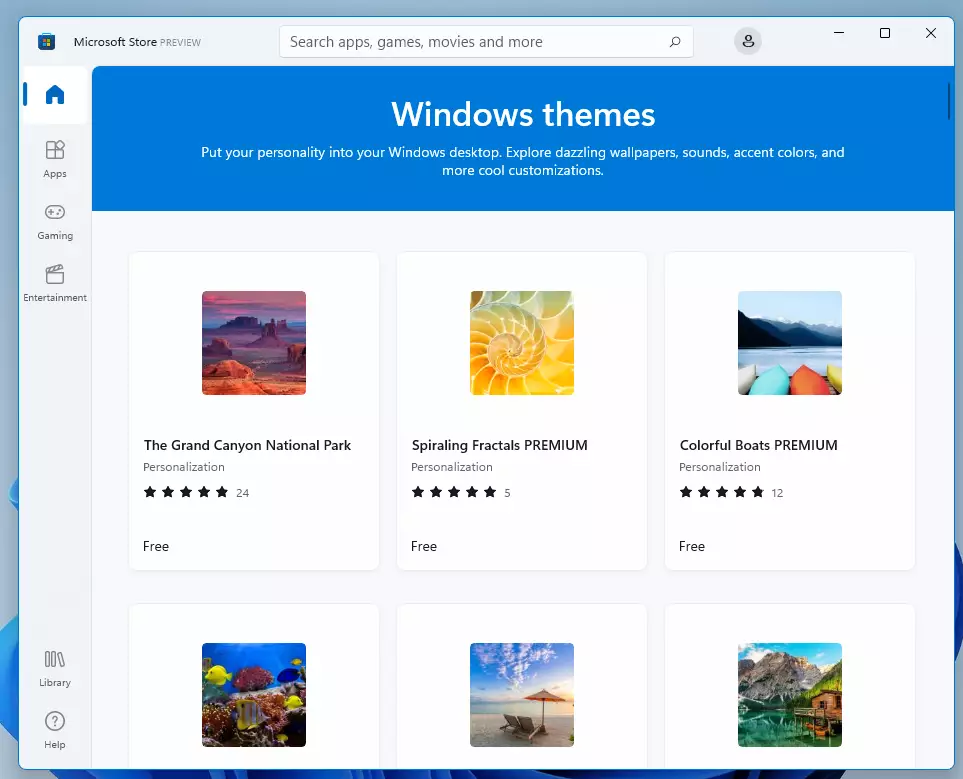
Downloading new Windows 11 themes from the Microsoft Store offers many more choices than the built-in options. The Browse themes button on the Themes page opens the Microsoft Store directly at the theme gallery.
- In the Themes settings (from the steps above), click the Browse themes button. The Microsoft Store opens and shows a gallery of themes.
- Look through the themes. When you find one you like, click it to open its page, where you can see screenshots and a description.
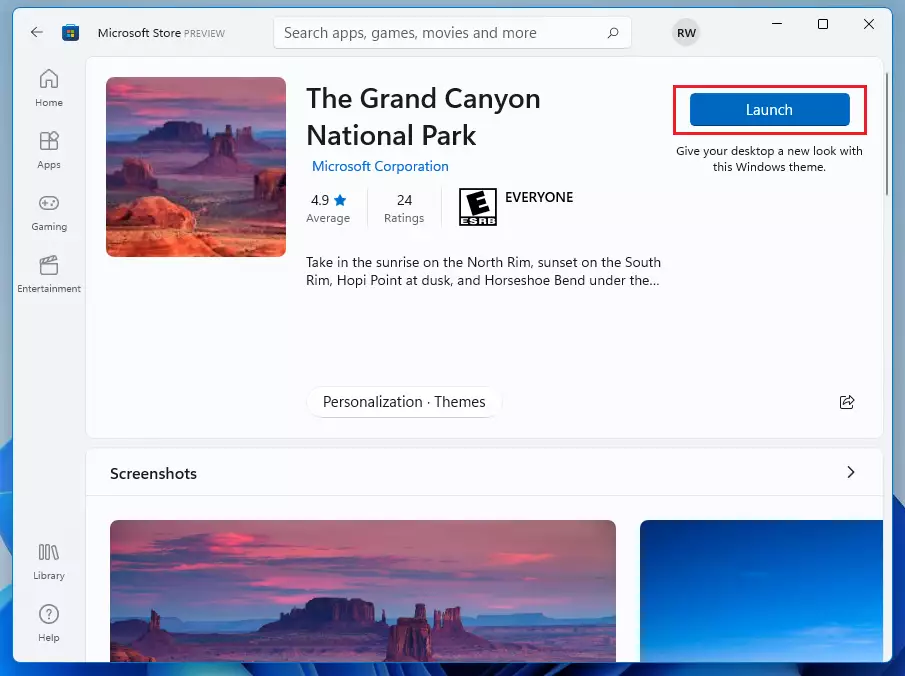
- Click the Get or Download button to add the theme to your computer. Note: You need to be signed in with a Microsoft account to download themes. If you don't have one, you can create one for free here.
- Wait for the download to finish. Themes are small, so this usually takes a few seconds. Then click Launch. Settings opens on the Themes page.
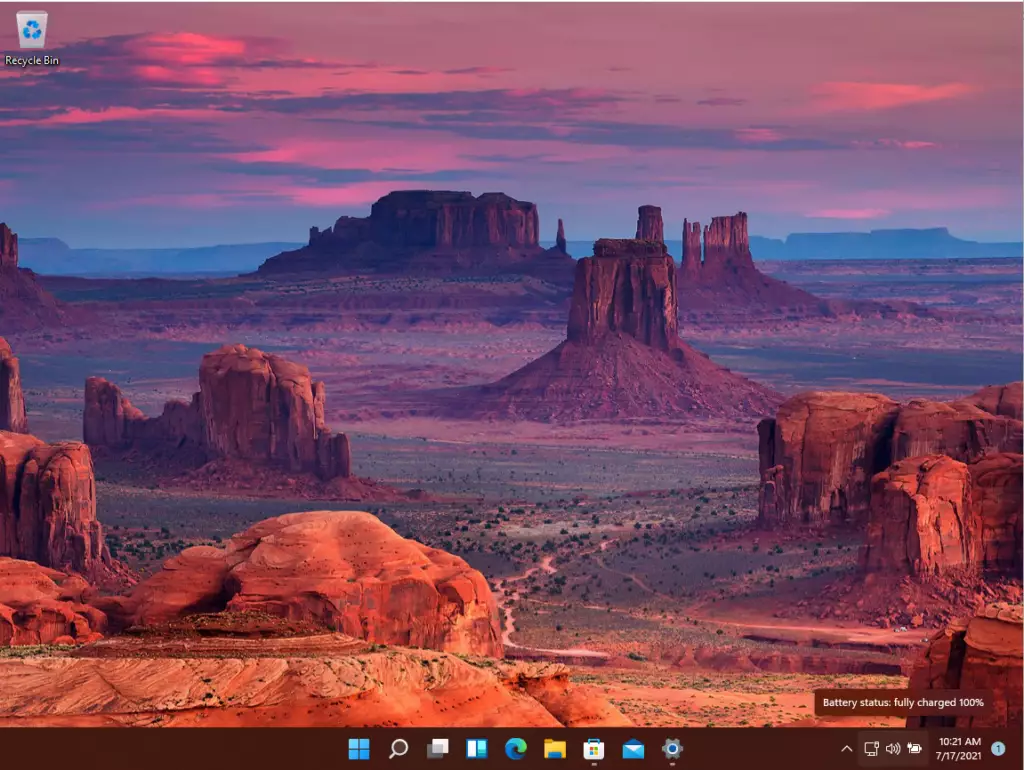
- Click the new theme in the list to apply it to your desktop. The wallpaper, colors, and any included sounds change straight away.
If the Store won't open or the download fails, check your internet connection and make sure you are signed in to the Store. Then try again.
Extra Tip: Customize Parts of Your Theme
Customize individual parts of a Windows 11 theme instead of changing everything at once. Within the Personalization settings, adjust the wallpaper, accent colors, system sounds, and mouse cursor appearance. Manual adjustments let you fine-tune the desktop appearance.
Explore these options within the Personalization settings:
- Background: Change only your wallpaper. Find it at Settings Personalization Background
- Colors: Pick your favorite color for buttons and menus. Find it at Settings Personalization Colors
- Sounds: Change system sounds like notifications. This tile is on the Themes page.
- Mouse Cursor: Change how your mouse pointer looks. This tile is also on the Themes page.
Click Save on the theme preview if you want to keep your combination as its own theme.
Then right-click the unwanted one in the Themes list and choose Delete. You can't delete the theme that is currently in use.
Summary
Windows 11 themes let users change the desktop appearance entirely. Built-in themes or Microsoft Store downloads provide plenty of variety. Customizing a computer with themes makes the workspace feel personal and unique.- Windows 11 lets you change how your desktop looks by using themes.
- You can use the built-in themes or download new ones from the Microsoft Store.
- Downloading themes is easy and helps make your computer feel like your own.
- There are many themes to choose from, so find one that fits your style.
- You can also customize individual parts like background and colors if you prefer.
- Enjoy making your Windows 11 computer look just the way you want!
Was this guide helpful?

About the Author
Richard
Tech Writer, IT Professional
Richard is a writer at Geek Rewind who turns complex IT tasks into clear, step-by-step guides. He draws on years of hands-on experience in system administration and enterprise IT operations, focusing on Windows, Linux and WordPress: the problems people actually run into, and the fixes that work. His server and WordPress guides come from systems he runs himself. Richard builds and maintains the platform behind Geek Rewind, from its Ubuntu servers and Nginx configuration to its custom WordPress plugins. Many new tutorials start with readers' questions, and he's always glad to answer them in the comments.


No comments yet — be the first to share your thoughts!