
Microsoft Edge Game Assist is an in-game browser overlay for Windows 11. It lets you view guides, watch videos, and check chat without minimizing your game. It needs version 130 or newer. That number matches Edge’s own versioning, since Windows 11 uses names like 24H2, so keep Edge updated. The overlay sits on top of your full-screen game, so you can check maps and hints on the fly.
Press the Win+G to open the Windows Game Bar and launch the overlay while you play. If nothing appears, the Game Bar may be switched off. Check Settings Gaming Game Bar and make sure it is turned on. Game Assist works the same on Windows 11 Home and Pro.
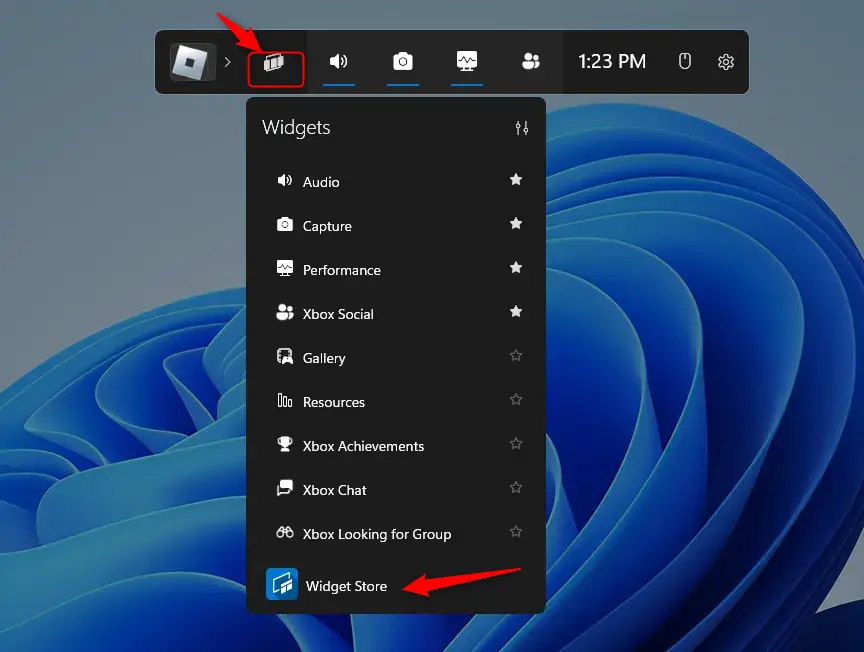
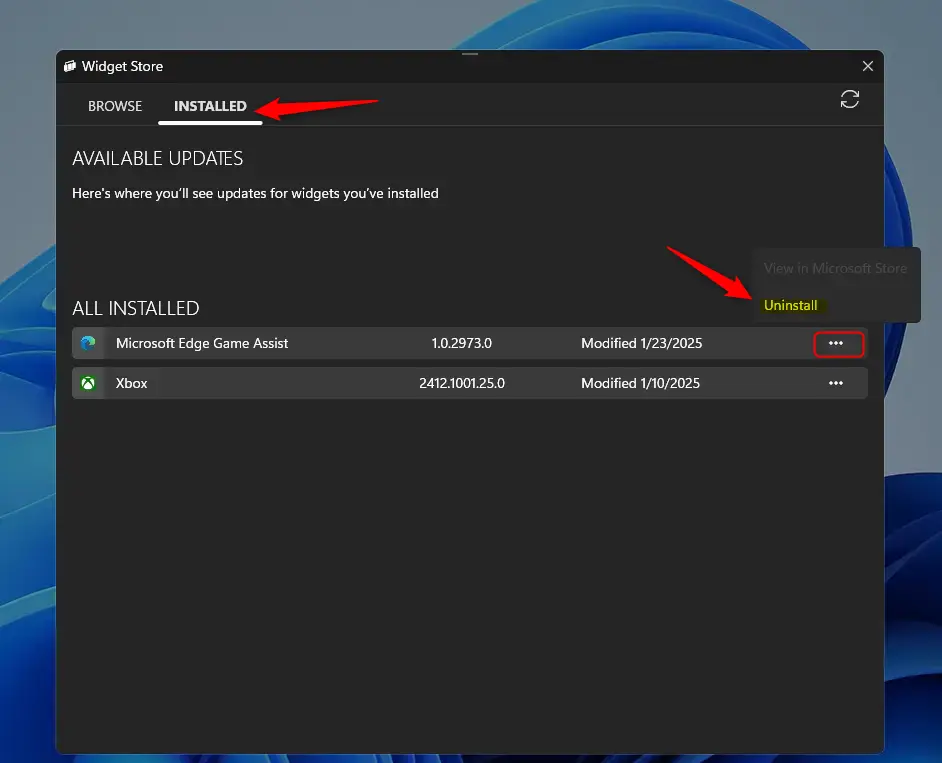
Open the Game Bar by pressing Win+G, then select Widget Store from the Widget Menu icon on the top navigation bar. Find Microsoft Edge Game Assist on the Installed tab and select the three dots to choose Uninstall. Confirm with Yes. The widget disappears from the overlay with no restart needed.
Managing Game Assist
Since 2026, you no longer need browser settings to add this feature. All Game Bar functionality is now managed directly through the Microsoft Store or the Game Bar Widget Store.
Use the Widget Store inside the Game Bar instead. You don’t need to restart the PC after adding or removing a widget.
Uninstall “Microsoft Edge Game Assist” Widget
You can uninstall the Microsoft Edge Game Assist widget from your Windows Game Bar in a few quick steps if you no longer want it on your screen. Open the Game Bar overlay and go to the Widget Store through the menu. Then remove the app from your installed items list so it stops cluttering your gaming overlay.
Removing the widget does not uninstall Microsoft Edge itself, and it does not touch your games. If you change your mind later, you can add the widget back from the same Widget Store.
- Open the Game Bar by pressing the Win+G on your keyboard. The Game Bar overlay appears on top of whatever you have open, with its navigation bar along the top. If nothing happens, check that the Game Bar is turned on in Settings Gaming Game Bar
- Click the Widget Menu icon located on the top navigation bar. A dropdown list opens.
- Select Widget Store from the dropdown list. The Widget Store window opens and shows the widgets available for the Game Bar.
- In the Widget Store window, click the Installed tab. You now see only the widgets already on your Game Bar.
- Find Microsoft Edge Game Assist in your list of apps. If you can’t see it, it may not be installed, or you may be on a different tab.
- Click the More options (three dots) button next to the widget. A small menu opens.
- Select Uninstall to remove it. A confirmation prompt appears.
Confirm by clicking Yes when prompted. The widget disappears from your Game Bar overlay instantly. Nothing needs a restart. To get it back, open the Widget Store again and add Microsoft Edge Game Assist from there.
Conclusion
Microsoft Edge Game Assist gives you a handy way to check guides and web pages while you play without leaving your game. The dedicated Widget Store makes it easy to add or remove tools as needed. That keeps your screen clean while you play your favorite games on Windows 11.
- Centralized Management: All widgets are now handled through the dedicated Widget Store within the Game Bar. You no longer need Edge's browser settings to add Game Assist.
- Easy Removal: You can quickly clean up your overlay by uninstalling unused widgets via the Widget Store settings. Use the Installed tab, then the three-dot menu, then Uninstall.
- Gaming Optimization: The tool remains a great way to access web-based guides and social features without exiting your game. Press the Windows key + G whenever you want it.
Have a question about this guide?
Answered by AI from this guide. Good questions may be added to this page — please don't include personal details.
Did this guide fix your problem?

About the Author
Richard
Tech Writer, IT Professional
Richard is a writer at Geek Rewind who turns complex IT tasks into clear, step-by-step guides. He draws on years of hands-on experience in system administration and enterprise IT operations, focusing on Windows, Linux and WordPress: the problems people actually run into, and the fixes that work. His server and WordPress guides come from systems he runs himself. Richard builds and maintains the platform behind Geek Rewind, from its Ubuntu servers and Nginx configuration to its custom WordPress plugins. Many new tutorials start with readers' questions, and he's always glad to answer them in the comments.
No comments yet — be the first to share your thoughts!