What Breaks When You Uninstall Microsoft Edge Completely

Uninstalling Microsoft Edge completely breaks several core Windows features: taskbar widgets, web results in search, help links, and web apps. Windows treats the browser as a protected system component. Windows 11 and Windows 10 both rely on Edge for background tasks and for rendering web content across the operating system.
Forcing the browser off your PC also stops web links in system help menus from opening. Future system patches or updates often reinstall Edge anyway, so the removal rarely lasts.
Uninstalling Microsoft Edge completely breaks taskbar widgets, web search results in the Windows search box, built-in help and “Learn more” links in Settings, and Progressive Web Apps. Windows updates may also fail or automatically reinstall Edge because the system depends on the browser’s engine for these features.
Understanding Microsoft Edge’s Role in Windows
Microsoft Edge is built into Windows because the operating system uses the browser’s core engine to power everyday features. Windows uses it to render web pages, show some sign-in screens, and display modern menus in many apps and tools.
Your PC uses Edge components behind the scenes when you open taskbar widgets, certain system menus, or help content. Microsoft designed Windows so that web-based tools and native apps share the same resources. If you rip the browser out, those features go looking for files that are no longer there.
This is also why the uninstall option is often missing or greyed out in Settings. Windows is protecting a component it depends on. Availability can differ by region and by Windows build, so don’t assume the same options appear on every PC.
What Breaks Immediately When You Remove Edge
- Taskbar widgets and news feeds
- Web search results from the taskbar
- Built-in help and “learn more” links
- Progressive Web Apps
- Windows updates
1Windows Widgets and News Feeds
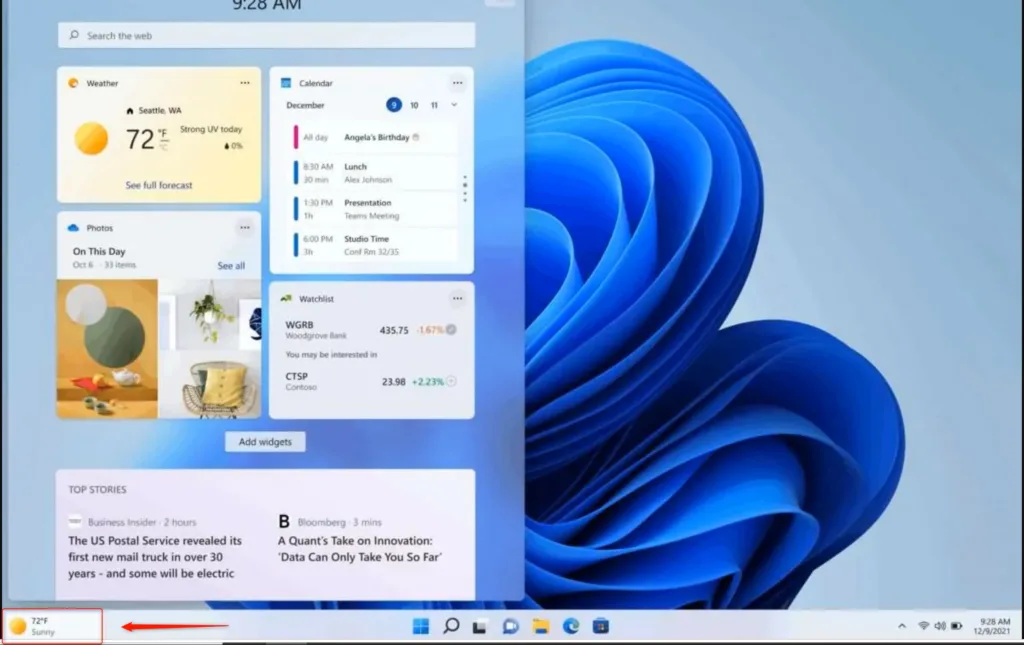
Widgets and news feeds stop working properly if you remove Edge completely. The weather panels, sports scores, and news items rely on the browser’s rendering engine to display information. Without it, you will usually see blank panels or error messages when you click them.
If the widgets board goes blank after an Edge removal, that is the first sign the engine is missing. You can’t fix it from the widgets settings. The browser components have to be back on the PC.

2Search Results from the Taskbar
Taskbar web searches break after you uninstall Edge. When you type into the Windows search box, Windows normally shows online results and quick answers through the browser. With Edge gone, those web suggestions can crash or simply do nothing.
Searching for local files and installed apps may still work. The web part of the results is what fails.
3Built-In Help and Support Links
Built-in help links fail to open when you remove Edge, because Windows expects the browser to handle those web addresses. Click a “Learn more” link inside Settings and you may get an error. Windows cannot find a default program to open the troubleshooting guide.
This matters most when you are already troubleshooting something. The help you need is the help that won’t open.
4Progressive Web Apps (PWAs)
Progressive Web Apps stop launching if you delete Edge. These website-based desktop apps and streaming tools run inside a hidden instance of the browser. Once Edge is gone, every web app you installed through it will no longer work.
Reinstalling Edge brings the apps back in most cases, but check each one afterward.
The Hidden Impact on System Updates
When Windows runs a monthly security update, it checks that core applications like Microsoft Edge are present. If Edge is missing, the update may fail to install, show an error code, or reinstall the browser during the update.
That means a removal you complete today can be undone by a routine update tomorrow. The effort to keep your system clean is wasted, and you may be left with a failed update in between.
Alternative Ways to Stop Edge Without Breaking Windows
Tame Edge through its settings instead of running risky uninstall scripts. Neutralizing the browser stops it from running in the background. It also avoids the command-line scripts that can break Windows stability.
Instead of risking system instability, you can stop Edge from using your resources while it is not in use. The two safest ways are to turn off its background behavior and to make another browser your default. Neither needs a restart, and both are easy to undo.
Stop Edge from Running in the Background
Stopping Edge from running in the background keeps it from slowing down your PC and using extra memory. You turn off Startup boost and background extensions in the browser’s own settings, so the app stays closed when you are not using it.
- Open Microsoft Edge normally.
- Click the three dots in the top-right corner to open the menu.
- Select Settings from the list.
- Click System and performance in the left-hand menu. The system settings appear on the right.
- Find Startup boost and turn it off. This stops Edge from preloading in the background before you open it.
- Find Continue running background extensions and apps when Microsoft Edge is closed and turn it off as well.
With these two settings off, Edge shuts down when you close its window. It no longer uses memory or processor time while you game, work in other programs, or leave the PC idle.
If a toggle is greyed out or the page says your browser is managed by your organization, a policy on the PC is controlling it. This is common on work or school machines, and you will need an administrator to change it. To undo the change, return to the same page and turn the toggles back on.
Change Your Default Web Browser
Changing your default browser stops Windows from pushing Edge for your web links. You can set Google Chrome, Mozilla Firefox, or another browser as your main choice from Windows settings. Install the browser first, or it won’t appear in the list.
- Click the Start button and open Settings.
- Go to Apps Default apps. A list of installed apps appears.
- Scroll the list, or type the name of your preferred browser into the search box.
- Click your preferred browser. Its details page opens.
- Click Set default at the top of the page.
This makes web links, email links, and internet shortcuts open in your chosen browser instead of Edge. The steps above are for Windows 11. On Windows 10, the Default apps page has a Web browser entry instead, and you click it and pick a browser from the list.
Some links, such as certain Windows features, may still open in Edge. That is the same dependency described above, and it is another reason not to remove the browser. To go back, repeat the steps and choose Microsoft Edge.
Summary
Uninstalling Edge completely causes more problems than it solves, because the browser is deeply tied to Windows. Removing it breaks taskbar search, widgets, help links, web apps, and routine system updates. Turning off its background activity and setting another default browser gets you most of the benefit without those problems.
Have a question about this guide?
Answered by AI from this guide. Good questions may be added to this page — please don't include personal details.
Did this guide fix your problem?

About the Author
Richard
Tech Writer, IT Professional
Richard is a writer at Geek Rewind who turns complex IT tasks into clear, step-by-step guides. He draws on years of hands-on experience in system administration and enterprise IT operations, focusing on Windows, Linux and WordPress: the problems people actually run into, and the fixes that work. His server and WordPress guides come from systems he runs himself. Richard builds and maintains the platform behind Geek Rewind, from its Ubuntu servers and Nginx configuration to its custom WordPress plugins. Many new tutorials start with readers' questions, and he's always glad to answer them in the comments.
No comments yet — be the first to share your thoughts!