Copilot in Windows 11: Every Setting and Privacy Control

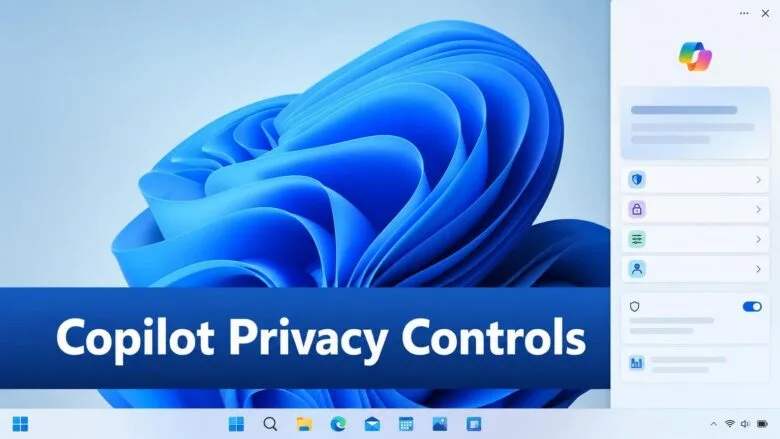
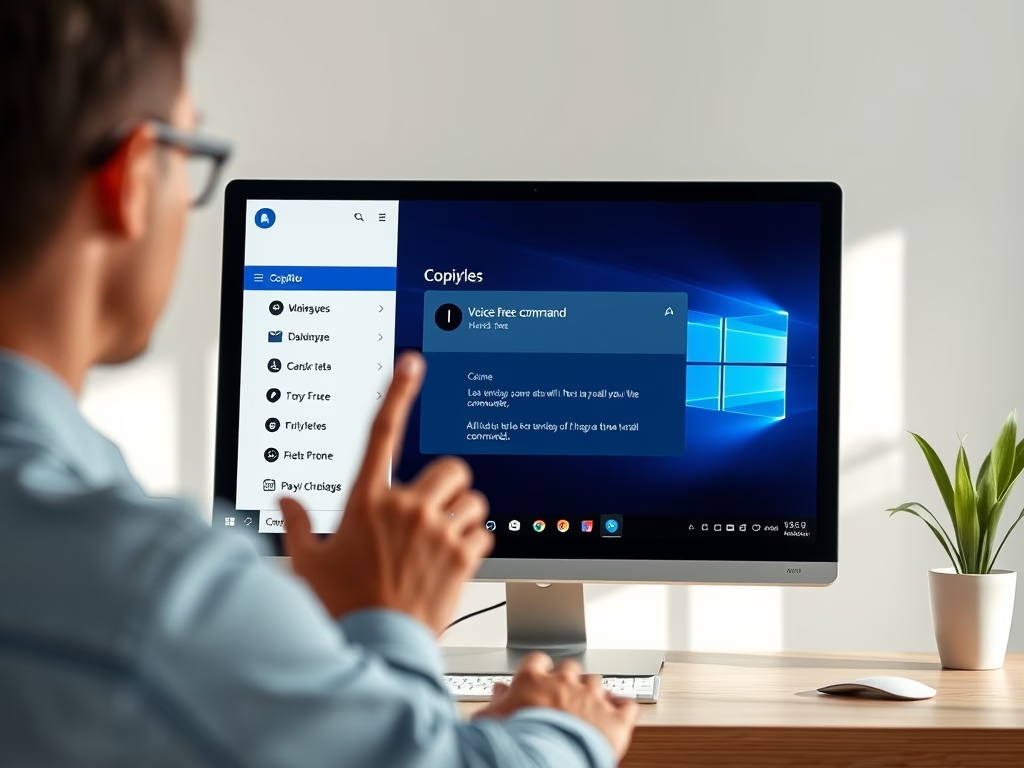
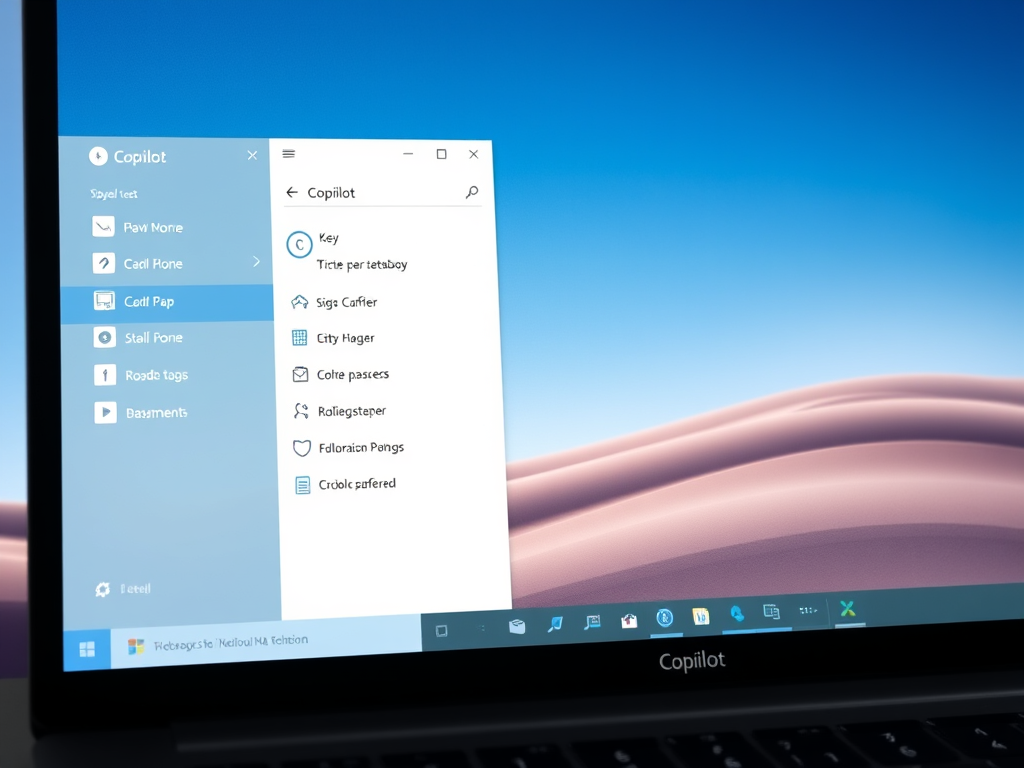
Copilot in Windows 11 is Microsoft’s AI assistant, and it runs in several places: as a Windows app, as a sidebar in Microsoft Edge, and inside apps such as Outlook. Each place has its own switches, so turning off one often leaves another running. Some settings depend on your Microsoft account, and Recall, a separate feature, takes snapshots of your screen that many people want to control. This page sorts the guides by what you are trying to do, so you can find the right setting without trying them all.
Find out what Copilot can reach before you change anything
These guides explain what Copilot does on your PC, what data it can use, and which alternatives exist. Read them first if you are deciding whether to keep, limit or remove it. They also cover features Microsoft has announced but not yet released, so you know what to expect.


Turn Copilot off, remove it, or sign out
Use these guides when you want Copilot gone from your taskbar or stopped from starting with Windows. They also cover signing out of the Copilot app and how Copilot’s startup behaviour is controlled. Check the guide on what breaks first if other features depend on Copilot.

Change how Copilot opens, looks, speaks and what language it uses
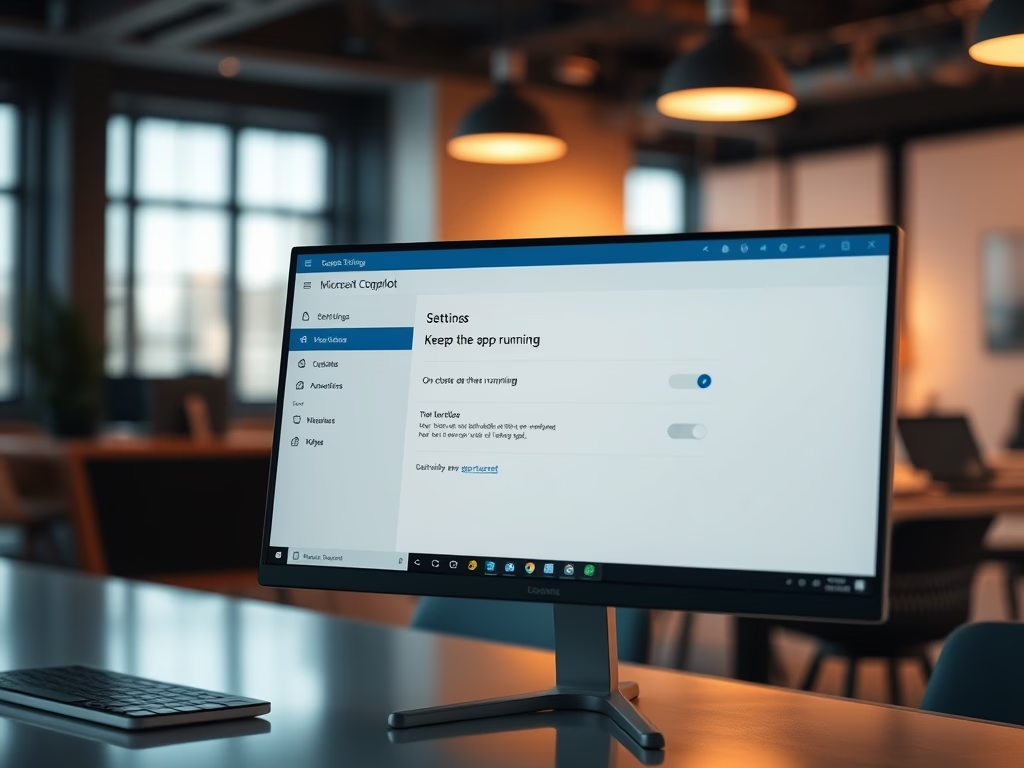
These guides cover how Copilot starts, where it sits on screen, and how it looks and sounds. They include the keyboard key and shortcut that open it, the taskbar button, and voice and language settings. Most readers need only one or two of these, so choose the guide that matches the setting you want to change.



Control privacy, memory, actions and chat history
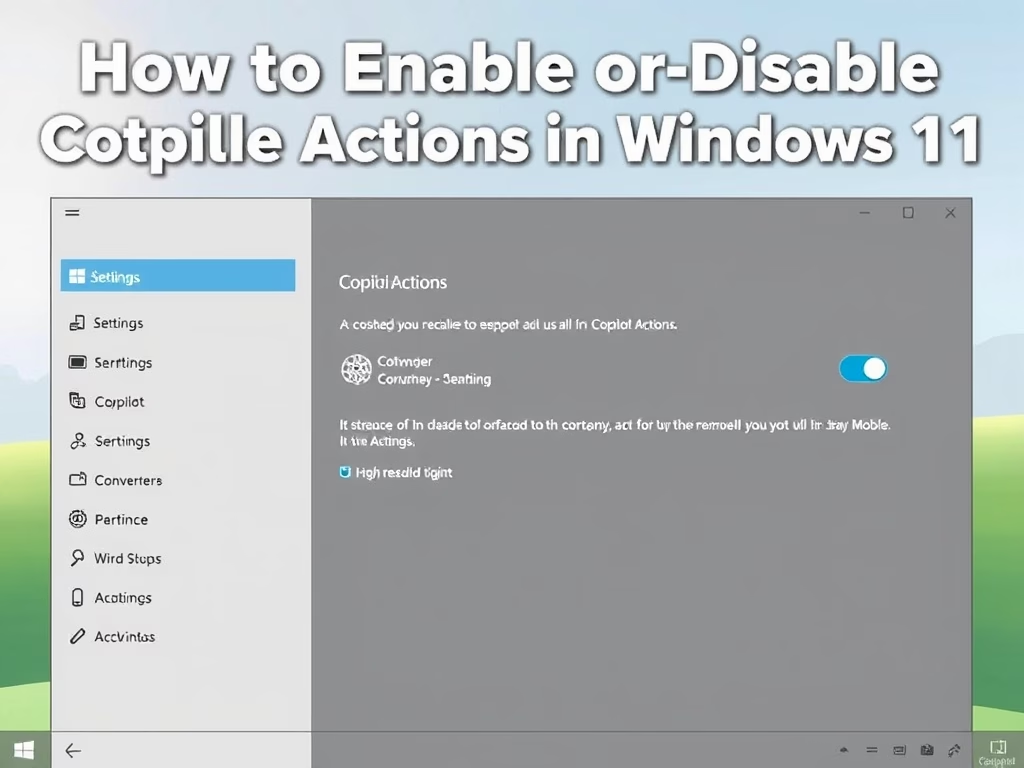
These guides cover what Copilot remembers about you, whether your chats are saved or used for training, and whether it can take actions for you. They also cover ad personalisation and microphone access. Work through them if you want to limit data use without turning Copilot off completely.

Connect Copilot to your apps, files and phone
These guides explain how Copilot works with the files, apps and phone on your PC. Some connections need a sign-in or a one-time setup, so read each one before you turn it on. Each guide says what the connection lets Copilot see or do.



Control Copilot inside Microsoft Edge
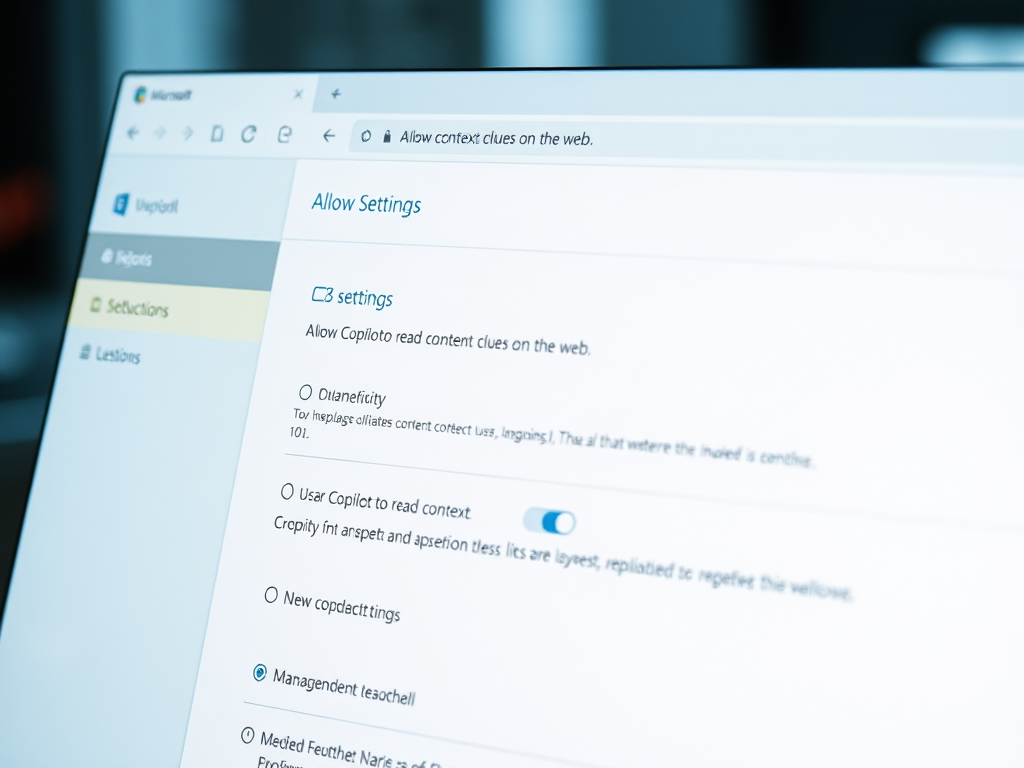
Edge has its own Copilot sidebar, new tab page and browsing features, which are separate from the Windows Copilot app. These guides show how to switch each one on or off, and how to control the data Copilot can read while you browse. Use them if the Copilot options in Edge are the ones you want to change.






Use Recall safely and reset it when it misbehaves
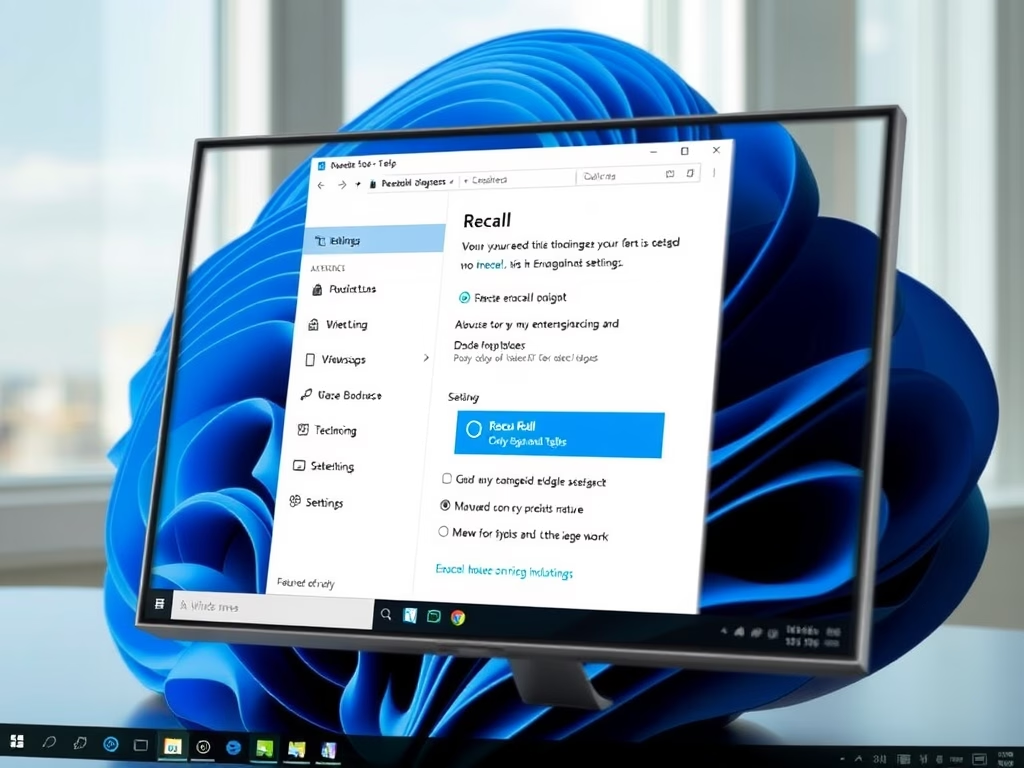
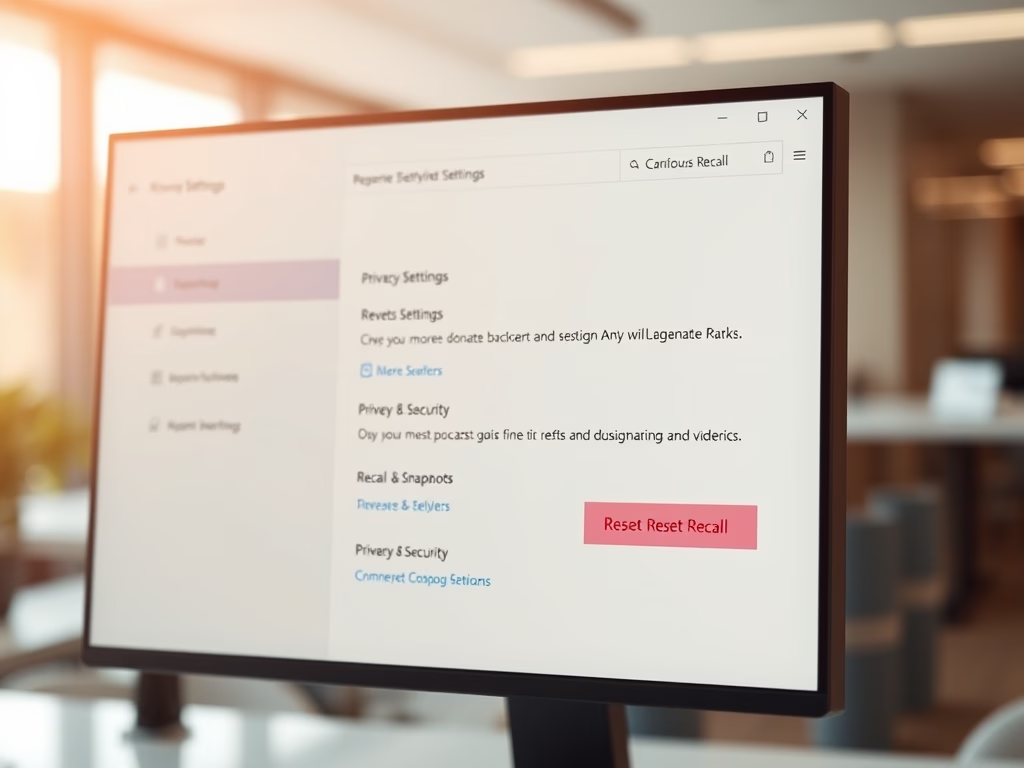
Recall is a Windows feature that saves snapshots of your screen so you can search them later. It is separate from Copilot, but the two are often confused. These guides show how to exclude websites from snapshots, remove Recall, and reset it if it stops working.
Have a question about this guide?
Answered by AI from this guide. Good questions may be added to this page — please don't include personal details.

About the Author
Richard
Tech Writer, IT Professional
Richard is a writer at Geek Rewind who turns complex IT tasks into clear, step-by-step guides. He draws on years of hands-on experience in system administration and enterprise IT operations, focusing on Windows, Linux and WordPress: the problems people actually run into, and the fixes that work. His server and WordPress guides come from systems he runs himself. Richard builds and maintains the platform behind Geek Rewind, from its Ubuntu servers and Nginx configuration to its custom WordPress plugins. Many new tutorials start with readers' questions, and he's always glad to answer them in the comments.
No comments yet — be the first to share your thoughts!