How to Install Perplexity AI App on Windows 11


This article explains how to install the Perplexity AI app on Windows 11, how to sign in the first time, and how to remove the app if you no longer want it.
Download the official Perplexity installer from the Download page, then double-click the “Perplexity Setup x.x.x-x64.exe” file in your Downloads folder to run it. The app opens automatically when setup finishes, usually within a minute. You can also install it from the Microsoft Store by searching for Perplexity and selecting Install.
What is Perplexity AI?
Perplexity AI is a search tool that gives you direct answers instead of a page of links. It checks many websites at once and puts the result together in one reply. This makes it useful when you want a quick, detailed answer to a question.
Because it searches the internet in real time, the information is current. For most questions you get an answer faster than you would by clicking through results in a traditional search engine.
How to Install Perplexity AI on 🪟 Windows 11
There are a few ways to get the app on Windows 11. The usual way is to download the installer from the official site and run it. You can also install it from the Microsoft Store or with winget, which is covered after the main steps.
Method 1: Download the installer
- Visit the Download page to download the official app.
- Choose the Windows version and save it to your Downloads folder. Your browser should show the file as it downloads.
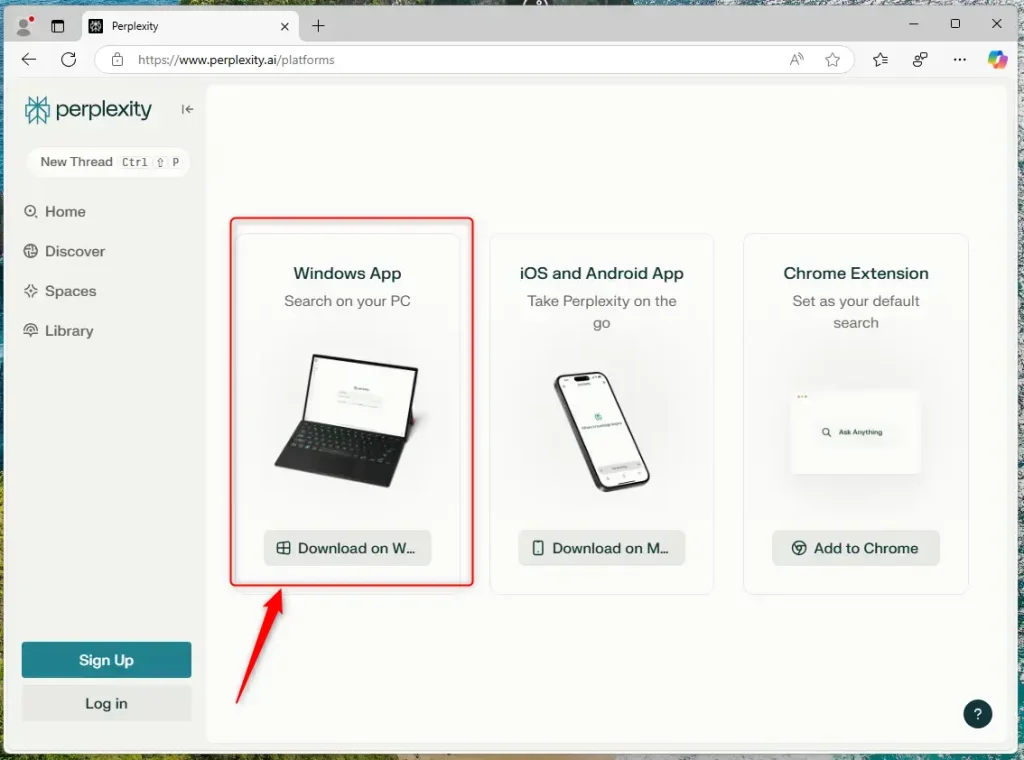
Download Windows version - Open your Downloads folder and find the file named “Perplexity Setup x.x.x-x64.exe”. The version numbers in the name change with each release.
- Double-click the file to start the installer.
- If you downloaded with Edge or Chrome, you may see a download popup in the browser. You can click the file there to open the installer right away, without going to Downloads.
- Wait for the installation to finish. This usually takes a minute or less. The Perplexity AI app opens automatically when the setup is done.
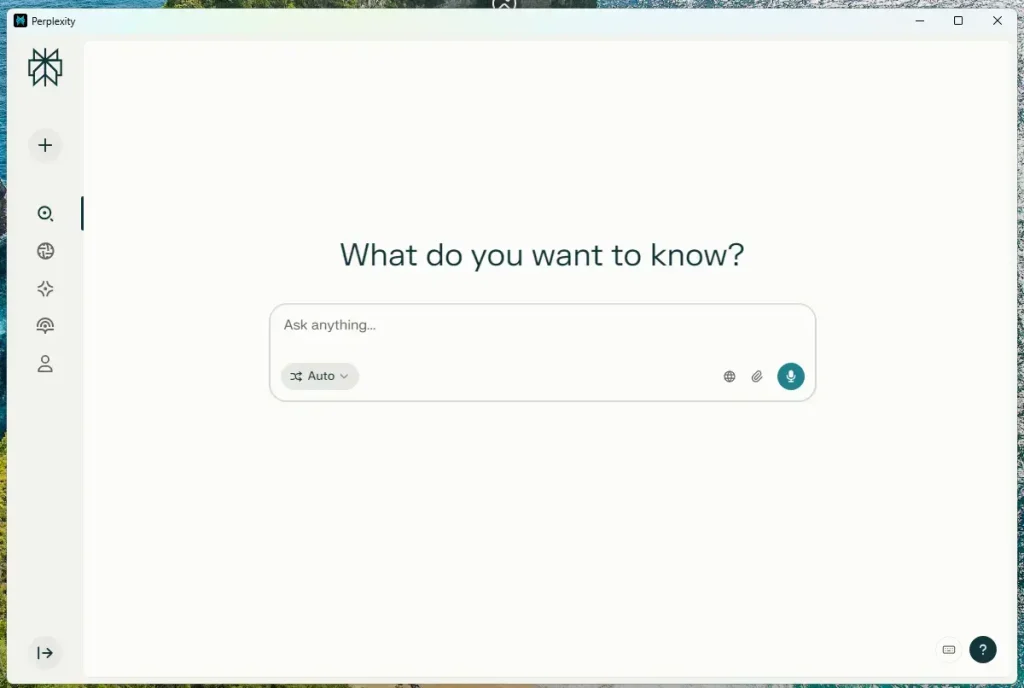
Perplexity app
Method 2: Microsoft Store or winget
Either is simpler than handling the .exe file yourself, and the app is kept up to date automatically. With the Store, open it, search for Perplexity, and select Install. With winget, open a terminal and search the package list for Perplexity, then install the entry published by Perplexity. If the app does not show up in either place, use the installer method above. Availability can vary by region and over time.
Sign in and set up your account
- Open the Perplexity app if it did not start on its own. Search for it in the Start menu.
- On the first screen, sign in or create an account. You can use Google, Apple, your email address, or SSO if your organization supports it.
- Follow the prompts to finish. For email sign-in, you may need to enter a code sent to your inbox.
- Once you are signed in, type a question into the search box to try it out.
The free tier works with limited features, so you can start without paying. Paid plans add more features, and you can upgrade later from your account settings if you want to.
How to Uninstall Perplexity AI
If you want to uninstall the app, it's easy. The steps below work for both the installer version and the Store version. Follow these steps:
- Open Settings on your computer.
- Go to Apps Installed apps
- Find Perplexity in the list. If you have many apps, use the search box at the top of the list.
- Click the menu (three dots) next to Perplexity.
- Select Uninstall, then confirm when Windows asks. The app is removed from the list when it finishes.
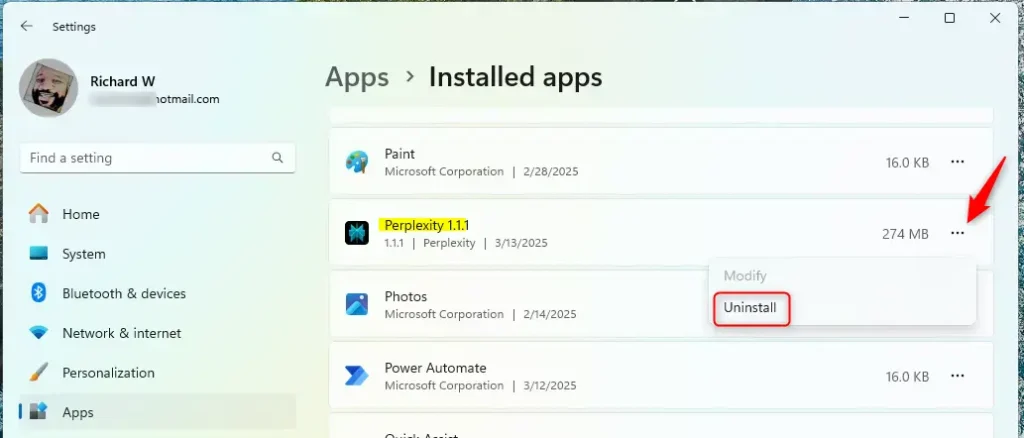
Perplexity uninstall
That's all you need to do! Removing the app does not delete your Perplexity account. If you change your mind, install it again and sign in with the same account.
Summary
The Perplexity AI app gives you a smarter way to search on Windows 11. It finds current information from many websites at once and offers real-time answers. Setup is straightforward, and most people can finish it in a few minutes.
- Real-time Answers: The app finds current information from many websites at once.
- Simple Installation: Download the installer, or use the Microsoft Store or winget for automatic updates. Anyone can do it in minutes.
- Easy Account Setup: Sign in with Google, Apple, email or SSO. The free tier works with limited features.
- A New Way to Search: Perplexity uses AI to give you better answers than regular search engines.
- Easy to Remove: You can uninstall it anytime using Windows Settings.
The Perplexity AI app makes searching for information on your Windows 11 computer faster and smarter. Give it a try and see how it works for you!
Have a question about this guide?
Answered by AI from this guide. Good questions may be added to this page — please don't include personal details.
Did this guide fix your problem?

About the Author
Richard
Tech Writer, IT Professional
Richard is a writer at Geek Rewind who turns complex IT tasks into clear, step-by-step guides. He draws on years of hands-on experience in system administration and enterprise IT operations, focusing on Windows, Linux and WordPress: the problems people actually run into, and the fixes that work. His server and WordPress guides come from systems he runs himself. Richard builds and maintains the platform behind Geek Rewind, from its Ubuntu servers and Nginx configuration to its custom WordPress plugins. Many new tutorials start with readers' questions, and he's always glad to answer them in the comments.
No comments yet — be the first to share your thoughts!