How to Check Windows 11 AI Activity by Apps


Windows 11 AI activity by apps shows which programs have used the built-in AI models for tasks like text and image creation over the last 7 days. You find it in your privacy settings. It’s a quick way to see which apps are using these system features and to keep an eye on what runs in the background on your PC.
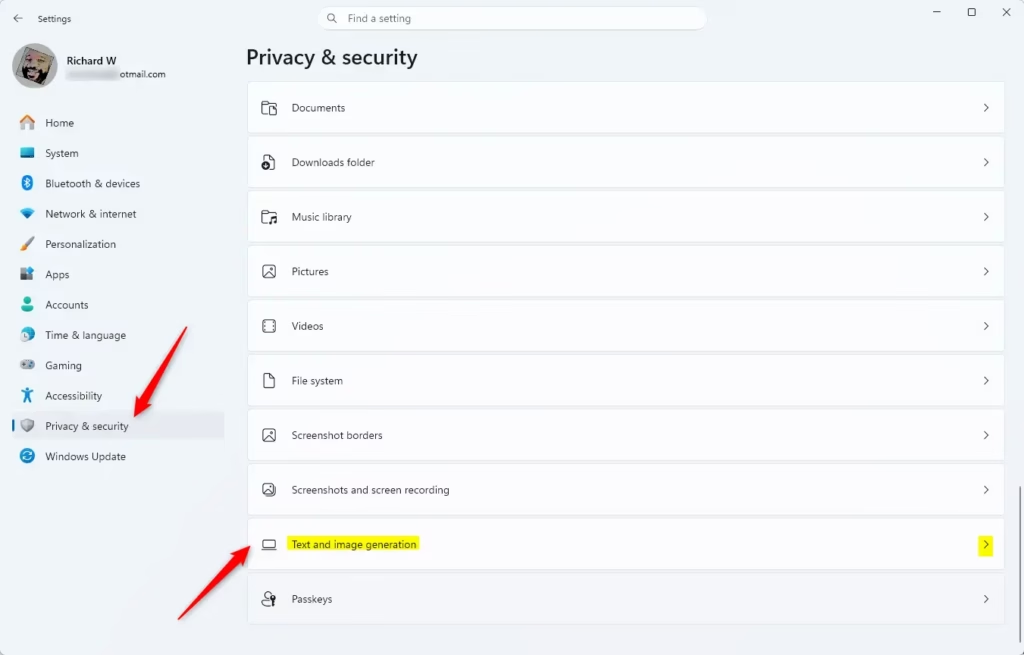
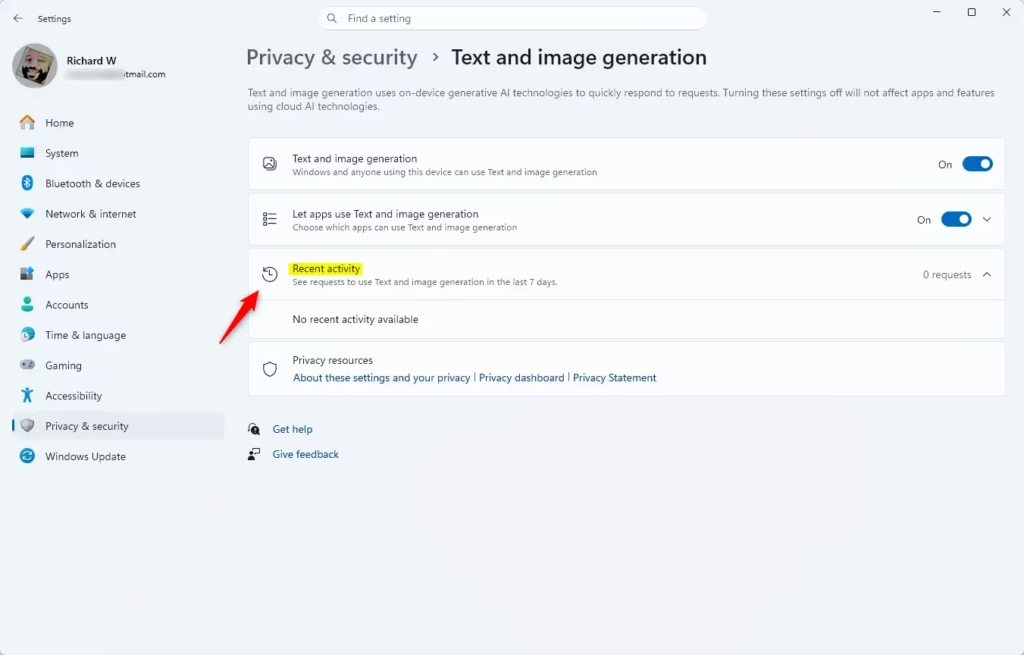
Press Win+I to open Settings, click Privacy & security in the left sidebar, then click Text and image generation. You’ll see a list of apps that used AI features like text or image generation in the last 7 days under Recent activity.
Why Check This?
Windows 11 uses artificial intelligence (AI) for text and image creation. These models run locally on your device, so the processing itself doesn’t send data across the internet. Checking AI activity tells you which programs rely on these features. That matters if you want to know what is using your hardware resources, or if you just want to confirm that an app you don’t recognize isn’t touching them.
What You Need to Know
On a supported build, third-party apps that use the built-in models appear in a clear list, and you can change their permissions at any time.
Open Settings, go to System, then About, and check your Windows version. Run Windows Update , restart if it asks you to, and look again. The steps are the same on Home and Pro.
How to See Recent AI Activity
The activity list shows which apps recently used AI features on your computer, such as text or image generation. You can open it whenever you like to see which apps are using these tools and when they last did.
- Press
Win+Ion your keyboard to open Settings. The Settings window opens. - Click Privacy & security in the left-hand menu. Open Text and image generation Settings The privacy options appear on the right.
- Click Text and image generation. Look under “App permissions”. If this entry is missing, your build is older than the one required, so update Windows first.
- Look at the Recent activity section. You will see a list of apps that asked to use text and image generation in the last 7 days. If the list is empty, no app has used these features during that period.
This is a read-only check. Looking at the list doesn’t change anything on your PC, so there is nothing to undo and no restart is needed.
Summary
To recap: press the Win and I together to open Settings , select Privacy & security from the sidebar, then click Text and image generation. Reviewing the past week’s activity gives you a clear picture of which apps are using the AI features on your machine. Run through it every so often, especially after installing new software.
Have a question about this guide?
Answered by AI from this guide. Good questions may be added to this page — please don't include personal details.
Did this guide fix your problem?

About the Author
Richard
Tech Writer, IT Professional
Richard is a writer at Geek Rewind who turns complex IT tasks into clear, step-by-step guides. He draws on years of hands-on experience in system administration and enterprise IT operations, focusing on Windows, Linux and WordPress: the problems people actually run into, and the fixes that work. His server and WordPress guides come from systems he runs himself. Richard builds and maintains the platform behind Geek Rewind, from its Ubuntu servers and Nginx configuration to its custom WordPress plugins. Many new tutorials start with readers' questions, and he's always glad to answer them in the comments.
No comments yet — be the first to share your thoughts!