How to Enable or Disable Text and Image Generation for Apps in Windows 11


Text and image generation for apps is a Windows 11 setting that lets installed programs use AI features built into the operating system and run on your PC hardware to create content. Managing it lets you decide which desktop apps can run these on-device AI tasks.
Turning the switch off stops apps from using your local AI tools. It does not affect cloud-based services you open in a web browser, because those don’t go through this setting.
Open Settings, go to Privacy & security Text and image generation, then toggle the switch On or Off. The change takes effect immediately. To control it for your account only, use the “Let apps use Text and image generation” option on the same page.
Option 1Turn Text and Image Generation On or Off for Everyone in Settings
You can turn text and image generation on or off for every user account on the PC at once from the Settings app. This is a system-wide control. It needs administrator rights, and it changes how these AI features work for everyone who signs in to this PC. It’s the right choice on a shared computer where you want to control access completely.
- Open Settings by pressing
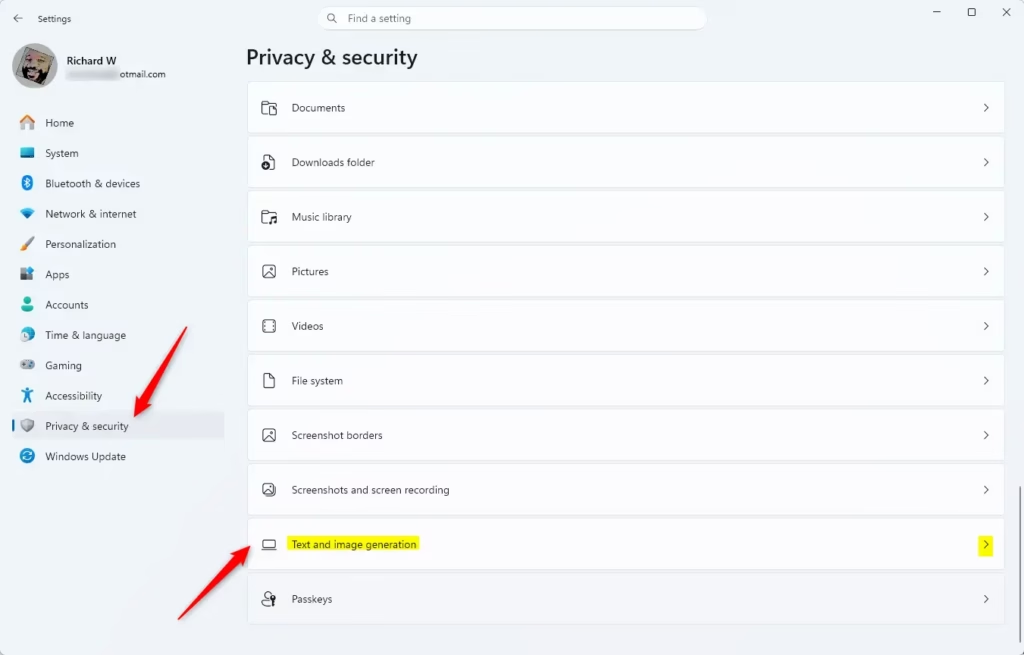
Win+I. The Settings window should open. - Click Privacy & security on the left side. Then click Text and image generation on the right side under “App permissions”. The text and image generation page should open.
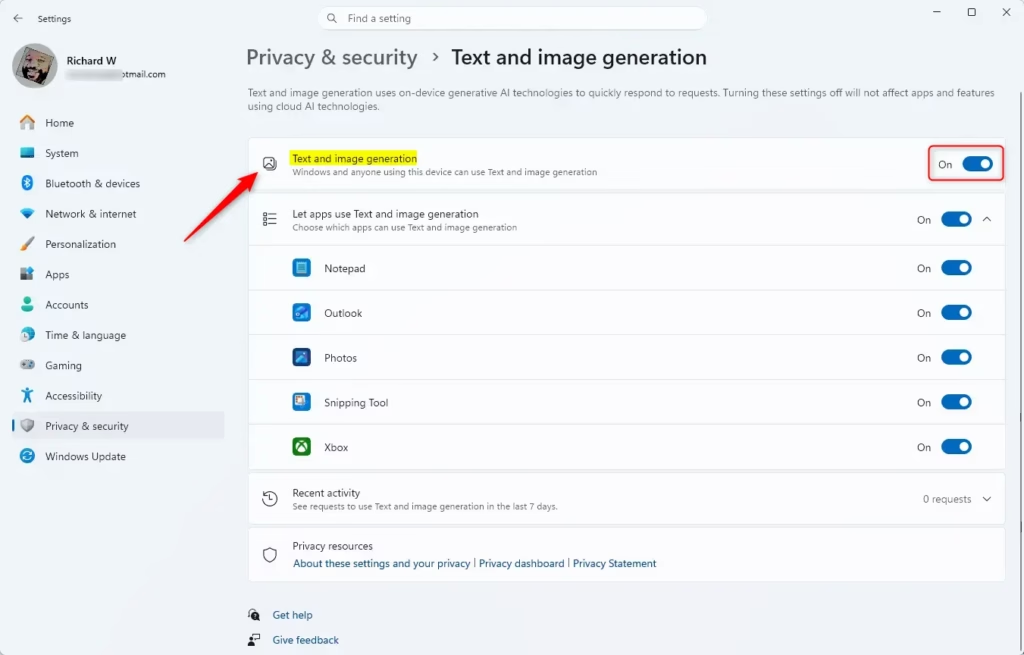
- Set the text and image generation switch to On (this is the default) or Off. The switch should change right away. You don’t need to restart.
- Close Settings when you’re done.
Option 2Turn Text and Image Generation On or Off for Everyone Using Registry
If you sign in with a standard account, the system-wide switch may be greyed out or Windows may ask for an administrator password. To undo the change later, return to the same page and flip the switch back.
If you prefer the command line, open the Windows Terminal app and run the commands below. Run the command that matches the state you want.
Turn On Text and Image Generation for Everyone
This is the default setting.
reg add "HKEY_LOCAL_MACHINE\SOFTWARE\Microsoft\Windows\CurrentVersion\CapabilityAccessManager\ConsentStore\systemAIModels" /v Value /t REG_SZ /d Allow /f
Turn Off Text and Image Generation for Everyone
reg add "HKEY_LOCAL_MACHINE\SOFTWARE\Microsoft\Windows\CurrentVersion\CapabilityAccessManager\ConsentStore\systemAIModels" /v Value /t REG_SZ /d Deny /f
Option 3Turn On or Off Let Apps Use Text and Image Generation for Your Account in Settings
- Open Settings by pressing
Win+I. The Settings window should open. - Click Privacy & security on the left side. Then click Text and image generation on the right side under "App permissions". The text and image generation page should open.
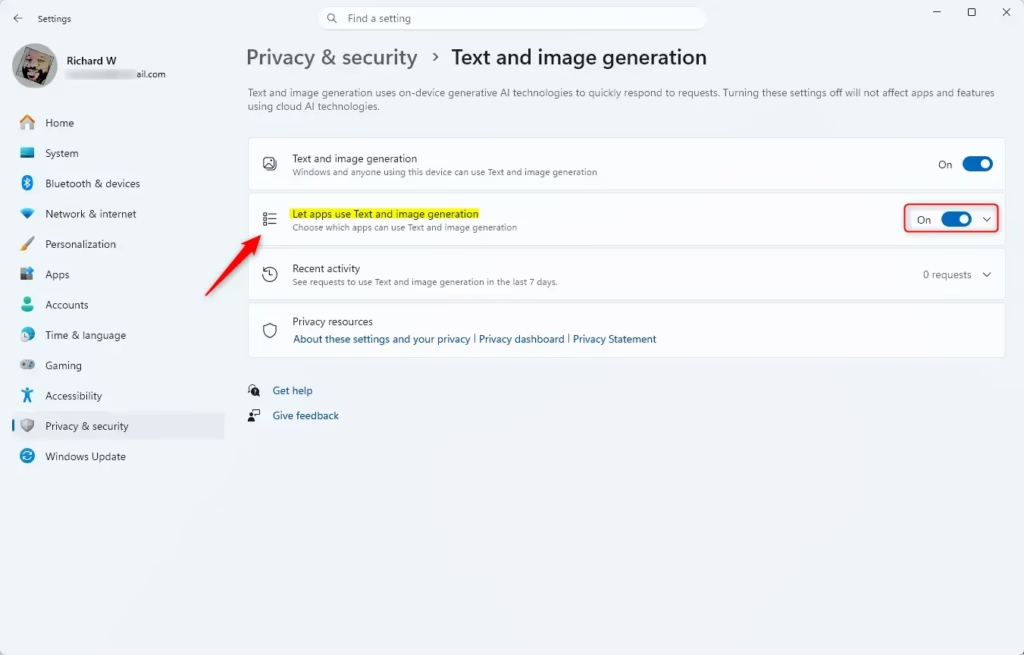
You can stop or allow all installed programs from using text and image generation for your own user account only. This setting acts as a master switch for your profile. It doesn't change how other people's accounts behave on the same computer. Turning it off blocks every program at once from creating content with the built-in AI tools. You don't need administrator rights for this one, because it only affects your own account.
- Set Let apps use Text and image generation to On (this is the default) or Off.
If you find that option unavailable, check this master switch first and turn it back on.
- Close Settings when you're done.
Option 4Turn On or Off Let Apps Use Text and Image Generation for Your Account Using Registry
To do the same thing from the command line, open the Windows Terminal app and run the command below. It changes a value under your own user account, so it applies only to you.
Turn On Let Apps Use Text and Image Generation for Your Account
reg add "HKEY_CURRENT_USER\Software\Microsoft\Windows\CurrentVersion\CapabilityAccessManager\ConsentStore\systemAIModels" /v Value /t REG_SZ /d Allow /f
Turn Off Let Apps Use Text and Image Generation for Your Account
reg add "HKEY_CURRENT_USER\Software\Microsoft\Windows\CurrentVersion\CapabilityAccessManager\ConsentStore\systemAIModels" /v Value /t REG_SZ /d Deny /f
This command sets the value to Deny, which blocks apps. To reverse it, set the switch back to On in Settings Privacy & security Text and image generation.
Option 5Turn Specific Apps On or Off to Use Text and Image Generation for Your Account in Settings
You can control Windows 11 text image generation permissions individually for each installed program so only the tools you trust can create artificial intelligence content. This approach lets you keep the feature running for useful software while blocking it for apps you do not want using these capabilities. You can change these specific app choices at any time through your account privacy settings.- Open Settings by pressing
Win+I. - Click Privacy & security on the left side. Then click Text and image generation on the right side under "App permissions".
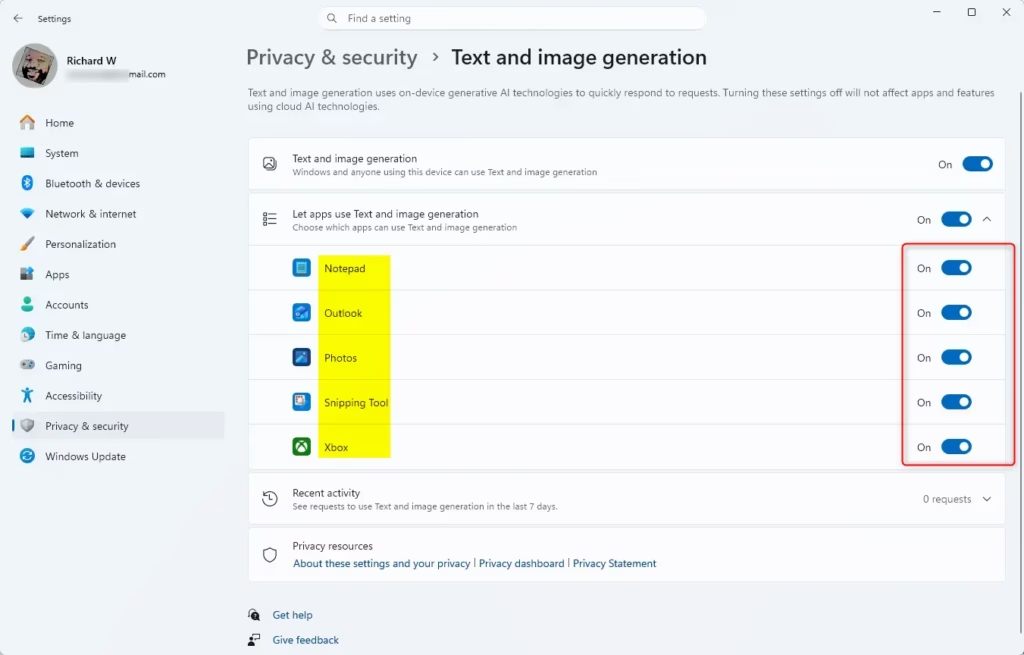
- Click Let apps use Text and image generation to expand it if you can.
- Turn On (this is the default) or Off for any apps you see listed.
- Close Settings when you're done.
Option 6Turn Text and Image Generation On or Off for Everyone in Local Group Policy Editor
You can manage Windows 11 text image generation for all users across the entire operating system by changing a rule in the Local Group Policy Editor (a tool for configuring advanced system settings). This method is helpful for network administrators and PC owners who need a permanent, system-wide configuration that stays locked in place. It overrides individual user choices and applies the same rule to every account on the machine.
- Open the Local Group Policy Editor by typing
gpedit.mscin the search box. - In the left pane, go to this location:
Computer Configuration > Administrative Templates > Windows Components > App Privacy
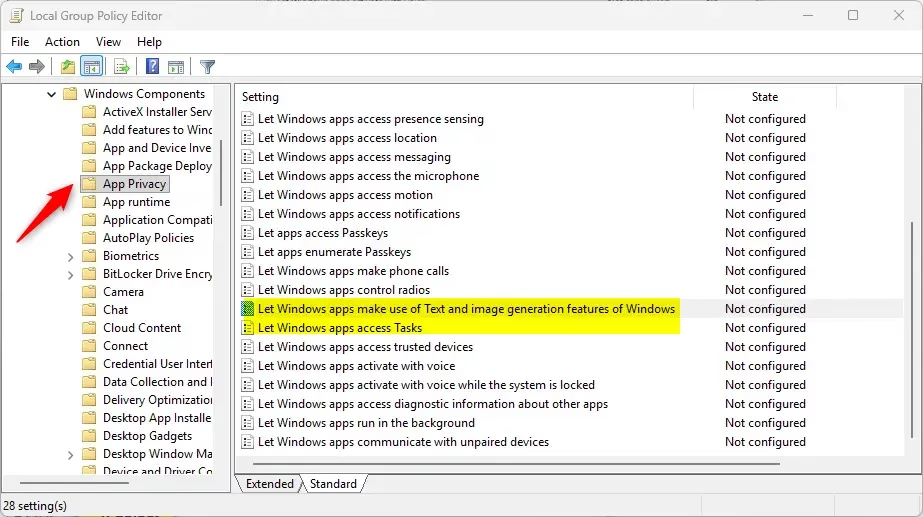
- In the right pane, double-click Let Windows apps make use of Text and image generative features of Windows to open it.
Always Turn On Text and Image Generation for Everyone
- Select the Enabled radio button.
- In the Options section, select Force Allow from the "Default for all apps" dropdown menu.
- Click OK and go to step 8 below.
Turn Off Text and Image Generation for Everyone
- Select the Enabled radio button.
- In the Options section, select Force Deny from the "Default for all apps" dropdown menu.
- Click OK and go to step 8 below.
Let Users Choose Text and Image Generation Settings
- Select the Not Configured radio button.
- Click OK and go to step 8 below.
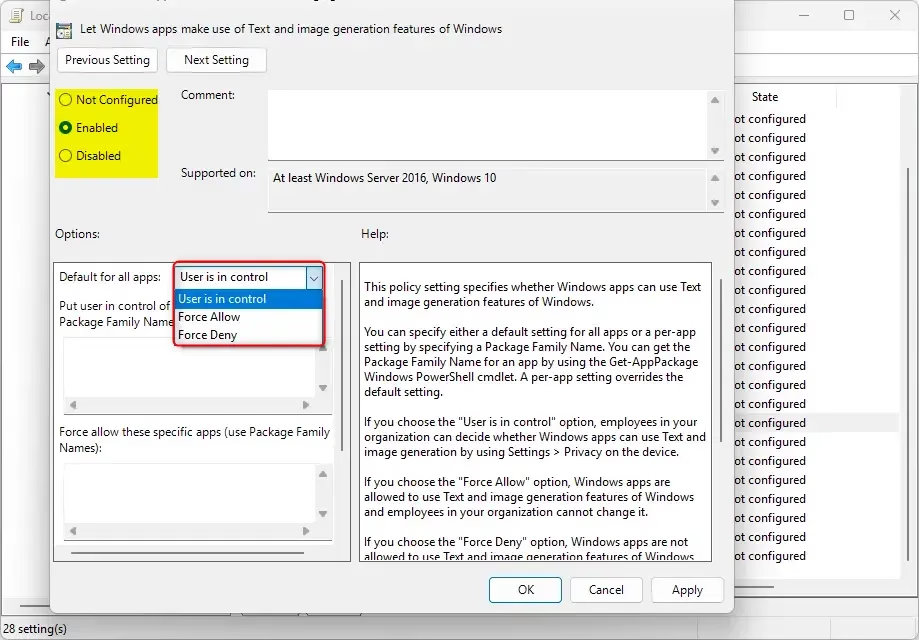
- Close the Local Group Policy Editor when you're done.
Summary
Windows 11 offers multiple ways to manage text and image generation capabilities globally, per account, or for individual programs. Administrator privileges are required for certain procedures. Selecting Settings, Registry commands, or the Group Policy Editor depends entirely on workflow preferences.
Have a question about this guide?
Answered by AI from this guide. Good questions may be added to this page — please don't include personal details.
Did this guide fix your problem?

About the Author
Richard
Tech Writer, IT Professional
Richard is a writer at Geek Rewind who turns complex IT tasks into clear, step-by-step guides. He draws on years of hands-on experience in system administration and enterprise IT operations, focusing on Windows, Linux and WordPress: the problems people actually run into, and the fixes that work. His server and WordPress guides come from systems he runs himself. Richard builds and maintains the platform behind Geek Rewind, from its Ubuntu servers and Nginx configuration to its custom WordPress plugins. Many new tutorials start with readers' questions, and he's always glad to answer them in the comments.
No comments yet — be the first to share your thoughts!