How to Exclude Websites in Windows 11 Recall Snapshots


Website filters in Windows 11 Recall stop the feature from saving snapshots while a specific site is open in your browser. Recall takes periodic snapshots of your screen so you can search for things you did earlier. Those snapshots are stored locally on your PC. Filtering out private or sensitive sites keeps them out of that history.
Which browsers can block individual sites depends on the browser:
- Microsoft Edge: blocks websites and filters private browsing activity
- Firefox: blocks websites and filters private browsing activity
- Opera: blocks websites and filters private browsing activity
- Google Chrome: blocks websites and filters private browsing activity
- Chromium based browsers: For Chromium-based browsers not listed above, filters private browsing activity only, doesn’t block specific websites
Open Settings Privacy & security Recall & snapshots, scroll to Filter lists, click Add website, type the site address, and click Add. Recall stops taking snapshots while that site is open in supported browsers like Edge or Chrome.
Filter out websites from Recall and snapshots in Windows
You set up website exclusions in the Recall settings, using the filter lists. Once a site is on the list, Recall does not take screenshots of it while it is open in a supported browser. You can also filter out a whole browser by adding it as an app filter, which is the blunt option if you want no browsing activity saved at all.
If you cannot find the Recall & snapshots page, your device probably does not support it. Recall may also ask you to verify with Windows Hello before it opens its settings.
Notes:
- Filtering out specific websites only works in supported browsers such as Microsoft Edge or other Chromium-based browsers. You can always filter out all browsing activity by adding an app filter for a browser.
- Recall won’t save any content from your private browsing activity when you’re using Microsoft Edge or other Chromium-based browsers.
- To help you reach text and images currently on your screen, Recall displays your current screen when you launch it or select the Now button. It does this without saving a new snapshot.
- Open the Windows Settings app. Click the Start menu and select Settings. Or press Win+I to open the Settings app directly. The Settings window should open.
- Click Privacy & security in the left-hand pane. The privacy options appear on the right.
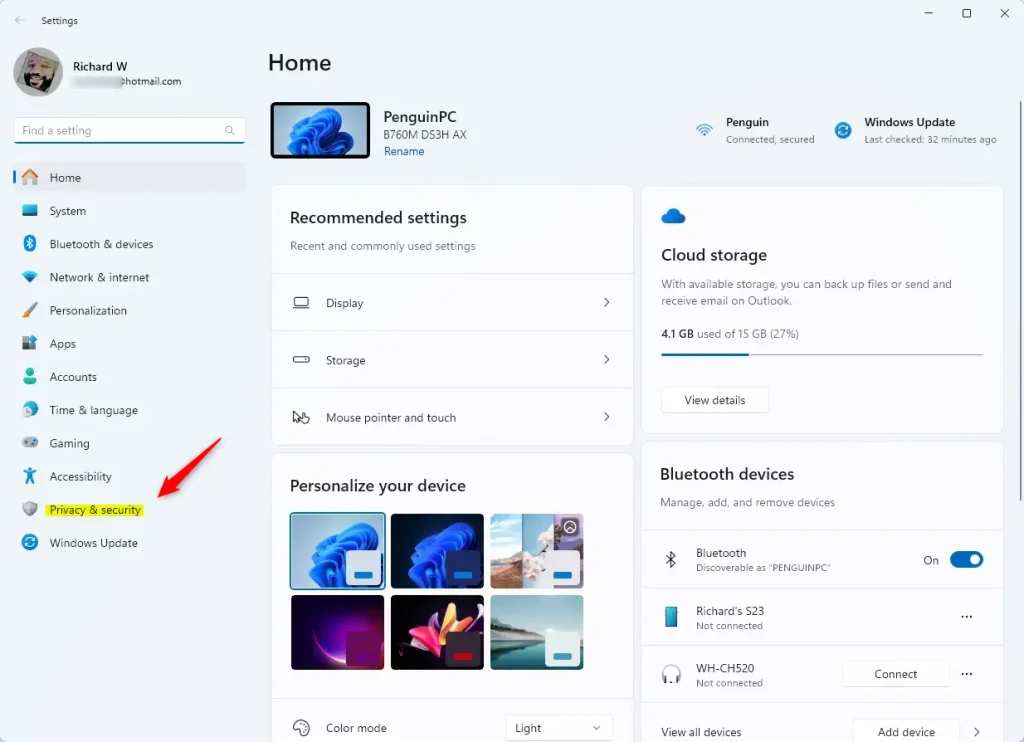
- On the right, click the Recall & snapshots page to open its settings.
- Turn on the “Save snapshots” feature if it is not already on. Website filters only matter while Recall is saving snapshots, so this needs to be on.
- Scroll to the Filter lists section and click Add website. A text box opens where you can enter the site.
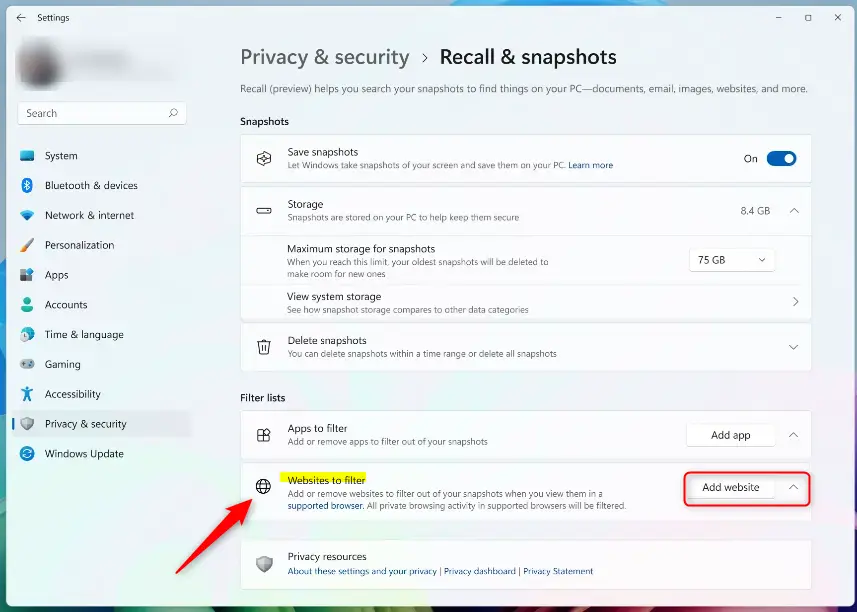
- Type the website address you want to filter into the text box.
- Click Add. The site now appears in the filtered websites list.

That completes the setup. You do not need to restart. Repeat the last three steps for each additional site.
It does not remove anything Recall has already saved. To clear earlier snapshots, use the delete options on the same Recall & snapshots page. To undo a filter, go back to the Filter lists section and remove the site from the list.
Reference:
Conclusion:
- Filtering out websites from being saved as snapshots in Windows 11 helps you keep your privacy and control over your Recall experience.
- With the "Filter lists" feature in Recall & snapshots settings, you can exclude specific websites from being captured as snapshots on your PC.
- This level of control lets you manage what Recall saves, so sensitive information or private browsing activity is not stored in the snapshots.
Have a question about this guide?
Answered by AI from this guide. Good questions may be added to this page — please don't include personal details.
Did this guide fix your problem?

About the Author
Richard
Tech Writer, IT Professional
Richard is a writer at Geek Rewind who turns complex IT tasks into clear, step-by-step guides. He draws on years of hands-on experience in system administration and enterprise IT operations, focusing on Windows, Linux and WordPress: the problems people actually run into, and the fixes that work. His server and WordPress guides come from systems he runs himself. Richard builds and maintains the platform behind Geek Rewind, from its Ubuntu servers and Nginx configuration to its custom WordPress plugins. Many new tutorials start with readers' questions, and he's always glad to answer them in the comments.
[…] in control of Recall and snapshots. You can choose which apps and websites you want to exclude from being saved as […]