How to Exclude Apps from Recall Snapshots in Windows 11


This tutorial shows how to exclude an app from Recall snapshots in Windows 11. Once an app is on the exclusion list, Recall stops saving what appears in its window. You’ll need a PC that supports Recall, and you’ll add the app from the Settings app .
Open Settings Privacy & security Recall & snapshots, turn on Save snapshots, click Add app in the Filter lists section, and select the app you want to exclude. Recall stops saving that app’s window contents in new snapshots.
What is Recall?
Recall saves snapshots of your screen as you use your PC and builds a searchable history of what you’ve seen and done. Think of it as a memory aid for your computer. You can find past information without remembering where you saw it.
Why use it? Recall helps you find something you’ve already looked at, such as a web page, a document or a chat message, without having to retrace your steps.
It is built for Copilot+ PCs, and it is off until you choose to turn it on. If you don’t see Recall in Settings, your device probably doesn’t support it.
How Snapshots Work
Recall snapshots are saved pictures of your screen, taken at different times and stored on your PC. Recall searches them when you look for something later.
If you need to free some, you can manually delete Recall snapshots from a specific timeframe or delete all snapshots snapshots on your Windows device.
Control What Gets Saved
You decide what Recall saves. You can choose which apps and websites to exclude from snapshots.
Why exclude apps? Some apps show information you don't want stored, such as banking apps or password managers. Excluding them keeps their contents out of your Recall history.
How to Exclude an App from Recall Snapshots
When you tell Recall to skip an app, it stops saving that app's contents in your PC's history. The steps below add an app to the filter list.
- Open the Windows Settings app. You can do this in either of two ways:
- Click the Start menu and select Settings.
- Or press Windows key + I to launch the Settings app.
- When the Settings app opens, click Privacy & security on the left side. The privacy options now appear on the right.
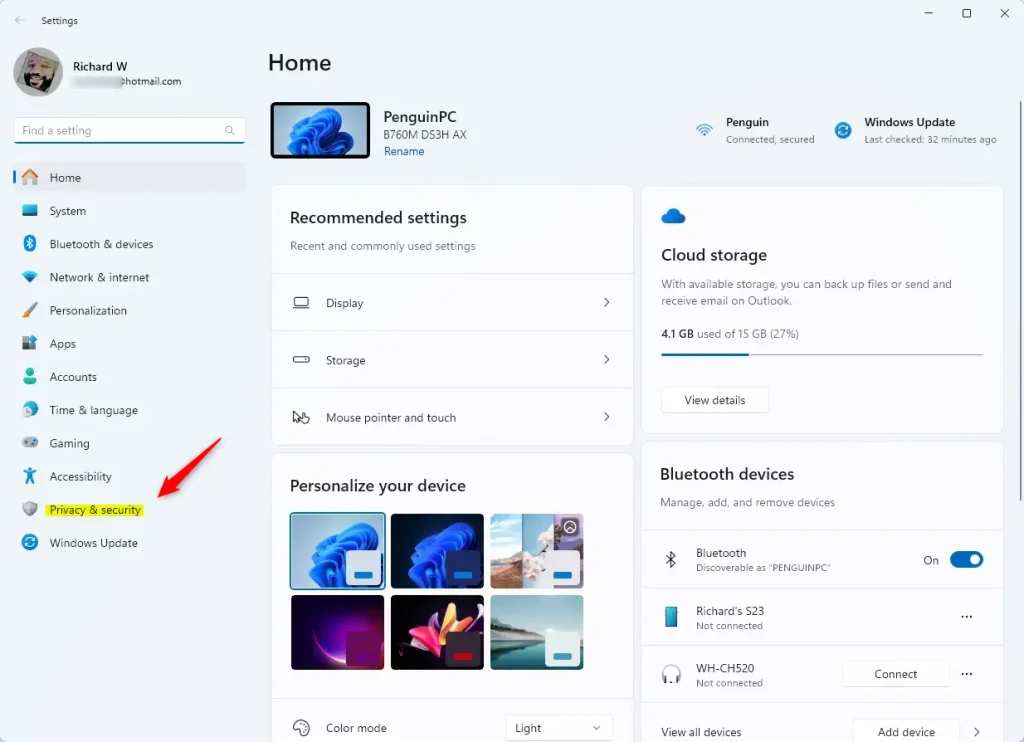
Windows 11 Privacy and Security settings menu for Recall exclusion - On the right, click the Recall & snapshots page to open its settings. The full path is Settings Privacy & security Recall & snapshots If Windows asks you to verify who you are, for example with Windows Hello, do so to continue.
- Turn on the "Save snapshots" feature. Recall only takes snapshots while this is on. The filter options below it also become available.
- Find the "Filter lists" section and click the Add app button. A list of apps installed on your PC appears.
- Select the app you want to exclude from Recall snapshots.
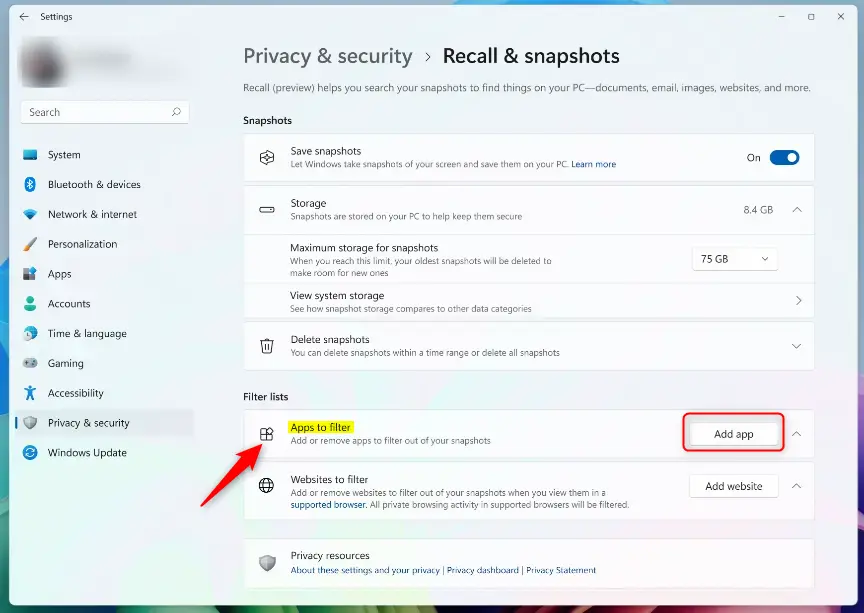
filter apps from snapshots in Windows 11 - What happens next? The app now appears in your filter list, and Recall will no longer save it in snapshots. Snapshots taken before you added the app are not removed. To clear those, delete them using the snapshot options mentioned earlier.
To undo the change, go back to Settings Privacy & security Recall & snapshots and remove the app from the filter list. Recall will then include it in new snapshots again.
Summary
Recall and snapshots in Windows 11 let you control what gets saved. You can exclude specific apps from snapshots to protect sensitive data, and you can change that list whenever you like.
References
Have a question about this guide?
Answered by AI from this guide. Good questions may be added to this page — please don't include personal details.
Did this guide fix your problem?

About the Author
Richard
Tech Writer, IT Professional
Richard is a writer at Geek Rewind who turns complex IT tasks into clear, step-by-step guides. He draws on years of hands-on experience in system administration and enterprise IT operations, focusing on Windows, Linux and WordPress: the problems people actually run into, and the fixes that work. His server and WordPress guides come from systems he runs himself. Richard builds and maintains the platform behind Geek Rewind, from its Ubuntu servers and Nginx configuration to its custom WordPress plugins. Many new tutorials start with readers' questions, and he's always glad to answer them in the comments.
[…] which apps or websites you want to exclude from being saved (apps) and […]