How to Exclude Websites from Recall Snapshots in Windows 11

Recall snapshots in Windows 11 version 24H2 take regular screenshots of your desktop so you can search your past activity later. Recall is only available on Copilot+ PCs, and you have to opt in to it. If it is on, you probably don’t want it capturing online banking, private chats, or password screens.
You can keep those pages out of your history by adding their web addresses to a filter list in your privacy settings. Recall keeps working normally for everything else, and your private browsing stays out of the timeline.
Which Browsers Work with This Feature?
- Microsoft Edge: Blocks websites and private browsing activity
- Firefox: Blocks websites and private browsing activity
- Opera: Blocks websites and private browsing activity
- Google Chrome: Blocks websites and private browsing activity
- Other Chromium-based browsers: Can filter private browsing activity but cannot block specific websites
Other Chromium-based browsers can filter out private browsing sessions, but they cannot block individual websites. If you rely on the website filter, use one of the four browsers above. Otherwise Recall may still capture those pages.
Keep these points in mind:
- Website filtering only works fully in the supported browsers, such as Microsoft Edge or Chrome.
- Recall does not save private browsing sessions in supported browsers.
- When you open Recall and click the Now button, it shows your current screen without saving a new snapshot.
- Adding a site to the filter list stops future captures only. It does not remove snapshots Recall has already taken. To clear those, use the delete options on the same Recall & snapshots page.
How to Exclude Websites from Recall Snapshots
The whole job takes a minute and happens in the Settings app. You need Windows 11 version 24H2 on a Copilot+ PC. If you don’t see Recall & snapshots under Privacy & security, your device doesn’t support Recall or the feature isn’t set up yet. Home and Pro editions use the same steps. No restart is needed.
- Open Settings . Click the Start menu (the Windows icon on the taskbar ) and select Settings, or press
Windows key + Ion your keyboard. You should see the Settings window open. Learn more about opening Settings - Go to Privacy & security. In the left menu, click Privacy & security. The right pane now lists the privacy categories.
- Open Recall & snapshots. On the right side, find and click Recall & snapshots. Check that Save snapshots is turned on. If it is off, Recall isn’t capturing anything and the filter list has no effect yet.
- Add a website to filter. Scroll down to the Filter lists section and click the Add website button. A box appears where you can type the website address, for example
example.com. Use the site’s address only, not a full page path. - Confirm. After typing the address, click Add. The site now appears in your list of filtered websites, and Recall will exclude it from snapshots. Repeat steps 4 and 5 for each additional site.
To undo this later, return to the same Filter lists section and remove the site from the list. Recall will then capture that site again.
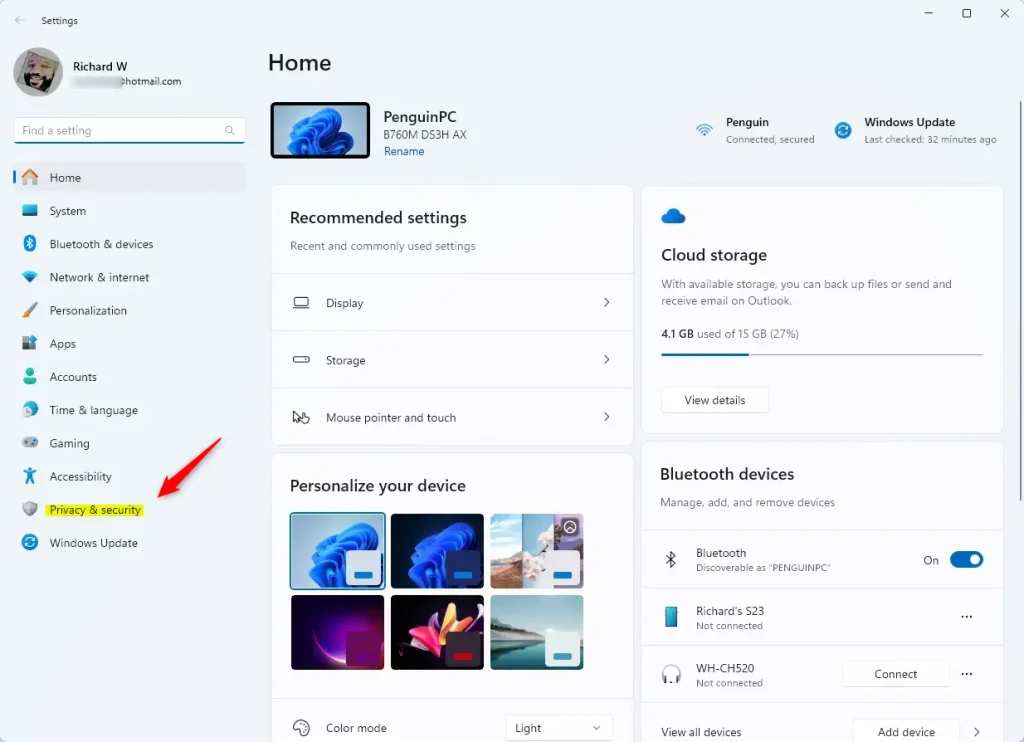
Windows 11 Privacy & Security menu in Settings
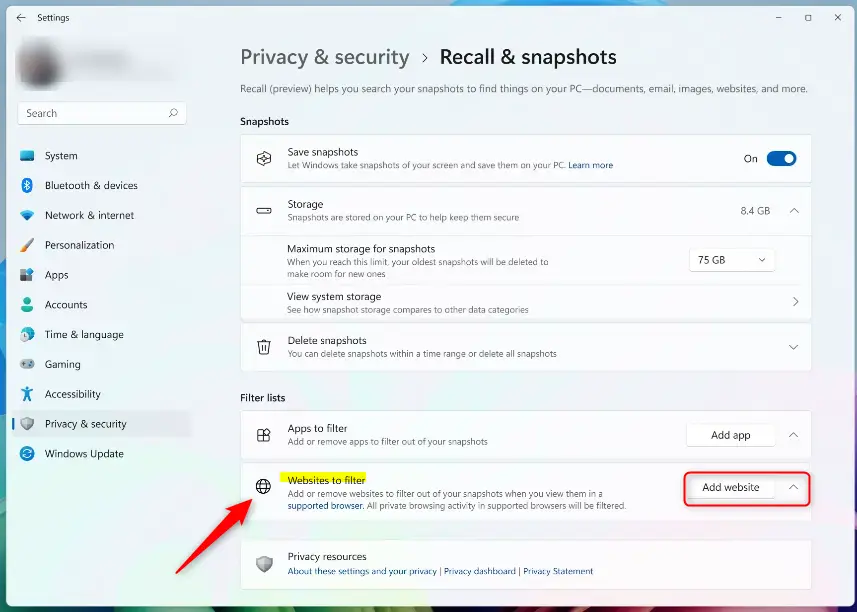
Adding websites to filter in Recall & Snapshots settings (Image: Microsoft)

Type website name and click Add to exclude it (Image: Microsoft)
Once a site is on the filter list, Recall stops saving snapshots of it. For example, if you add "mybank.com", Recall ignores activity on that site, so your account pages and balances never end up in the timeline. Test it by visiting a filtered site in a supported browser, then open Recall later and confirm that no snapshots of it appear.
Why Use This Feature?
- Keep your private or sensitive websites out of Recall's saved snapshots.
- Control what your PC stores about your browsing history.
- Improve your privacy and feel more secure when using your computer.
It's a small change, and it's worth reviewing the list whenever you start using a new sensitive site. Remember that the filter only covers future snapshots, so delete any older ones you don't want to keep.
Summary
Windows 11's Recall feature saves snapshots of your screen, but excluding specific websites keeps sensitive browsing private through a supported browser and the filter list in Windows settings.
Have a question about this guide?
Answered by AI from this guide. Good questions may be added to this page — please don't include personal details.
Did this guide fix your problem?

About the Author
Richard
Tech Writer, IT Professional
Richard is a writer at Geek Rewind who turns complex IT tasks into clear, step-by-step guides. He draws on years of hands-on experience in system administration and enterprise IT operations, focusing on Windows, Linux and WordPress: the problems people actually run into, and the fixes that work. His server and WordPress guides come from systems he runs himself. Richard builds and maintains the platform behind Geek Rewind, from its Ubuntu servers and Nginx configuration to its custom WordPress plugins. Many new tutorials start with readers' questions, and he's always glad to answer them in the comments.
No comments yet — be the first to share your thoughts!