How to Enable Recall &Amp; Snapshots in Windows 11


Recall & Snapshots takes regular screenshots of your screen on Copilot+ PCs running Windows 11 build 26100 or later, so you can search through what you did earlier. It keeps a visual history of the websites, documents, and apps you had open, so you can find them again quickly.
You can turn the feature on or off in two ways: through the Settings app , or through the Local Group Policy Editor. Settings works on every edition. The Group Policy Editor is meant for administrators and is only available in Windows 11 Pro, Enterprise, and Education. Home does not include it.
On a Copilot+ PC running Windows 11 build 26100 or later, open Settings Privacy & security Recall & snapshots and toggle the Save snapshots switch on. The feature then captures your screen every five seconds when changes occur, letting you search your visual history.
What is Recall & Snapshots?
Recall is a built-in memory feature. It captures your screen as you work, browse, and chat, then builds a searchable history from those captures. When you want to find something later, you type what you remember seeing into the search bar instead of digging through folders or browser history.
Why would you use this? If you saw something on your screen last week and cannot remember where, Recall helps you find it fast. That could be a web page, a figure in a document, or a message in a chat.
While Recall is active, your PC checks the screen every five seconds. It saves a snapshot only if something on the screen has changed. That keeps storage use down, because an idle screen does not fill the disk with identical images.
You can switch it off again at any time using the steps below.
Do You Meet the Requirements?
Recall only runs on hardware that meets these minimum specifications:
- A Copilot+ PC
- 16 GB RAM
- 8 logical processors
- 256 GB storage capacity
If free space drops below 25 GB, your PC stops saving snapshots automatically. Saving does not resume until you free up space again.
If your PC does not meet these requirements, you will not see the Recall settings at all. In that case the Settings steps below will not apply to your device. Check the hardware first before you go looking for a missing option.
Method 1Turn Recall On or Off Using Settings
The Settings app is the simplest way to control Recall. You do not need any advanced tools, and it works on both Home and Pro. You open the privacy section and use one toggle to decide whether your PC saves snapshots.
- Open the Settings app. Click the Start menu and select Settings, or press the Windows key + I on your keyboard. The Settings window opens.
- Click Privacy & security on the left side. The privacy options appear on the right.
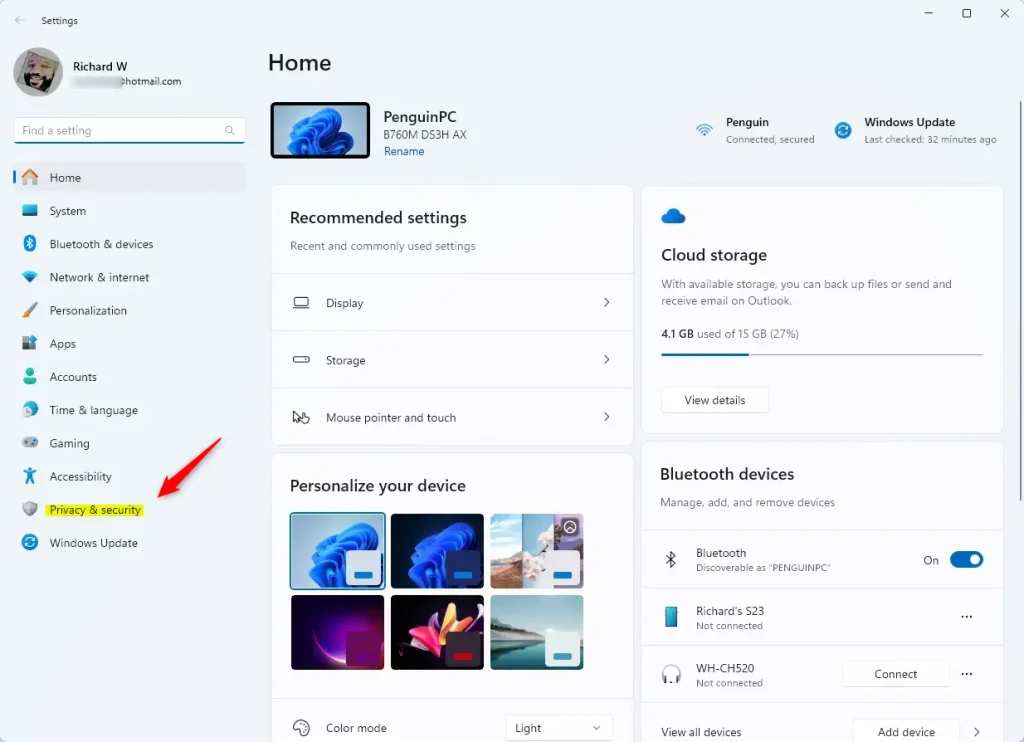
- On the right, scroll down if needed and click Recall & snapshots. The Recall settings page opens.
- Find the Save snapshots tile and flip the switch to On or Off. The switch shows its new state right away. If it is greyed out, check whether a policy set by an administrator or your organization is controlling it (see the Group Policy section below).
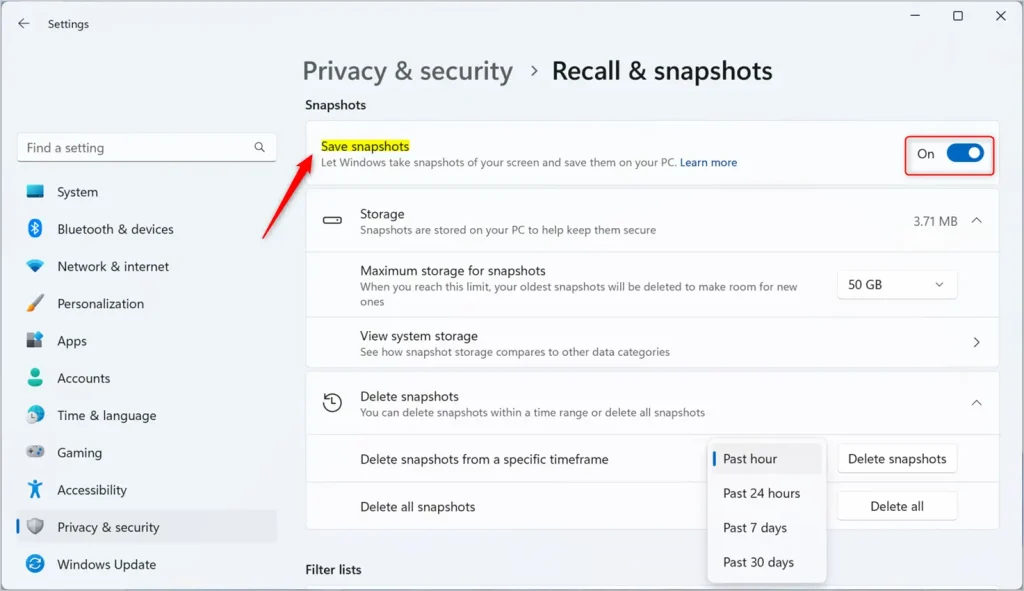
- Close the Settings app when you're done. The change is saved as soon as you flip the switch, so there is no separate Save button. To undo it, come back to the same page and flip the switch the other way.
Method 2Turn Recall On or Off Using Group Policy Editor
Use the Local Group Policy Editor if you want system-wide control over Recall. This is the more advanced method. It needs an administrator account, and it uses an administrative template setting to turn snapshot saving on or off. The editor is not included in Windows 11 Home, so on a Home PC use the Settings method above.
- ⚠️ Admin privileges required. Open the Local Group Policy Editor. Type "Edit group policy" in the Start menu search and click the result. The Local Group Policy Editor window opens.
- In the left pane, expand these folders in order:
- User Configuration
- Administrative Templates
- Windows Components
- Windows AI
- On the right side, find and double-click Turn off Saving Snapshots for Windows. The setting's properties window opens.
- Choose one of these options:
- Not Configured (default) – Same as Disabled. Snapshots are saved.
- Enabled – Windows stops saving snapshots. You can't search or browse your activity history.
- Disabled – Windows saves snapshots. You can search and browse your activity history.
- Click OK to save your changes. The window closes and the setting list shows the new state.
- Restart your PC if the change does not take effect. A restart is not always needed, but it makes sure the policy is applied.
Be careful with the wording here. This policy is named "Turn off Saving Snapshots", so Enabled means saving is turned off. To undo your change, return to the same setting and pick Not Configured.
Summary
Recall & Snapshots automatically saves pictures of your screen so you can search for past content later. Use Settings Privacy & security Recall & snapshots for a quick on/off switch on any edition. Use the Local Group Policy Editor when you need to manage the feature as an administrator on Pro or higher.
Reference: Microsoft
Have a question about this guide?
Answered by AI from this guide. Good questions may be added to this page — please don't include personal details.
Did this guide fix your problem?

About the Author
Richard
Tech Writer, IT Professional
Richard is a writer at Geek Rewind who turns complex IT tasks into clear, step-by-step guides. He draws on years of hands-on experience in system administration and enterprise IT operations, focusing on Windows, Linux and WordPress: the problems people actually run into, and the fixes that work. His server and WordPress guides come from systems he runs himself. Richard builds and maintains the platform behind Geek Rewind, from its Ubuntu servers and Nginx configuration to its custom WordPress plugins. Many new tutorials start with readers' questions, and he's always glad to answer them in the comments.
[…] Recall & Snapshots is an AI feature in Windows 11 that functions like a photographic memory by saving snapshots of your screen. You can then use the Recall feature to quickly search your snapshots and find things you’ve seen on your PC. […]
[…] Recall & Snapshots is an AI feature in Windows 11 that functions like a photographic memory by saving snapshots of your screen. You can then use the Recall feature to quickly search your snapshots and find things you’ve seen on your PC. […]
[…] Recall & Snapshots is an AI feature in Windows 11 that functions like a photographic memory by saving snapshots of your screen. You can then use the Recall feature to quickly search your snapshots and find things you’ve seen on your PC. […]
[…] Recall & Snapshots is an AI feature in Windows 11 that functions like a photographic memory by saving snapshots of your screen. You can then use the Recall feature to quickly search your snapshots and find things you’ve seen on your PC. […]
[…] Recall & Snapshots is an AI feature in Windows 11 that functions like a photographic memory by saving snapshots of your screen. You can then use the Recall feature to quickly search your snapshots and find things you’ve seen on your PC. […]
[…] Recall & Snapshots is an AI feature in Windows 11 that functions like a photographic memory by saving snapshots of your screen. You can then use the Recall feature to quickly search your snapshots and find things you’ve seen on your PC. […]
[…] Microsoft announced this spring, you need a Copilot+ PC to use Cocreator. You must also update the Microsoft Paint app to the latest version available in […]
[…] Recall & Snapshots is an AI feature in Windows 11 that functions like a photographic memory by saving snapshots of your screen. You can then use the Recall feature to quickly search your snapshots and find things you’ve seen on your PC. […]
[…] Recall & Snapshots is an AI feature in Windows 11 that functions like a photographic memory by saving snapshots of your screen. You can then use the Recall feature to quickly search your snapshots and find things you’ve seen on your PC. […]
[…] Recall & Snapshots is an AI feature in Windows 11 that functions like a photographic memory by saving snapshots of your screen. You can then use the Recall feature to quickly search your snapshots and find things you’ve seen on your PC. […]
[…] article explains how to enable or disable the Recall feature in Windows […]
[…] Recall & Snapshots is an AI feature in Windows 11 that functions like a photographic memory by saving snapshots of your screen. You can then use the Recall feature to quickly search your snapshots and find things you’ve seen on your PC. […]
[…] Recall & Snapshots is a smart tool in Windows 11 that works like a camera memory. It saves snapshots (pictures) of your screen so you can quickly search and find things you’ve seen on your PC. […]
[…] 11 versions (build 26120.2415 and later) and is mainly available on special Windows devices called Copilot+ PCs (powered by Snapdragon […]
[…] Recall & Snapshots is a cool AI feature in Windows 11. It works like a camera that takes quick pictures (snapshots) of what’s on your screen. Later, you can search these snapshots to find something you saw before on your PC. […]
[…] Recall & Snapshots saves copies of your screen securely on your PC. You can control how much space it uses and even delete old snapshots if needed. […]
[…] you use Windows 11, you might have heard about Recall & Snapshots. This is a handy feature that works like a memory for your PC. It takes small […]
[…] What are Recall Snapshots? Recall Snapshots are like photos your computer takes of what’s on your screen at different times. Windows saves these snapshots so you can search for things you’ve seen or worked on before. You can learn more about this feature here: Recall & Snapshots explained. […]
[…] Recall & Snapshots is a handy feature in Windows 11. It works like a photo album for your computer, saving pictures (snapshots) of what’s on your screen. Later, you can search through these snapshots to find things you’ve seen before. […]