How to Change Maximum Storage for Windows 11 Snapshots


Snapshots in Windows 11 take automatic pictures of your screen so you can search your past activity later through the Recall feature. Recall uses a set amount of your drive space to store these images, and Windows reserves a default block for it. When that block fills up, Windows deletes the oldest snapshots to make room for new ones.
You can change this storage limit to fit your drive size. Setting aside 10 GB to 25 GB on a 256 GB drive gives you plenty of history without crowding your files. A larger limit keeps older snapshots for longer. A smaller limit frees up space but shortens how far back you can search.
Open Settings, go to Privacy & security, click Recall & snapshots, expand Storage, then select your preferred size from the Maximum storage for snapshots drop-down. The new limit takes effect immediately without restarting.
Adjust the Maximum Storage for Snapshots in Windows
Changing the maximum storage for snapshots takes only a few steps in Settings. Recall is only available on Copilot+ PCs, so if you don’t see the settings described below, your device probably doesn’t support it. The same is true if your edition or region doesn’t include it yet. The options you can pick from depend on the size of your drive, so your list may differ from someone else’s.
Step 1Open the Settings App
Open the Windows Settings app. This is where all Recall and snapshot options live, so you don’t need any other tool.
Press Win+I to open Settings quickly, or find Settings in your Start menu. The Settings window should open with a list of categories down the left side.
Step 2Go to Privacy & Security
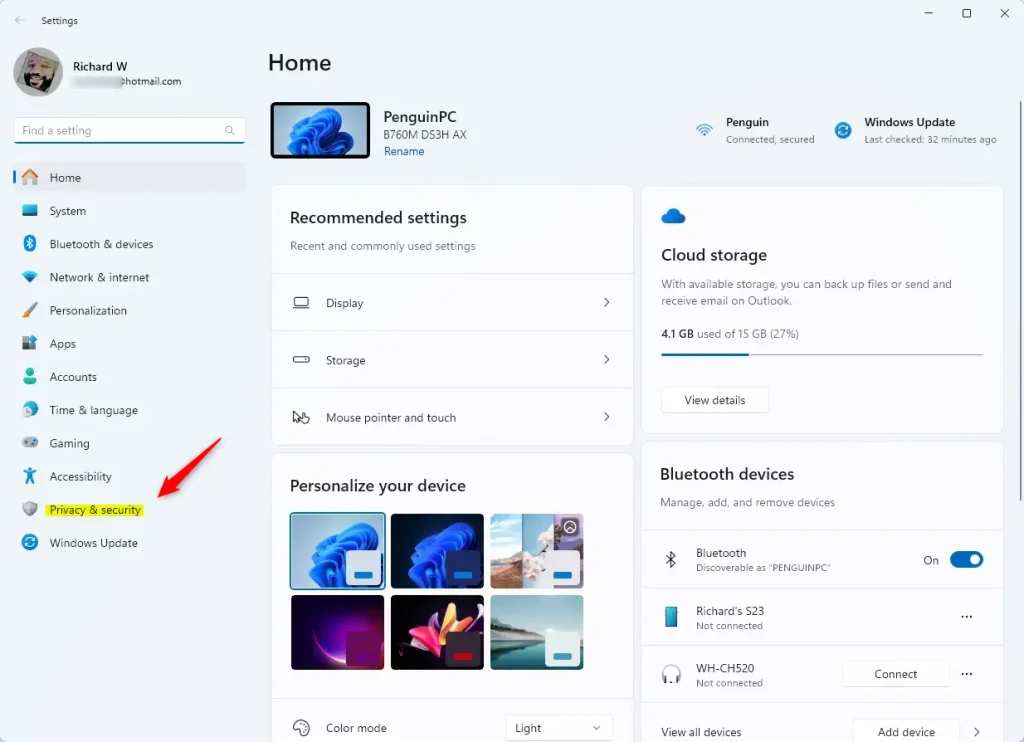
Once the Settings app opens, click Privacy & security on the left-hand side. The page on the right will change to show privacy options such as Windows permissions and app permissions.
Step 3Open Recall & Snapshots
On the right side, click the Recall & snapshots page to open its settings. Windows may ask you to verify your identity, for example with Windows Hello, before it shows the page. If it does, sign in and the page will open.
Step 4Adjust the Storage Size
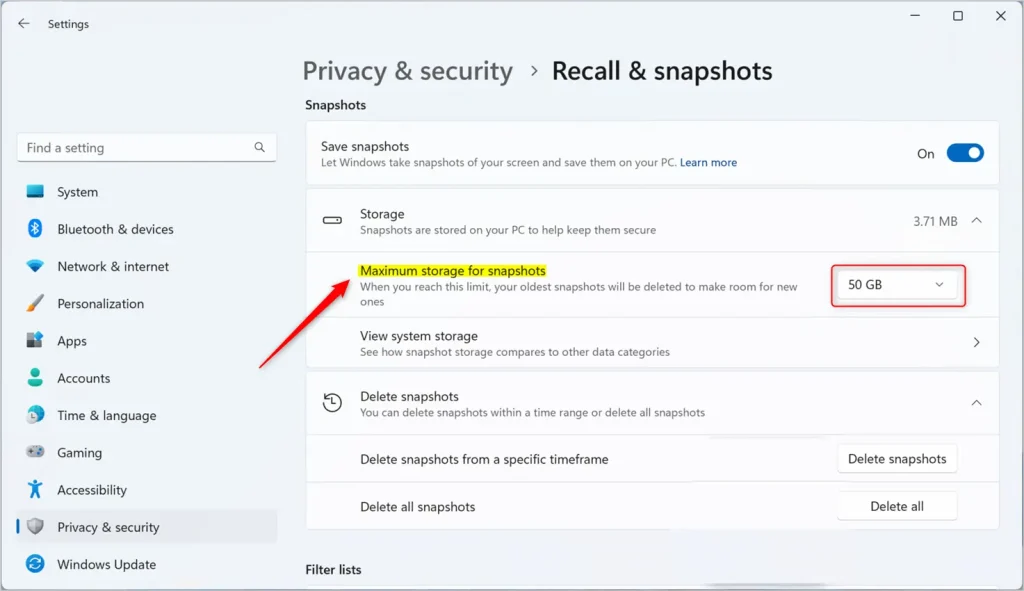
Then, click Storage to expand that section. It should open and show the current limit for snapshots.
Locate the Maximum storage for snapshots setting and select a size that fits your disk management goals. Open the drop-down list and pick one of the values offered. On a small drive, choose a lower value so Recall doesn’t compete with your files. If you have plenty of free space and want a longer history, choose a higher one. If you later need the space back, return here and pick a smaller size.
Summary
You can manage all snapshot storage settings directly inside the Settings app. To check or change the limit later, go back to Settings Privacy & security Recall & snapshots and open the Storage section again.
Reference
Have a question about this guide?
Answered by AI from this guide. Good questions may be added to this page — please don't include personal details.
Did this guide fix your problem?

About the Author
Richard
Tech Writer, IT Professional
Richard is a writer at Geek Rewind who turns complex IT tasks into clear, step-by-step guides. He draws on years of hands-on experience in system administration and enterprise IT operations, focusing on Windows, Linux and WordPress: the problems people actually run into, and the fixes that work. His server and WordPress guides come from systems he runs himself. Richard builds and maintains the platform behind Geek Rewind, from its Ubuntu servers and Nginx configuration to its custom WordPress plugins. Many new tutorials start with readers' questions, and he's always glad to answer them in the comments.
[…] are essentially copies of your PC’s current state, are securely stored on your PC. Windows sets a maximum storage size for these snapshots, which you can change anytime. Once that maximum is reached, the oldest snapshots are deleted […]
[…] copies of your PC’s current state, are securely stored on your PC. Windows sets a maximum storage size for these snapshots, which you can change anytime. Once that maximum is reached, the oldest snapshots are deleted […]
[…] snapshots, copies of your PC’s current state, are securely stored on your PC. Windows sets a maximum storage size for these snapshots, which you can change anytime. Once that maximum is reached, the oldest snapshots are deleted […]
[…] snapshots, copies of your PC’s current state, are securely stored on your PC. Windows sets a maximum storage size for these snapshots, which you can change anytime. Once that maximum is reached, the oldest snapshots are deleted […]
[…] snapshots, copies of your PC’s current state, are securely stored on your PC. Windows sets a maximum storage size for these snapshots, which you can change anytime. Once that maximum is reached, the oldest snapshots are deleted […]