How to Delete All Recall Snapshots in Windows 11

Deleting all Windows 11 Recall snapshots clears out the hidden screenshots of your screen activity and can free up gigabytes of storage. Recall takes a picture of your screen every few seconds so you can search past actions later. Those files can pile up quickly, especially on a small drive.
You can wipe every snapshot at once from the Settings app. It takes under a minute, and it removes old screen data you no longer want on the PC.
Open Settings , navigate to Privacy & security, then Recall & snapshots. Scroll to the Storage section and click Del snapshots, then confirm by clicking Delete all. This removes all saved snapshots and frees up disk space.
How to Delete All Recall Snapshots
To delete all Recall snapshots, open Settings , go to Privacy & security, and select Recall & snapshots. From there you can clear every saved screen image in one go, which frees disk space and removes your activity history from the computer.
Recall is only available on Copilot+ PCs. If you don’t see the Recall & snapshots page, your PC probably doesn’t support it, and there is nothing to delete. You may also be asked to verify with Windows Hello (face, fingerprint or PIN) before the Recall settings open. Windows requires this to protect your snapshot data.
- Open the Settings app. You can do it either of these ways:
- Click the Start menu (the Windows logo at the bottom of your screen), then click Settings. The Settings window opens with the System page showing.
- Or press the Win+I at the same time. This opens Settings straight away.
- More info on opening Settings: How to Access Settings in Windows 11
- In Settings, click Privacy & security in the menu on the left. The page on the right now lists privacy categories such as Search permissions and App permissions.
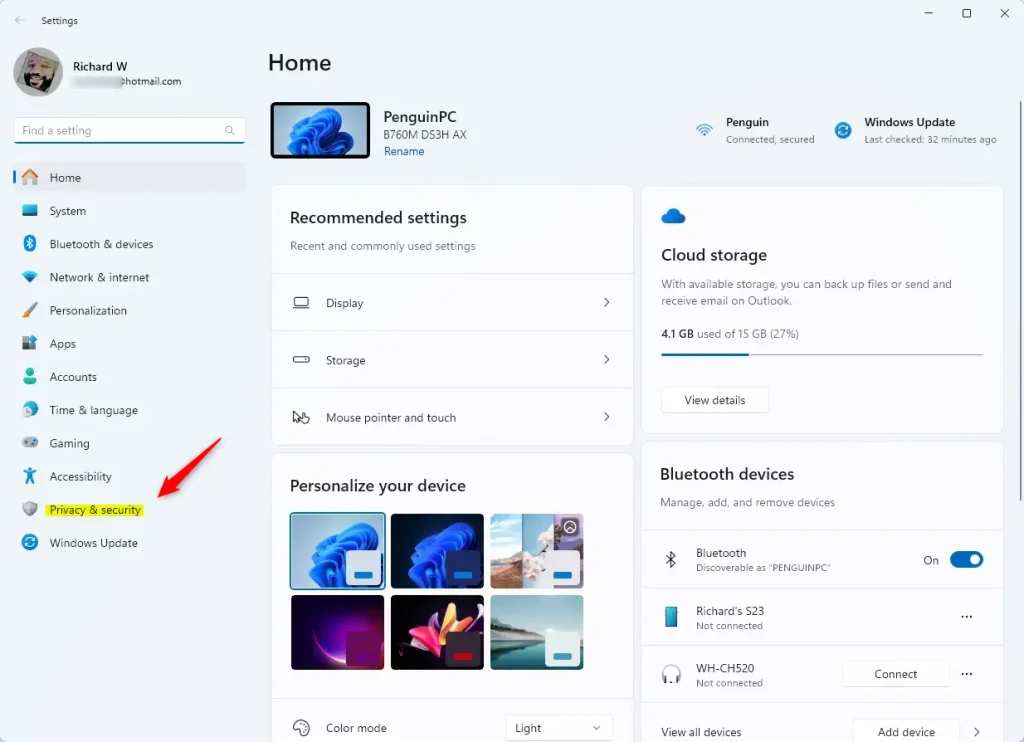
Windows 11 Privacy and Security settings menu for Recall exclusion - On the right side, find and click Recall & snapshots. The Recall & snapshots settings page opens. If Windows asks you to verify your identity, use Windows Hello to continue. Make sure the Save snapshots option is turned on. If the page lists no snapshots and the delete options are missing or greyed out, there may be nothing saved yet.
- Scroll down to the Storage section, then click Delete snapshots. The section expands to show more deletion options.
- Click Delete all snapshots. A confirmation prompt appears.
- Press the Delete all button to remove every saved snapshot from your computer. Be sure before you click, because deleted snapshots can’t be restored. You don’t need to restart the PC.
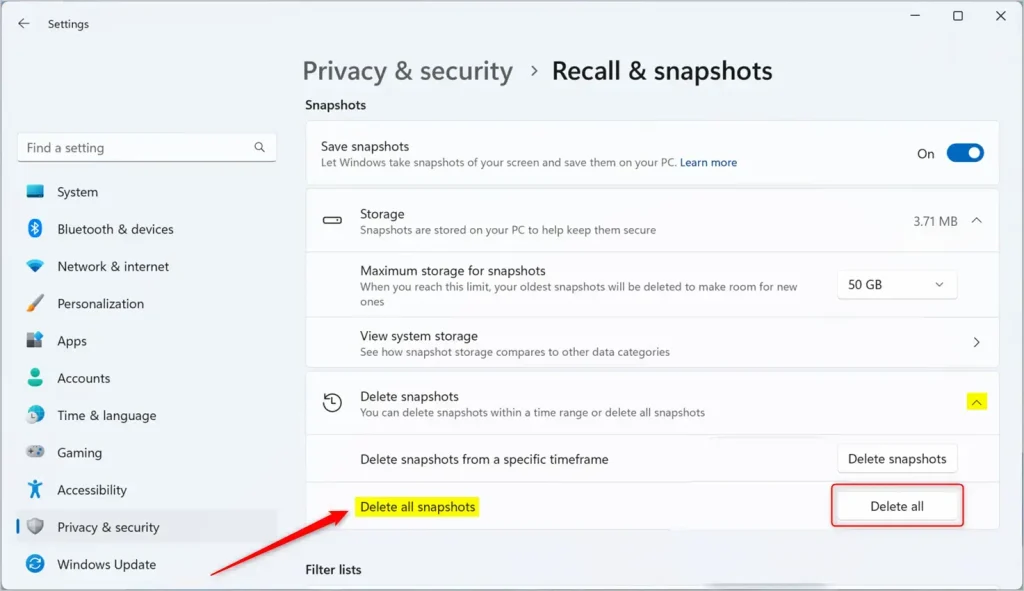
Delete all Recall snapshots in Windows 11
All Recall snapshots on your Windows 11 PC are now deleted, and the storage they used is free again. Check Settings System Storage if you want to see how much space you got back. Deleting snapshots doesn’t turn Recall off, so it will keep saving new ones. To stop that, turn off Save snapshots on the same page.
Why Delete Recall Snapshots?
- It helps free up storage space if your PC is running low, particularly on smaller drives.
- Clearing old snapshots keeps the stored screen history small, which also keeps your system tidier.
- You can manage snapshots at any time from Windows Settings , so you can repeat these steps whenever the folder grows too large.
Deleting Recall snapshots in Windows 11 frees up disk space and protects your privacy by removing stored pictures of your screen activity. Clearing them stops the feature from eating up storage over time, which matters most on smaller drives.
Feel free to leave any questions or tips in the comments below!
Summary
Recall saves snapshots of your screen in Windows 11 to help you find things, but they can use up storage. To delete them all, go to Settings Privacy & security Recall & snapshots, then choose Delete snapshots and Delete all snapshots, and confirm with Delete all. Recall is only available on Copilot+ PCs, and you may need to verify with Windows Hello first.
Have a question about this guide?
Answered by AI from this guide. Good questions may be added to this page — please don't include personal details.
Did this guide fix your problem?

About the Author
Richard
Tech Writer, IT Professional
Richard is a writer at Geek Rewind who turns complex IT tasks into clear, step-by-step guides. He draws on years of hands-on experience in system administration and enterprise IT operations, focusing on Windows, Linux and WordPress: the problems people actually run into, and the fixes that work. His server and WordPress guides come from systems he runs himself. Richard builds and maintains the platform behind Geek Rewind, from its Ubuntu servers and Nginx configuration to its custom WordPress plugins. Many new tutorials start with readers' questions, and he's always glad to answer them in the comments.
No comments yet — be the first to share your thoughts!