Windows 11: Manage Sensitive Information in Recall Snapshots

Recall snapshots in Windows 11 capture your desktop activity every few seconds on Copilot+ PCs. They help you find apps, websites and files you used earlier. The snapshot history is stored locally on your hard drive, not sent to a cloud service.
Recall has a built-in filter that tries to keep sensitive details, such as credit card numbers and passwords, out of those snapshots. You also have other controls. You can pause snapshot saving, turn Recall off completely, or delete snapshots you don’t want to keep. This guide covers the filter. Recall only exists on Copilot+ PCs, so if you don’t see it in Settings, your hardware or Windows version doesn’t support it.
Turn on the sensitive information filter in Recall to keep passwords and credit card numbers out of new snapshots. Open Settings , select Privacy & security, click Recall & snapshots, then select Filter sensitive information and switch it On. The filter is not guaranteed and does not remove snapshots saved before you enabled it.
Filter Sensitive Information in Recall Snapshots
Open Settings , go to Privacy & security, select Recall & snapshots, and turn on the filter switch. The filter is not perfect, so treat it as an extra layer of protection and not a guarantee. It does not clean up snapshots that were already saved before you turned it on. If you need to remove those, use the delete options on the same settings page.
Here’s how to do it. The whole job takes less than a minute, and you don’t need to restart the PC.
- Open the Windows Settings app. Click the Start menu and select Settings. Or press the keyboard shortcut (Win+I) to launch the Settings app . The Settings window should open with a list of categories on the left.
- When the Settings app opens, click the Privacy & security button on the left. The privacy options appear on the right.

Windows 11 Privacy and Security settings menu for managing Recall snapshots - On the right, click the Recall & snapshots tile to open its settings. If the tile is missing, the PC is not a Copilot+ PC, or Recall is not available in your build of Windows 11. Windows may also ask you to verify with Windows Hello before it shows these settings.
- Under Filter lists, select the Filter sensitive information tile. You should see a switch for the filter. [Requires Admin Privileges]
- Toggle the button to the On position to enable the filter. The filter may already be on, in which case you don’t need to change anything. If the switch is greyed out, check that Recall itself is set up and that you are signed in with an account that has Windows Hello enabled.
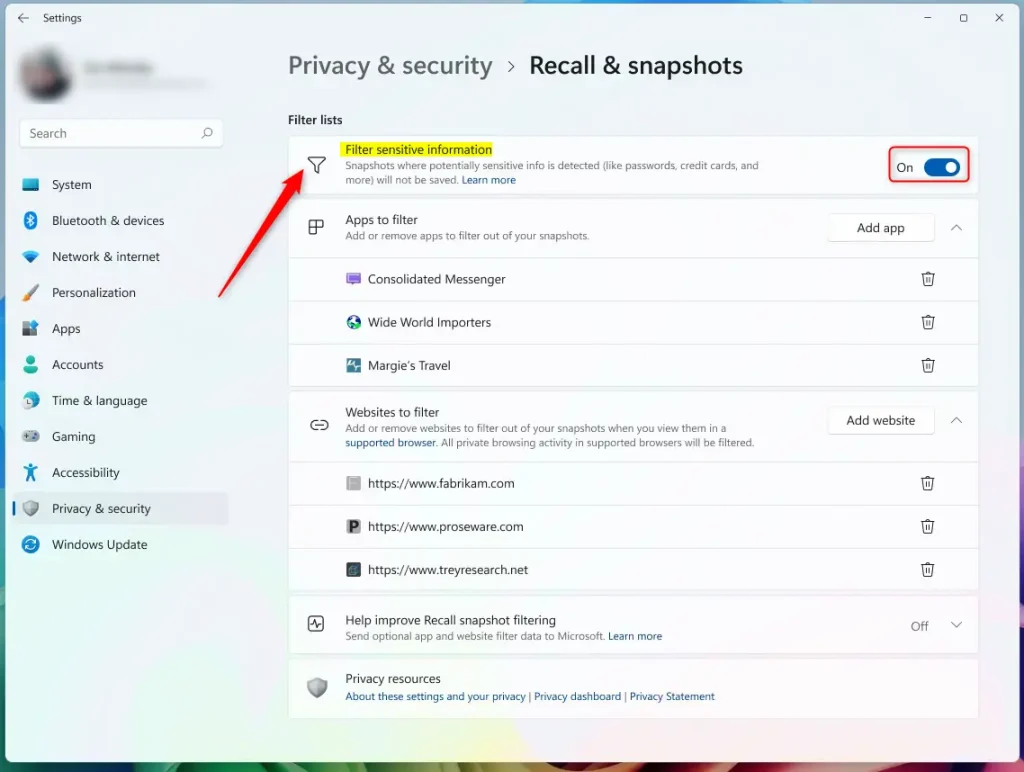
Recall snapshots sensitive information - To disable it later, return to the same page and toggle the switch to the Off position. Only do this if you have a good reason, because new snapshots will then be saved without the filter’s protection.
From now on, Recall tries to skip sensitive information when it takes new snapshots. Snapshots saved earlier stay as they were. The filter is automatic and can miss things, so also pause Recall or delete snapshots from the same page when you work with highly private data.
Reference
Summary
Windows 11 Recall records your screen activity over time, but you can limit what it keeps by turning on the built-in sensitive information filter. The filter works automatically. It aims to hide passwords, credit card numbers and other private data from your saved snapshots, while you keep using the rest of Recall normally.
- Better Privacy: The filter hides sensitive information like passwords and credit card numbers from your snapshots, so less private data ends up in your history.
- Easy to Use: You can quickly enable or disable the filter through the Windows Settings app. No restart is needed, and you can undo the change at any time.
- Secure Storage: Recall stores your snapshots on your device only. Your data stays local and private.
- You're in Control: You decide what gets saved. You can delete snapshots or pause the feature anytime from the Recall & snapshots page.
- AI Power: This AI technology works like a photographic memory. It makes finding information you saw earlier much easier.
Have a question about this guide?
Answered by AI from this guide. Good questions may be added to this page — please don't include personal details.
Did this guide fix your problem?

About the Author
Richard
Tech Writer, IT Professional
Richard is a writer at Geek Rewind who turns complex IT tasks into clear, step-by-step guides. He draws on years of hands-on experience in system administration and enterprise IT operations, focusing on Windows, Linux and WordPress: the problems people actually run into, and the fixes that work. His server and WordPress guides come from systems he runs himself. Richard builds and maintains the platform behind Geek Rewind, from its Ubuntu servers and Nginx configuration to its custom WordPress plugins. Many new tutorials start with readers' questions, and he's always glad to answer them in the comments.
No comments yet — be the first to share your thoughts!