How to Use Cocreator in Windows 11 Paint App


Cocreator in the Windows 11 Paint app turns typed text descriptions into original AI artwork directly inside the drawing program. Type a short description of what you want to see, pick an art style, and the tool generates matching images on your screen.
This feature requires a Copilot+ PC. These PCs have a built-in AI chip called a Neural Processing Unit (NPU), and Cocreator needs it to run properly. On a PC without an NPU, the Cocreator button will not appear in Paint, and nothing in Settings will change that.
Open Paint and click the Cocreator icon in the toolbar. Describe your desired image in the side panel, sketch on the canvas, and adjust the slider and style. Click the generated image to add it to your canvas.
Use Cocreator with the Paint app
Cocreator lets you turn simple text descriptions into detailed artwork inside Microsoft Paint using built-in AI tools. You type what you want to see, pick an artistic style, and watch the image appear on your screen as you make basic sketches. The feature requires an internet connection and a Microsoft account, so sign in to Windows or Paint with your account before you start.
Before you begin, check three things. You need a Copilot+ PC, you need to be signed in with a Microsoft account, and Paint should be up to date. Paint updates through the Microsoft Store, so if the Cocreator button is missing on a Copilot+ PC, open the Store, go to Library, and install any pending updates for Paint.
Follow these steps to get started.
- Open Microsoft Paint. A blank canvas appears.
- Select the Cocreator icon on the toolbar. The Cocreator side pane opens next to the canvas.
- Click the text box in the side pane and enter a prompt. For example, type “a cat in a garden” or “a spaceship in the sky”. Describe the elements you want as fully as you can, such as the subject, the setting and the mood.
- Start drawing on the canvas with your mouse or stylus. You can use any tools or colors you want. For the best results, use the colors you want to see in the output, use broad brush strokes, and fill as much of the canvas as you can. Rough shapes are enough, because the AI uses them as a guide for layout and color.
- Watch the side pane as you draw. AI-generated artwork based on your text and your sketch appears there and updates as you add more strokes.
If the results do not match what you had in mind, change the prompt wording first. Then add more color and larger shapes to the sketch. Small, thin lines usually have little effect.
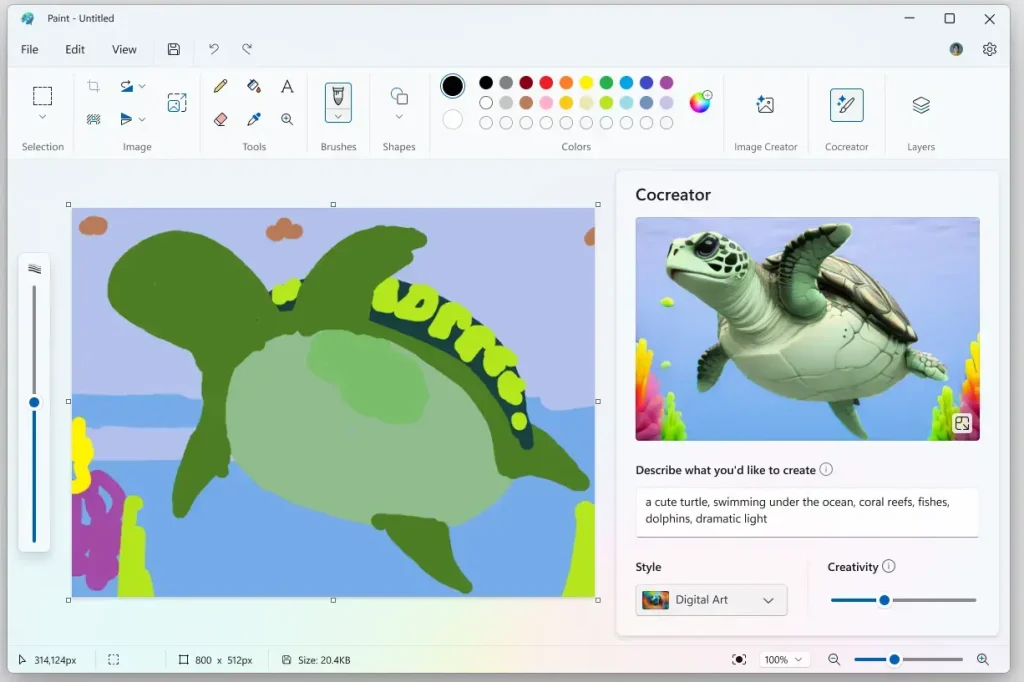
Once you have a first result, you can tune how it looks with the controls in the side pane.
- Drag the Creativity slider to set how much freedom the AI has. A lower setting limits the AI's input and keeps the output closer to your sketch. A higher setting gives the AI more influence and produces more imaginative and varied results.
- Open the Style drop-down menu and choose an option. Styles such as watercolor and oil painting change the final look of the image. The preview updates to show the new style.
- When you are happy with a result, click the generated image in the side pane. The artwork is applied to the Paint canvas.
- Keep editing the image with the normal Paint tools, or save the file to your computer.
If you apply an image and change your mind, press Ctrl+Z to undo it. Your earlier canvas content comes back. To start over, clear the prompt and the canvas and begin again.
Cocreator brings AI-powered image generation directly into Microsoft Paint on compatible Copilot+ PCs.
Reference:
Conclusion:
- Cocreator introduces a new way to generate artwork in the Paint app on Windows 11.
- Users with a Copilot+ PC can access the feature to create AI-generated art based on textual prompts and sketches.
- The Creativity slider and Style options allow for customization and artistic flexibility.
- The Neural Processing Unit (NPU) powers this feature for local image generation, which helps with privacy and efficiency.
- By following these steps, you can use Cocreator to enhance your artwork in the Microsoft Paint app.
Have a question about this guide?
Answered by AI from this guide. Good questions may be added to this page — please don't include personal details.
Did this guide fix your problem?

About the Author
Richard
Tech Writer, IT Professional
Richard is a writer at Geek Rewind who turns complex IT tasks into clear, step-by-step guides. He draws on years of hands-on experience in system administration and enterprise IT operations, focusing on Windows, Linux and WordPress: the problems people actually run into, and the fixes that work. His server and WordPress guides come from systems he runs himself. Richard builds and maintains the platform behind Geek Rewind, from its Ubuntu servers and Nginx configuration to its custom WordPress plugins. Many new tutorials start with readers' questions, and he's always glad to answer them in the comments.
No comments yet — be the first to share your thoughts!