How to Enable Dark Mode in Windows 11 Paint App


This guide shows you how to change the look of the Paint app in Windows 11. We will show you how to turn on Dark Mode, how to update Paint if the option is missing, and what to try if the theme won’t change.
Open Paint, click the Settings gear icon at the top right, and choose Dark from the App theme box. Paint switches to a dark interface immediately, with no restart needed. Your canvas and images are not affected. If the App theme box is missing, update Paint from the Microsoft Store first, because the option requires version 11.2304.17.0 or newer.
Why use 🪟 Windows 11 Paint dark mode?
Dark mode reduces screen glare and makes colors appear more vibrant, making it easier on your eyes, especially in dim rooms. It can also help save battery life on some laptop screens, mainly OLED panels. Using dark mode creates a more comfortable workspace during long editing sessions.
What happens when done?
When you turn dark mode on, the Paint app switches to a dark background. The menus, buttons, and toolbars change to dark gray or black, so your drawings stand out more clearly against the interface. The change happens instantly. You do not need to restart Paint or your computer.
It does not change your canvas or any image you are working on.
Prerequisites and Version Requirements
Older versions only have the light theme, so the theme option will not appear in Settings.
To check your version, go to Settings Apps Installed apps, click the three dots next to Paint, and select Advanced options. The version number is shown near the top of that page.
How to update Microsoft Paint
If your Paint app doesn't have a dark mode option, update the app first. Paint is delivered through the Microsoft Store, so the Store is where you get the update. Follow these steps:
- Open the Microsoft Store app on your computer. The Store window opens on its home page.
- Click the Library icon in the bottom left corner. You will see a list of installed apps and any pending updates.
- Click the Get updates button. The Store checks for new versions of your apps.
- Wait for the Paint app to download the latest files. When Paint no longer shows as updating, the update is done.
You can also visit the official Microsoft Store Paint page to trigger an update. If Paint doesn't appear in the list of updates, it is probably already current. In that case, check that Windows is up to date too (see the troubleshooting section below).
How to change your Paint theme
You can switch Paint to dark mode directly within the app's settings. You do not need to change anything in Windows itself. Just open Paint, click the gear icon at the top right, and pick a theme from the App theme box.
- Open the Paint app on your computer. The Paint window opens with the canvas and toolbar.
- Click the Settings (gear icon) button located at the top right of the window. The Settings pane opens.
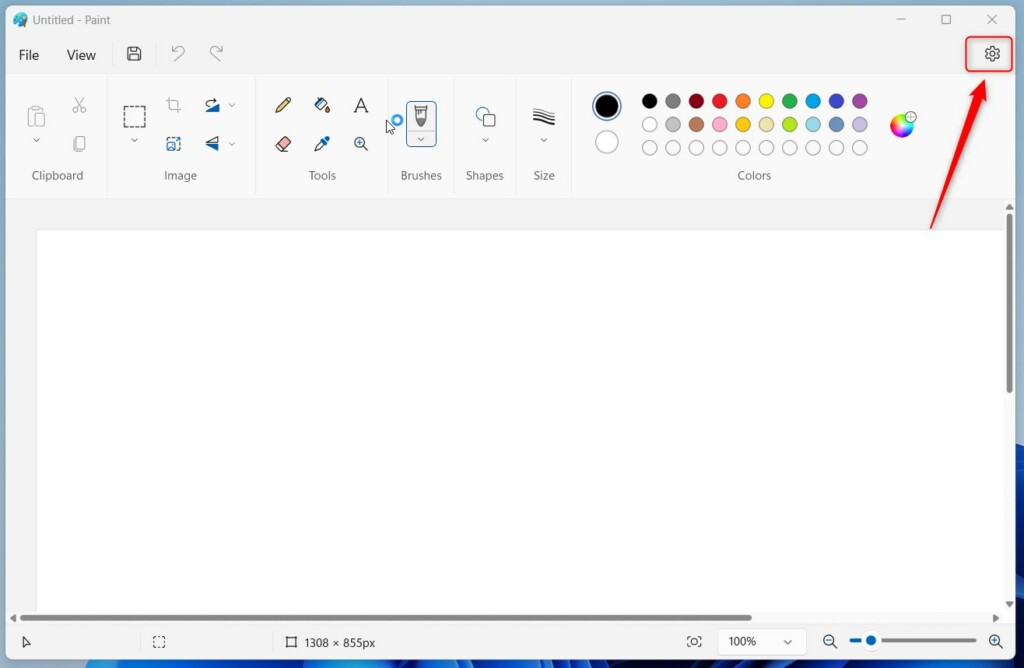
Paint app settings button - On the Settings menu, click the App theme box to open it. A list of theme options drops down.
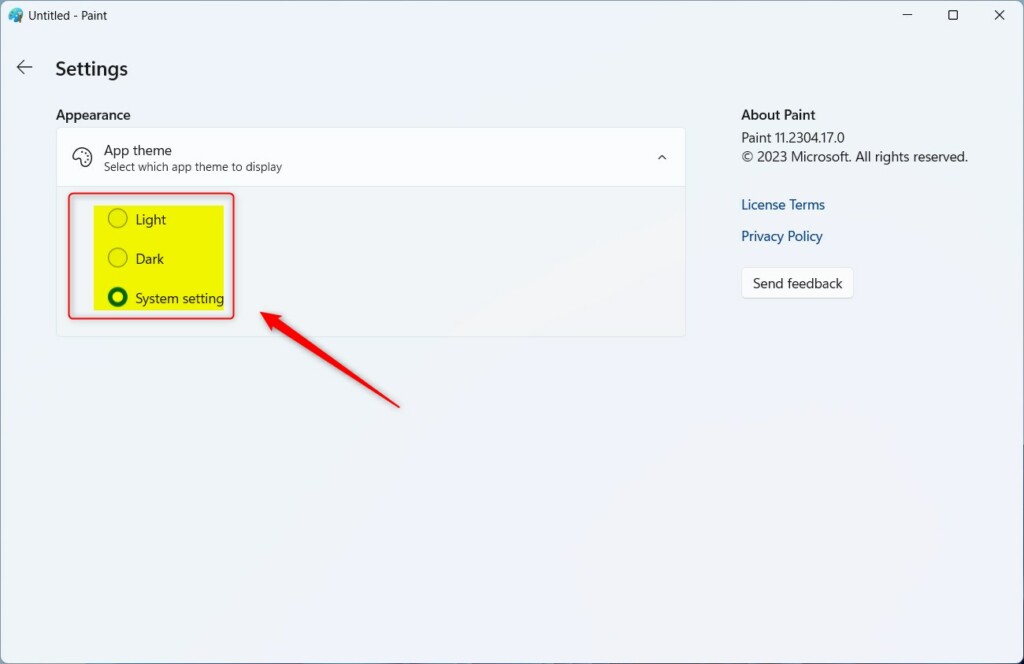
Paint app theme options - Select your preferred theme from the dropdown menu. You can choose Light, Dark, or System setting. The window changes as soon as you pick one.
- Close the Settings pane when you are finished. Paint now shows the theme you chose.
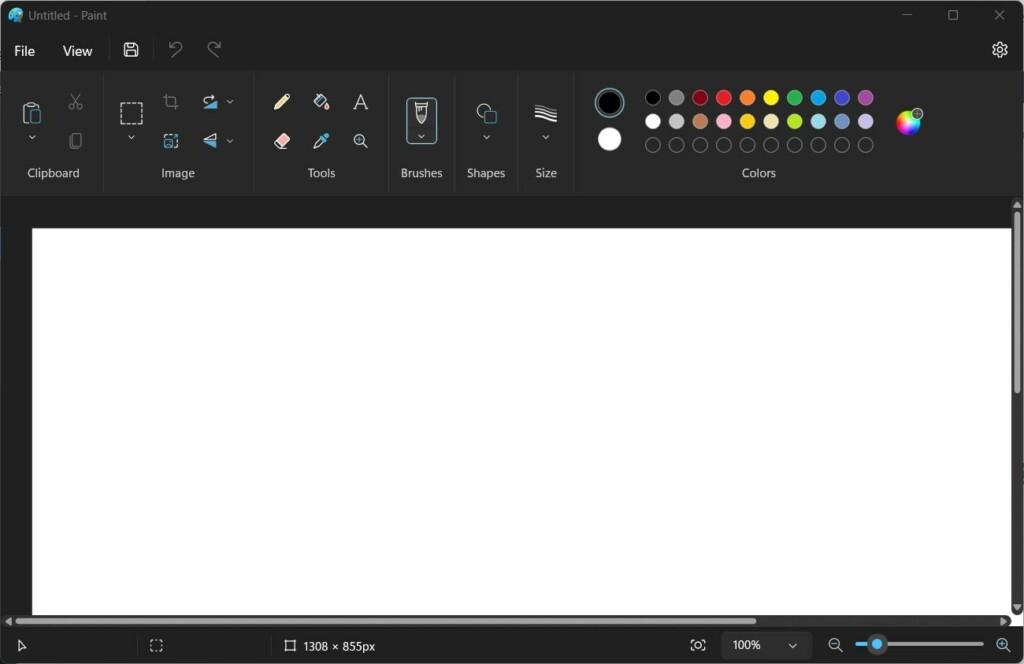
The Paint app dark mode
Choose System setting if you want Paint to follow Windows. Paint then switches between light and dark whenever you change the mode in Settings Personalization Colors To undo the change at any time, repeat these steps and pick Light.
Troubleshooting and Common Issues
If dark mode isn't working in Paint, there are a few common fixes. Start with the simplest and work down the list.
- Check Windows Updates: Ensure your Windows 11 is fully updated via System Settings. Open Settings Windows Update, click Check for updates, and install anything offered. Restart if Windows asks you to.
- Update Paint: If the App theme box is missing, go back to the Microsoft Store steps above. The app is likely older than version 11.2304.17.0.
- Reset the App: Go to Settings Apps Installed Apps Paint. Click the three dots, select Advanced options, and click Reset. Note: This does not require admin privileges, but it resets app preferences. Reopen Paint afterward and set the theme again.
- Windows Insider Program: If you are on an older build, you might need to join the Windows Insider Program to get the latest app features early. Treat this as a last resort, since Insider builds can be less stable.
Summary
Turning on Windows 11 Paint dark mode is easy and helps reduce eye strain, making your creative work more comfortable. If the option is missing, updating Paint from the Microsoft Store almost always fixes it.
Reference: Paint app in the Microsoft Store.
Have a question about this guide?
Answered by AI from this guide. Good questions may be added to this page — please don't include personal details.
Did this guide fix your problem?

About the Author
Richard
Tech Writer, IT Professional
Richard is a writer at Geek Rewind who turns complex IT tasks into clear, step-by-step guides. He draws on years of hands-on experience in system administration and enterprise IT operations, focusing on Windows, Linux and WordPress: the problems people actually run into, and the fixes that work. His server and WordPress guides come from systems he runs himself. Richard builds and maintains the platform behind Geek Rewind, from its Ubuntu servers and Nginx configuration to its custom WordPress plugins. Many new tutorials start with readers' questions, and he's always glad to answer them in the comments.
[…] File Explorer is good, users can also use the Paint and Photos apps to rotate images in […]