How to Enable Dark Mode in Windows 11

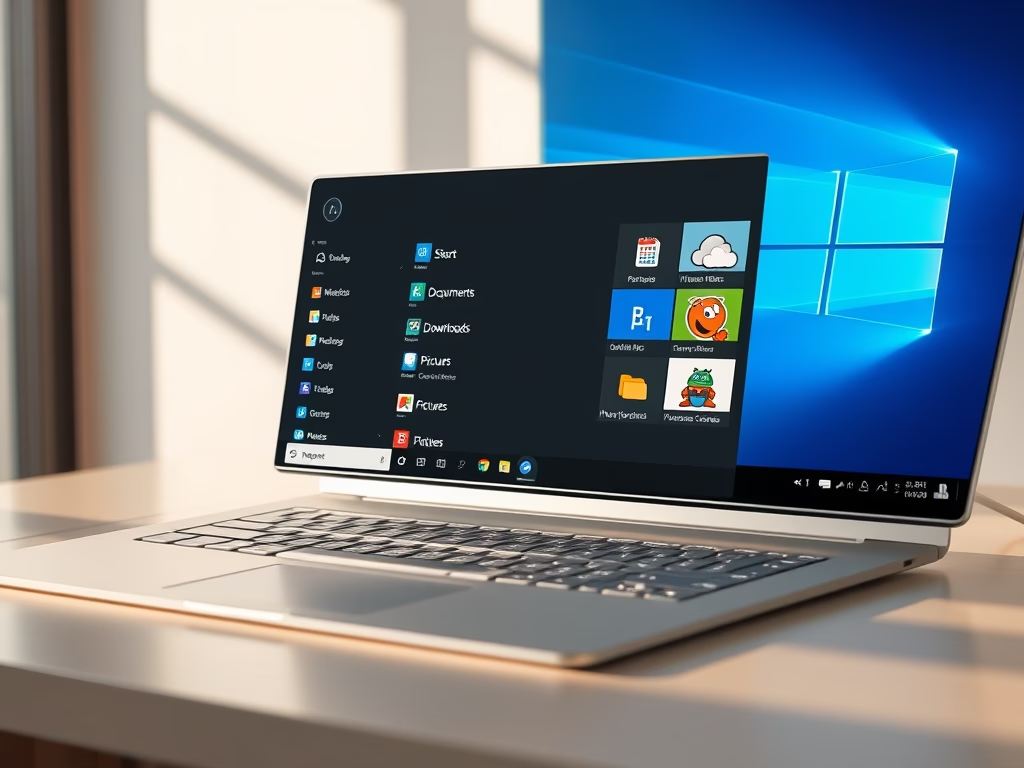
Dark mode in Windows 11 changes the bright white menus and apps into dark gray and black screens. The lower glare is easier on your eyes when you work in a dim room or at night.
Dark mode has been in Windows 11 since the first release (version 21H2), so it is on every current build. It can also save some battery on laptops and tablets with OLED screens, because black pixels on an OLED panel use very little power. The setting lives in the Settings app, and you do not need to restart the computer.
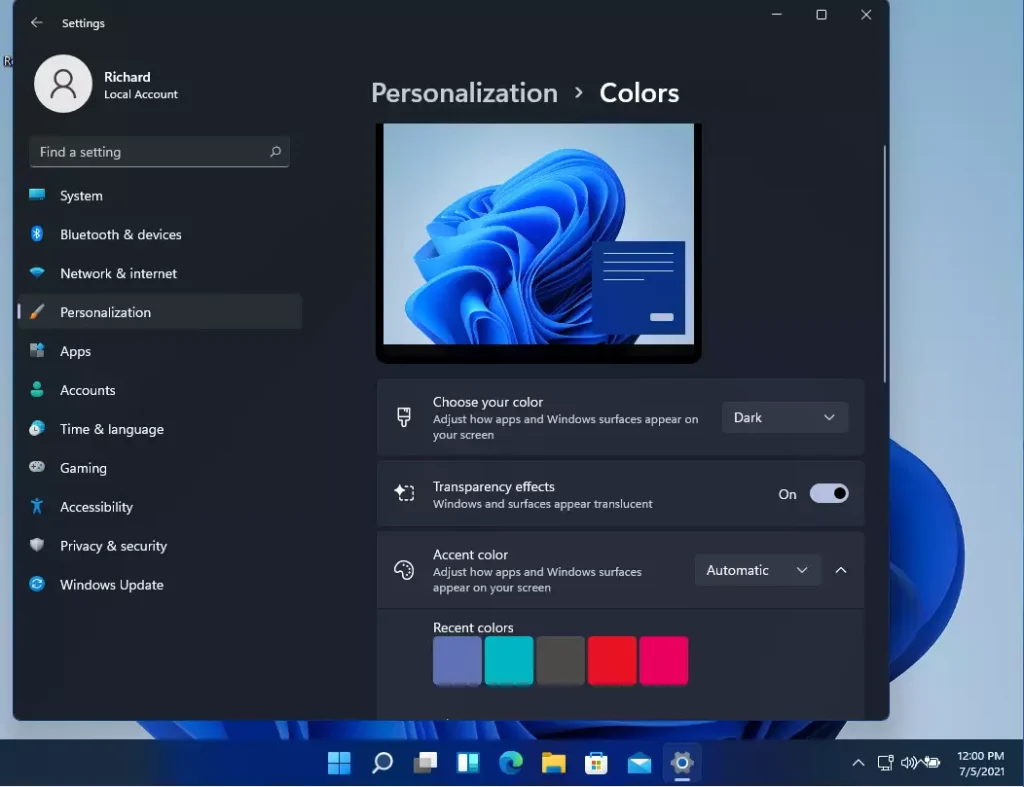
Open Settings by pressing Win+I, go to Personalization Colors, then open the Choose your mode dropdown and select Dark. The taskbar , Start menu and Settings turn dark immediately with no restart required.
Steps to Turn on Dark Mode in 🪟 Windows 11
You turn on dark mode with the built-in Settings app by switching your system theme from light to dark. The change darkens the taskbar , the Start menu , File Explorer , Settings itself and any app that follows the Windows theme. It works the same on Windows 11 Home and Pro.
- Open Settings : Click the Start button (the Windows icon on the taskbar ) and choose Settings. You can also press the Win+I to open it directly. The Settings window should open with the menu down the left side. Learn more about Windows Settings
- Go to Personalization: In the left-hand menu of the Settings window, click Personalization. The right side now shows your background, colors, themes and other appearance options. If these options are locked and a message asks you to activate Windows, you will need to activate it first. Windows blocks personalization on unactivated copies.
- Select Colors: On the right side, click Colors. The page opens with the color and mode options.
- Choose Dark Mode: Find the setting called Choose your mode and open its dropdown menu. You will see Light, Dark and Custom. Select Dark. If you want the taskbar and Start menu dark but your apps light (or the other way round), pick Custom instead and set Choose your default Windows mode and Choose your default app mode separately.
- See the Change: The Settings window, taskbar and Start menu turn dark straight away, with no restart. Open File Explorer to confirm it has changed too. Some older apps and some websites ignore the Windows theme and keep their own colors. For those, look for a theme or appearance option in the app’s own settings.
Dark mode is now active. To undo it, go back to Settings Personalization Colors, open Choose your mode again and select Light. The change takes effect immediately.
Why Use Dark Mode?
In low light, a white screen is far brighter than everything around it, and your eyes tire quickly. A dark palette lowers the overall brightness of the display, so long sessions feel easier. On laptops with OLED screens it can also help the battery last a little longer.
- It is easier on your eyes, especially in low light or at night.
- The screen is less bright overall, which reduces eye fatigue.
- Dark colors can help your laptop or tablet save battery power. The effect is clearest on OLED screens. On a standard LCD the backlight stays on, so the saving is small.
- Turning it on takes a few clicks, and you can switch back to Light just as quickly.
- It can make the computer more comfortable to use for long periods of time.
Dark themes cut down power consumption on OLED displays, because dark and black pixels use less energy than white ones. On an LCD screen the saving is minor, so treat battery life as a bonus rather than the main reason to switch.
Summary
Enabling dark mode in Windows 11 takes one setting under Personalization Colors. It cuts down on eye strain and can preserve battery life on OLED screens. If you do not like it, switch the mode back to Light at any time.
Was this guide helpful?

About the Author
Richard
Tech Writer, IT Professional
Richard is a writer at Geek Rewind who turns complex IT tasks into clear, step-by-step guides. He draws on years of hands-on experience in system administration and enterprise IT operations, focusing on Windows, Linux and WordPress: the problems people actually run into, and the fixes that work. His server and WordPress guides come from systems he runs himself. Richard builds and maintains the platform behind Geek Rewind, from its Ubuntu servers and Nginx configuration to its custom WordPress plugins. Many new tutorials start with readers' questions, and he's always glad to answer them in the comments.



No comments yet — be the first to share your thoughts!