Windows 11 Recall Feature: How to Uninstall or Reinstall for Enhanced Privacy

Windows 11 Recall takes screenshots of your screen every few seconds so it can build a searchable history of what you do. If you don’t want that record on your PC, removing the feature stops Windows from capturing it. Recall is only offered on Copilot+ PCs running Windows 11 version 24H2, so you may not see it on older hardware.
Microsoft made Recall optional starting with the KB5041865 update (build 26100.1591 for version 24H2). Once you are on that build or later, you can uninstall Recall completely through Windows Features. You do not need to leave it installed and just switch it off.
To uninstall Windows 11 Recall, press Start , type optionalfeatures, and open Windows Features. Clear the check box next to Recall, click OK, and restart when prompted. This works on Copilot+ PCs running version 24H2 with KB5041865 or later. You need an administrator account. You can reinstall Recall the same way by ticking the box again.
Add or remove Recall using Windows Features
The simplest way to uninstall Windows 11 Recall is the built-in Windows Features dialog. You don’t need any extra tools. It works the same on Home and Pro. Press Start , type optionalfeatures, and open the result. Find Recall in the list and clear its check box to remove it. Tick the box again later to bring it back.
- Open the Windows Features menu by running
OptionalFeatures.exe. You can type it into the Start menu search bar or the Run box (Win+R). A window titled Windows Features opens with a list of optional components. - Find Recall in the list. The list can take a few seconds to fill, so wait until it finishes loading. If Recall is missing, your PC is probably not a Copilot+ PC, or it has not yet installed KB5041865 or a later update. Run Windows Update and check again.
- Uncheck the box to remove it, or check the box to add it back. A ticked box means Recall is installed. An empty box means it is removed.
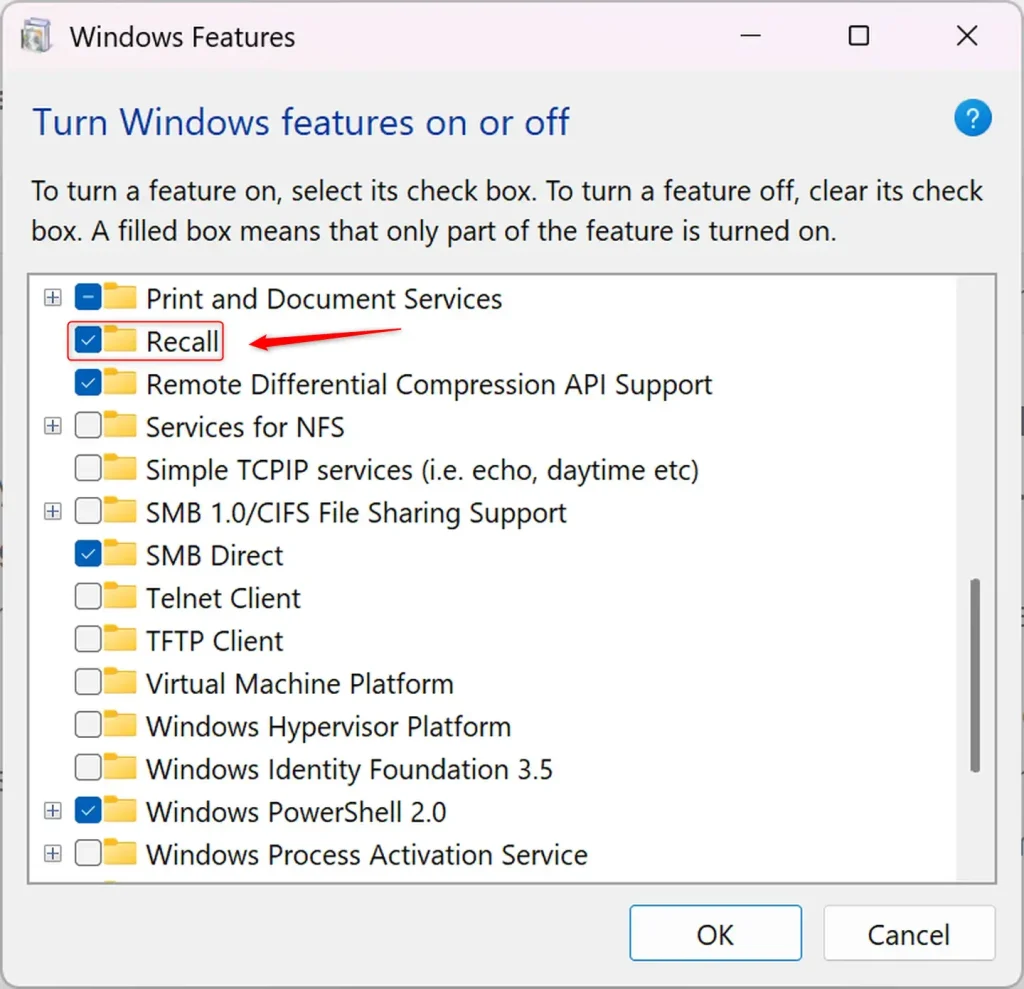
Windows then applies the change and may ask you to restart. Restart when prompted, because the removal or reinstall is not finished until you do. Note: This step requires administrator privileges. If the dialog won’t let you apply the change, sign in with an administrator account and try again.
Uninstall or Reinstall Recall using Command
You can also uninstall Windows 11 Recall from the command line, which is handy if you manage several PCs or prefer to work outside the Settings menus. Open Windows Terminal with administrator privileges, then run the commands below to remove or restore the feature. Both DISM and PowerShell get the same result as the Windows Features dialog, so pick whichever you are more comfortable with.
If you open Terminal without them, the commands will fail with an access error. Close the window and reopen it by right-clicking Terminal and choosing Run as administrator.
Launch the Windows Terminal application as an administrator, then select either the Windows PowerShell or Command Prompt tab. Use the Command Prompt tab for the DISM commands and the PowerShell tab for the cmdlets. You can tell which shell you are in from the prompt: PowerShell starts with PS.
To install the feature using DISM (a built-in tool for managing Windows system images), run this command:
DISM /Online /Enable-Feature /FeatureName:"Recall"
To remove the feature, execute this command. DISM shows a progress bar and reports when the operation completes successfully:
DISM /Online /Disable-Feature /FeatureName:"Recall"
To use PowerShell instead, open Windows Terminal as an administrator and switch to the PowerShell tab.
Install the feature with this cmdlet:
Enable-WindowsOptionalFeature -Online -FeatureName "Recall"
Remove the feature using this cmdlet:
Disable-WindowsOptionalFeature -Online -FeatureName "Recall"
Restart the computer afterward to apply these changes. The feature is not fully removed or restored until you do. If you installed it again, open Windows Features after the restart and confirm that Recall is ticked.
Summary
You can remove or reinstall Recall using the Windows Features menu, DISM, or PowerShell. The Windows Features menu is the quickest for a single PC. DISM and PowerShell suit scripting and remote work. All three need administrator rights and a restart to finish, and any of them can be reversed later by running the matching install step.
Have a question about this guide?
Answered by AI from this guide. Good questions may be added to this page — please don't include personal details.
Did this guide fix your problem?

About the Author
Richard
Tech Writer, IT Professional
Richard is a writer at Geek Rewind who turns complex IT tasks into clear, step-by-step guides. He draws on years of hands-on experience in system administration and enterprise IT operations, focusing on Windows, Linux and WordPress: the problems people actually run into, and the fixes that work. His server and WordPress guides come from systems he runs himself. Richard builds and maintains the platform behind Geek Rewind, from its Ubuntu servers and Nginx configuration to its custom WordPress plugins. Many new tutorials start with readers' questions, and he's always glad to answer them in the comments.
No comments yet — be the first to share your thoughts!