Copilot File Actions for Downloads in Windows 11: What We Know

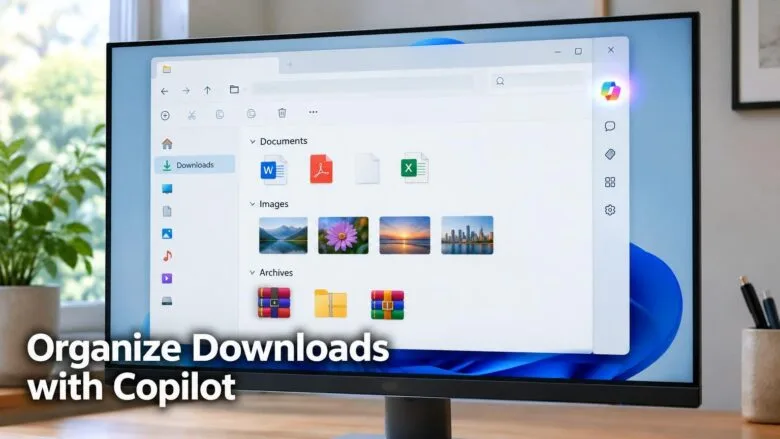
Copilot local file actions will let you ask Copilot, in plain language, to find, organize, move, copy or rename files on a Copilot+ PC, such as tidying a cluttered Downloads folder. Microsoft announced the feature at Ignite, its yearly conference for IT professionals and developers, on November 17, 2026, and says these local capabilities are coming soon.
The feature is not in Windows 11 yet, so there is no Copilot setting to click today. This post covers what Microsoft has said, who it affects, and how to prepare so you can use Copilot to organize files in Downloads once it arrives.
Copilot can’t organize your Downloads folder on Windows 11 yet. Microsoft announced local file actions at Ignite on November 17, 2026, letting Copilot on Copilot+ PCs find, organize, move, copy or rename files from a plain-language request. No setting or steps are published, so you can’t use it today.
What Microsoft has announced
Can Copilot organize your Downloads folder on Windows 11 today? No. Microsoft says Copilot on Copilot+ PCs will accept plain-language requests to find, organize, move, copy or rename files, and its example is a cluttered Downloads folder. Microsoft has not shipped the feature or published steps for it.
The idea is that you describe what you want in a sentence, and Copilot does the file work instead of you dragging and renaming items one at a time. A request might be something like “group my downloads by file type”. That wording is only an illustration, not Microsoft’s.
This fits a wider plan Microsoft announced on October 7, 2026, which it calls hybrid intelligence. The name covers Copilot features where some of the AI work runs on your PC. With your permission, Copilot on Copilot+ PCs can use information from your files and recent activity. It can also take actions on your behalf across Windows and use AI models that run on the PC itself. Microsoft says these features are expected to begin rolling out over the coming months.
The original announcement is on the Windows Experience Blog post from Microsoft Ignite 2026.
Who gets Copilot file actions
A Copilot+ PC is a Windows PC built with a neural processing unit (NPU, a chip designed to run AI tasks locally) that meets Microsoft’s requirements. Microsoft’s announcement names Copilot+ PCs as the target. It does not say whether other Windows 11 PCs will get the feature, so do not assume they will.
Microsoft also says the feature works “with your permission”. Expect Copilot to ask before it reads or changes your files. Microsoft has not published the exact wording or options of that prompt.
When Copilot file actions arrive
Microsoft’s only timing is “coming soon” for the local file capabilities. The broader hybrid intelligence features are expected to begin rolling out over the coming months. Microsoft has not given a build number (a detailed version number for a Windows release), a Windows 11 version, or a date for file actions specifically.
Windows 11, version 26H2 is now generally available, but Microsoft has not said the file actions will arrive with it. Rollouts like this are usually gradual, so some PCs get a feature later than others. Details can also change between the announcement and the release. Read everything here as the plan, because the final feature may differ.
How to get ready for Copilot to organize your Downloads folder
There are no steps for using the feature today, because Microsoft has not published any. What you can do now is prepare your PC, so that requests to Copilot to organize your Downloads folder work as soon as the feature reaches you. The steps below do that.
- Check whether your PC is a Copilot+ PC. Look for the Copilot+ PC label on the device, its box, or the manufacturer’s spec sheet. Microsoft names Copilot+ PCs as the target for this feature.
- Open Settings. Press the Win+I. The Settings app opens.
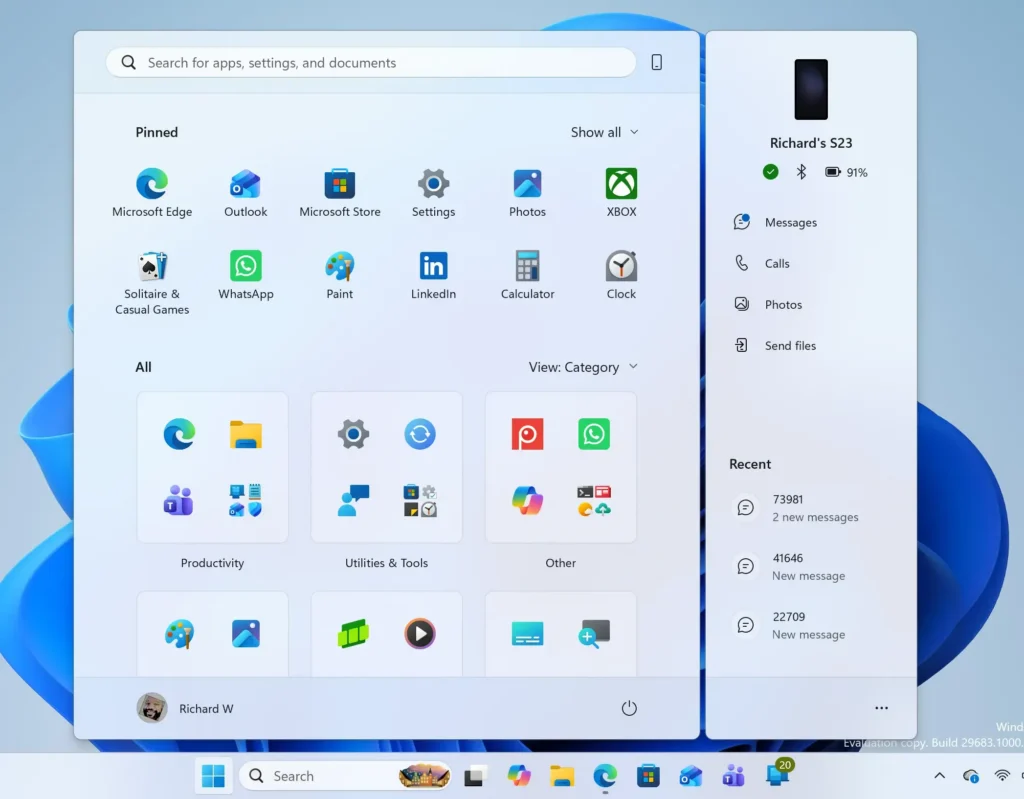
- Select Windows Update. It sits near the bottom of the left pane. The Windows Update page opens.
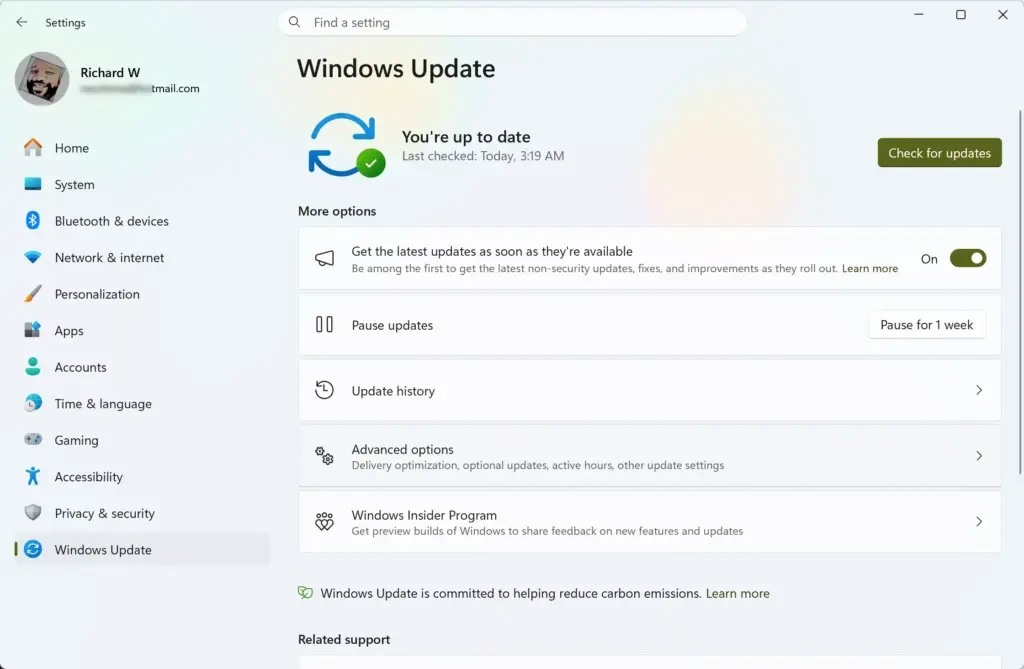
- Turn on Get the latest updates as soon as they’re available. Microsoft recommends this toggle to be among the first to get version 26H2, which carries its newest features. Once your device is eligible, an option to download and install 26H2 appears on the page. Microsoft has not said which version will carry the file actions, so this raises your chances but does not guarantee them. If the toggle is missing or greyed out, an administrator may manage updates on your PC. That is common on work and school devices, so ask your IT team. To undo this, switch the toggle off again.
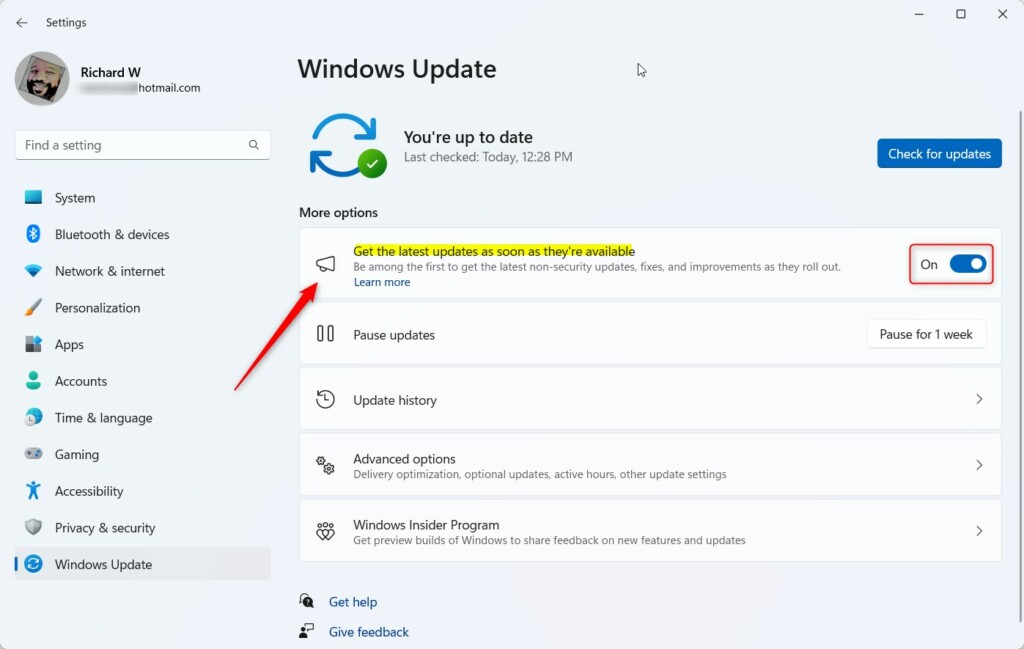
- Select Check for updates. Windows searches for and installs anything pending. Restart if Windows asks you to.
- Back up your Downloads folder. Copy it to an external drive or a cloud folder before any AI tool moves or renames files. Microsoft has not said whether Copilot file actions can be undone, so a copy is your safety net.
- Decide how you want files named and sorted. Pick a pattern, such as grouping by file type or by project, and write it down. Specific requests get better results from any assistant than vague ones.
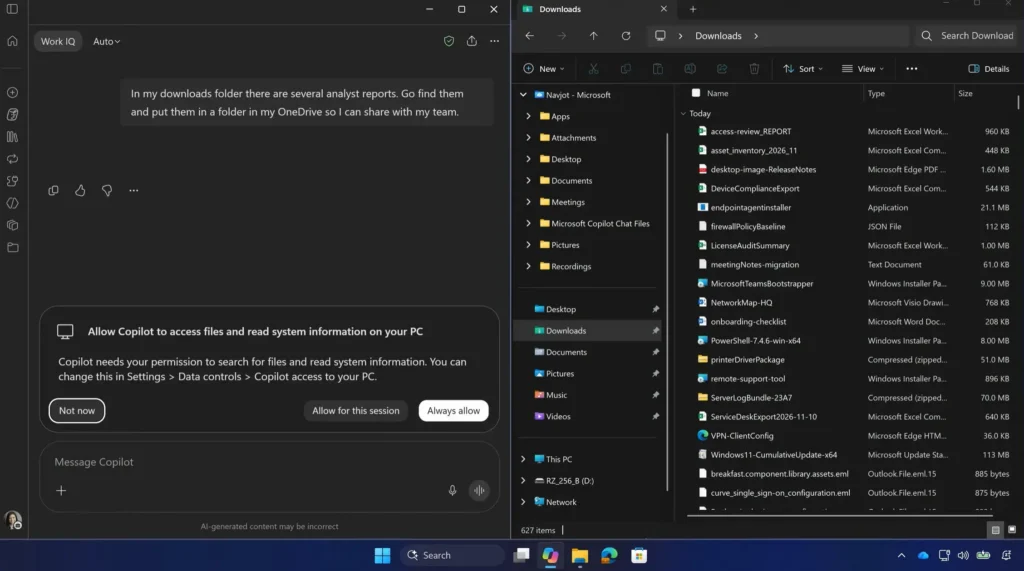
- Read the permission prompt before you agree. When the feature arrives, Microsoft says Copilot acts with your permission. Check which folders it asks to access and decline anything broader than Downloads.
That’s it. Your PC is now up to date, your Downloads folder is backed up, and you have a plan for how files should be sorted. Nothing in these steps changes how Windows works today, and any setting you changed can be changed back in the same place.
What is not known yet
Several details are missing from Microsoft’s announcement. Until Microsoft publishes them, treat these as open questions:
- The exact place you start a file request, such as the Copilot app or File Explorer.
- The wording of the permission prompt and whether you can limit access to one folder.
- Whether Copilot shows a preview before it moves or renames files.
- Whether you can undo a batch of changes in one step.
- Which Windows 11 version and build first include the feature.
- Whether PCs that are not Copilot+ PCs get any version of it.
This post will need updating once Microsoft answers these. Do not rely on any guide that gives exact click paths for the feature before it ships.
Organize and rename your Downloads folder yourself today
If you cannot wait for Copilot, you can organize and rename files yourself now. File Explorer already does the same job manually, and the habits carry over: decide the structure first, then apply it. The steps below walk through it.
- Open File Explorer. Press the Win+E. A File Explorer window opens.
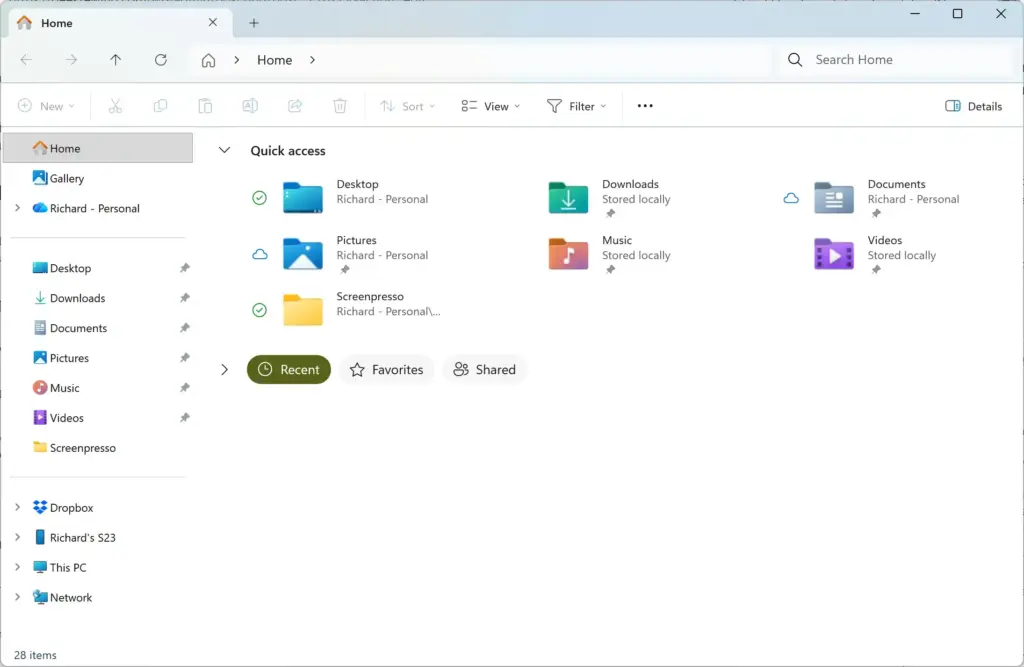
- Select Downloads in the left pane. Your downloaded files appear in the main area.
- Right-click an empty space and choose Sort by. Sorting by Date modified puts the newest files first. Sorting by Size shows the largest files, which are the best candidates to delete.
- Right-click an empty space and choose Group by. Grouping by Type splits installers, documents and images into labelled sections.
- Right-click an empty space and choose New Folder. Type a name, such as Invoices, and press Enter. The new folder appears in the list.
- Drag files into the new folder. Select several with Ctrl+click, or select a range with Shift+click, then drag them in.
- Select several files and press F2 to rename them. Type one name and press Enter. Windows gives every selected file that name followed by a number in parentheses.
If you move or rename the wrong files, press Ctrl+Z in File Explorer to reverse your most recent change. That covers your own actions here, and Microsoft has not said whether it will cover Copilot’s.
What works with Copilot and files right now
Copilot cannot organize or rename your files today, but you can use it to find them. Our guide on how to search local files with Windows 11 Copilot covers the current options. For the basics of opening and using the assistant, see how to use Windows 11 Copilot: setup and features.
Windows 11, version 26H2 also adds AI actions in File Explorer. Microsoft describes them as actions for working with supported images and summarizing OneDrive and SharePoint documents, along with quick actions for work and school accounts. That description does not mention organizing or renaming files, so treat these as a separate feature from the one in this post.
Consider the trade-offs before you turn it on
An assistant that reads and changes your files needs access to them, and that access is the reason for the permission prompt. If you prefer to keep Copilot away from your files, you can turn it off. Our guides on how to disable Windows 11 Copilot and what breaks when you turn off Copilot explain the options and side effects.
Performance matters too. Microsoft says some AI models run on the PC itself, which uses memory (RAM). If your PC has less memory, check what Windows 11 Copilot actually does to your RAM before you rely on it.
Microsoft has also said that its latest performance and memory improvements need the Windows Update toggle turned on, followed by Check for updates. They require Windows 11 version 26H2, build 26300.9818 or later.
What to do next
Check Settings Windows Update every few weeks, and watch the Windows Experience Blog for the release announcement, which should include the first confirmed steps. Until then, keep your Downloads folder backed up and tidy it manually. This post will be updated with the exact place to start and the options you will see once Microsoft publishes them.
Have a question about this guide?
Answered by AI from this guide. Good questions may be added to this page — please don't include personal details.
Did this guide fix your problem?

About the Author
Richard
Tech Writer, IT Professional
Richard is a writer at Geek Rewind who turns complex IT tasks into clear, step-by-step guides. He draws on years of hands-on experience in system administration and enterprise IT operations, focusing on Windows, Linux and WordPress: the problems people actually run into, and the fixes that work. His server and WordPress guides come from systems he runs himself. Richard builds and maintains the platform behind Geek Rewind, from its Ubuntu servers and Nginx configuration to its custom WordPress plugins. Many new tutorials start with readers' questions, and he's always glad to answer them in the comments.
No comments yet — be the first to share your thoughts!