What Breaks When You Turn Off Copilot in Windows 11

What breaks when you turn off Copilot in Windows 11 is mostly Copilot itself: the chat assistant, its taskbar button, and the shortcut or Copilot key that opens it. Search, the Start menu , Settings, Windows Update and Microsoft Edge keep working, and AI features with their own switches are unaffected.
Copilot is not a core Windows component on current builds of Windows 11. It is an app you get from the Microsoft Store, plus a few entry points that launch it. This post lists what stops working, what stays, and how to remove Copilot with the fewest side effects.
The steps use the Settings app and need no extra software. Removing Copilot from your own account does not normally need administrator rights, but a work or school PC may block it.
Turning off Copilot in Windows 11 removes the Copilot chat app, its taskbar icon, the Win+C shortcut and the Copilot key’s default action, along with voice, Copilot Vision and Copilot Actions. Search, the Start menu , Settings, Windows Update and Microsoft Edge keep working. Copilot-branded features inside Notepad and Edge keep their own switches.
What “Turning Off Copilot” Means on 🪟 Windows 11
The word Copilot covers several separate things, and each has its own switch. Knowing which one you are turning off tells you what you will lose.
- The Copilot app. This is the chat assistant. On current Windows 11 builds it runs as a regular app in its own window, not as the sidebar that appeared in the first 2023 preview.
- Entry points. These are the Copilot icon on the taskbar , the Win+C shortcut (press the Win and C together) and the Copilot key on some keyboards. All three launch the app.
- Copilot features inside other apps. Notepad, Paint and Microsoft Edge each have AI features that carry the Copilot name, but they have their own settings.
The guide How to Enable or Disable Windows Copilot in Windows 11 covers the switch itself. This post covers the consequences.
What Stops Working When You Turn Off Copilot
The losses fall into four groups. Which ones you see depends on whether you hide the icon, remove the app or block it by policy.
The Copilot App and Chat
You can no longer ask it questions, summarize text, generate images or continue earlier conversations from Windows. Your Microsoft account is not affected, and you can still use Copilot in a web browser if you choose.
If you only unpin the icon, the app stays installed and still opens from the Start menu or the keyboard shortcut. That is a cosmetic change, not a true turn-off.
The Taskbar Button, Windows + C and the Copilot Key
The taskbar icon disappears when you unpin or uninstall it. Win+C stops launching Copilot once the app is removed.
With the app removed, it has nothing to launch. Recent Windows 11 builds let you change what the key does, so you can point it at Search instead. Option 2 below shows how to point the key at Search.
On builds that include Ask Copilot on the taskbar , that entry point has its own toggle. The post How to Turn On or off “Ask Copilot” on the Windows 11 Taskbar explains it.
Voice, Vision and Actions
Features that live inside the Copilot app go with it. These include voice conversations, Copilot Vision (which lets Copilot look at what is on your screen) and any option that starts Copilot when you say a set phrase. Availability varies by region, build and whether you are in the Windows Insider Program (Microsoft’s preview testing program), so you may not have all of them.
Copilot Actions (a feature where Copilot carries out tasks on your PC for you) has its own setting on builds that include it. The guide How to Enable or Disable Copilot Actions in Windows 11 shows where to find it. Turn it off separately if you want it gone even when the app stays.
Copilot Inside Other Apps
Removing the Copilot app does not reliably remove Copilot-branded features in other apps. Each app keeps its own switch:
- Notepad. The AI buttons in Notepad are controlled from Notepad itself. See How to Enable or Disable Copilot in Notepad on Windows 11.
- Microsoft Edge. The Copilot button and Copilot Mode are Edge settings. For the agent-style feature (one that carries out tasks for you), read How to Turn Copilot Cowork on or off in Microsoft Edge on Windows 11.
- Paint and Photos. Their AI tools sit inside each app. Check each app’s own settings if you want them off.
What Keeps Working
Removing the Copilot app does not touch the parts of Windows people usually worry about. These keep working:
- Windows Search and the Start menu . Searching for files, apps and settings works as before.
- Settings, File Explorer and Task Manager . None of them depend on Copilot.
- Windows Update . Updates download and install normally.
- Your Microsoft account and OneDrive. Sign-in and sync are separate from Copilot.
- Microsoft Edge. The browser opens and runs normally. Only its Copilot button is affected, and only if you turn that off.
Two other groups of features sit outside the Copilot app. Removing the app does not switch them off, so check them separately. The first is the extra AI tools on Copilot+ PCs (a hardware class with a dedicated AI chip), such as Recall and Click to Do. They have their own settings, so turn them off there if you want them gone.
The second is the Microsoft 365 Copilot app, the renamed Microsoft 365 app, and the Copilot features inside Word, Excel and Outlook. Those depend on your Microsoft 365 subscription, not on the Windows Copilot app.
Check What You Rely On Before You Remove It
This check changes nothing on your PC. Run it first so you know which Copilot pieces exist on your machine.
- Press Win+I to open Settings .

- Click Apps, then click Installed apps. The path is Settings Apps Installed apps
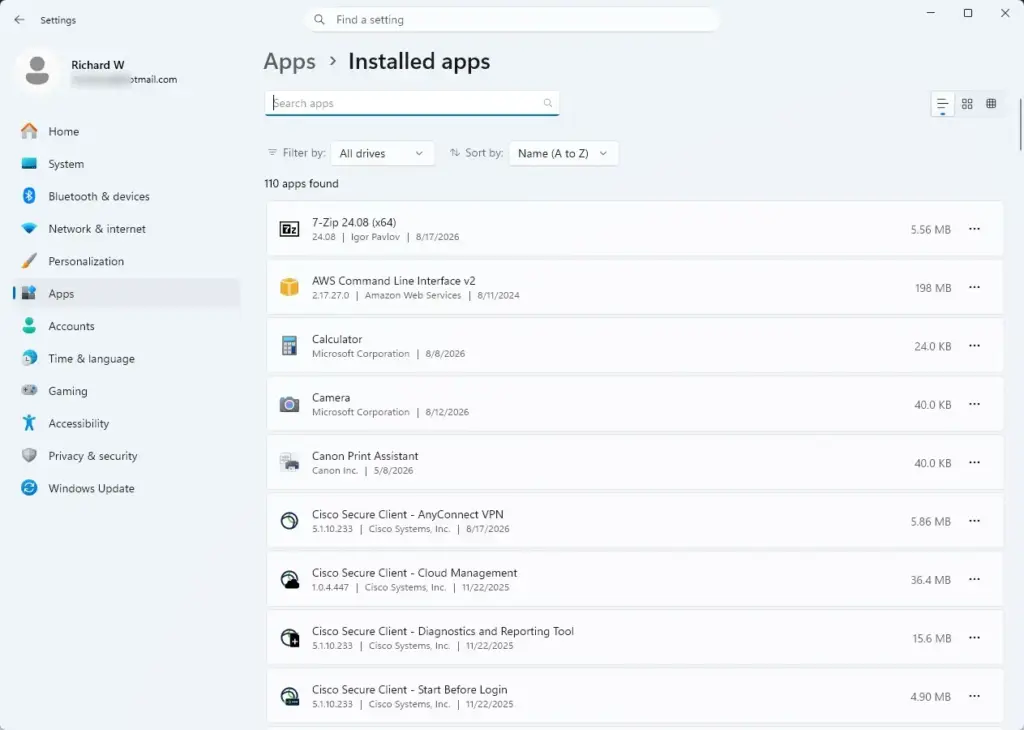
Settings › Apps › Installed apps - Type Copilot in the search box above the list. The list shows every installed app with that name. You may see Copilot and also Microsoft 365 Copilot. They are different apps.
- Check whether the Copilot icon sits on your taskbar . Press Win+C and see what opens. If the Copilot app opens, the shortcut is active.
If the search finds nothing, Copilot is not installed on your PC, and the icon or shortcut you see comes from something else, such as a browser. In that case, skip the uninstall steps below.
How to Turn Off Copilot With the Fewest Side Effects
Start with the lightest change and stop when the result is what you want. Each option below is independent.
Option 1Hide the Taskbar Icon
This removes the icon only. The app stays installed, so nothing else breaks.
- Right-click the Copilot icon on the taskbar .
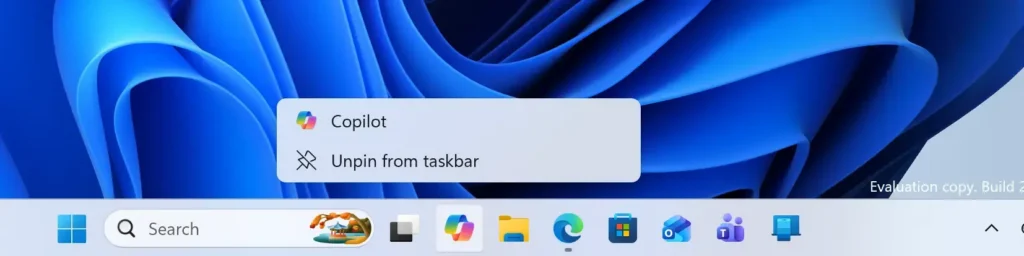
- Click Unpin from taskbar. The icon disappears from the taskbar immediately.
If you cannot find an unpin option, your taskbar may be managed by your organization. Ask your IT department.
Option 2Change What the Copilot Key Does
This step is for keyboards with a Copilot key. It sends the key to Search, so pressing it no longer opens Copilot.
- Open Settings, then go to Personalization Text input
- Click Customize Copilot key on keyboard. A list of options opens.
- Choose Search. Pressing the key now opens Windows Search.
If you do not see this setting, you either have no Copilot key or your build is older than the release that added it. Update Windows and check again.
Option 3Uninstall the Copilot App
This is the change that removes the assistant. Reinstalling Copilot from the Microsoft Store undoes this change, so the risk is low.
- Open Settings, then go to Apps Installed apps
Settings › Apps › Installed apps - Type Copilot in the search box.
- Click the three dots (...) to the right of Copilot.
- Click Uninstall.
- Click Uninstall again to confirm. The app disappears from the list.
- Press Windows + C to test. Copilot no longer opens.
If Uninstall is greyed out, a policy on your PC is probably managing the app. This is common on work and school computers. Ask your administrator before trying to work around it.
Option 4Use Group Policy or the Registry
Windows 11 Pro, Enterprise and Education include the Local Group Policy Editor (a console for changing system rules). Home does not. Registry edits, which change the settings database called the Registry, work on every edition.
One caution: Microsoft first built its policy-based controls for the earlier sidebar version of Copilot. On current builds, an older policy may not remove the newer Copilot app. After you apply a policy, confirm the result by checking the installed apps list and testing Windows + C.
The exact policy and registry details are in How to Disable Windows 11 Copilot. Use the values in that guide, not ones copied from forum posts you find elsewhere.
Why Copilot Might Come Back or Refuse to Go
Three situations cause the most confusion.
- The icon returns after an update. A feature update or a Microsoft Store app update can restore the taskbar pin or reinstall the app. Check the taskbar and the installed apps list after major updates.
- Uninstall is greyed out. A work or school policy is managing the app. Only an administrator can change it.
- A new user profile has Copilot again. The app can be provisioned (staged by Windows for every new user), so a new account may get a fresh copy. Repeat the steps in that account.
Layout changes between builds too. If you only dislike how the window looks, the post How to Switch Between Copilot Views in Windows 11 may be all you need.
How to Undo It
Reinstalling Copilot brings back the app, the chat and the shortcut. Your Microsoft account and settings are not affected.
- Open the Microsoft Store from the Start menu.
- Type Copilot in the search box and press Enter.
- Click the Copilot app published by Microsoft Corporation, then click Install (or Get). The app downloads and installs.
- Open Copilot from the Start menu. Right-click its taskbar icon and choose Pin to taskbar to restore the button.
If you changed the Copilot key, go back to Settings Personalization Text input and set it to Copilot again.
What to Do Next
Open Settings Apps Installed apps again after your next Windows feature update and confirm Copilot has not reappeared. If you also want to remove the AI features inside Edge, work through the Copilot Cowork steps for Edge next. For a full walk-through of the policy and registry routes, use the Copilot removal guide.
Have a question about this guide?
Answered by AI from this guide. Good questions may be added to this page — please don't include personal details.
Did this guide fix your problem?

About the Author
Richard
Tech Writer, IT Professional
Richard is a writer at Geek Rewind who turns complex IT tasks into clear, step-by-step guides. He draws on years of hands-on experience in system administration and enterprise IT operations, focusing on Windows, Linux and WordPress: the problems people actually run into, and the fixes that work. His server and WordPress guides come from systems he runs himself. Richard builds and maintains the platform behind Geek Rewind, from its Ubuntu servers and Nginx configuration to its custom WordPress plugins. Many new tutorials start with readers' questions, and he's always glad to answer them in the comments.
No comments yet — be the first to share your thoughts!