How to Turn On or off “Ask Copilot” on the Windows 11 Taskbar

The “Ask Copilot” button on the Windows 11 taskbar gives you quick access to Microsoft’s built-in AI assistant without opening a separate app first. Microsoft places this shortcut on the taskbar in Windows 11 version 23H2 and newer builds. In the original release it sits on the right side of the taskbar , though its exact position can differ between builds.
You can turn the button on or off at any time in the Settings app if you prefer a cleaner taskbar. The change takes effect straight away, and you can reverse it just as quickly. This guide shows the full steps and what to do if the option is missing.
Open Settings Personalization Taskbar and find Ask Copilot under Taskbar items. Toggle it On to show the button or Off to hide it. The taskbar updates immediately with no restart needed.
What is “Ask Copilot”?
“Ask Copilot” is a tool in Windows 11 that lets you ask questions and find apps, files or settings quickly. It works like Windows Search but gives you smarter, more conversational help. Privacy matters here, so the tool does not inspect your personal files or stored information.
The button is only a shortcut. Hiding it from the taskbar does not uninstall anything, and you can still reach Copilot other ways, for example from the Start menu if the Copilot app is installed on your PC. Turning the button back on later brings the shortcut straight back.
How to Show or Hide “Ask Copilot” on the Taskbar
You show or hide the button with a single switch in the Personalization settings. The path is Settings Personalization Taskbar. Once you are there, you toggle “Ask Copilot” on so the button appears on the taskbar , or off so it disappears completely.
The setting works the same way in Windows 11 Home and Pro. No restart or sign-out is needed, and your other taskbar settings stay as they are.
These four steps turn “Ask Copilot” on or off on the Windows 11 taskbar:
- Open Settings . Click the Start button (the Windows icon on the taskbar ), then click Settings. You can also press Win+I to open it directly, or right-click an empty area of the taskbar and choose Taskbar settings to jump to step 3. The Settings window opens with a list of categories on the left.
- Select Personalization. In the left-hand list, click Personalization. The right side now shows options for backgrounds, colors, themes and the taskbar .
- Click Taskbar. It is on the right side of the Personalization page. You will see the Taskbar items section at the top, with a list of toggles.
- Switch the Ask Copilot toggle. Find Ask Copilot under Taskbar items and click its toggle. Set it to On to show the button or Off to hide it. The taskbar updates immediately, so you can check the result without closing Settings. To undo the change, click the same toggle again.
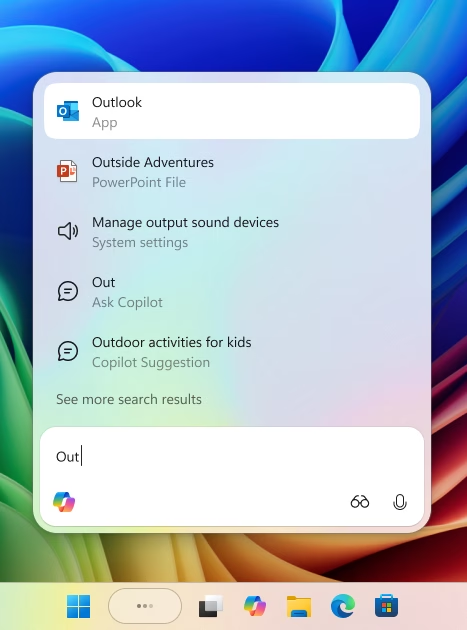
Once the feature is on, the “Ask Copilot” icon appears on the Windows 11 taskbar. Click it at any time to ask Copilot for help with PC tasks. If the icon is not where you expect it, look along the right side of the taskbar , since the position can vary between builds.
If you don’t see the “Ask Copilot” toggle, your PC probably doesn’t have the feature yet. Check Settings Windows Update and install any pending updates, since Microsoft rolls this feature out in stages and not every build has it. Restart the PC if Windows Update asks you to, then look at the Taskbar page again.
On a work or school PC, an administrator may also have removed or restricted the option. In that case the toggle may be missing or greyed out, and you will need to ask your IT team.
Why Use “Ask Copilot”?
- Quick Help: Get answers, open apps, or find files fast, all from one spot on the taskbar .
- Easy to Use: Just click the button or talk to Copilot. There is nothing to set up first.
- Privacy Safe: It doesn’t access your private info or inspect your personal files.
- Simple to Turn On or Off: Manage it anytime in Settings. To undo a change, go back to the same toggle and flip it again.
More Info
Read the official Microsoft blog for deeper background on the update: Windows Insider Preview Build 26220.7051 Announcement.
Summary
"Ask Copilot" remains a handy tool for everyday queries. Flip the toggle in Settings Personalization Taskbar whenever you want to adjust your taskbar. If you change your mind, the same switch brings the button back in a few seconds. If the toggle is missing, update Windows first, and check with your IT team if the PC is managed by an organization.
Have a question about this guide?
Answered by AI from this guide. Good questions may be added to this page — please don't include personal details.
Did this guide fix your problem?

About the Author
Richard
Tech Writer, IT Professional
Richard is a writer at Geek Rewind who turns complex IT tasks into clear, step-by-step guides. He draws on years of hands-on experience in system administration and enterprise IT operations, focusing on Windows, Linux and WordPress: the problems people actually run into, and the fixes that work. His server and WordPress guides come from systems he runs himself. Richard builds and maintains the platform behind Geek Rewind, from its Ubuntu servers and Nginx configuration to its custom WordPress plugins. Many new tutorials start with readers' questions, and he's always glad to answer them in the comments.
No comments yet — be the first to share your thoughts!