
Microsoft Edge includes an AI feature called Copilot Cowork. It can open new tabs, take screenshots, and complete tasks directly inside your browser. It works from a special tab in Edge and uses the website you are on to understand what you want done.
Copilot Cowork accesses information the way you do, using your current logins to perform actions. If it needs your confirmation for certain tasks, you will see a prompt first. The first time it needs to do something important in the browser, such as logging in, it asks for permission. You can allow it or block it for those specific actions.
Windows 11 lets you decide whether Copilot Cowork can do these browser-based tasks. This is useful for privacy and for keeping control of what the browser does on its own. There are two ways to do it. The first is the Edge settings, which affect only your account. The second is the Registry Editor, which affects every account on the PC.
Open Microsoft Edge, click the three dots in the top-right corner, select Settings, click Copilot and AI on the left menu, then move the Copilot Cowork switch to On or Off. The change takes effect immediately without restarting the browser.
Option 1Control Copilot Cowork in Edge Settings (For Your Account)
Use this method to change the setting for your own user account only. You do not need administrator rights, so it suits most people. It works the same on Windows 11 Home and Pro.
Open Microsoft Edge
- Open Microsoft Edge. You can find it in the Start menu or as an icon pinned to the taskbar .
The browser opens with your usual start page or your last session.
Access the Settings Menu
- Look for the three small dots (
...) in the top-right corner of the Edge window and click them. - In the menu that opens, click Settings.
Settings opens in a new tab.

Go to Copilot and AI Settings
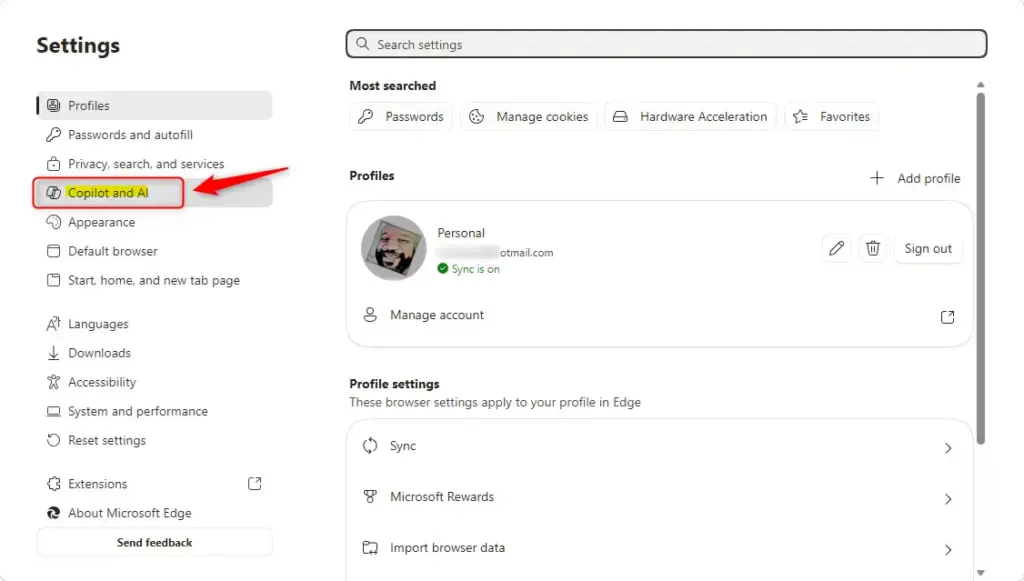
- In the Settings tab, look at the menu on the left side and click Copilot and AI.
If you do not see the left-hand menu, the window is probably too narrow. Make the browser window wider, or click the three horizontal lines (☰) in the top-left corner of the Settings page to show it.
Control the Cowork Feature
This page holds the switch for the option that allows Copilot to take actions on your behalf. Find it and set it the way you want:
- To turn Copilot Cowork ON: move the switch to the “On” position.
- To turn Copilot Cowork OFF: move the switch to the “Off” position.
The switch should now show the new state.
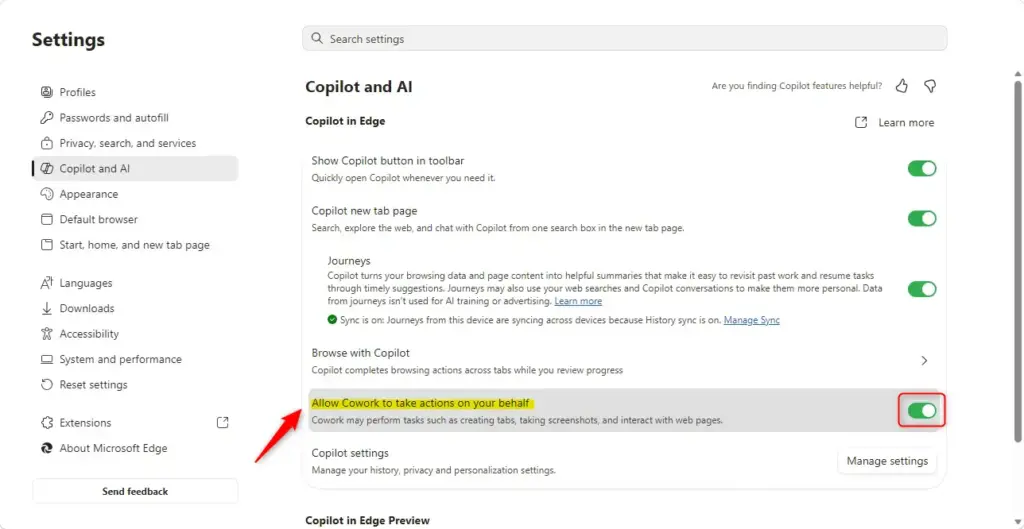
This setting directly controls whether Copilot Cowork can perform tasks for you in Edge. If the switch is greyed out, a system-wide policy is probably overriding it. That could be the registry method below, or a policy from your organization. In that case, change or remove the policy first. Your personal setting will not work until you do.
Close the Settings Tab
You are finished with the settings . Close the Settings tab in Microsoft Edge. The change applies right away, and you do not need to restart the browser. To undo it, return to the same page and move the switch back.
Option 2Control Copilot Cowork for All Users Using Registry Editor
The Registry Editor (a database for low-level Windows settings ) lets you manage Copilot Cowork for every user account on the computer at once. This method needs administrator permissions and makes system-wide changes. Follow the steps carefully to avoid system errors. It works on both Windows 11 Home and Pro.
Once the policy is set, it overrides each person’s own Edge setting. Use it when you want one rule for the whole PC.
Step 1Open Registry Editor
Open Registry Editor with administrator rights:
- Click the Start button.
- Type
regedit. - Right-click Registry Editor in the search results.
- Choose Run as administrator.
- If a User Account Control (UAC) message appears, click Yes.
The Registry Editor window opens, with a folder tree on the left and values on the right.
Step 2Go to the Correct Registry Location
The policy lives at 🗝️HKEY_LOCAL_MACHINE\
Edge key is not present under Microsoft, you need to create it.Right-click the Microsoft key, select New, then Key, and name it Edge. The new key should now appear under Microsoft. Select it before you go on.
Step 3Create or Change the ‘CopilotCoworkToolActionsEnabled’ Value
The value that controls Copilot Cowork for all users is CopilotCoworkToolActionsEnabled. You create it as a DWORD value inside the Edge key. Set its data to 1 to enable the feature, or to 0 to disable it. Use only one of the two sets of steps below.
To Turn Copilot Cowork ON for All Users:
To enable Copilot Cowork for all users:
- Right-click in the empty space on the right side of the Registry Editor.
- Select New, then DWORD (32-bit) Value.
- Name the new value exactly:
CopilotCoworkToolActionsEnabled - Double-click the new value to open it.
- In the Value data box, type
1. - Make sure Base is set to Hexadecimal.
- Click OK.
The value now appears in the right pane with the data you entered. This policy overrides the setting in each person’s own Edge settings, and their personal switch will appear greyed out.
To Turn Copilot Cowork OFF for All Users:
To disable Copilot Cowork for all users:
- Right-click in the empty space on the right side of the Registry Editor.
- Select New, then DWORD (32-bit) Value.
- Name the new value exactly:
CopilotCoworkToolActionsEnabled - Double-click the new value to open it.
- In the Value data box, type
0. - Make sure Base is set to Hexadecimal.
- Click OK.
A value of 0 turns off Copilot Cowork for everyone on the PC. As with the enable policy, this overrides personal configurations in Microsoft Edge.
To Let Individual Users Choose:
If you want to go back to letting each user decide through their own Edge settings (the first method), remove the policy value:
- In the right-hand pane, find the
CopilotCoworkToolActionsEnabledvalue. - Right-click it.
- Select Delete.
- Click Yes when asked to confirm.
The value disappears from the list. Removing it turns off the system-wide setting, so the switch in each user's Edge settings controls Copilot Cowork again. That switch is no longer greyed out.
Step 4Close Registry Editor and Restart Edge
Registry changes do not take effect until Edge is completely closed and reopened. Close the Registry Editor, then shut down every open Edge window. Check the system tray as well, because Edge can keep running in the background. Then launch Edge again to load the new setting.
Mistakes in the registry can make Windows unstable or stop applications from working correctly. If you are unsure, use the Edge settings method instead.
Summary
You can manage Copilot Cowork on Windows 11 in two ways. A quick change in the Edge settings applies to your own account. A Registry Editor policy applies to every account on the computer. Choose the method that fits your situation, follow the steps, and you can turn the feature on or off. Either change can be reversed.
Have a question about this guide?
Answered by AI from this guide. Good questions may be added to this page — please don't include personal details.
Did this guide fix your problem?

About the Author
Richard
Tech Writer, IT Professional
Richard is a writer at Geek Rewind who turns complex IT tasks into clear, step-by-step guides. He draws on years of hands-on experience in system administration and enterprise IT operations, focusing on Windows, Linux and WordPress: the problems people actually run into, and the fixes that work. His server and WordPress guides come from systems he runs himself. Richard builds and maintains the platform behind Geek Rewind, from its Ubuntu servers and Nginx configuration to its custom WordPress plugins. Many new tutorials start with readers' questions, and he's always glad to answer them in the comments.
No comments yet — be the first to share your thoughts!