What Windows 11 Copilot Actually Does to Your RAM

- 19 steps
- Needs administrator rights
Windows 11 Copilot is a built-in artificial intelligence assistant. It helps you write text, search the web, and answer questions. To open instantly, it keeps parts of itself loaded in the background. Depending on your build and what it has been doing, it typically uses anywhere from several hundred megabytes to over one gigabyte of RAM.
RAM is the short-term memory that holds data for the apps you have open right now. On a standard 8 gigabyte PC, an idle assistant holding a full gigabyte takes about an eighth of it. That leaves much less room for your web browser, video games, and everyday programs. Once Windows runs short, it starts pushing data out to the much slower disk, and the whole PC feels sluggish.
Windows 11 Copilot typically uses between several hundred megabytes to over one gigabyte of RAM because it runs inside a hidden Microsoft Edge browser engine that constantly loads web scripts, interface code, and picture tools in the background, even when you are not using the assistant.
How Copilot Uses Over 1Gigabyte of RAM
Windows 11 Copilot uses over 1 gigabyte of RAM because the assistant runs on web technology. In practice, it runs inside a hidden instance of the Microsoft Edge browser engine. Each time this background process starts, it loads heavy web scripts and tools. They take a large amount of memory even when you are not using the assistant.
Here is what gets loaded each time the background engine starts:
- Web parts, the building blocks of the assistant’s pages.
- Code scripts that run the interface.
- Picture tools that draw images on screen.
Even when you are not talking to the assistant, this framework stays in memory. That lets it update feeds, check for alerts, and show pictures right away. That alone accounts for about 400 megabytes of RAM.
This design gives Microsoft the freedom to update features quickly, but regular users pay for it. A mini web browser effectively runs all the time in your system background. Its memory demands sit on top of your normal open programs. In bad cases it can consume up to 2 gigabytes of RAM. The exact figure depends on your Windows build and how long the PC has been running, so check your own machine (the Task Manager steps below show how).
The Irony: AI Diagnosing PC Slowdowns While Being the Slowdown
Windows 11 Copilot often slows down your computer while it tries to help with performance problems. Its built-in check-up tools are meant to scan your hardware. But running those checks while holding over a gigabyte of memory creates a bottleneck for everyday users.
You end up in a loop. You need to free up memory, but the feature that is supposed to help is using a large share of that same memory. In other words, the assistant often causes the traffic jam it is trying to clear.
Privacy Concerns: What Data Goes to the Cloud?
Windows 11 Copilot works with information about your open apps, recent files, and web browsing habits, and some of that is processed in the cloud. To answer questions about how your computer works, a system-level assistant has to look at what is going on. That deep cloud integration raises fair questions about what gets tracked.
Microsoft says it follows strict privacy rules. Still, features that watch your open apps, recent files, and web browsing need a steady stream of data processing. If you like to keep your personal activities completely private, you may prefer to stop using these heavy background features on your personal computer. You can also review what Windows shares under Settings Privacy & security.
How to Reclaim Your CPU and RAM from Copilot
If you do not use Windows 11 Copilot, you do not have to put up with the memory cost. You can turn it off, or on some builds remove it completely. The steps below walk through checking the damage first, then switching it off at each level, so you can recover memory for your daily tasks. Nothing here is permanent. You can turn Copilot back on later if you change your mind.
Step 1Check Your Current Memory Usage
Checking your current memory use takes a few seconds in the built-in Task Manager. Do this first, so you have a number to compare against after you make changes.
- Press Ctrl+Shift+Esc at the same time. Task Manager opens.
- If the window looks small and shows only a list of app names, click More details at the bottom. You should now see the full view with tabs or a sidebar.
- Click Processes if you are not already there. On newer Windows 11 builds, it is the first item in the left sidebar.
- Scroll down the list and look for entries named after the assistant, such as Copilot, or related background processes. Some may be grouped under a single entry. Click the small arrow next to a group to see what is inside it.
- Read the Memory column for each of those entries and add the numbers up. Write the total down.
If you see nothing named after the assistant, it may not be running. That is a good result. If the list is hard to read, click the Memory column heading to sort it from highest to lowest.
Step 2Disable Background Startup Apps
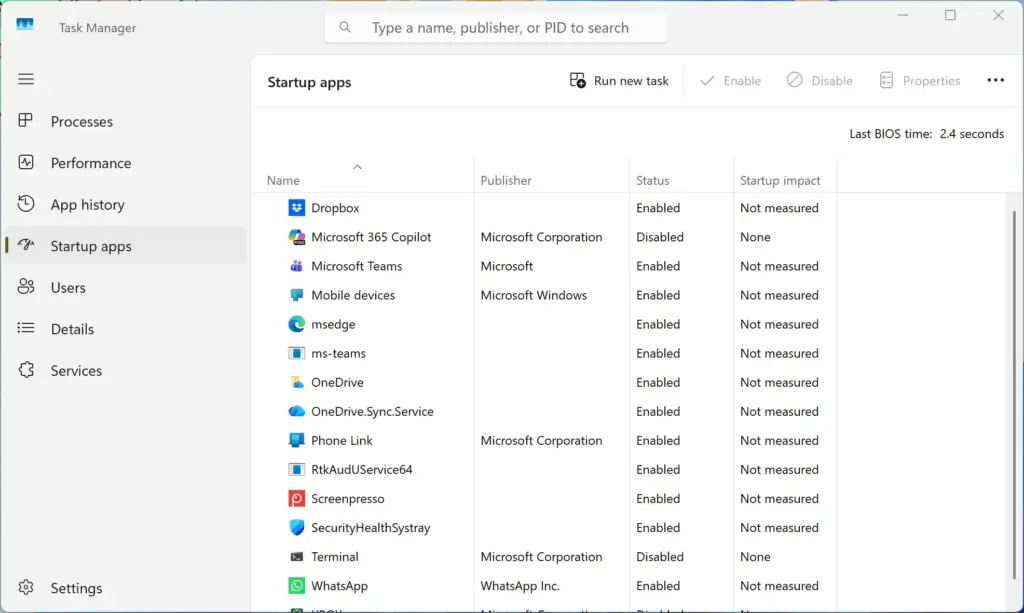
Disabling the startup entry stops Copilot from launching automatically every time you turn on your computer. You do this in Windows Settings, under Apps, then Startup.
- Open the Windows Start menu and click the Settings gear icon.

Start Menu - From the menu on the left side, select Apps.
- Click Startup. You should see a list of programs that run when Windows boots up, each with an On/Off switch.
- Find the assistant application in the list. If you have many entries, use the sort option at the top to sort by name.
- Click the switch next to it to set it to Off.
The change takes effect the next time you start the PC. If you cannot find an entry for the assistant, it is not set to start with Windows on your build, and you can move on to the next section. To undo this, return to the same list and switch it back to On.
Step 3Remove or Disable the Integration via Settings (Admin Privileges Required)
Removing Copilot from the taskbar is the next step. On builds that offer the switch, turning it off removes the icon and stops Copilot from opening from the taskbar. This works the same in Windows 11 Home and Pro. Make sure you are signed in to an account with administrator rights first.

- Log in to your computer using an account with administrator rights.
- Open the Windows Start menu and select Settings.
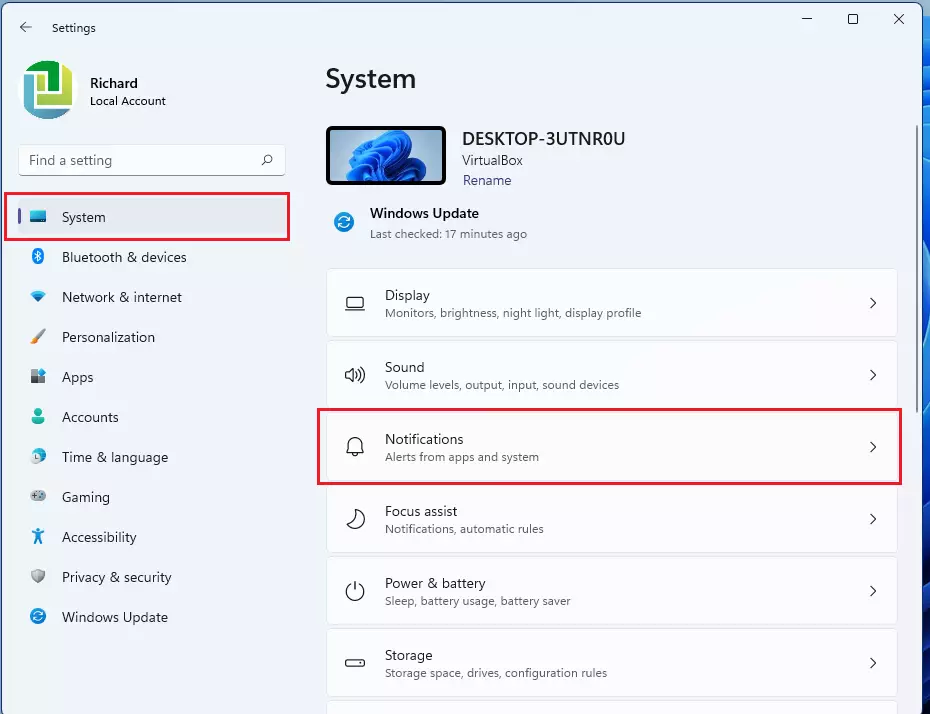
windows 11 notifications tile - Click Personalization, then select Taskbar.

Settings › Personalization - Look for the Copilot switch under the taskbar items and turn it Off. The icon should disappear from the taskbar right away.
If you cannot find the switch, your Windows 11 version may have moved or removed it. On those builds, Copilot is a pinned app instead. Right-click its taskbar icon and choose Unpin from taskbar. Where Copilot appears under Settings Apps Installed apps with an Uninstall option, you can remove it there too. To undo, turn the switch back on, or pin or reinstall the app.
Unique Angles: Advanced System Maintenance for Low-RAM PCs
Managing Hidden Microsoft Edge Background Processes
Hidden Microsoft Edge background processes can leave Copilot-related tasks in memory after you close the browser. Copilot shares its web engine with Edge, so you can cut this off in Edge’s own settings. You will turn off Startup boost and the permission for apps to keep running in the background.
- Open Microsoft Edge.
- Click the three dots in the top-right corner and select Settings.
- Click System and performance in the left menu.
- Find Startup boost and toggle it off. Edge will now start a little slower, but it will not preload itself into memory.
- Turn off the setting that lets apps and extensions keep running in the background when Edge is closed. It is usually named Continue running background extensions and apps when Microsoft Edge is closed.
This matters because Copilot’s background web components can consume up to 500 megabytes of RAM even when you are not using the assistant. Turning these settings off frees that memory so your computer runs faster and applications open more quickly. Edge settings sync across devices only if you use sync, so repeat these steps on each PC. To undo, flip the same toggles back on.
Using Alternative Lightweight Launchers
The second tip is to use a lightweight launcher for fast access to apps and files. These small third-party tools let you search your computer and open files instantly. They do not need a gigabyte of RAM for a background web rendering engine. Check what a launcher does with your data before you install it, just as you would with any other software.
To sum up, Windows 11 Copilot provides system insights and artificial intelligence assistance. But its underlying web framework can consume over 1GB of RAM in the background. That drain often slows down personal computers, especially those with limited memory. Check your memory use in Task Manager, disable the startup entry, remove the taskbar icon, and turn off Edge’s background features. Together, these steps reclaim system performance.
Have a question about this guide?
Answered by AI from this guide. Good questions may be added to this page — please don't include personal details.
Did this guide fix your problem?

About the Author
Richard
Tech Writer, IT Professional
Richard is a writer at Geek Rewind who turns complex IT tasks into clear, step-by-step guides. He draws on years of hands-on experience in system administration and enterprise IT operations, focusing on Windows, Linux and WordPress: the problems people actually run into, and the fixes that work. His server and WordPress guides come from systems he runs himself. Richard builds and maintains the platform behind Geek Rewind, from its Ubuntu servers and Nginx configuration to its custom WordPress plugins. Many new tutorials start with readers' questions, and he's always glad to answer them in the comments.
No comments yet — be the first to share your thoughts!