How Copilot Uses Local AI Models on Windows 11

- 12 steps
- Needs administrator rights
- Includes a restart or sign-out
Copilot local models are AI models that run on your Windows 11 PC instead of in the cloud, and Microsoft has announced that Copilot will use them more. The announcement came at Microsoft Ignite 2026 on November 17, 2026. It covers Copilot+ PCs, Microsoft’s label for Windows 11 PCs built to run AI features on the device itself.
The feature has been announced but has not shipped. Microsoft says the local capabilities are “coming soon” to Copilot+ PCs, and nothing in Windows today lets you switch them on. This post explains what Microsoft has said, who it affects, and which steps prepare a PC to receive the feature.
Copilot local models are AI models that run on your Windows 11 PC instead of Microsoft’s servers. Microsoft announced at Ignite 2026 on November 17, 2026, that Copilot+ PCs will use them more, but the feature has not shipped. Nothing in Windows today lets you turn it on, and Microsoft has not said which tasks will run locally.
What Microsoft has announced
Do Copilot local models work on a Copilot+ PC? Microsoft says they will. Copilot will increasingly use AI models that run on the PC, and it will reach out to the cloud only when a task needs it. Microsoft describes these local capabilities as coming soon to Copilot+ PCs, so they are not available yet.
That is the full extent of what Microsoft has confirmed. The announcement is part of the company’s Ignite 2026 post, Microsoft Ignite 2026: Building Windows for the next era of work. Read that post for Microsoft’s own wording, because details can change while the feature rolls out.
How a local model differs from the cloud
A cloud model runs on Microsoft’s servers. Copilot sends your request over the internet, the servers process it, and the answer comes back. A local model runs on the hardware inside your PC, so the processing happens on the device.
Copilot+ PCs include a neural processing unit, or NPU (a chip designed to run AI workloads efficiently without loading the main processor). That hardware is why Microsoft ties this change to Copilot+ PCs. Microsoft’s published requirement for the label is an NPU rated at 40 TOPS (trillions of operations per second) or more. The label also requires at least 16 GB of memory and 256 GB of storage.
Read the exact wording closely, because it sets the limits of the change. Copilot will use local models “increasingly” and will reach out to the cloud “only when a task needs it.” Microsoft is describing a split, not a replacement, so some tasks will stay in the cloud.
What will change in Copilot
Microsoft’s announcement says where the work happens will change. Tasks that a local model can handle will run on the PC, and Copilot will contact the cloud for tasks that need it.
Microsoft has not said which tasks will run locally and which will not. It has not named the models, listed supported languages, or explained how Copilot decides when to call the cloud. It has also not said whether local models will work without an internet connection. Treat any list of “local Copilot features” you see elsewhere as a guess until Microsoft publishes one.
If you already use Copilot for file lookups, the closest existing feature is covered in how to search local files with Windows 11 Copilot. That post describes Copilot as it works today. It does not describe the local models Microsoft has announced.
Who this affects
Copilot local models are for Copilot+ PCs. Microsoft’s announcement names Copilot+ PCs as the hardware that will get them, and it says they are coming soon. If you own a Copilot+ PC, you are the audience for this change.
Microsoft has not said what happens on other Windows 11 PCs. Do not assume they will get local models, and do not assume they will lose any current Copilot features.
If you are not sure whether your PC is a Copilot+ PC, check the manufacturer’s product page or the packaging. Those are the most reliable places to find the label. Windows may or may not show the label, and the location is not confirmed. A quick hardware check in Task Manager gives a useful hint:
- Open Task Manager. Press Ctrl+Shift+Esc.
- Select the Performance tab. A list of hardware appears on the left.
- Look for an NPU entry. PCs that have an NPU list it alongside CPU, Memory and the other components.
You should now know whether your PC has an NPU. That is a hint, not proof of the Copilot+ label, and a PC with no NPU entry is not a Copilot+ PC.
What is not known yet
Microsoft has given no release date beyond “coming soon.” These details remain unconfirmed:
- An exact date, build number or Windows version that will carry local models
- The Settings page or toggle, if any, where the feature will appear
- Which Copilot tasks will run on the PC
- Whether you can choose local-only or cloud-only processing
- How the feature affects memory use and battery life
That last point is the one most readers ask about. Copilot’s current effect on memory is covered in what Windows 11 Copilot actually does to your RAM. Local models will probably change the picture, but Microsoft has not published figures, so any number you read now is speculation.
Privacy and control
Microsoft’s announcement describes the processing location, not a change to privacy settings. It does not say what data stays on the PC, what gets sent to the cloud, or what controls you will get. Wait for Microsoft’s documentation before you rely on any claim that local processing keeps everything private.
If you do not want Copilot at all, the existing options still apply. See how to disable Windows 11 Copilot, and read what breaks when you turn off Copilot in Windows 11 before you decide. Microsoft has not said whether those methods will also stop local models. No registry or policy setting for local models has been announced, so none is listed here.
How to prepare for Copilot local models on a Copilot+ PC
These steps move a Copilot+ PC to a supported Windows 11 version. They also turn on the setting that gives you new features first. That leaves the PC ready for Copilot local models when Microsoft ships them.
Nothing here turns the feature on, because it is not in Windows yet. The steps are the same on Home and Pro editions of a currently supported Windows 11 version (25H2 or 26H2).
- Find your Windows version. Press Win+I to open Settings, then go to Settings System About. Under Windows specifications, the page lists your device specifications and your Windows version.
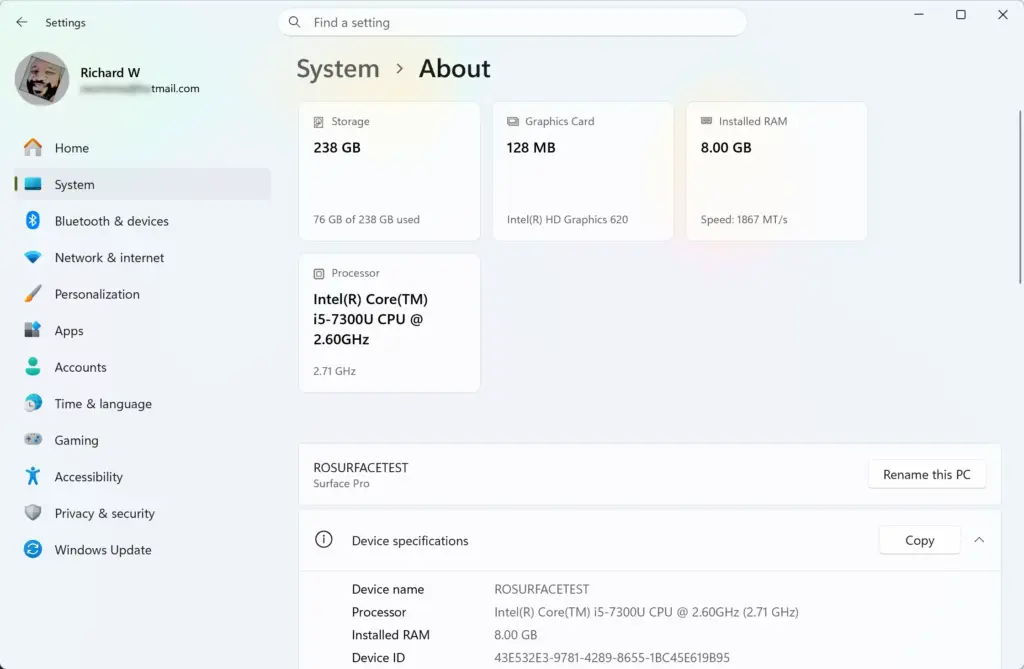
- Check the Version line. Microsoft’s currently supported versions of Windows 11 Home and Pro are 25H2 and 26H2. If you see 23H2 or 24H2, that version is out of support, and updating is the first thing to do.
- Confirm your PC is a Copilot+ PC. Look at the manufacturer’s product page or the packaging for the Copilot+ PC label. If your PC does not carry it, the announcement does not cover you.
- Open the update page. Go back to the Settings sidebar and select Windows Update. You should now see the update status and a Check for updates button.
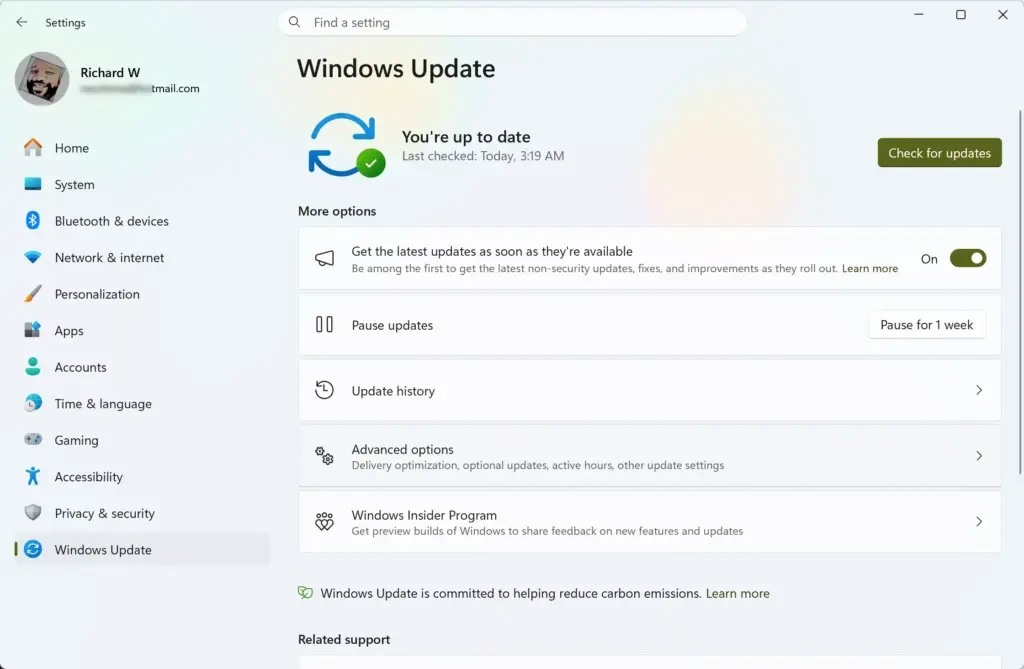
- Turn on the setting that gives you new features first. Switch on Get the latest updates as soon as they’re available. Microsoft recommends this toggle to be among the first to receive version 26H2, which carries the newest features. The toggle takes effect immediately, so you do not need to restart or sign out, and you can switch it off later if you prefer a slower update pace.
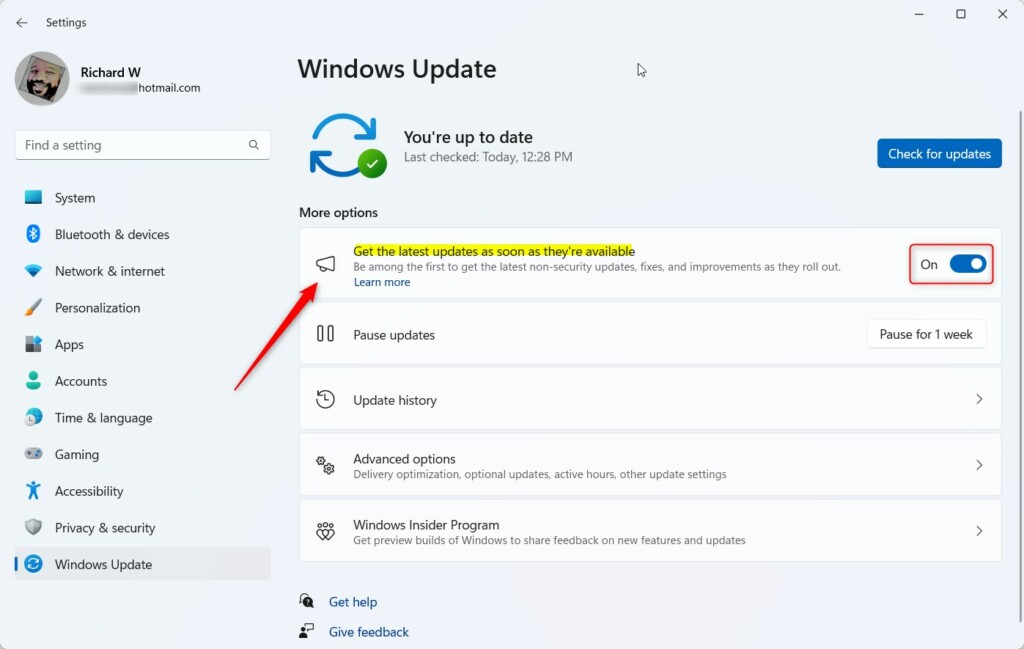
- Look for updates. Select Check for updates. Windows contacts Microsoft and lists any updates it finds. If the toggle in the previous step is missing or greyed out, your organisation probably manages updates on this PC, and you need to ask your administrator.
- Install what Windows offers. Select Download & install if the button appears, and wait for the progress to finish. Save your work first, because Windows may need to restart.
- Restart the PC when prompted. Select Restart now. After the restart, return to Settings Windows Update. The page should say you are up to date.
- Check again until nothing new appears. Select Check for updates once more, because some updates install in stages and a second check often finds more. Repeat it each time Microsoft announces a rollout.
That’s it. Your Copilot+ PC now runs a supported Windows 11 version and is set to receive new features early, so it is ready when Copilot local models arrive.
If an update fails or stalls, open Settings System Troubleshoot Other troubleshooters. These Get Help troubleshooters replace the older MSDT troubleshooters (the Microsoft Support Diagnostic Tool), which Microsoft is retiring. Find the Windows Update entry and select Run, then follow the prompts.
How to tell when the feature arrives
Microsoft has not said where Copilot local models will appear in Windows or what they will be called in the interface. The most reliable signals are Microsoft’s own posts on the Windows Experience Blog and the release notes that come with Windows updates.
Rollouts are usually gradual, so a PC may receive the feature later than another PC running the same version. Leaving Get the latest updates as soon as they’re available turned on may help. If Windows later shows a toggle for this feature, turning it on may help too. Neither guarantees a date.
When Copilot changes, the app itself is the next thing to check. Refreshing Copilot can help if the app looks out of step after an update. For a full tour of what Copilot does today, see how to use Windows 11 Copilot: setup and features.
What to do next
Watch Settings Windows Update and the Windows Experience Blog for the release of Copilot local models. If you would rather not run Copilot at all, read how to remove the Copilot app from Windows 11 before the feature arrives. To undo the update preparation, return to Settings Windows Update and switch off Get the latest updates as soon as they’re available.
Have a question about this guide?
Answered by AI from this guide. Good questions may be added to this page — please don't include personal details.
Did this guide fix your problem?

About the Author
Richard
Tech Writer, IT Professional
Richard is a writer at Geek Rewind who turns complex IT tasks into clear, step-by-step guides. He draws on years of hands-on experience in system administration and enterprise IT operations, focusing on Windows, Linux and WordPress: the problems people actually run into, and the fixes that work. His server and WordPress guides come from systems he runs himself. Richard builds and maintains the platform behind Geek Rewind, from its Ubuntu servers and Nginx configuration to its custom WordPress plugins. Many new tutorials start with readers' questions, and he's always glad to answer them in the comments.
No comments yet — be the first to share your thoughts!