How to Check Your Windows 11 Version and Build

- 18 steps
- Needs administrator rights
Checking your Windows 11 version and build takes under a minute with winver, a small built-in tool that opens a window showing both numbers. Press Win+R, type winver, and press Enter. Read the Version line for the name, and the OS Build number in brackets after it.
The version is the name of the yearly feature update, which is a large set of changes Microsoft releases once a year. For example, it might be 24H2. The build is a number that identifies the exact update installed on your PC, such as 26100.1742. Support pages, driver downloads, and software requirements ask for one or both.
This guide covers winver, the Settings app, Command Prompt, PowerShell, and System Information. None of them need administrator rights.
Press Win+R, type winver, and press Enter. The About Windows window opens, and its Version line shows your feature update, such as 24H2, followed by the full OS build in brackets, such as 26100.1742. No administrator rights are needed. For your edition, open Settings System About.
What Version, Build, and Edition Mean in Windows 11
Windows 11 shows three separate labels, and people often mix them up.
- Edition is the product tier, such as Windows 11 Home or Windows 11 Pro. It decides which features you have, such as BitLocker drive encryption (Pro) or Group Policy (Pro), which lets administrators set rules for settings across the PC.
- Version is the feature update, written as the year plus H1 or H2, such as 23H2 or 24H2. H1 means the first half of the year and H2 means the second half. Microsoft releases one feature update a year.
- OS build is two numbers separated by a dot. The first number, such as 26100, identifies the feature update family. The number after the dot is a revision that increases with each monthly cumulative update (a bundle of security and bug fixes).
If a support article asks which version of Windows 11 you run, give the version and the full OS build. The full build is more precise because it shows whether the latest monthly update is installed.
How to Check Your Windows 11 Version and Build with winver
Winver is the fastest way to see your Windows 11 version and build, and it works the same on every edition. These steps open the About Windows dialog box, which lists both numbers.
- Press Win+R. The Run dialog box opens in the lower-left corner of the screen.
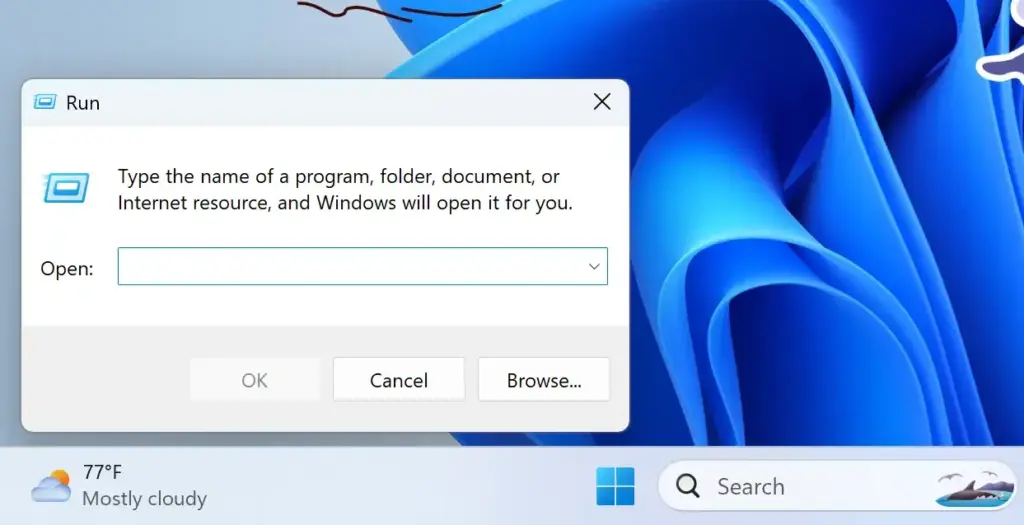
Run dialog - Type
winverin the Open box. Type it as one word, in lowercase or uppercase. - Press Enter. The About Windows window opens.
- Read the line that starts with Version. It looks like “Version 24H2 (OS Build 26100.1742)”. The first part is your version and the number in brackets is your full build.
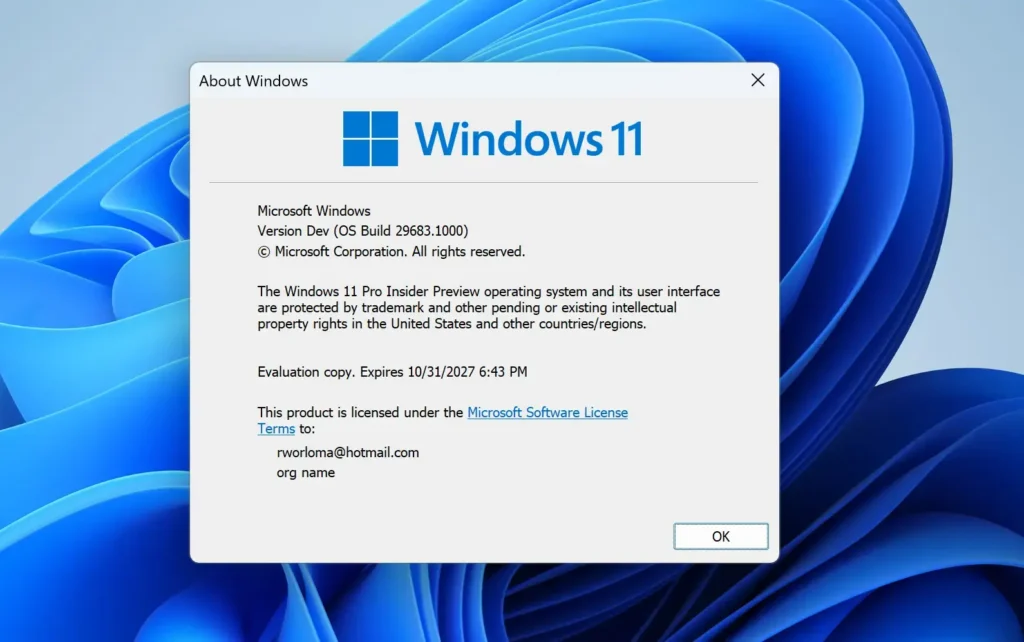
- Click OK to close the window.
If the Run box does not open, click Start, type winver, and press Enter. It appears in the results list as a Run command.
Check Your Windows 11 Version and Build in Settings
The Settings app shows the same numbers and adds the edition. Use it when you need the edition too, or when you want to copy the details into a support ticket.
- Press Win+I to open Settings.
Windows 11 Start menu search panel for opening OpenSSH Client settings - Select System in the left pane.
- Scroll down and select About. The Settings path is Settings System About.
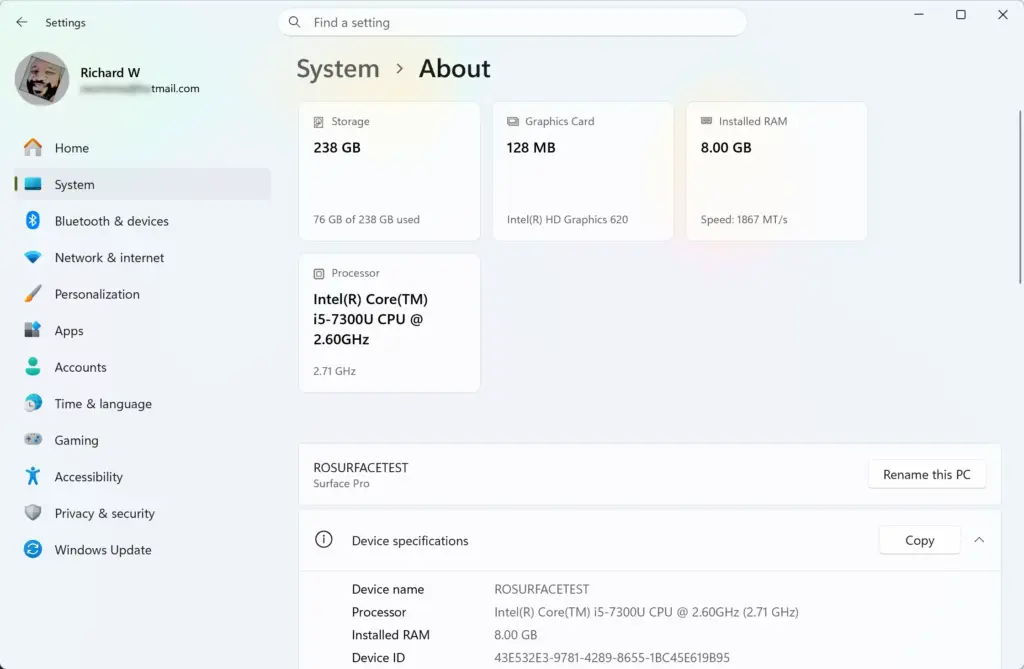
Settings › System › About - Find the Windows specifications section. It sits below Device specifications.
- Read the Edition, Version, and OS build lines. Edition shows Windows 11 Home or Pro, Version shows a value such as 24H2, and OS build shows the full number with the revision.
- Click Copy next to the Windows specifications heading to place all of the lines on the clipboard.
A faster route is to right-click the Start button and choose System. In Windows 11 this opens the same About page.
What the Installed on date tells you
The Installed on line in the Windows specifications section shows when the current feature update was installed on this PC. If the Installed on date is well before the release date of your version, your PC may have missed a recent feature update.
Check the Version and Build from the Command Line
Command-line methods suit remote support calls, scripts, and anyone who already has a command window open. Each one reports the same build.
Command Prompt
The ver command prints the build in one line. It is the shortest option, though it does not show the version name like 24H2.
- Click Start, type
cmd, and press Enter. Command Prompt opens in a standard window. - Type the command below and press Enter.
verThe output looks like “Microsoft Windows [Version 10.0.26100.1742]”. The ver output on Windows 11 still starts with 10.0. That is normal, so do not treat it as a sign of an old version. Check the numbers after it instead. The last two numbers are the build and revision.
For more detail, run systeminfo and filter the output to the two lines you need. It takes a few seconds to gather its data.
systeminfo | findstr /B /C:"OS Name" /C:"OS Version"The OS Name line shows the edition, such as Microsoft Windows 11 Pro. The OS Version line shows the number, followed by “Build” and the build number.
PowerShell
PowerShell can list the operating system name, version number, and build number in a single table.
- Click Start, type PowerShell, and press Enter. A blue PowerShell window opens.
- Type the command below and press Enter. Wait a few seconds while it collects the data.
Get-ComputerInfo | Select-Object OsName, OsVersion, OsBuildNumberThe result shows the OS name, the version number in the form 10.0.xxxxx, and the build number.
System Information
System Information (msinfo32) is a built-in report of hardware and software details. It is useful when you also need other system values. The Msinfo32 guide for checking your BIOS version uses the same window. BIOS is the basic software that starts your PC’s hardware.
- Press Win+R, type
msinfo32, and press Enter. The System Information window opens. - Select System Summary in the left pane if it is not already selected.
- Find the OS Name and Version rows in the right pane. OS Name shows the edition and Version shows the number and build, for example “10.0.26100 Build 26100”.
This window shows the build number but not the 24H2-style version name on every release. Use winver or Settings when you need that name.
Match Your Build Number to a Windows 11 Version
If a tool shows only a build number, the first five digits identify the version. This table lists the main Windows 11 releases.
| Build (first number) | Windows 11 version |
|---|---|
| 22000 | 21H2 (the original release) |
| 22621 | 22H2 |
| 22631 | 23H2 |
| 26100 | 24H2 |
| 26200 | 25H2 |
Every Windows 11 build starts at 22000 or higher. A build below 22000, such as 19045, means the PC runs Windows 10, not Windows 11. Microsoft ended updates for the final Windows 10 release, 22H2, on October 14, 2025, so upgrading is worth planning.
Microsoft lists version 23H2 as reaching end of servicing (the date it stops sending updates) in November 2025. If your PC shows 22631 or lower, open Settings Windows Update and check for a newer feature update.
To see what changed in a newer release, read which features are turned on by default in Windows 11 version 26H2.
When the Numbers Look Wrong or Do Not Match
These cases cause most of the confusion when people compare their results with a support page.
- ver shows 10.0 on Windows 11. This is normal. Windows 11 keeps the internal major number 10.0. Check the build number after it, which is 22000 or higher.
- Your revision number differs from a friend’s. The number after the dot changes with each monthly update. Two PCs on the same version have different revisions if one has not installed the latest update. Check Settings Windows Update to see what is pending.
- Winver and Settings show the same build but a support page quotes a shorter one. Many articles list only the five-digit family number, such as 26100, and leave out the revision. Both are correct for the same PC.
- The Run box or Command Prompt is blocked. Work and school PCs sometimes block these tools with settings set by an administrator. Use Settings System About instead, which is rarely restricted.
- Your build is not in the table above. Check the Insider and newer release notes before you assume something is wrong. Builds from the Windows Insider Program (early test releases from Microsoft) use their own numbers, and preview builds can show a higher build than the public release. A newer release than this table lists also shows a new number.
Checking is read-only. Nothing in these steps changes your PC, so there is nothing to undo.
What to Do Next
With your version and build known, compare them against any app, driver, or game requirement that asked for them. If the requirement also mentions hardware, check your TPM version (a security chip on the motherboard), your UEFI BIOS version, or your DirectX version (the graphics software that games and apps use). Developers who run Linux tools can also check their Windows Subsystem for Linux version (WSL, which runs Linux inside Windows).
Have a question about this guide?
Answered by AI from this guide. Good questions may be added to this page — please don't include personal details.
Did this guide fix your problem?

About the Author
Richard
Tech Writer, IT Professional
Richard is a writer at Geek Rewind who turns complex IT tasks into clear, step-by-step guides. He draws on years of hands-on experience in system administration and enterprise IT operations, focusing on Windows, Linux and WordPress: the problems people actually run into, and the fixes that work. His server and WordPress guides come from systems he runs himself. Richard builds and maintains the platform behind Geek Rewind, from its Ubuntu servers and Nginx configuration to its custom WordPress plugins. Many new tutorials start with readers' questions, and he's always glad to answer them in the comments.
No comments yet — be the first to share your thoughts!