How to Check Windows Subsystem for Linux Version


The Windows Subsystem for Linux (WSL) is a built-in feature of Windows 10 and 11. It lets you run Linux tools right next to your normal Windows apps. Checking your WSL version takes a few seconds and shows whether each Linux distribution on your PC runs under version 1 or version 2.
Version 2 uses a real Linux kernel and is much faster than the older version, especially for file work. You only need to run one short command in PowerShell or Command Prompt to see your current version number and decide whether you need to update.
Open PowerShell or Command Prompt as administrator and run the command `wsl -l -v`. This will display a list of your installed Linux distributions and their corresponding WSL version numbers. You will see either version 1 or version 2.
Why check your WSL version?
Checking your WSL version tells you whether a distribution runs on the legacy WSL 1 or on WSL 2, which includes a full Linux kernel. The number is set per distribution, not per PC. You can have one distribution on version 1 and another on version 2 at the same time, so check each one in the list.
What happens when done?
The command lists your installed Linux distributions, their status and their version number. This confirms which environment currently handles your Linux workloads. If you see no distributions listed, none are installed yet, and there is nothing to check until you add one.
Steps to check your WSL version
You can check WSL version details with a simple command in PowerShell or Command Prompt. The command is wsl -l -v. Listing distributions usually works from a normal window, but running as an administrator avoids permission problems later when you update or convert a distribution. Follow these steps to open an elevated window.
- Click the Start menu.
- Search for PowerShell or Command Prompt.
- Right-click the result and select Run as administrator.
- Click Yes if User Account Control asks for permission. A window opens with a prompt, ready for a command.
On Windows 11 you can also right-click the Start button and pick Terminal (Admin). Either way works for the steps below.
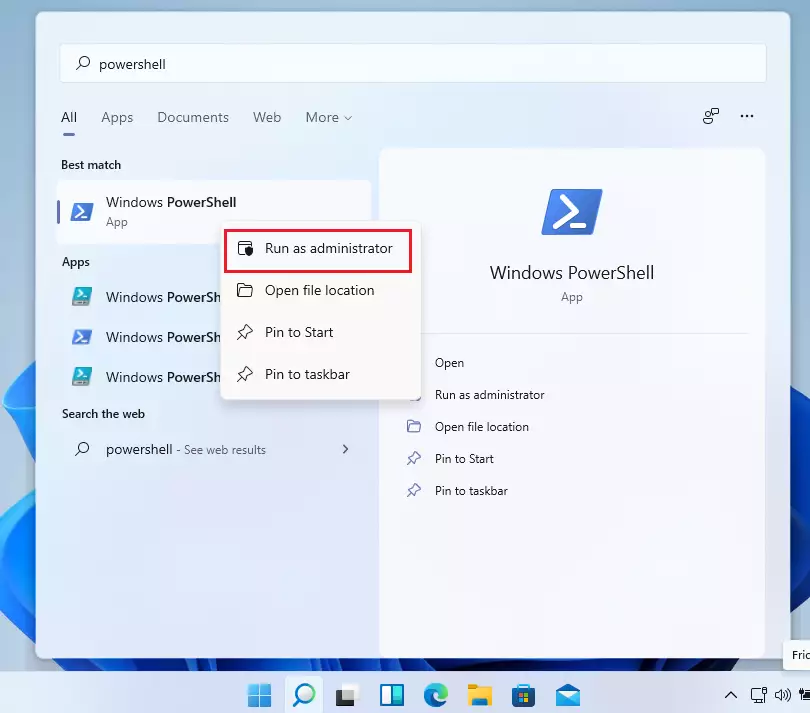
With the window open, check the version like this:
- Type the following command in the window.
- Press Enter.
wsl --list --verbose
A shorter version of the command is also available. It gives you the same list:
wsl -l -v
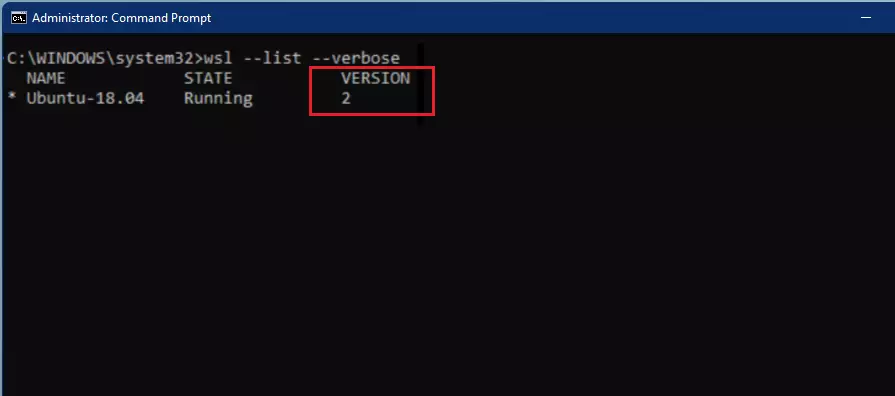
After you press Enter, the window shows a table with your installed distributions and their version numbers. Read it like this:
- NAME is the distribution name, for example Ubuntu. An asterisk (*) marks the default distribution, the one that opens when you run wsl on its own.
- STATE shows whether the distribution is Running or Stopped. Stopped is normal when you are not using it.
- VERSION shows 1 or 2. This is the WSL version that distribution uses.
If you get an error that the command is not recognized, or a message that WSL is not installed, the feature is not turned on yet. Install it first, then run the check again.
  NAME      STATE           VERSION
* Ubuntu    Running         2
  Debian    Stopped         1
Understanding WSL 2 vs WSL 1
Legacy WSL 1 translates Linux system calls into Windows calls on the fly. WSL 2 works differently. It runs a real Linux kernel inside a lightweight utility virtual machine. This change speeds up file operations inside the Linux file system and gives full system call compatibility, so more Linux software runs correctly. Container software like Docker Desktop requires WSL 2 to work properly.
WSL 1 still has one advantage. It can be quicker when you work with files stored on the Windows side of the disk. For most people, though, WSL 2 is the better choice.
How to upgrade to WSL 2
If a distribution shows version 1, you can move it to WSL 2 for faster file speeds and full compatibility with your Linux tools. The process has two parts: update WSL itself, then convert each distribution.
- Open PowerShell as an administrator, using the steps above.
- Run the wsl --update command to get the latest WSL files. Wait for it to finish. It reports when WSL is up to date.
wsl --update
Next, use the set-version command to switch your distribution to the newer architecture. Close any open Linux windows first, then run this command:
wsl --set-version <distro-name> 2
Substitute <distro-name> with the name appearing in your terminal list. The conversion can take a few minutes, longer for a large distribution, so let it finish and don't close the window. When it ends, run the version check again and confirm the VERSION column now shows 2.
If the conversion fails, the usual cause is that virtualization is turned off. Check that it is enabled in your PC's BIOS or UEFI settings, and that the Virtual Machine Platform Windows feature is on. To undo the change, run the same set-version command with 1 in place of 2. Your files stay in the distribution either way.
Consult the official Microsoft WSL installation guide for advanced configuration options.
Summary
Checking your Windows Subsystem for Linux version takes just a few seconds using the terminal. You can run wsl -l -v to view your current setup and use wsl --update to keep everything running smoothly. Upgrading to version two gives you the best performance for running Linux tools and Docker directly on your PC.- WSL allows you to run Linux tools directly inside Windows.
- Use
wsl -l -vin an administrator terminal to check your version. - WSL 2 is faster and recommended for most users, especially for Docker Desktop.
- Always run
wsl --updateto keep your kernel current. - Upgrading is simple using the
wsl --set-versioncommand.
Have a question about this guide?
Answered by AI from this guide. Good questions may be added to this page — please don't include personal details.
Did this guide fix your problem?

About the Author
Richard
Tech Writer, IT Professional
Richard is a writer at Geek Rewind who turns complex IT tasks into clear, step-by-step guides. He draws on years of hands-on experience in system administration and enterprise IT operations, focusing on Windows, Linux and WordPress: the problems people actually run into, and the fixes that work. His server and WordPress guides come from systems he runs himself. Richard builds and maintains the platform behind Geek Rewind, from its Ubuntu servers and Nginx configuration to its custom WordPress plugins. Many new tutorials start with readers' questions, and he's always glad to answer them in the comments.
No comments yet — be the first to share your thoughts!