How to Search Local Files with Windows 11 Copilot

Windows 11 Copilot can search your local files. You type a plain question, and the built-in AI helper looks for matching documents, pictures and downloads. Starting with version 1.25034.133.0, the assistant scans your personal folders for PDFs, Word documents (.docx), Excel spreadsheets (.xlsx) and image files such as PNGs and JPEGs. You don’t have to dig through File Explorer .
The first step is giving Copilot permission to read your computer’s storage. Until you do that, it can’t see your files at all. After that, you describe what you need in everyday words and Copilot looks for the right file on your drive.
Open Copilot with Win+C, click your profile icon to access Settings, scroll to Permissions, and turn on both File search and File read switches. Then type a plain-language question like “Find my vacation photos” in the text box, and Copilot searches your local documents, spreadsheets and images.
How to Find Files Using Copilot in 🪟 Windows 11
Open the Copilot sidebar, click your profile icon to open settings , and turn on the switches for file search and file read. Once both are on, you can ask natural questions to find documents and photos saved on your hard drive.
Open the Microsoft Store, check Downloads for updates, install any that are waiting, and then reopen Copilot. Also make sure you are signed in, since some Copilot options don’t appear for signed-out users.
- Open the Copilot app on your Windows 11 PC. Click the Copilot icon on the taskbar , or press
Win + Con your keyboard. The Copilot window should open with a text box at the bottom. - Go to the Settings page inside the Copilot app. You reach it through your profile icon.
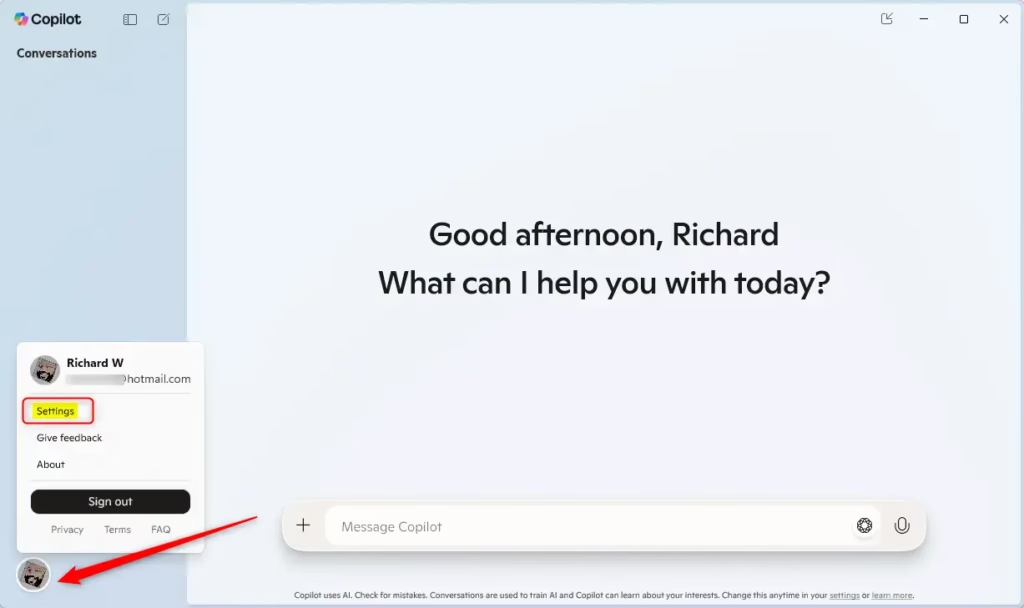
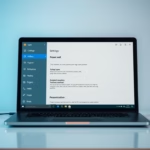
Copilot Settings button - Scroll down to the Permissions section. If you can’t find it, update the Copilot app from the Microsoft Store and look again.
- Turn on both the File search and File read switches. File search lets Copilot look for files, and File read lets it open them to check what is inside. You need both for content-based searches.
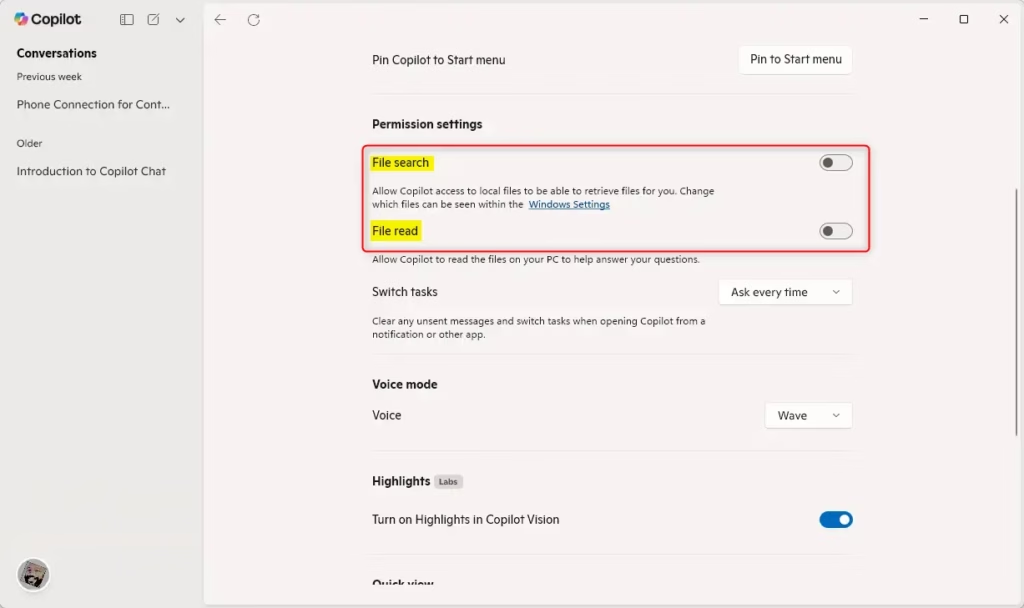
Enable File search and File read permissions - Type what you want to find in the Copilot text box. For example, type “Show me my vacation photos from last year” or “Find the report I worked on last week.” Copilot should list the matching files. If nothing comes back, try adding a detail such as the file type or a word you remember from inside the document.
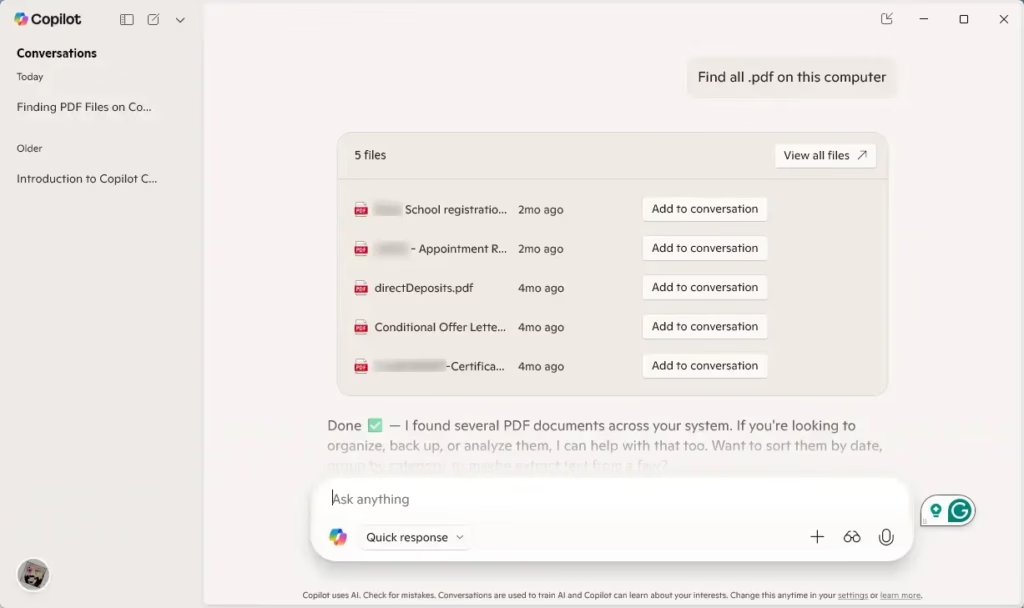
Copilot showing found documents
Copilot lets you find files on your computer faster by using simple language. That improves local file search for the more than 400 million people who use Windows every month. If you later want to stop Copilot from reaching your files, go back to Settings and turn off File search and File read. Nothing else needs to change.
Why Use Copilot to Search Your Files?
- Easy Language: Type or ask in everyday words. You don’t need to remember exact file names, only what the file was about or roughly when you used it.
- Supports Many File Types: It works with pictures (PNG, JPEG), documents (PDF, .docx), spreadsheets (.xlsx) and more.
- Simple Setup: Turning on permissions takes a few clicks inside Copilot. There is nothing to install beyond keeping the app updated.
- Saves Time: You find files quickly, which beats opening folder after folder when you can’t remember where something was saved.
- Smart AI Search: Copilot uses AI to understand what you mean, so results tend to be more relevant than a plain filename match.
Searching with Copilot lets you type normal sentences instead of exact file names. The AI uses context to locate text documents, spreadsheets and photos even when you only remember a vague detail about what is inside them. That can save time compared with the standard File Explorer search, especially when you can’t recall the file name or the folder.
File Explorer is still the better choice when you know the exact name or location of a file. Use Copilot when all you have is a description.
Summary
Copilot makes finding local files easier by accepting plain-language searches once you enable file search and file read permissions in its settings. The AI quickly locates the documents or pictures you describe. If it doesn't work as expected, check that the Copilot app is up to date and that both permission switches are still on.
Was this guide helpful?

About the Author
Richard
Tech Writer, IT Professional
Richard is a writer at Geek Rewind who turns complex IT tasks into clear, step-by-step guides. He draws on years of hands-on experience in system administration and enterprise IT operations, focusing on Windows, Linux and WordPress: the problems people actually run into, and the fixes that work. His server and WordPress guides come from systems he runs himself. Richard builds and maintains the platform behind Geek Rewind, from its Ubuntu servers and Nginx configuration to its custom WordPress plugins. Many new tutorials start with readers' questions, and he's always glad to answer them in the comments.


No comments yet — be the first to share your thoughts!