How to Remove All Your Files by Resetting Windows 11 PC

- 19 steps
- Includes a restart or sign-out
Resetting a Windows 11 PC wipes the drive and reinstalls the operating system. You do this to fix major errors or to prepare the computer for a new owner. The Remove everything option permanently deletes all personal files, downloaded apps, and custom settings.
Before you start, back up important photos, documents, and passwords to an external drive or cloud storage. Once the wipe begins, you cannot undo it.
Open Settings, go to System, then Recovery, and click “Reset PC”. Choose “Remove everything” and follow the prompts to reinstall Windows and delete all personal files, apps, and settings.
Before You Reset
Preparation is the part that decides whether a reset goes smoothly or costs you data. The reset deletes personal files, installed applications, and custom settings, and Windows has no way to recover them afterward. Work through the four steps below before you touch the reset button.
- Back up your important files. Treat this as mandatory. Remove everything works like a factory reset, so copy anything you can’t afford to lose.
- What to back upDocuments, pictures, videos, music, and any other personal data. Also check the Desktop and Downloads folders, which people often forget. Export browser bookmarks and saved passwords if you don’t sync them to an account.
- Where to back upUse an external hard drive, a USB stick, or online storage such as OneDrive, Google Drive, or Dropbox.
Once the copy finishes, open the backup location and make sure the files open. A backup you haven’t checked is only a hope.
- Get your software ready. The reset removes every installed program, and you will need to reinstall them yourself. Collect license keys, account logins, and installer files for your paid software before you begin. If you have a laptop or desktop from a manufacturer, note that some preinstalled apps may come back after the reset and others may not.
- Check your BitLocker recovery key (if you use it). If BitLocker protects your drive, you may need the recovery key. Without it, you might not be able to get back into the PC after the reset. You can usually find the key by signing in to your Microsoft account online. Many Windows 11 PCs, especially Home editions, use a lighter form called device encryption, which also stores its key in your Microsoft account. Save the key somewhere other than the PC you are about to reset.
- Write down your Wi-Fi password. After Windows reinstalls, you need to connect to the internet. Having the password on hand makes that quick. If you are using a laptop, plug it into power as well, since a reset can take a long time and a dead battery partway through can ruin the install.
How to Reset Your PC and Remove Everything
You start the reset from Settings. The path is Settings System Recovery, and then you click the reset button there. Choose Remove everything to wipe personal files, apps, and settings, then follow the on-screen prompts.
- Open Windows Settings . Click the Start button, usually in the bottom-left or center of the taskbar , and then click the Settings gear icon. Or press the
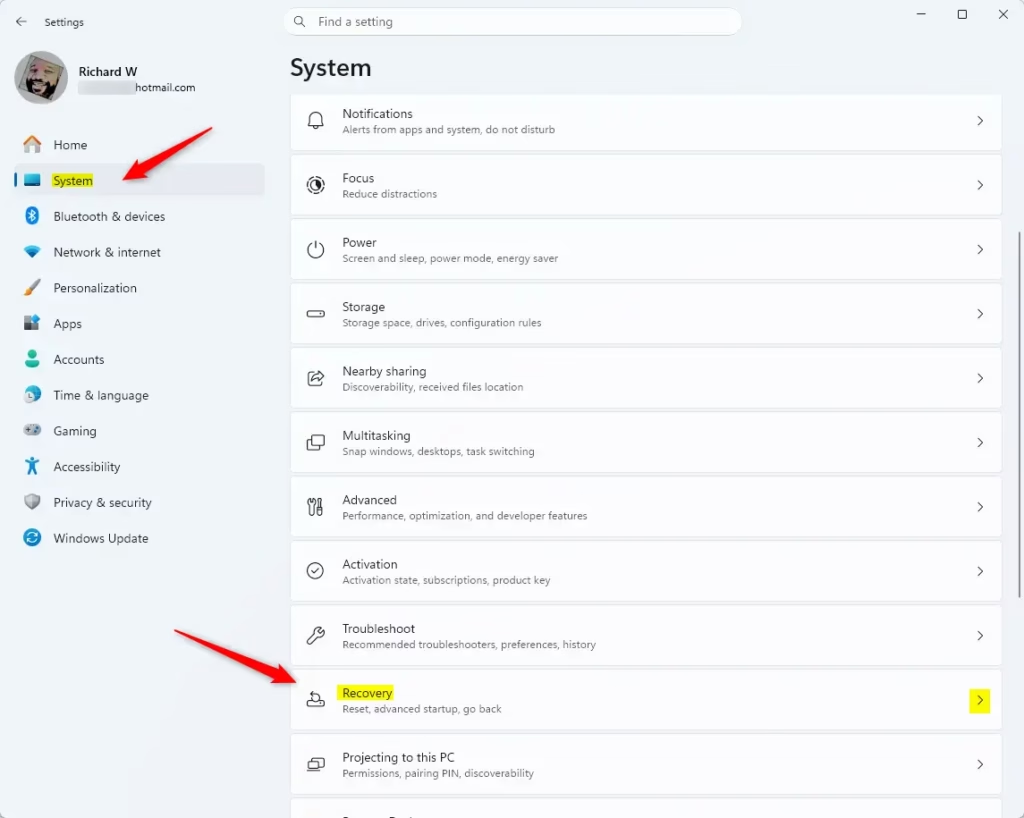
Windows key + Ikeys together. The Settings window opens. - Go to Recovery options. In Settings, click System. Scroll down the page and click Recovery. You should now see a list of recovery options.
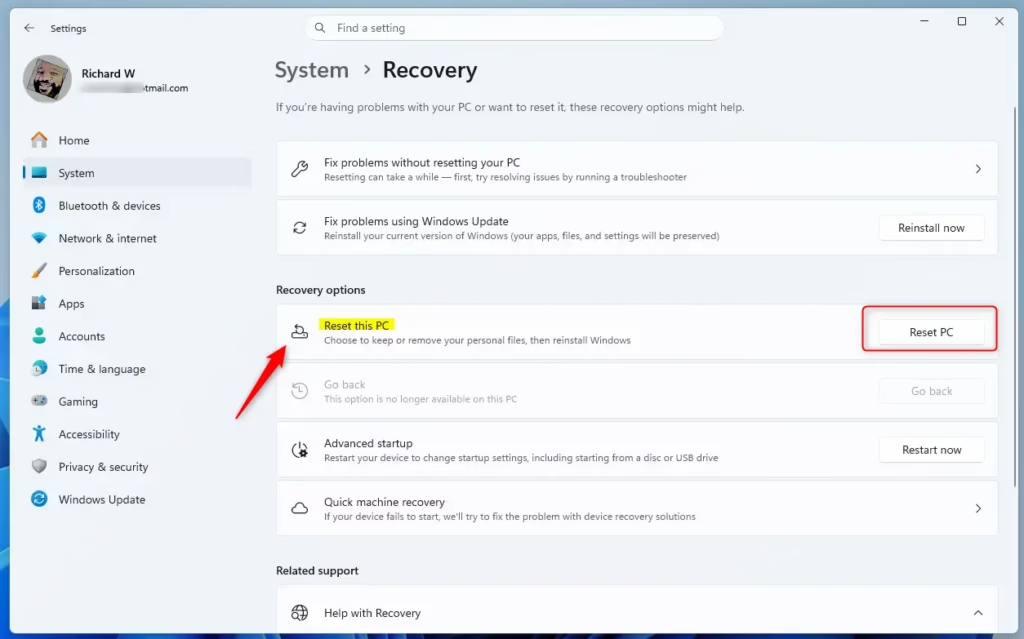
- Select “Reset PC”. Under Recovery options, find Reset this PC. Click the button next to it. In most Windows 11 versions it is labeled Reset PC, and some builds label it Get started. This begins the process of restoring the computer to a fresh state, and a window opens asking whether to keep or remove your personal files. If the button is greyed out or the reset fails to start, the Windows recovery files may be damaged. In that case, you may need to reinstall Windows from installation media instead.
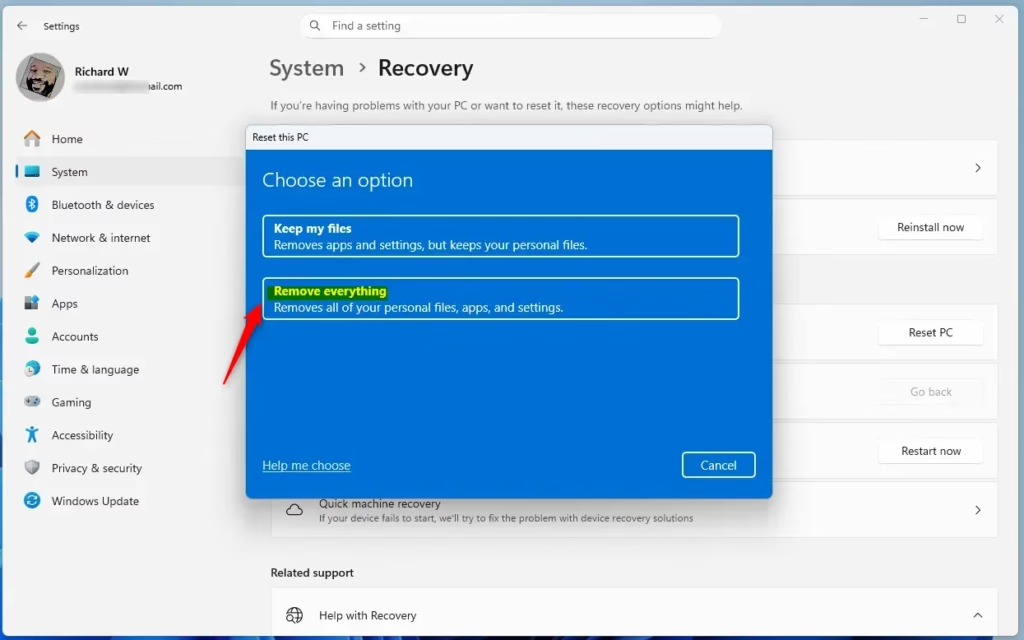
- Choose “Remove everything”. Windows gives you two choices:
- Keep my files: Reinstalls Windows and keeps your personal files. It removes apps and settings.
- Remove everything: Reinstalls Windows and removes all your personal files, apps, and settings.
Since we want a completely fresh start, click Remove everything.
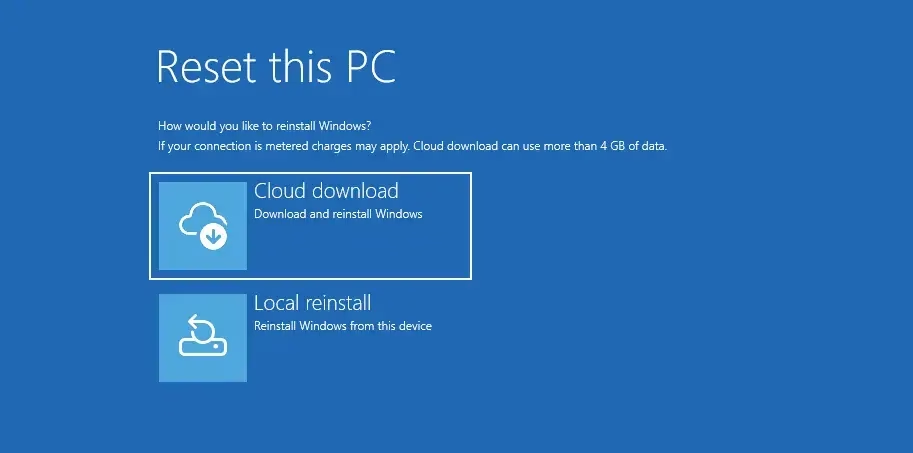
- Choose how to reinstall Windows. Windows next asks how you want to reinstall. You will usually see two options:
- Cloud downloadDownloads a new copy of Windows from Microsoft’s servers. It is usually the best choice because you get a current version with the latest updates. It works best with a fast, stable connection and uses a few gigabytes of data.
- Local reinstallUses files already on your PC. It is faster if your internet is slow, but the Windows version might not be the latest. It can also fail if the local system files are damaged.
For most people, Cloud download gives the cleanest and most up-to-date system. If your connection is slow, pick Local reinstall.
- Review Additional settings (Clean data?). You may see an Additional settings screen, where you might find an option to clean the drive. Warning: once you choose Clean data, you cannot get your files back. Only turn it on if you are sure you want all data gone for good.
- Clean dataIf you plan to sell, give away, or recycle the PC, turn this on. It deletes the files and then overwrites them, which makes it much harder for anyone to recover your information. It takes much longer than a normal reset, sometimes hours.
- Don’t clean dataIf you are resetting the PC for yourself and just want a fresh start, leave it off. It is faster but less secure if someone else will use the PC.
The options you see here can vary slightly by Windows 11 version and by PC maker.
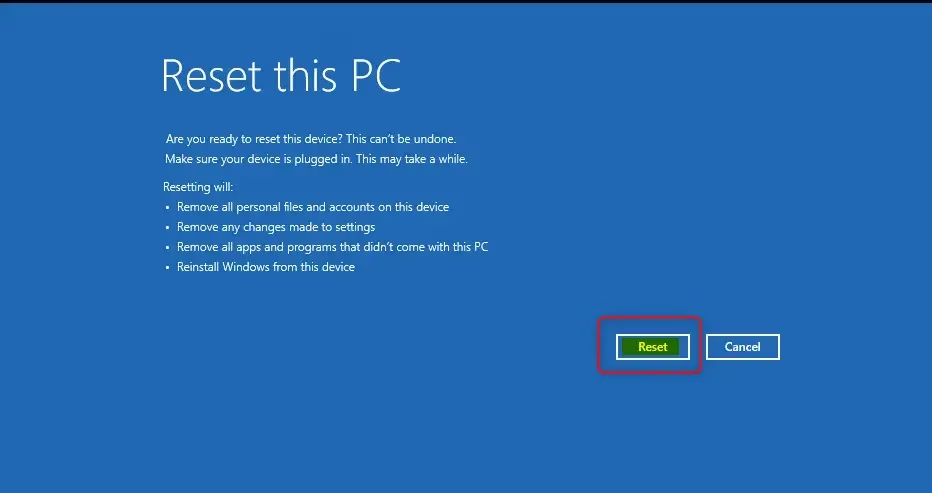
- Review and confirm. Windows shows a summary of what will happen and reminds you that all your files, apps, and settings will be removed. Read it carefully. If you want to change something, use the Back button. If you are ready, click Reset. The PC then begins reinstalling Windows and restarts.
What Happens During the Reset
The computer restarts several times during the reset and may show a black screen for a long stretch while Windows reinstalls. Keep it plugged in and don’t interrupt a shutdown or restart. Interrupting can damage the Windows installation.
- Your PC will restart several times.
- You might see a black screen for a long time. This is normal. Windows is still working.
- Don’t interrupt the process. Forcing a shutdown or restart during the reset can make it fail and could leave your PC unusable.
- If you have a laptop, keep the charger connected the whole time.
Important Note: Microsoft notes that the screen might stay black for a long time, sometimes over 15 minutes, and the device might restart itself. Do not manually restart the PC during this time, because doing so can cause the reset to fail. If the screen has stayed black for a very long time with no disk activity light and no change, give it more time than feels comfortable before you consider any other action.
After the Reset: Setting Up Your New Windows
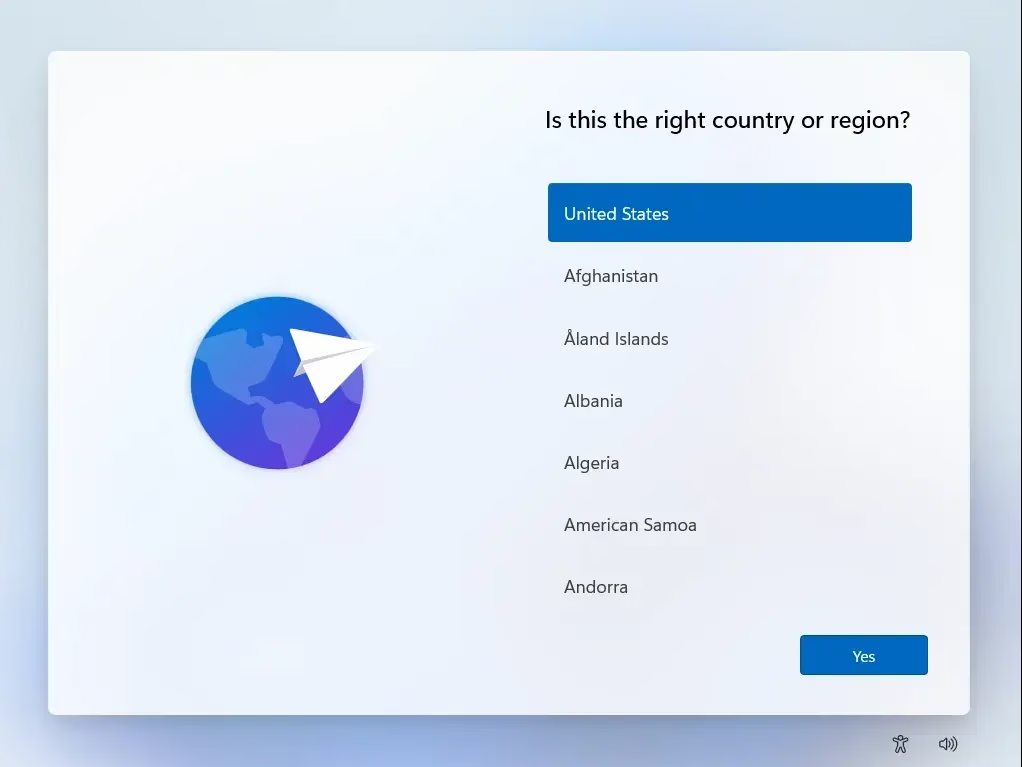
When the reset finishes, the PC boots into the Out-of-Box Experience (OOBE), the setup wizard you see on a new computer. Follow it to finish setting up the freshly wiped PC.
- Choose your region and keyboard layout.
- Connect to your Wi-Fi network. This is where the password you wrote down helps.
- Sign in with your Microsoft account, or create a local account if the setup offers that choice. Some Windows 11 setups, particularly Home, push you toward a Microsoft account and may require an internet connection to continue.
- Windows then downloads updates and sets up your system. This can take a while, and the PC may restart again.
Once you reach the desktop, start reinstalling your programs, restoring your backed-up files, and setting your preferences. Run Windows Update at this point to catch any updates that were not installed during setup.
Reference:
https://support.microsoft.com/en-us/windows/reset-your-pc-0ef73740-b927-549b-b7c9-e6f2b48d275e
Summary
A reset with Remove everything reinstalls Windows completely and gives the PC a clean slate. All personal files, apps, and custom configurations are wiped. It takes careful preparation, such as backing up your data, saving your BitLocker key, and having your Wi-Fi password ready. In return, it can resolve deep-seated software problems and speed up a sluggish computer.
Have a question about this guide?
Answered by AI from this guide. Good questions may be added to this page — please don't include personal details.
Did this guide fix your problem?

About the Author
Richard
Tech Writer, IT Professional
Richard is a writer at Geek Rewind who turns complex IT tasks into clear, step-by-step guides. He draws on years of hands-on experience in system administration and enterprise IT operations, focusing on Windows, Linux and WordPress: the problems people actually run into, and the fixes that work. His server and WordPress guides come from systems he runs himself. Richard builds and maintains the platform behind Geek Rewind, from its Ubuntu servers and Nginx configuration to its custom WordPress plugins. Many new tutorials start with readers' questions, and he's always glad to answer them in the comments.
No comments yet — be the first to share your thoughts!