How to Download All Files from OneDrive to Windows

Downloading all files from OneDrive to Windows copies your cloud storage onto your PC’s hard drive, so you can view, edit and open everything offline without an internet connection. The sync connects your cloud account to Windows 11 or Windows 10. You can keep a local copy of up to 5 terabytes of data, depending on your Microsoft 365 plan.
You can also use the OneDrive web interface to download up to 4 gigabytes per batch as a standard ZIP file. Keeping files locally protects your photos and work documents when your Wi-Fi drops out. This guide uses the OneDrive app that comes with Windows 11. Windows 10 works the same way, though some labels may differ slightly.
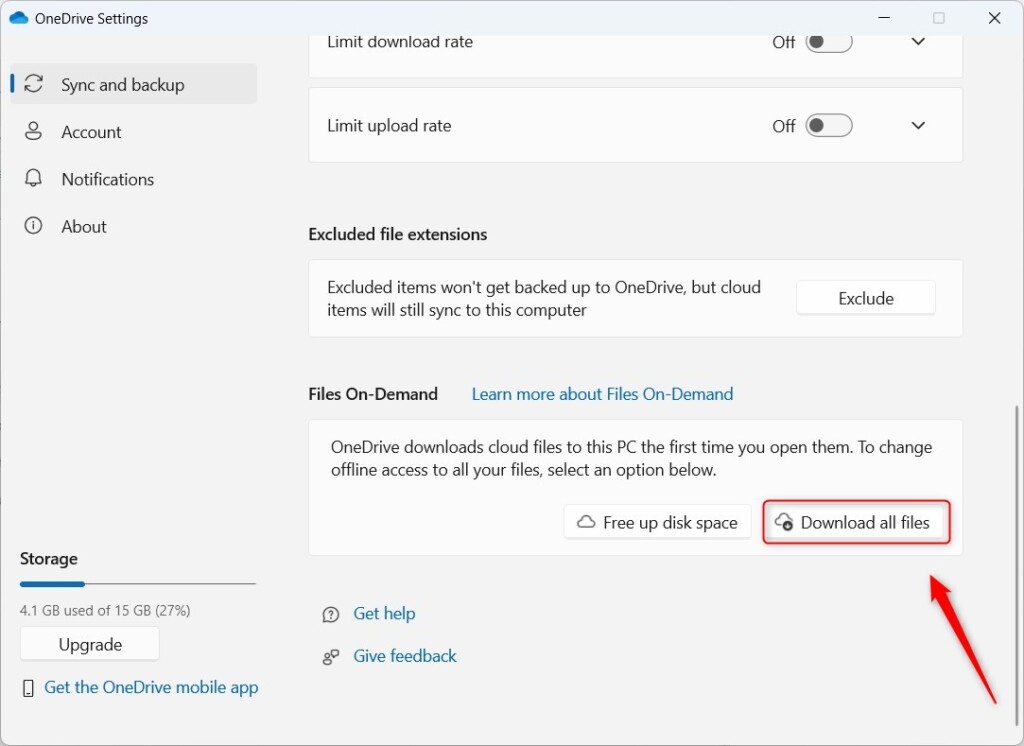
Open OneDrive settings through the taskbar icon, click Sync and backup, then Advanced settings, and select Download all files under Files On-Demand. OneDrive syncs your entire cloud library to your PC in the background, taking hours for large accounts depending on your storage plan.
What is OneDrive?
OneDrive is a cloud storage service built into Windows. It saves your photos and documents online so you can open them from any device. When you download your OneDrive files to Windows, you get a local copy on your hard drive. That lets you work offline and keeps your data available if your internet goes down.
The steps work the same on Windows Home and Pro. You need to be signed in to OneDrive with your Microsoft account for any of them to work.
You can also automatically back up important folders like Desktop, Documents and Pictures to OneDrive. Those folders then stay safe and synced on all your devices. Backing up is a different job from downloading everything. Backup sends your local files up to the cloud. This guide pulls your cloud files down to the PC.
By default, OneDrive shows most of your files as online-only links. They appear in File Explorer, but they take up almost no space on your computer until you open them. If you want every file saved on your PC, for example because you’ll be offline for a while, you can tell OneDrive to download everything. The steps are below.
A full download uses as much space as your whole OneDrive holds. If your OneDrive is bigger than the free space on your drive, the download will not finish.
Steps to Download All Files from OneDrive
- Find the OneDrive icon in the notification area at the bottom right of your taskbar . If you can’t see it, click the up arrow (Show hidden icons) to reveal it. A white or blue cloud means OneDrive is running. If there is no cloud at all, open the Start menu , search for OneDrive and start it.

OneDrive Settings button on taskbar - Click the OneDrive icon, then click the gear ⚙️ icon (it may be labelled Help & Settings) and choose Settings. The OneDrive settings window should open.
- Alternatively, open File Explorer (click the folder icon on your taskbar or press
Windows + E) and open your OneDrive folder. Click the OneDrive button at the top right, then click Settings. This opens the same settings window as the previous step, so use one route or the other, not both.

OneDrive Settings in File Explorer - In the OneDrive settings window, click Sync and backup in the menu on the left. The sync options appear on the right.
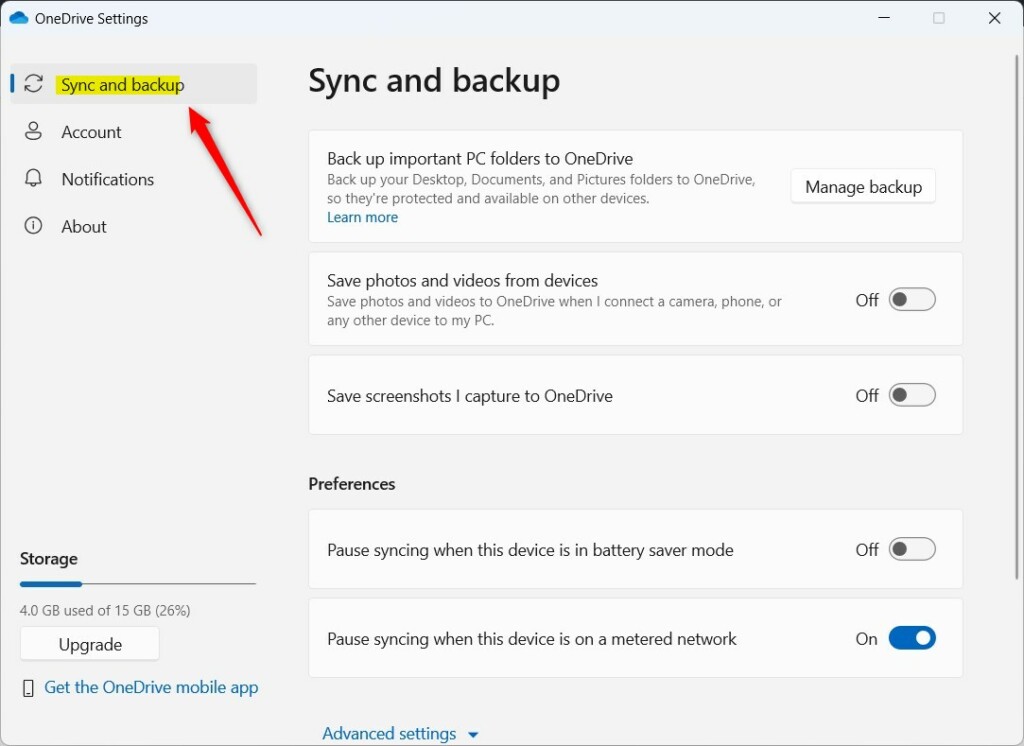
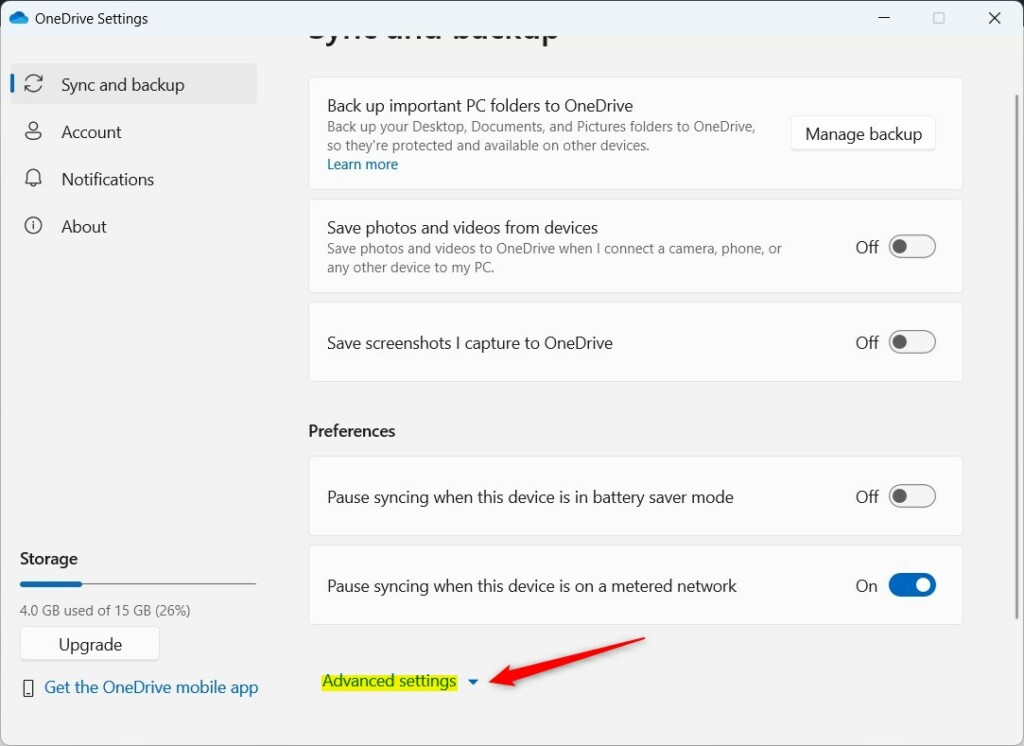
OneDrive Sync and backup settings - Scroll down to the preferences area and click Advanced settings. More options expand below it, including the Files On-Demand section.
OneDrive advanced settings - Click the Download all files button under Files On-Demand. If you can’t find the button, update the OneDrive app and try again. Older builds of OneDrive place this option differently.
OneDrive download all files button - Read the message that shows how much space your files will take on your computer. If you have enough free space, click Continue to start the download. OneDrive downloads in the background and you can keep using the PC. A large library can take hours. You do not need to restart Windows.
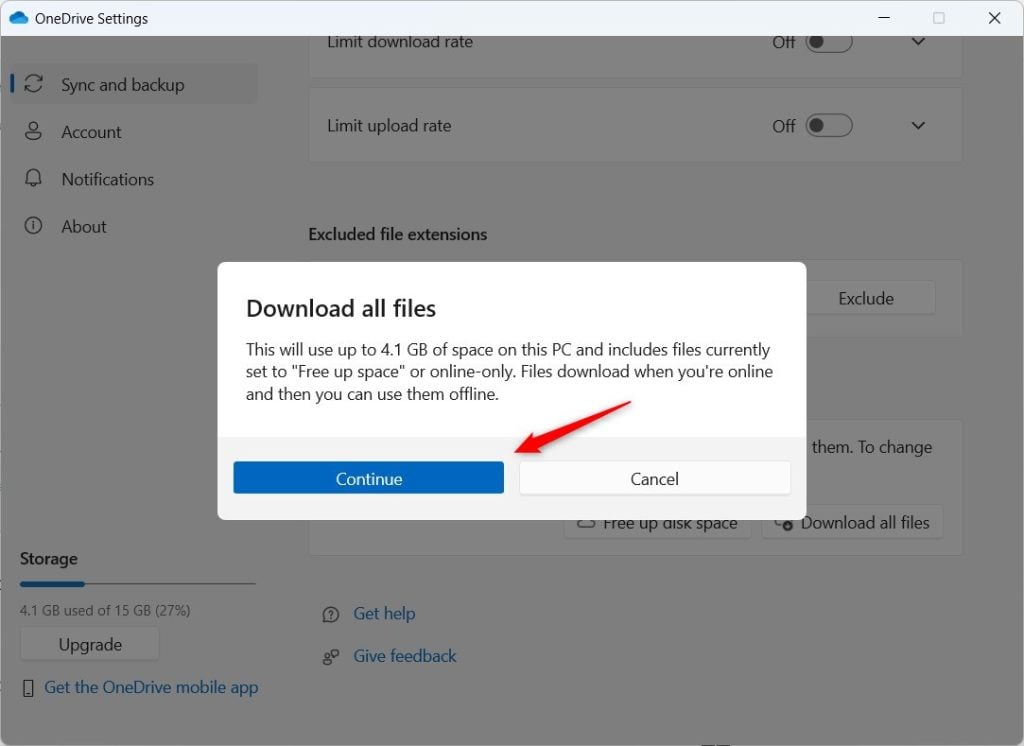
OneDrive download all files continue
To check progress, click the OneDrive icon in the taskbar. It shows how many files are left to sync. When it reports that your files are up to date, everything is on the drive.
The settings route above is the quickest way to pull everything down at once. You can also do it from File Explorer. Right-click a OneDrive folder and choose Always keep on this device. That keeps just that folder and its contents fully downloaded, which is useful when you don’t have room for everything.
To undo it, right-click the folder and choose Free up space. The files go back to online-only and stay safe in the cloud. Do this only after OneDrive has finished syncing, so nothing waiting to upload is lost.
Why Download Your Files?
- You can use your files offline, on a plane or when your internet is down.
- You have a backup copy on your computer in case something happens to your online files. Keep in mind that OneDrive syncs changes both ways. If you delete a file in the OneDrive folder, it is also removed online, though it goes to the recycle bin first. This is a convenient local copy, not a separate backup.
- Opening files is faster because they’re already on your device and don’t need to be fetched first.
Saving your cloud documents to your hard drive lets you open and edit everything without an internet connection. A full local copy gives you an offline backup, makes large files open faster, and protects your work if you ever decide to stop using the cloud service.
Downloading all files can use a lot of space, depending on how many you have. You can check free space in Settings under System and then Storage. If the drive gets too full, use Free up space on the folders you rarely need.
Summary
To download all your OneDrive files to Windows, open the OneDrive settings, go to Sync and backup, click Advanced settings, and click Download all files. Make sure you have enough free disk space first. If you need space back later, use Free up space.
Have a question about this guide?
Answered by AI from this guide. Good questions may be added to this page — please don't include personal details.
Did this guide fix your problem?

About the Author
Richard
Tech Writer, IT Professional
Richard is a writer at Geek Rewind who turns complex IT tasks into clear, step-by-step guides. He draws on years of hands-on experience in system administration and enterprise IT operations, focusing on Windows, Linux and WordPress: the problems people actually run into, and the fixes that work. His server and WordPress guides come from systems he runs himself. Richard builds and maintains the platform behind Geek Rewind, from its Ubuntu servers and Nginx configuration to its custom WordPress plugins. Many new tutorials start with readers' questions, and he's always glad to answer them in the comments.
No comments yet — be the first to share your thoughts!