Enable OneDrive Files On-Demand in Windows 11

OneDrive Files On-Demand is a Windows 11 feature that lets you see all your cloud storage files in File Explorer without taking up hard drive space on your PC. Cloud-only files download automatically the moment you double-click and open them, using an active internet connection.
Status icons next to each file show whether an item lives online only or stays stored locally on your device. A cloud outline means the file is online only. A green check mark means it has been downloaded to this PC. You can right-click any file or folder at any time and choose Always keep on this device for permanent offline access when you need to work without internet. To go back to online-only, choose Free up space.
OneDrive Files On-Demand lets you see all your cloud files in File Explorer without downloading them to your drive. To enable it in Windows 11, click the OneDrive cloud icon in the taskbar , select the gear icon, go to Settings or Sync and backup > Advanced settings, then check the box next to Save space and download files as you use them.
How to enable or disable files on-demand with OneDrive in 🪟 Windows 11
Files On-Demand keeps your whole OneDrive visible in File Explorer while only the files you actually use take up space on your drive. On many current Windows 11 setups it is already on, so check the setting first. If it is off, you can turn it on from the OneDrive app settings in the taskbar . Depending on your OneDrive version, the switch is under the Sync and backup tab or on the older Settings tab. The steps below cover both. No restart is needed.
Follow the steps below to turn on OneDrive Files On-Demand.
- Sign in to OneDrive with your Microsoft account before starting. If you are not signed in, the settings you need will not appear.
- Look for the OneDrive cloud icon in the taskbar notification area at the bottom right. It is white for a personal account and blue for a work or school account.

- If you do not see the icon, click the small arrow (Show hidden icons) next to the tray. The icon may be tucked away in the overflow area.
- If the icon is still missing, OneDrive is probably not running. Open the Start menu, type OneDrive in the search box, and select the app. Pressing the Win and typing OneDrive does the same thing. After a few seconds, the cloud icon should appear in the tray.
- Click the cloud icon. In the window that opens, select the gear icon, then choose Help & Settings Settings On some versions the gear is labelled Help & Settings. A Settings window for OneDrive should now open.
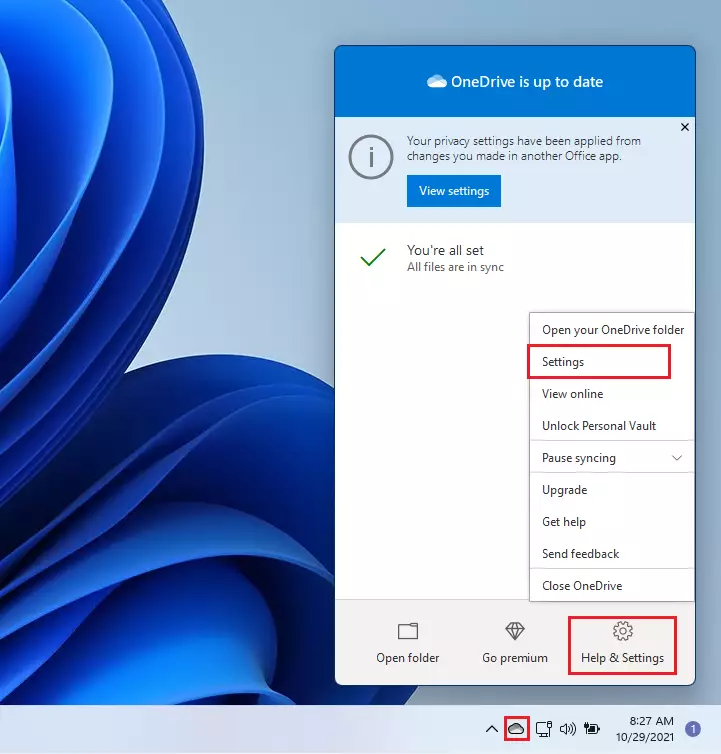
- In the OneDrive settings window, click the Settings tab. On newer builds, go to the Sync and backup tab and open Advanced settings instead.
- Check the box next to Save space and download files as you use them. On newer builds, find the Files On-Demand section and choose the option that saves space, so files download only when you open them.
Files On-Demand also needs your OneDrive folder to be on a drive formatted as NTFS. There is no difference between Windows 11 Home and Pro here.
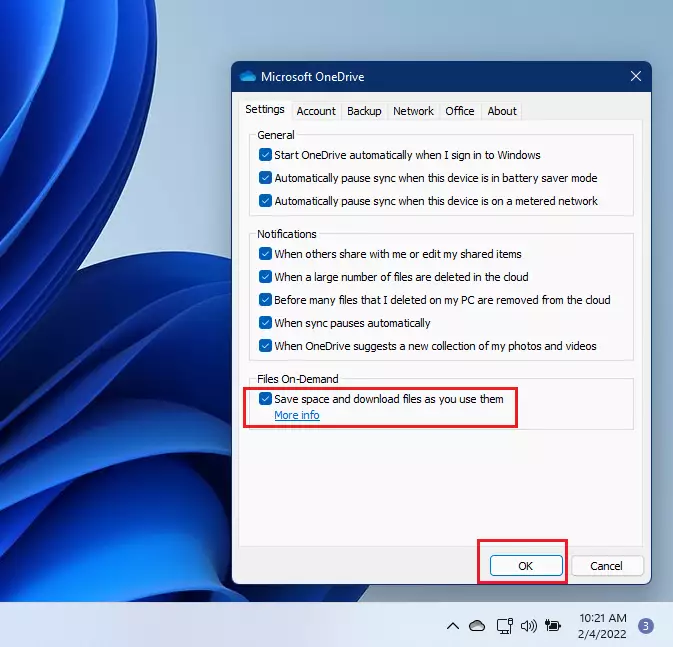
- Click OK to apply your changes and close the window. Your files in File Explorer now show the status icons, and files you have not opened show the cloud icon.
OneDrive will then download every file to your PC. Make sure you have enough free disk space first, because a large OneDrive can fill a small drive.
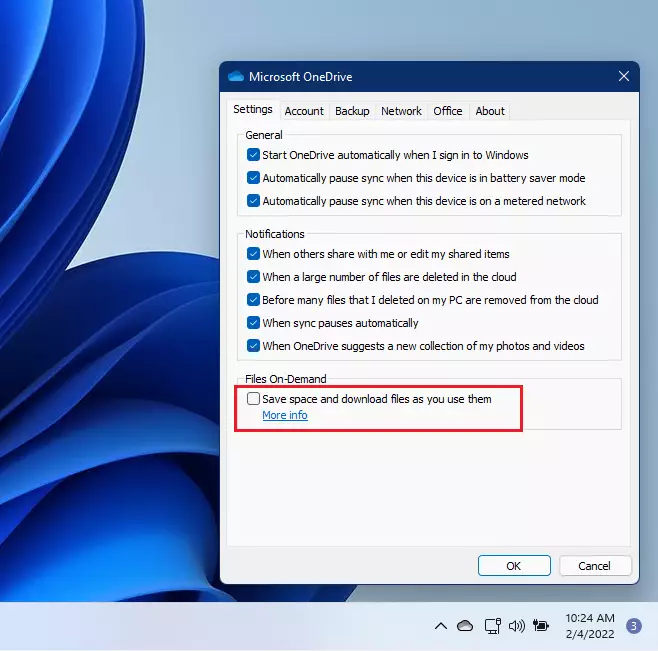
Files On-Demand settings apply only to the current device, so enable the feature on every PC you use.
That should do it!
Conclusion:
- OneDrive Files On-Demand is a convenient feature for managing storage on your Windows 11 device.
- It allows you to access your files without downloading them, saving valuable disk space.
- You can easily toggle the feature on or off through the OneDrive settings.
- Remember that Files On-Demand settings are device-specific, so you need to configure it on each device you use.
- Utilizing this feature can help streamline your workflow and keep your files organized in the cloud.
Was this guide helpful?

About the Author
Richard
Tech Writer, IT Professional
Richard is a writer at Geek Rewind who turns complex IT tasks into clear, step-by-step guides. He draws on years of hands-on experience in system administration and enterprise IT operations, focusing on Windows, Linux and WordPress: the problems people actually run into, and the fixes that work. His server and WordPress guides come from systems he runs himself. Richard builds and maintains the platform behind Geek Rewind, from its Ubuntu servers and Nginx configuration to its custom WordPress plugins. Many new tutorials start with readers' questions, and he's always glad to answer them in the comments.



No comments yet — be the first to share your thoughts!