How to Turn On or off OneDrive in Windows 11


OneDrive is a cloud storage service built into Windows 11 that saves your files online so you can open them from your phone, tablet, or another computer. Any changes you make to files in your local folder at 📁C:\
There are two ways to switch OneDrive on or off for the whole PC. Use the Local Group Policy Editor on Pro, Education, or Enterprise. Use the Registry Editor on Home. Both methods need an administrator account.
Open the Local Group Policy Editor by pressing Win+R, typing gpedit.msc, and navigating to Computer Configuration Administrative Templates Windows Components OneDrive. Double-click Prevent the usage of OneDrive for file storage, select Enabled to turn OneDrive off or Disabled to turn it on, click OK, and restart your PC.
How to Turn On or Off OneDrive Using the Local Group Policy Editor
The Local Group Policy Editor lets you manage OneDrive for every user account on the computer by changing one policy. It is built into Windows 11 Pro, Education, and Enterprise. It is not included in Windows 11 Home, so if you can’t find it, skip to the registry method further down. Because this is a machine-wide policy, you don’t have to change settings in each user profile.
- Click the Start button and type Edit group policy.
- Click the Edit group policy app in the search results. The Local Group Policy Editor opens. If Windows asks for permission, click Yes.
- In the left pane, click through the folders to follow this path:
Computer Configuration > Administrative Templates > Windows Components > OneDrive
- When you reach the last folder, look at the right pane. Double-click the setting named Prevent the usage of OneDrive for file storage. A settings window opens.
- Pick one of the three options:
- Not Configured (default) – OneDrive works normally.
- Enabled – OneDrive is turned off and cannot be used.
- Disabled – OneDrive is turned on and works normally.
- Click OK, then close the Local Group Policy Editor.
- Restart your computer to make the change take effect.
“Enabled” means the block is enabled, so OneDrive is off. When the block is active, OneDrive stops syncing and disappears from the File Explorer navigation pane. Your existing files are not deleted. They stay in the local OneDrive folder and in the cloud.
To undo the change, open the same policy again, choose Not Configured, click OK, and restart. This returns the PC to its default state, which is usually the cleanest way to reverse it.

How to Turn On or Off OneDrive Using the Windows Registry
You turn OneDrive on or off by adding or changing one value in the registry. This method changes core system settings, so follow the path and value name exactly. A typo can create a setting that does nothing, or cause errors you then have to track down. Sign in with an administrator account before you start.
- Press Win + R on your keyboard, type regedit, and press Enter. Click Yes if User Account Control asks for permission. The Registry Editor opens.
- Optional but wise: click File Export and save a backup of the registry to a location you can find later. If something goes wrong, you can restore it with File Import
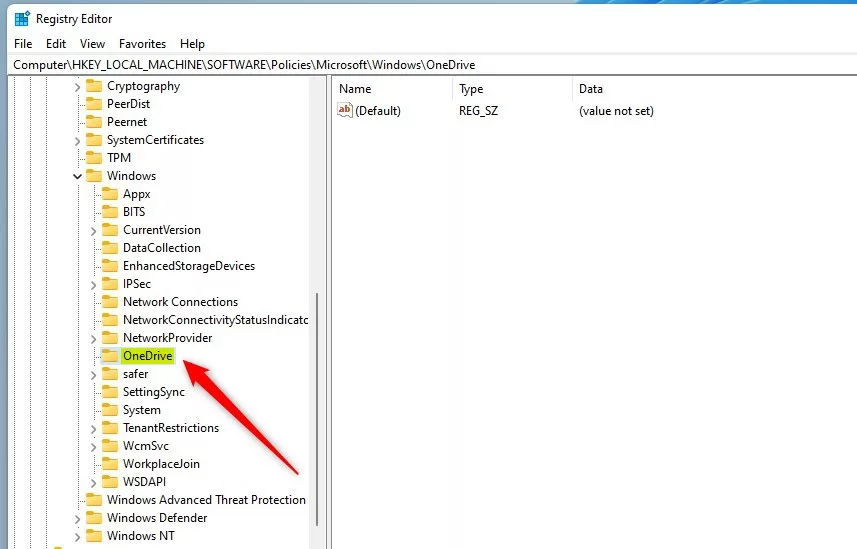
- In the left pane, expand the folders to reach this path:
HKEY_LOCAL_MACHINE\SOFTWARE\Policies\Microsoft\Windows\OneDrive
- Check whether an OneDrive key already exists under Windows. If it doesn't, right-click Windows, choose New Key, and name it OneDrive. The new key appears in the left pane.
- Click the OneDrive key to select it. In the empty area of the right pane, right-click and choose New DWORD (32-bit) Value.
- Name the new value DisableFileSyncNGSC and press Enter. It appears in the list with a value of 0.
- Double-click DisableFileSyncNGSC and enter the value data:
- 1 to turn OneDrive off
- 0 to turn OneDrive on
- Click OK, close the Registry Editor, and restart your computer.
Keep the value name exactly as written, including the capital letters. To undo the change later, set the value back to 0, or right-click the value and choose Delete. Restart afterwards. The value is the same one the Group Policy method sets, so you can use whichever tool is available.
Summary
Managing OneDrive Windows 11 gives you full control over how your files sync to the cloud and how much system resources the service uses. You can turn the feature on or off using either the Local Group Policy Editor or the Windows Registry depending on your version of Windows. Always restart your computer after applying these changes to ensure Windows applies your new settings properly.- OneDrive helps you save and access files online on Windows 11.
- You can turn OneDrive on or off using the Local Group Policy Editor or Windows Registry.
- Turning OneDrive off stops syncing and removes it from File Explorer.
- If you want, you can completely uninstall OneDrive from your PC.
- Always restart your computer after making changes for them to work.
What Happens When OneDrive Is Disabled?
Disabling OneDrive Windows 11 stops all background file syncing and removes the cloud storage service from your daily workflow. Your files remain safe online and in your local folders, but changes you make on your PC will no longer upload to the cloud. You also lose access to automatic camera roll uploads and the OneDrive shortcut in your File Explorer sidebar until you turn the service back on.- You won’t be able to open OneDrive from its app or the file picker window.
- Apps from the Microsoft Store won’t be able to use OneDrive.
- OneDrive will not show up in the File Explorer sidebar.
- Your files won’t sync with the cloud anymore.
- Photos and videos won’t automatically upload from your camera roll.
How to Uninstall OneDrive from 🪟 Windows 11
If you want to completely remove OneDrive from your PC, you can uninstall it.
Follow the detailed guide here: How to uninstall and remove OneDrive from Windows 11
More Help and Official Information
For official Microsoft help, check out their page here: Microsoft OneDrive Support
Summary
Managing OneDrive Windows 11 gives you full control over how your files sync to the cloud and how much system resources the service uses. You can turn the feature on or off using either the Local Group Policy Editor or the Windows Registry depending on your version of Windows. Always restart your computer after applying these changes to ensure Windows applies your new settings properly.- OneDrive helps you save and access files online on Windows 11.
- You can turn OneDrive on or off using the Local Group Policy Editor or Windows Registry.
- Turning OneDrive off stops syncing and removes it from File Explorer.
- If you want, you can completely uninstall OneDrive from your PC.
- Always restart your computer after making changes for them to work.
Have a question about this guide?
Answered by AI from this guide. Good questions may be added to this page — please don't include personal details.
Did this guide fix your problem?

About the Author
Richard
Tech Writer, IT Professional
Richard is a writer at Geek Rewind who turns complex IT tasks into clear, step-by-step guides. He draws on years of hands-on experience in system administration and enterprise IT operations, focusing on Windows, Linux and WordPress: the problems people actually run into, and the fixes that work. His server and WordPress guides come from systems he runs himself. Richard builds and maintains the platform behind Geek Rewind, from its Ubuntu servers and Nginx configuration to its custom WordPress plugins. Many new tutorials start with readers' questions, and he's always glad to answer them in the comments.
No comments yet — be the first to share your thoughts!