Manage OneDrive Sync On This Laptop in Windows 11

- 48 steps
- Needs administrator rights
- Includes a restart or sign-out
OneDrive sync is the setting that keeps your files in the cloud and on this laptop matching each other. You can pause it, choose which folders it copies, or stop it from starting with Windows 11. All of this happens in the OneDrive app, so you don’t need administrator rights.
Start by clicking the OneDrive cloud icon in the notification area, near the clock. Then click the gear icon and open Help & Settings. The settings window has a left-hand sidebar in the current OneDrive app. Older versions use tabs named Settings, Account, Backup and Network instead. Where the steps differ, the article says so.
To manage OneDrive sync on this laptop in Windows 11, click the OneDrive cloud icon in the notification area, then open Help & Settings (the gear icon). From there, select Pause syncing for 2, 8 or 24 hours, choose which folders sync, or turn off OneDrive starting with Windows. No administrator rights are needed.
Check what OneDrive is doing right now
Before you change anything, look at the sync status so you know the starting point. This tells you whether OneDrive is running, signed in and up to date.
- Look at the right side of the taskbar for a cloud icon. A white cloud is a personal Microsoft account. A blue cloud is a work or school account.
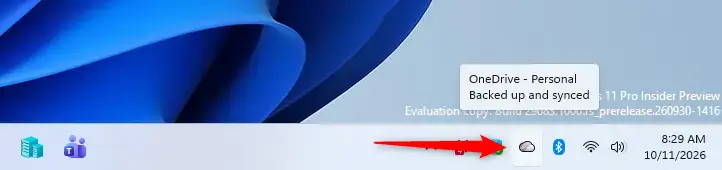
Taskbar - If you don’t see the icon, select the Show hidden icons arrow (the small caret) next to the clock and look there. You should see the cloud in the pop-up.
- Select the cloud icon. A panel opens showing recent files and a status line such as Up to date, Syncing or Sync paused.
If the cloud icon is missing from both places, OneDrive is either not running or not set up. Open the Start menu, type OneDrive and select the app. If nothing appears in the search results, OneDrive is not installed on this laptop. Installing it from the Microsoft Store or Microsoft’s OneDrive download page brings it back.
If the icon is running but hidden, show it permanently. Open Settings Personalization Taskbar Other system tray icons and turn on Microsoft OneDrive. The cloud now stays visible next to the clock.
Pause and resume OneDrive sync
Pausing stops uploads and downloads temporarily. It is the right choice when you are on a slow connection, sharing a phone’s mobile data with the laptop (tethering), or copying a large batch of files you don’t want uploaded yet. OneDrive resumes by itself when the timer ends.
Pause syncing for a set time
- Select the OneDrive cloud icon in the notification area.
- Select the gear icon labelled Help & Settings.
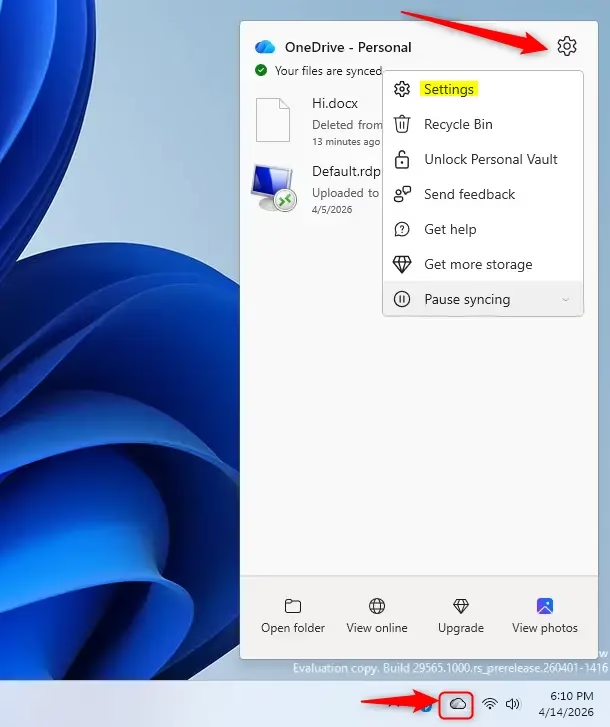
Click the OneDrive settings gear icon to access options. - Select Pause syncing.
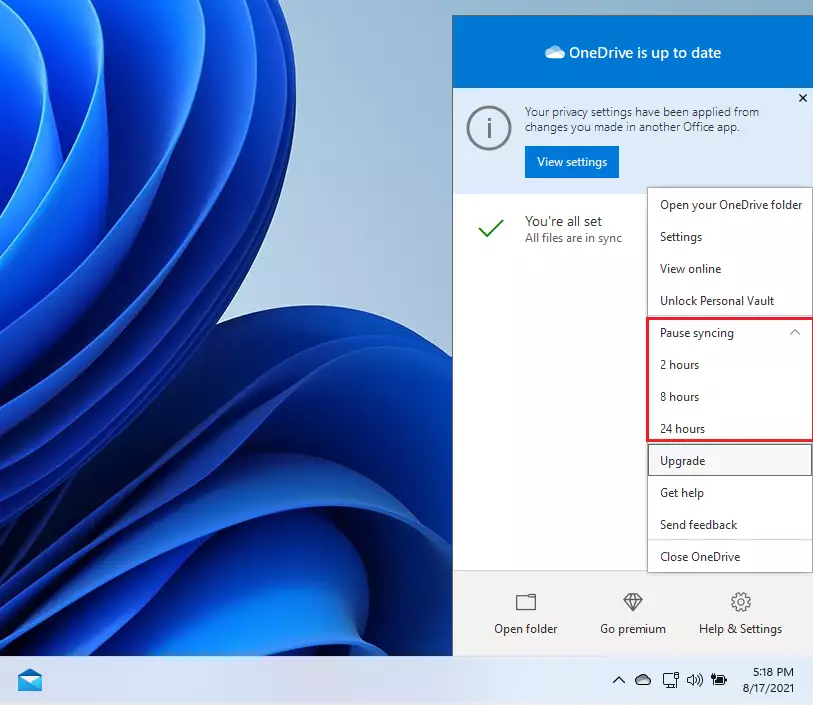
onedrive windows 11 pause syncing time - Choose 2 hours, 8 hours or 24 hours.
The cloud icon now shows a pause symbol, and the status line reads Sync paused. Files you change while paused stay on the laptop and upload when syncing resumes.
Resume syncing early
- Select the OneDrive cloud icon.
- Select the Resume syncing banner or button. If you don’t see it, open Help & Settings and choose Resume syncing.
The pause symbol disappears and the status line changes to Syncing and then Up to date.
Let OneDrive pause itself on battery saver or metered connections
On a laptop, you can tell OneDrive to stop syncing when it would drain the battery or use mobile data. This setting is worth turning on if you travel.
- Select the OneDrive cloud icon, then Help & Settings Settings.
- In the OneDrive Settings window, select Sync and backup, then expand Advanced settings.
- Turn on the options that pause syncing when the device is in battery saver mode and when it is on a metered network (a connection with a data limit, such as a mobile hotspot).
On older builds, these two options are on the Settings tab instead. The wording on your version may differ slightly. A metered network is a connection you have marked as limited, such as a mobile hotspot. You can mark one in Settings Network & internet, then open the connection’s properties and turn on Metered connection.
Limit upload and download speed
If OneDrive slows your video calls or browsing while it syncs, cap its bandwidth. In the OneDrive Settings window, look under Sync and backup Advanced settings for the upload and download rate options. On older builds, they are on the Network tab. You can set a fixed limit or let OneDrive adjust automatically. If your version of the app has no such options, leave this out and use Pause instead.
Choose which folders sync to this laptop
By default, OneDrive downloads or lists everything in your account. If this laptop has limited storage, choose only the folders you need here. Folders you deselect disappear from the laptop but stay safe in OneDrive online.
- Open the OneDrive Settings window: cloud icon > Help & Settings Settings.
- Select Account.
- Select Choose folders. A dialog opens with a list of your OneDrive folders and checkboxes.
- Clear the checkbox next to each folder you don’t want on this laptop. To sync everything, select Make all files available instead.
- Select OK.
OneDrive removes the cleared folders from this laptop’s OneDrive folder. They remain at onedrive.live.com or in your work or school OneDrive on the web. To bring a folder back, reopen Choose folders and select its checkbox again.
If Choose folders is greyed out or missing, you are probably signed in to a work or school account whose administrator has locked it. Ask your IT team. On a personal account, check that you are signed in and that the OneDrive Settings window is not showing a sign-in prompt.
Save disk space with Files On-Demand
Files On-Demand shows every OneDrive file in File Explorer but downloads each one only when you open it. It is the best way to keep a small drive free. Current Windows 11 turns it on by default, so you may only need to change individual files or folders.
Confirm Files On-Demand is on
- Open the OneDrive Settings window and select Sync and backup.
- Expand Advanced settings.
- Find Files On-Demand and check that it is turned on.
On older builds, the checkbox Save space and download files as you use them is on the Settings tab. If you turn Files On-Demand off, OneDrive downloads every file in your account to this laptop. Check your free space first.
Keep a file or folder on the laptop, or free its space
- Open File Explorer and select your OneDrive folder in the left pane.
- Right-click the file or folder.
- Choose Always keep on this device to download it and keep it available offline. Choose Free up space to remove the local copy while keeping it in OneDrive.
Look at the Status column icons to see the result:
- A cloud outline means the file is online only and needs a connection to open.
- A green tick in a white circle means the file downloaded because you opened it. Windows may free that space again later.
- A solid green circle with a white tick means the file is set to always stay on this laptop.
Before you travel without internet access, set the files you need to Always keep on this device. An online-only file fails to open offline.
Control which folders OneDrive backs up
Folder backup moves Desktop, Documents and Pictures into OneDrive so they sync across devices. Change this if you want a folder to stay local-only or if you want to protect it.
- Open the OneDrive Settings window and select Sync and backup.
- Select Manage backup. A dialog lists folders such as Desktop, Documents and Pictures, each with a toggle.
- Turn a toggle on to start backing up that folder, or off to stop.
- Select Save changes if the dialog shows that button.
Files already uploaded stay in OneDrive. The folder on your laptop may look empty, because the files now live in your OneDrive folder instead of the original location. After you stop backup, open File Explorer, check the OneDrive folder, and move your files back to the original folder if you want them there. Do this before you delete anything.
You can also reach folder backup from Settings Accounts Windows backup. The page shows a Manage sync settings or folder backup area for OneDrive, depending on your Windows 11 version.
Stop OneDrive from starting with Windows
If you only sync occasionally, stop OneDrive from launching at every sign-in. This also saves a small amount of memory and battery on startup.
Use the Settings app
- Open Settings Apps Startup.
- Find Microsoft OneDrive in the list.
- Turn its toggle to Off.
OneDrive no longer starts at sign-in. Files stop syncing until you open the app yourself from the Start menu.
Use Task Manager
- Press Ctrl+Shift+Esc to open Task Manager.
- Select Startup apps in the left pane. In an older layout, select the Startup tab.
- Right-click Microsoft OneDrive and choose Disable.
To reverse either method, turn the toggle back on, or right-click the entry and choose Enable.
Use the OneDrive setting
In the OneDrive Settings window, look for Start OneDrive automatically when I sign in to Windows. It sits under Settings in the sidebar on newer builds, or on the Settings tab on older ones. Clear the checkbox or turn the toggle off to stop OneDrive launching at sign-in.
Quit OneDrive without unlinking
Quitting closes the app until you open it again or restart the laptop. Your account stays linked and your files stay in place.
- Select the OneDrive cloud icon.
- Select Help & Settings.
- Select Quit OneDrive, then confirm with Close OneDrive.
The cloud icon disappears from the notification area. To restart OneDrive, open the Start menu, type OneDrive and select the app.
Unlink this laptop from your OneDrive account
Unlinking stops all sync between this laptop and your account. This is the step to take if you are selling or handing over the laptop, or if you want to sign in with a different account. Your files stay in OneDrive online, so nothing is deleted from the cloud.
- Open the OneDrive Settings window.
- Select Account.
- Select Unlink this PC.
- Select Unlink account in the confirmation window.
A Set up OneDrive sign-in window appears. Close it if you want OneDrive to stay unlinked. Files that were already downloaded stay in your OneDrive folder in File Explorer, but they no longer sync. To relink later, open OneDrive and sign in again. It then compares the local folder with the cloud and may ask you to choose the folder location.
Fix an option that is missing, greyed out or stuck
Most of these problems come from a few common causes.
An option is greyed out or missing
A work or school account is the usual reason. Administrators can control OneDrive settings, such as folder backup and which accounts can sign in. In that case, the setting is locked and you need to ask your IT team to change it. The same applies to a laptop that is managed by your organisation, even if you sign in with a personal account. A page or banner that says some settings are managed by your organisation confirms it.
Windows 11 Home and Pro both include OneDrive, and the settings described here work the same on both. Pro and Enterprise editions are the ones usually connected to a work or school network (called a domain), so locked settings are more common there. The exact policy behind a locked option isn’t listed here, so follow the message the app shows you.
Sync stays on “Processing changes” or shows a red cross
- Select the OneDrive cloud icon and read the message. A red cross or an exclamation mark usually names the file or problem.
- Check that the file name is valid and the file is not open in another program. Close any program using it.
- Check that your OneDrive storage is not full. Storage that is full stops uploads.
- Pause syncing for 2 hours, then resume it. This restarts the sync cycle.
Reset OneDrive
If sync is still stuck, reset the app. A reset does not delete your files, but OneDrive re-checks everything afterwards, which can take a while on a large library.
- Press Win+R to open the Run dialog.
- Type the following command and select OK:Code
%localappdata%\Microsoft\OneDrive\onedrive.exe /reset
- Wait a minute. The OneDrive icon disappears and then usually reappears on its own.
- If the icon does not return, open the Start menu, type OneDrive and select the app.
If Windows says it cannot find the file, OneDrive may be installed in a different location. In that case, open the Start menu, search for OneDrive, and open the app to check that it is installed at all. This guide doesn’t cover other install locations, so check the app’s installed status in the Start menu search instead.
What to do next
After a pause, a folder change or a reset, wait for the cloud icon to read Up to date before you close the laptop lid. If a change doesn’t take effect, restart the laptop and check OneDrive Settings again. A Windows feature update or a sign-in with a different account can bring back options you turned off, such as starting OneDrive at sign-in or backing up Desktop, Documents and Pictures. Reopen the relevant section and switch them off again if that happens.
Frequently asked questions
How do I sync OneDrive with my computer?
Sign in to the OneDrive app with your Microsoft account, and syncing starts on its own. Open OneDrive from the Start menu or click the cloud icon near the clock. To choose which folders copy to this laptop, open the gear icon, select Help & Settings, and pick your folders from the settings window.
How do I download the OneDrive installer?
Windows 11 already includes OneDrive, so you usually don't need a separate installer. If the app is missing, go to Microsoft's official OneDrive download page or search for OneDrive in Microsoft Store. Avoid third-party download sites, since they can bundle unwanted software.
How does OneDrive work?
OneDrive keeps your files in the cloud on Microsoft's servers and a copy on your laptop. When you save or edit a file in the OneDrive folder, the change uploads and syncs to your other devices. Files set to online-only use no space on your drive until you open them.
How can I force OneDrive to sync on 🪟 Windows 11?
OneDrive syncs automatically, so you rarely need to force it. If syncing is paused, click the cloud icon near the clock, then the gear icon, and select Resume syncing. To restart a stuck sync, right-click the cloud icon, choose Quit OneDrive, then reopen it from the Start menu.
Still have a question?
Answered by AI from this guide. Good questions may be added to this page — please don't include personal details.
Did this guide fix your problem?

About the Author
Richard
Tech Writer, IT Professional
Richard is a writer at Geek Rewind who turns complex IT tasks into clear, step-by-step guides. He draws on years of hands-on experience in system administration and enterprise IT operations, focusing on Windows, Linux and WordPress: the problems people actually run into, and the fixes that work. His server and WordPress guides come from systems he runs himself. Richard builds and maintains the platform behind Geek Rewind, from its Ubuntu servers and Nginx configuration to its custom WordPress plugins. Many new tutorials start with readers' questions, and he's always glad to answer them in the comments.
No comments yet — be the first to share your thoughts!