Open OneDrive Settings from the Taskbar in Windows 11

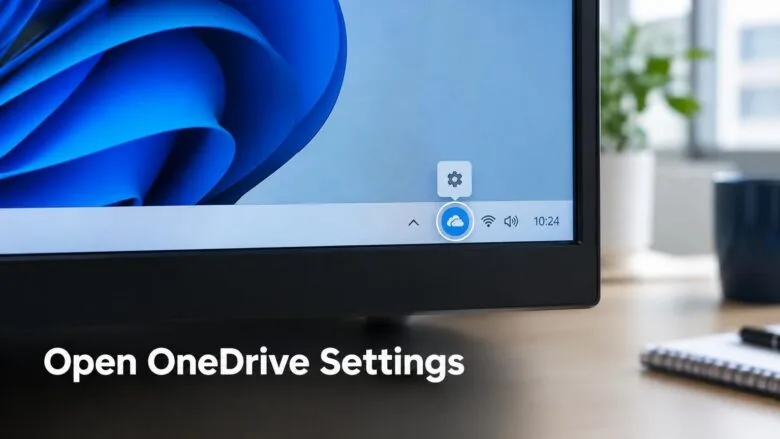
OneDrive settings open from the cloud icon at the right end of the Windows 11 taskbar. Select the icon, select the gear labelled Help & Settings, then select Settings. This takes about ten seconds.
The cloud icon sits in the notification area (the group of small icons next to the clock, also called the system tray). If you do not see it, Windows may be hiding it, or OneDrive may not be running. Both cases are covered below.
The steps work on Windows 11 Home and Pro, with a personal Microsoft account or a work or school account. None of them need administrator rights.
To open OneDrive settings in Windows 11, select the cloud icon at the right end of the taskbar , then select the Help & Settings gear, then select Settings. If the cloud is hidden, select the Show hidden icons arrow beside the clock first. The window opens with Sync and backup, Account and About tabs.
Before you start: what to check
Before you start, know this: OneDrive updates on its own schedule, separate from Windows 11. The labels in this article match the current OneDrive app, whose settings window has three tabs: Sync and backup, Account and About. An older build of OneDrive shows more tabs, including Settings, Backup, Network and Office.
If your window does not match the descriptions, open the About tab later to see your version. A different layout is the most common reason a setting seems to be missing.
If the cloud icon shows a sign-in prompt instead of your files, sign in first. The settings window needs an account to show most of its options.
Open OneDrive settings from the taskbar
These steps open the OneDrive settings window from the taskbar, from the first glance at the tray to the finished window.
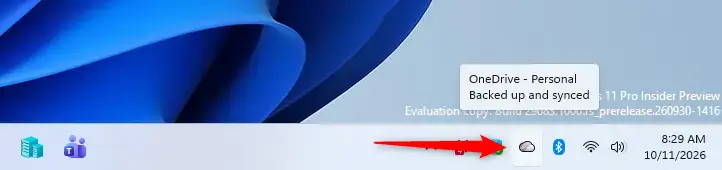
- Look at the right end of the taskbar. Find the cloud icon near the clock. A white or grey cloud is a personal account. A blue cloud is a work or school account.
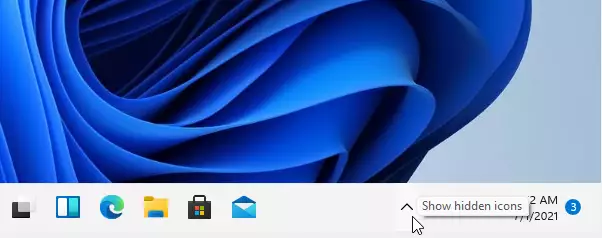
- Select the Show hidden icons arrow if the cloud is not visible. This is the small upward arrow to the left of the other tray icons. A small panel opens with the icons Windows has tucked away.
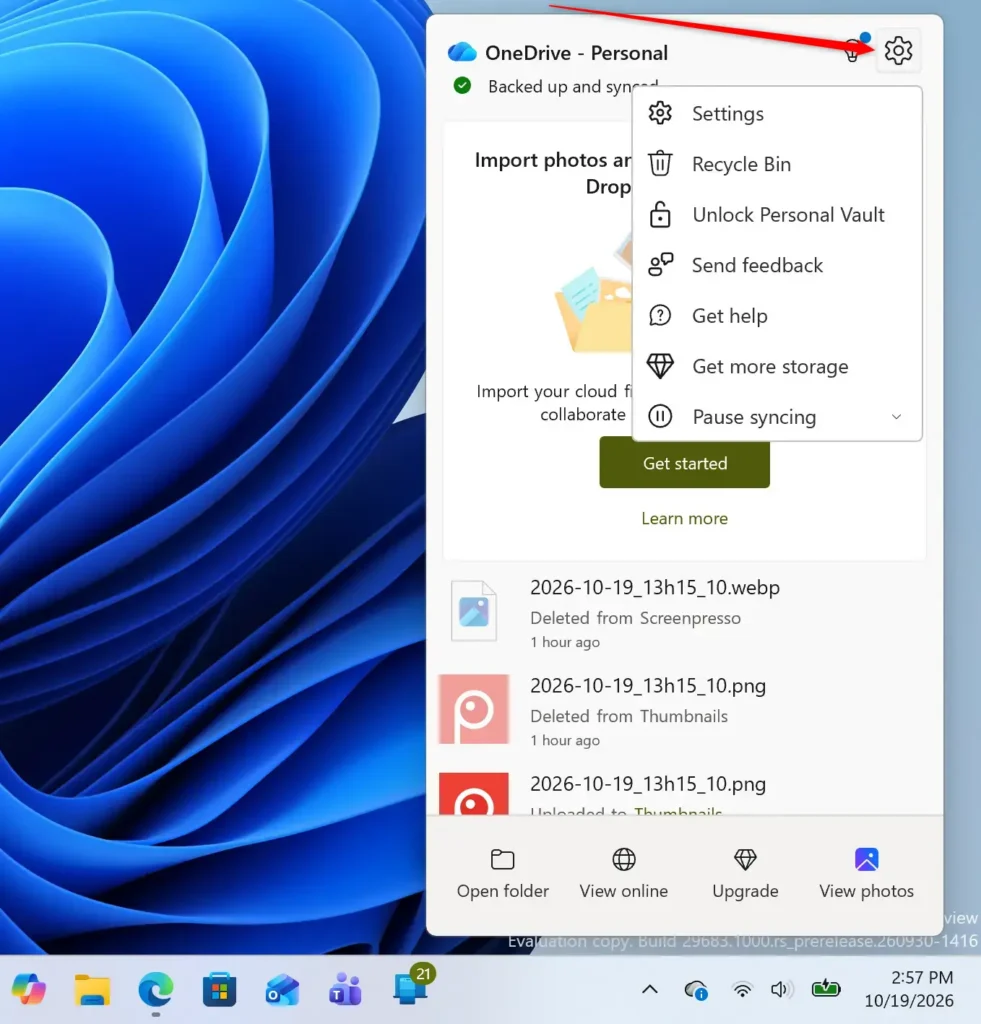
windows 11 show hidden icons - Select the OneDrive cloud icon. A flyout (a small pop-up panel) opens. It shows your sync status, your storage use and recently synced files.
- Select the Help & Settings gear icon. It sits in the top-right corner of the flyout. A menu opens with items such as Pause syncing, Settings and Quit OneDrive.
- Select Settings. The OneDrive settings window opens in front of your other windows.
- Select the tab you need. Use Sync and backup for folder backup and sync options, Account for your sign-in and folder choices, and About for version details.
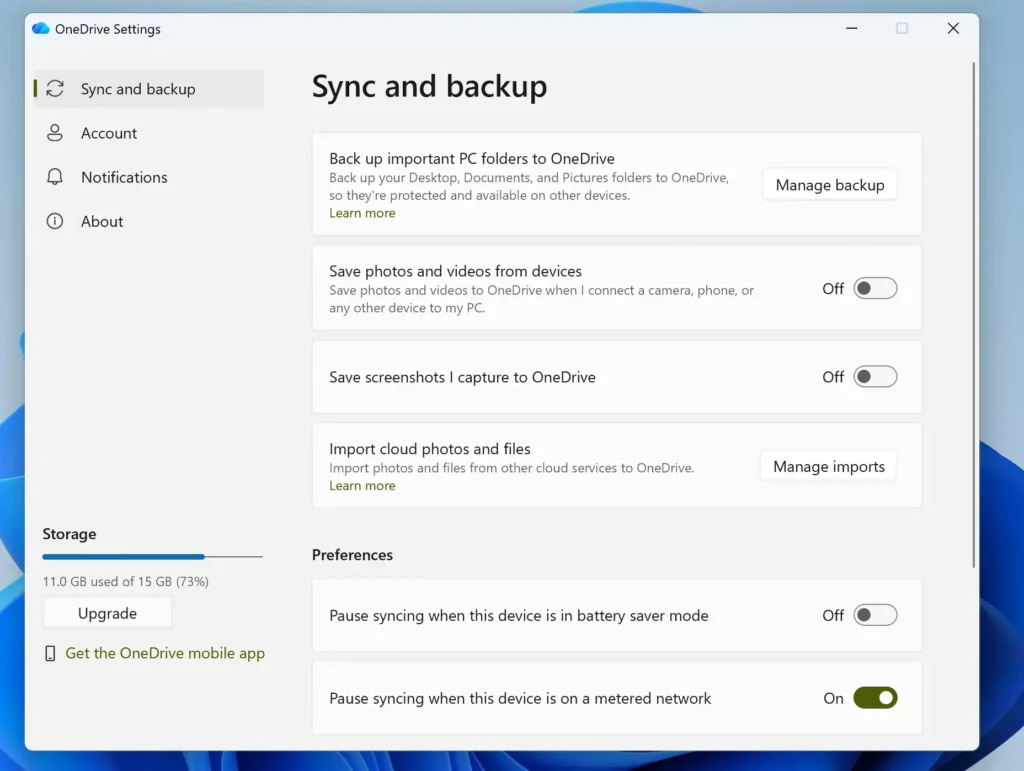
- Change the option you want. Most switches apply the moment you flip them. If you see an OK button at the bottom of the window, select it to save.
- Close the settings window. Select the X in the top-right corner. OneDrive keeps running in the tray.
No restart is needed. A few options, such as starting OneDrive when you sign in to Windows, take effect the next time you sign in.
If the flyout opens but you see no gear icon
The flyout may be showing a sign-in screen or an error message instead of your files. Sign in with your Microsoft account, or follow any prompt in the flyout. The gear icon returns once OneDrive has an account to work with.
What you find in the OneDrive settings window
Knowing what each tab does saves time. In the current app, the options sit in three places.
Sync and backup
This tab controls which folders OneDrive protects and how it behaves. The Manage backup button lets you choose whether your Desktop, Documents and Pictures folders are backed up to OneDrive. Switching a folder off stops new changes from syncing for that folder.
The Advanced settings section on this tab holds options such as Files On-Demand. Files On-Demand shows your OneDrive files in File Explorer without storing every one on your PC until you open it.
Network and notification options also live in this area in the current layout. Their exact position changes between OneDrive versions, so scan the tab if you do not see one straight away.
Account
The Choose folders button decides which OneDrive folders download to this PC. Use it to free disk space without deleting anything from the cloud.
You can also add a second account here, or unlink this PC from OneDrive (remove the link between this computer and your account). Unlinking stops syncing for this computer. Your files stay in the cloud and in your local OneDrive folder.
About
This tab lists the OneDrive version and links to legal and help pages. Check it first when you contact support or compare your screen with a tutorial.
If the OneDrive icon is missing from the taskbar
A missing cloud icon is the most common reason this task fails. There are two causes: Windows hides the icon, or OneDrive is not running. Work through them in this order.
Turn the icon on in taskbar settings
This step tells Windows to show the OneDrive icon in the notification area. It fixes the case where the icon is switched off.
- Right-click an empty area of the taskbar.
- Select Taskbar settings. The Settings app opens on the taskbar page.
- Expand Other system tray icons. A list of apps appears, each with a switch.
- Switch on Microsoft OneDrive. The cloud icon appears in the tray, or in the hidden-icons panel.
If Microsoft OneDrive is not in the list, the app is not running. Move on to the next section.
Start OneDrive manually
Starting the app puts the icon back in the tray. This works when OneDrive was closed or never started.
- Select Start.
- Type OneDrive. The OneDrive app appears at the top of the results.
- Select OneDrive. The cloud icon appears in the tray within a few seconds.
If OneDrive does not show up when you search for it from the Start menu, it may not be installed. Open Settings Apps Installed apps and look for Microsoft OneDrive. If it is absent, download OneDrive from Microsoft and install it. Installing OneDrive for the first time starts a sign-in process.
Make OneDrive start with Windows
If the icon disappears after every restart, OneDrive is not set to start at sign-in. Check Task Manager (the tool that lists running apps and startup items).
- Press Ctrl + Shift + Esc. Task Manager opens.
- Select Startup apps in the left-hand list. If the sidebar is collapsed, select the menu icon at the top left to expand it.
- Find Microsoft OneDrive in the list.
- Check the Status column. If it says Disabled, right-click the entry and select Enable.
Turn the OneDrive entry on in Task Manager, then restart the computer to confirm that the change worked. OneDrive should now start by itself, and the cloud icon should be waiting in the tray when the desktop loads.
On a work PC, an administrator may control this item. If Enable is greyed out or the entry is missing, your organisation probably manages this setting.
If Settings is greyed out or an option is missing
Three situations explain most missing options.
First, the layout differs by version. An option you saw in a screenshot may sit on another tab in your build. Check the About tab for your version, then scan each tab before you conclude the option is gone.
Second, an administrator may manage the option. On a work or school account, your organisation can lock certain OneDrive settings. A locked option is greyed out, and the window may say some settings are managed by your organisation.
Only your IT team can change these. Ask them rather than trying to work around it.
Third, OneDrive may be paused or signed out. Without a signed-in account, many options do not appear. Sign in from the flyout and open the settings window again.
If you use more than one OneDrive account
Each signed-in account gets its own cloud icon. A personal account and a work account appear as two separate icons, with the work icon in blue and often labelled with the organisation name when you point at it.
Settings belong to the account you opened them from. Select the icon for the account you want to change, then follow the same steps. Changing the personal account's backup options does not alter the work account's.
Point at each icon and read the small pop-up label (called a tooltip) if you are not sure which is which. The tooltip names the account and shows its sync status.
Keep the OneDrive icon visible on the taskbar
Windows 11 tucks some tray icons into the hidden-icons panel. Moving the OneDrive cloud out of that panel saves one click each time.
- Select the Show hidden icons arrow. The panel opens.
- Drag the OneDrive cloud icon out of the panel. Drop it onto the visible part of the tray, near the clock.
- Release the mouse button. The icon now stays on the taskbar.
To undo this, drag the OneDrive icon back into the hidden-icons panel. You can also switch it off in Settings Personalization Taskbar, under Other system tray icons.
Pause syncing or quit OneDrive from the same menu
The Help & Settings menu holds the controls most people want next to the settings window. Pause syncing stops uploads and downloads for a set time, so files stop copying between this PC and the cloud for now. This helps when a slow connection is needed for other tasks, such as video calls.
To resume, open the same menu and select Resume syncing. The label replaces Pause syncing while syncing is paused.
Quit OneDrive closes the app and removes the cloud icon from the tray. Your files stay where they are. Sync stops until you start OneDrive again from the Start menu or restart the PC, if it is set to start at sign-in.
What to do next
With the settings window open, the next task most people want is choosing which OneDrive folders sit on this PC. Open the Account tab and select Choose folders to free disk space without removing anything from the cloud. Once you have chosen your folders, open the Account tab and check that the change has taken effect.
Frequently asked questions
How to adjust power and sleep settings in 🪟 Windows 11?
Open Settings, select System, then select Power & battery. Under Screen and sleep, choose how long Windows waits before it turns off the screen or puts the PC to sleep. Use the Power mode dropdown to balance performance and battery life. On a laptop, you can set these separately for On battery and Plugged in.
How to pin apps to 🪟 Windows 11 taskbar efficiently?
Open Start, find the app, then right-click it and select Pin to taskbar. If the app is already open, right-click its taskbar icon and select Pin to taskbar. To remove an icon, right-click it and select Unpin from taskbar. Drag pinned icons left or right to change their order.
How to adjust display settings in 🪟 Windows 11?
Open Settings, select System, then select Display. Use the Scale dropdown to make text and apps larger or smaller. Use the Display resolution dropdown to change sharpness, and the Orientation dropdown to rotate the screen. With more than one monitor, select the monitor you want to change first.
What is OneDrive 🪟 Windows 11?
OneDrive is Microsoft's cloud storage app, built into Windows 11. It stores copies of your files online and syncs them across your PCs and phone. Files you place in the OneDrive folder in File Explorer stay available when you are signed in. You need a Microsoft account to use it.
How to disable OneDrive 🪟 Windows 11?
To pause OneDrive, select its cloud icon, select the gear, then choose Pause syncing for a set time. To stop it starting with Windows, open Task Manager, select Startup apps, select Microsoft OneDrive, and select Disable. Unlinking this PC in OneDrive Settings keeps your files but stops syncing.
Where is the taskbar in 🪟 Windows 11?
The taskbar is the bar along the bottom edge of your screen by default. It holds the Start button, the search box, and your pinned app icons. The notification area sits at the right end, with the clock, network, and volume icons. In Windows 11, you cannot move the taskbar to the sides or top of the screen.
Still have a question?
Answered by AI from this guide. Good questions may be added to this page — please don't include personal details.
Did this guide fix your problem?

About the Author
Richard
Tech Writer, IT Professional
Richard is a writer at Geek Rewind who turns complex IT tasks into clear, step-by-step guides. He draws on years of hands-on experience in system administration and enterprise IT operations, focusing on Windows, Linux and WordPress: the problems people actually run into, and the fixes that work. His server and WordPress guides come from systems he runs himself. Richard builds and maintains the platform behind Geek Rewind, from its Ubuntu servers and Nginx configuration to its custom WordPress plugins. Many new tutorials start with readers' questions, and he's always glad to answer them in the comments.
No comments yet — be the first to share your thoughts!