How to Hide or Show OneDrive in Windows 11

Hiding or showing OneDrive in Windows 11 lets you tidy the left-hand sidebar in File Explorer by removing or restoring the OneDrive entry. OneDrive is Microsoft’s online storage service. It connects to your PC so you can save and open files online.
Turning off this shortcut only removes the icon from File Explorer . Your files stay safe in your user folder, normally 📁C:\
Open Registry Editor (regedit), go to 🗝️HKEY_CURRENT_USER\
How to show or hide the OneDrive folder on the File Explorer navigation pane in 🪟 Windows 11
To hide OneDrive from the left sidebar in File Explorer , you change one value in the Registry Editor. This removes the cloud storage shortcut from your view without deleting files or uninstalling the app. The Registry Editor is included in every edition of Windows 11, Home and Pro alike, so these steps work on any of them. You need to be signed in with an administrator account.
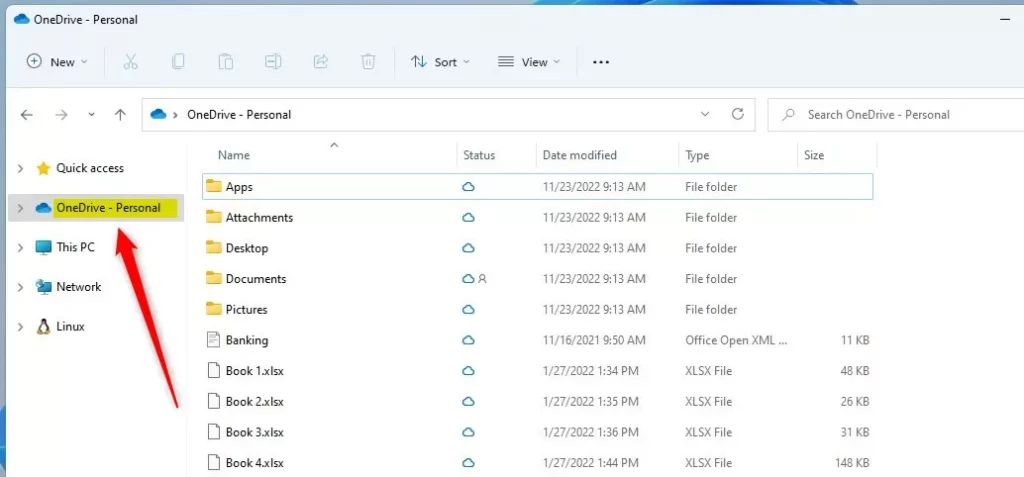
If you have never signed in to OneDrive, you may not see it at all. The picture below shows the OneDrive folder in the File Explorer navigation pane.
If you want a safety net, open the Registry Editor and use File Export to save a backup first. Then follow these steps to reach the right key.
- Press the Windows key, type regedit, and press Enter.
- Click Yes if User Account Control asks whether to allow the app to make changes. You should now see the Windows Registry with a folder tree on the left.
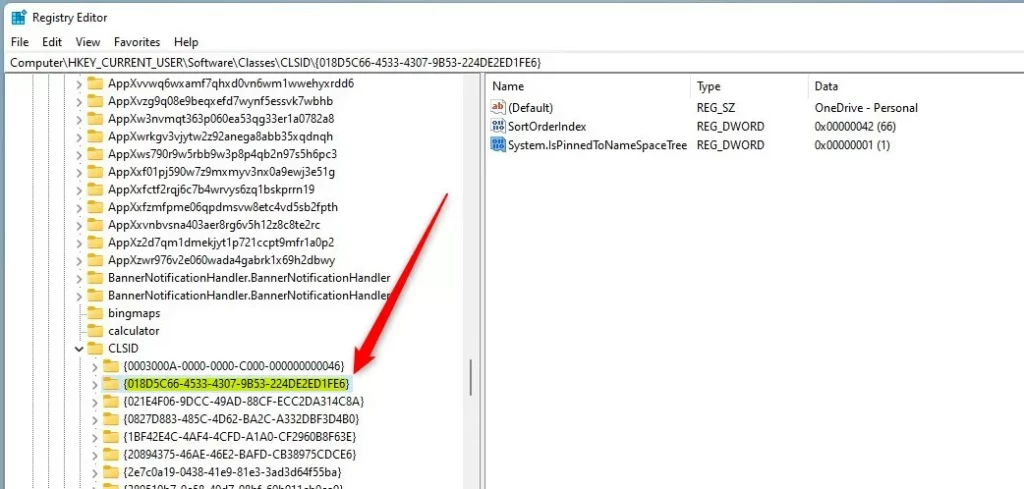
- Go to the key path shown below. You can expand the folders in the left pane one at a time, or paste the path into the address bar at the top of the window.
HKEY_CURRENT_USER\Software\Classes\CLSID\{018D5C66-4533-4307-9B53-224DE2ED1FE6}The OneDrive entry is identified by the key {018D5C66-4533-4307-9B53-224DE2ED1FE6}. On most PCs it already exists. If it is missing, create it yourself:
- Right-click the CLSID key in the left pane.
- Select New Key. A new key appears in the list with its name highlighted.
- Type {018D5C66-4533-4307-9B53-224DE2ED1FE6} as the name, including the curly braces, and press Enter.
- Click the new key to select it. The right-hand pane should be empty or show only a (Default) entry.
Now set the value that controls the sidebar entry. Look in the right-hand pane first. If System.IsPinnedToNameSpaceTree is already listed, skip to step 3.
- Right-click any empty space in the right-hand pane and select New DWORD (32-bit) Value. A DWORD is a type of registry entry that holds a number.
- Name the new entry System.IsPinnedToNameSpaceTree and press Enter.
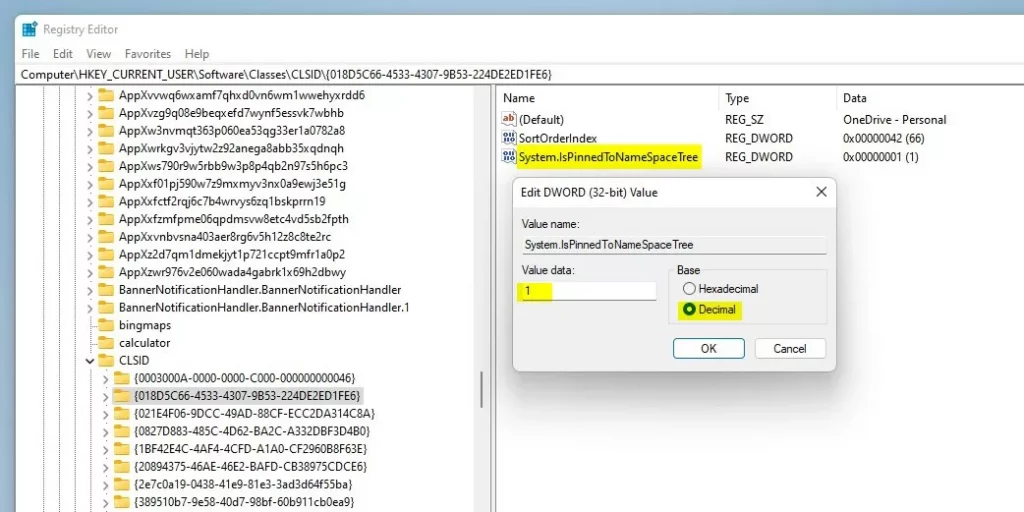
- Double-click System.IsPinnedToNameSpaceTree. The Edit DWORD (32-bit) Value window opens.
- In the Value data box, type 0 to hide the OneDrive folder, or 1 to show it.
- Click OK. The entry should now list your number in the Data column.
Restart your PC to apply the change. If you would rather not restart, open Task Manager, find Windows Explorer in the list, right-click it, and select Restart. The taskbar will flicker, and the sidebar should then update. If OneDrive is still showing or missing, check that the value data really is 0 or 1 and that the key name matches exactly.
To undo the change at any time, go back to the same key, double-click System.IsPinnedToNameSpaceTree, and switch the value between 0 and 1. A registry tweak like this tidies File Explorer for good without removing the cloud sync features.
Conclusion:
- This article has provided step-by-step instructions on how to show or hide the OneDrive folder on the File Explorer navigation pane in Windows 11.
- The tutorial included detailed guidance on using the Windows Registry to make the necessary changes.
- Readers are encouraged to leave comments if they encounter any errors in the instructions or wish to contribute additional insights or tips.
Have a question about this guide?
Answered by AI from this guide. Good questions may be added to this page — please don't include personal details.
Did this guide fix your problem?

About the Author
Richard
Tech Writer, IT Professional
Richard is a writer at Geek Rewind who turns complex IT tasks into clear, step-by-step guides. He draws on years of hands-on experience in system administration and enterprise IT operations, focusing on Windows, Linux and WordPress: the problems people actually run into, and the fixes that work. His server and WordPress guides come from systems he runs himself. Richard builds and maintains the platform behind Geek Rewind, from its Ubuntu servers and Nginx configuration to its custom WordPress plugins. Many new tutorials start with readers' questions, and he's always glad to answer them in the comments.
No comments yet — be the first to share your thoughts!