How to Quit and Close OneDrive in Windows 11


Close OneDrive to stop cloud syncing, free up system resources, and keep your files stored locally. Quitting is a normal, reversible action. You can start the app again whenever you want.
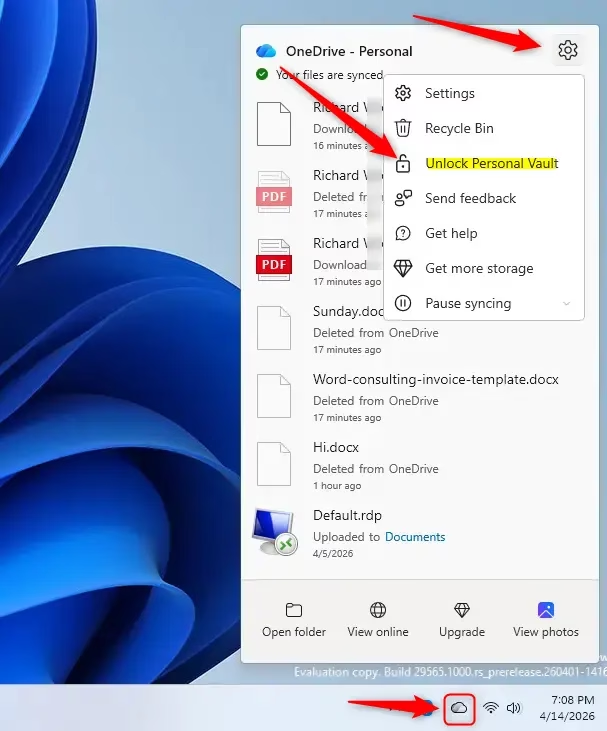
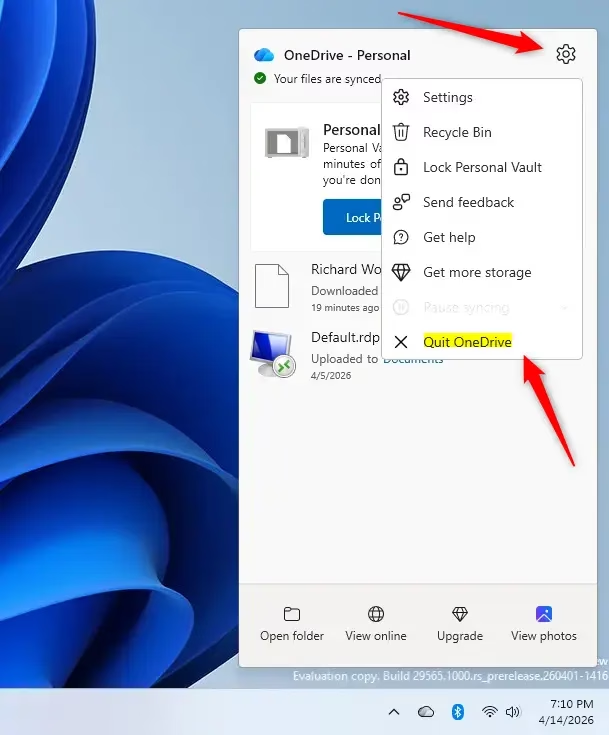
Click the OneDrive cloud icon in the system tray at the right end of the taskbar , then click the gear icon and select Quit OneDrive. Confirm your reason in the dialog that appears. The cloud icon disappears and OneDrive stops syncing until you restart it.
Why quit OneDrive?
Others stop it because they want local-only file storage without automatic cloud uploads. If you only need a short break, Pause syncing is the lighter option. It stops syncing for a set time (2, 8, or 24 hours) and leaves the app running. Quit OneDrive when you want it fully stopped.
What happens when you quit?
Files will not sync between your computer and cloud storage until you open OneDrive again. The shutdown takes only a few moments.
Follow these steps to shut down the application:
- Click the OneDrive cloud icon in the taskbar system tray , at the right end of the taskbar . If you don’t see it, click the small up arrow (hidden icons) next to the tray first. A OneDrive panel opens above the taskbar.
- Click the Help & Settings (gear) icon in the top-right corner of that panel. A menu opens.
What you see next depends on your Personal Vault status:
- If your Personal Vault is locked, click Pause syncing to expand the menu, then click Quit OneDrive.
- If your Personal Vault is already unlocked, simply click Quit OneDrive.
- When the window asks why you want to quit, pick a reason from the dropdown menu.
- Click Quit OneDrive to confirm. The window closes and the cloud icon disappears from the system tray .
If the icon is gone and no sync activity shows, OneDrive is stopped. You can also check in Task Manager , where OneDrive should no longer be listed under running processes.
Summary
Closing OneDrive is a quick way to pause cloud syncing and stop background activity. This action does not delete your files. It disconnects your computer from online storage until you restart the OneDrive app.
Keep these points in mind afterward:
- Restarting: Open the Start menu, type OneDrive, and open the app. Syncing resumes and any changes made while it was off are uploaded or downloaded.
- It may start again on its own: Quitting is not permanent. OneDrive normally launches again the next time you sign in to Windows. To stop that, turn off the option to start OneDrive automatically when you sign in, which is on the Settings tab in OneDrive's settings. You can also disable it under Startup apps in Task Manager.
- Online-only files: Files that exist only in the cloud, marked with a cloud icon in File Explorer, may not open while OneDrive is stopped. Files stored on your PC stay available.
- Changes made while it's off: Edits you make to files in your OneDrive folder will not reach the cloud until you start the app again.
Have a question about this guide?
Answered by AI from this guide. Good questions may be added to this page — please don't include personal details.
Did this guide fix your problem?

About the Author
Richard
Tech Writer, IT Professional
Richard is a writer at Geek Rewind who turns complex IT tasks into clear, step-by-step guides. He draws on years of hands-on experience in system administration and enterprise IT operations, focusing on Windows, Linux and WordPress: the problems people actually run into, and the fixes that work. His server and WordPress guides come from systems he runs himself. Richard builds and maintains the platform behind Geek Rewind, from its Ubuntu servers and Nginx configuration to its custom WordPress plugins. Many new tutorials start with readers' questions, and he's always glad to answer them in the comments.
No comments yet — be the first to share your thoughts!