How to Set Up OneDrive Personal Vault on Windows 11


OneDrive Personal Vault is a secure digital folder inside your Windows 11 cloud storage that protects sensitive files like tax documents and private photos with an extra layer of security. Opening this folder requires a fingerprint, face scan, or a text code to keep your data safe even if someone else unlocks your computer.
This protected folder is included with every Microsoft account and works inside the free 5GB storage plan. The vault automatically locks itself after 20 minutes of inactivity to keep your personal files safe from snoops.
Open the OneDrive app and click Get started on the Personal Vault prompt, or find the Personal Vault link in your OneDrive folder in File Explorer . Follow the on-screen prompts to verify your identity via email code.
Prerequisites
Setting up Personal Vault requires a standard Microsoft account alongside two-factor authentication (an extra verification step requiring a code or app prompt alongside your password).
Enable OneDrive Personal Vault
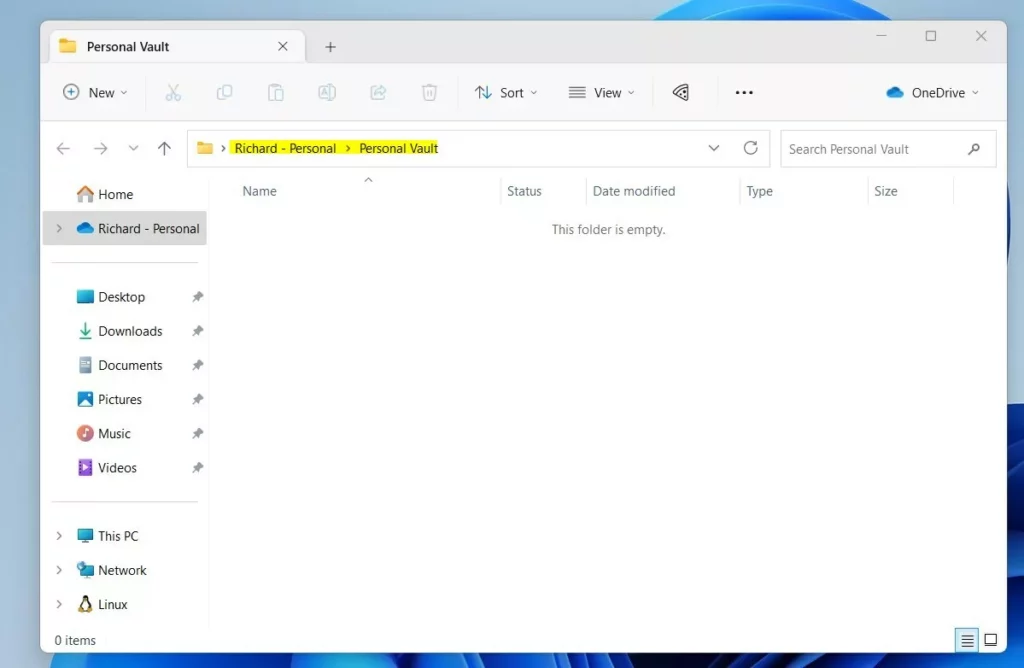
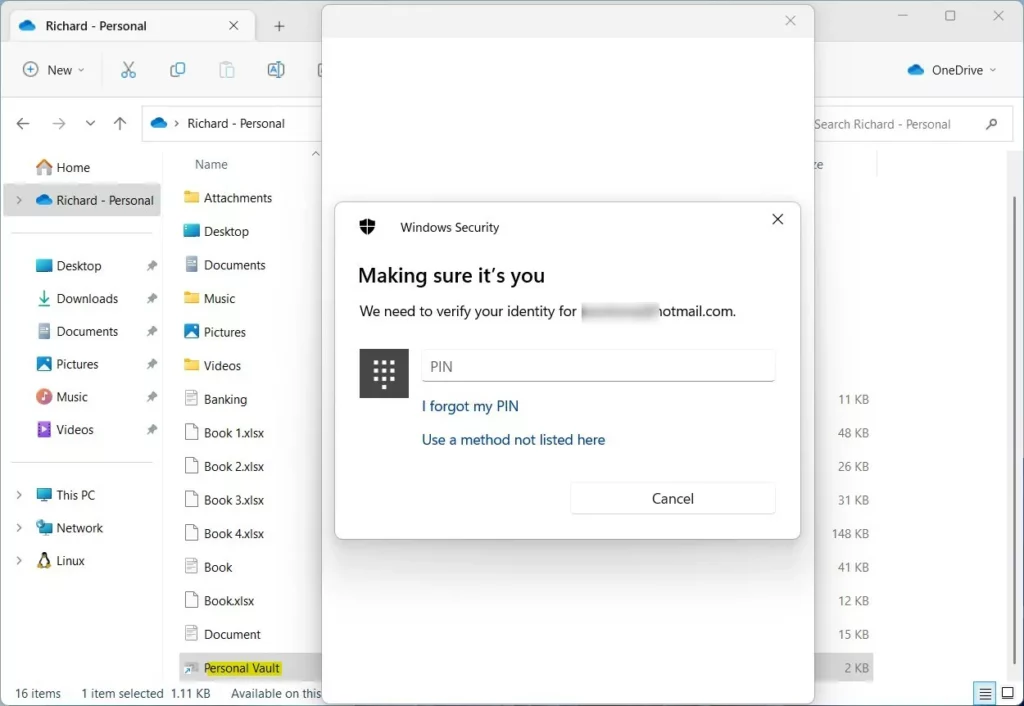
You can start the OneDrive Personal Vault setup directly from your computer by opening File Explorer and clicking the Personal Vault folder. This launches a secure folder protected by two-step verification, meaning you need to confirm your identity with a code sent to your phone or email every time you open it.
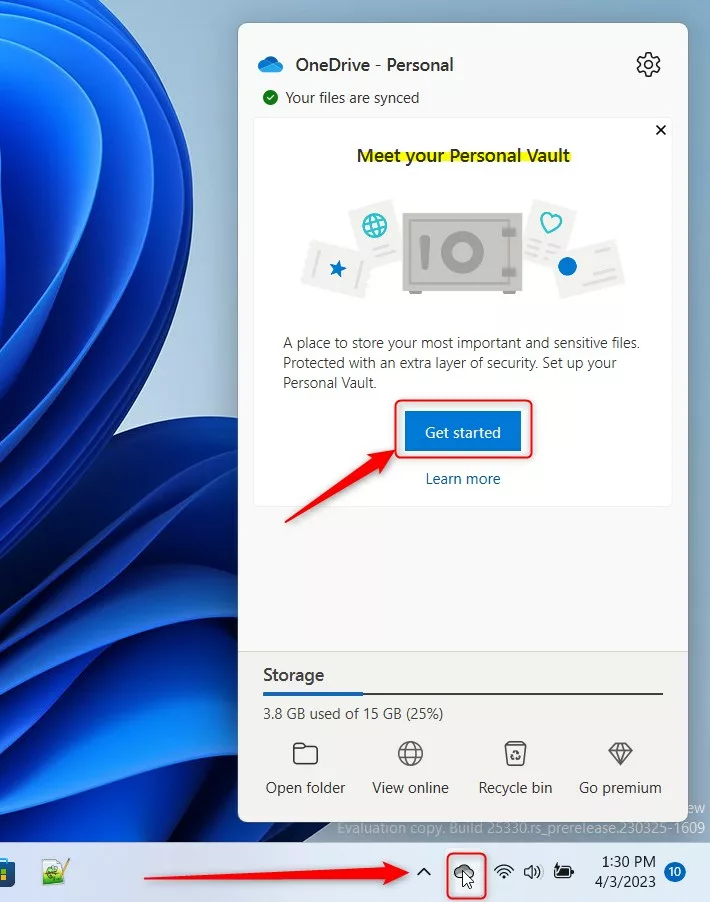
Open your OneDrive folder in File Explorer if that banner doesn’t show up. Double-click the Personal Vault icon, click Next on the window that appears, and select Allow to grant the setup tool permission.

Administrator rights might be needed to access these logs if account settings are restricted. Confirm your email address to let Microsoft send a verification code.

Confirm your email address. Microsoft will send you a code.
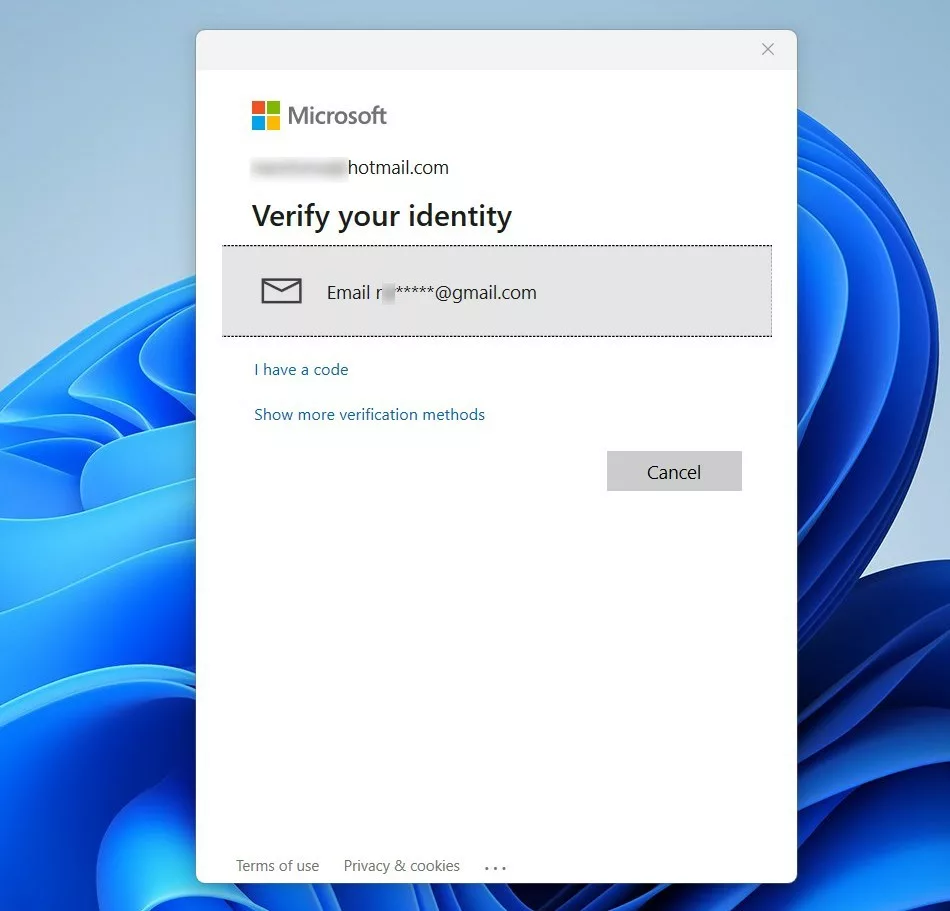
Type the code from your email into the box. Your Vault is now ready to use.
Enable OneDrive Personal Vault online
You can complete the OneDrive Personal Vault setup through your web browser by logging into the official OneDrive website and changing your account options. This gives you an alternative way to turn on the protected folder if the desktop app is not showing the setup option or if you prefer managing your account settings online.
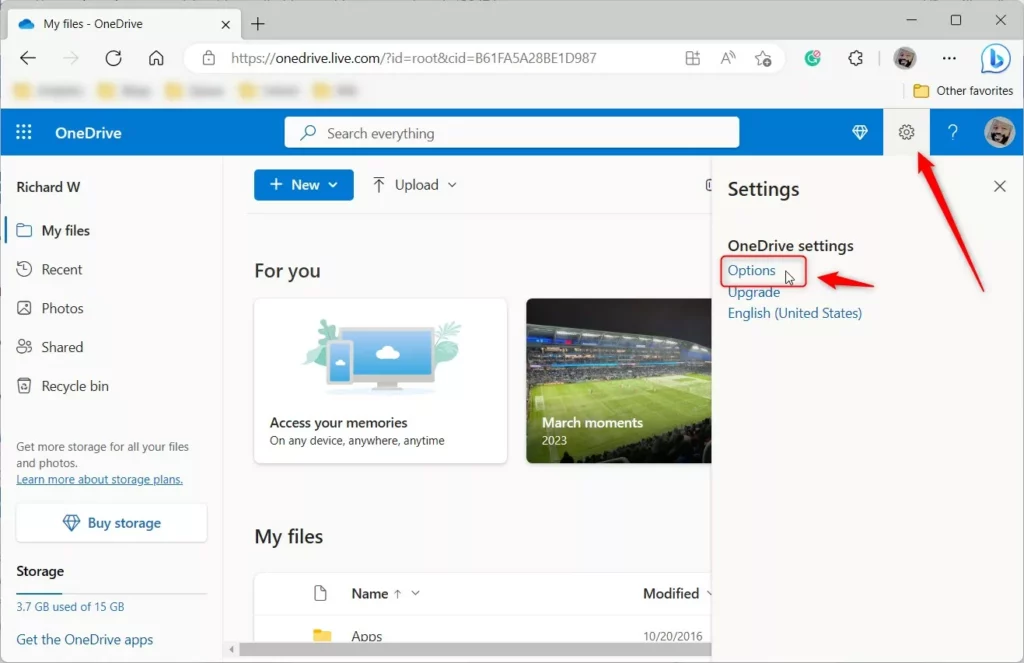
Click the Settings gear icon and choose Options.
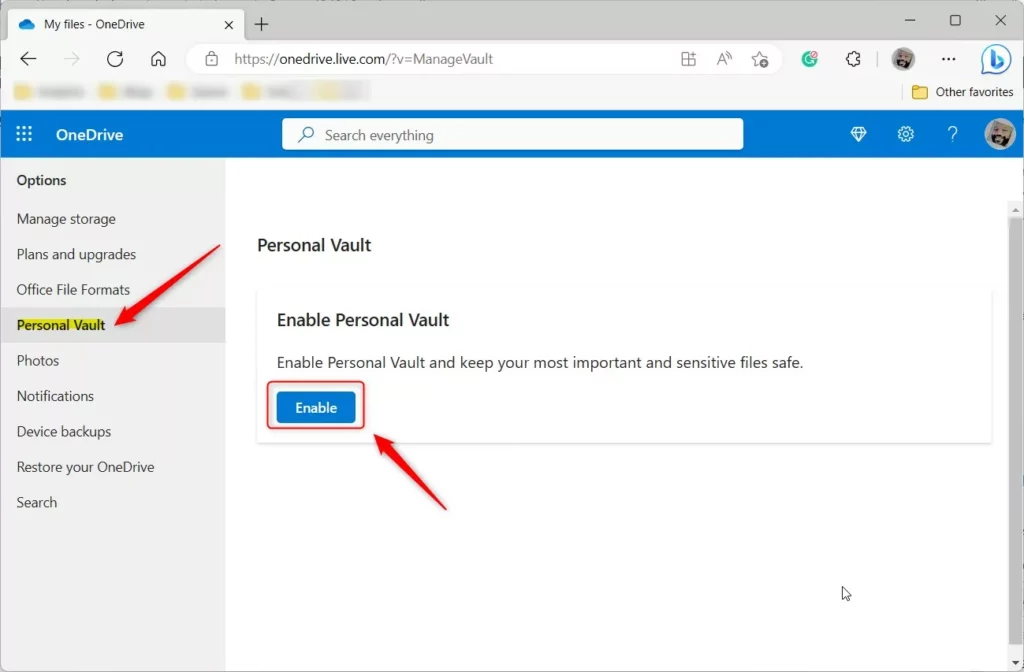
Select Personal Vault on the left side and click Enable.
Troubleshooting and Sync Limitations
Verify that the OneDrive app is updated and that the Personal Vault folder isn't excluded from syncing in settings if the folder fails to appear.
Summary
Setting up OneDrive Personal Vault adds a strong layer of protection for your sensitive files by requiring extra verification like a PIN or fingerprint.
Reference: Microsoft Support
Was this guide helpful?

About the Author
Richard
Tech Writer, IT Professional
Richard is a writer at Geek Rewind who turns complex IT tasks into clear, step-by-step guides. He draws on years of hands-on experience in system administration and enterprise IT operations, focusing on Windows, Linux and WordPress: the problems people actually run into, and the fixes that work. His server and WordPress guides come from systems he runs himself. Richard builds and maintains the platform behind Geek Rewind, from its Ubuntu servers and Nginx configuration to its custom WordPress plugins. Many new tutorials start with readers' questions, and he's always glad to answer them in the comments.



[…] default, your OneDrive Personal Vault will automatically lock after a period of inactivity in Windows. That inactivity lockout […]
[…] post explains how to turn off or disable the OneDrive Personal Vault […]
[…] article explains how to enable or disable OneDrive file sync in battery saver mode in Windows […]
[…] service includes a feature called Personal Vault. This is a private area in your OneDrive. You can only open it with extra security steps. These […]