How to Change OneDrive Personal Vault Lockout Time in Windows 11


OneDrive Personal Vault is a secure cloud folder that locks itself automatically after 20 minutes of inactivity to protect your sensitive files. You can change this automatic lock time to 20 minutes, 1 hour, 2 hours, or 4 hours, depending on how long you need to work.
A longer timer lets you keep important documents open without entering a security code or using your fingerprint again and again. A shorter timer is safer on a shared or portable PC. This guide shows two ways to change it: the OneDrive app settings, and the Registry Editor for when the app option is missing.
Open the OneDrive app in your taskbar , click Settings , select the Account tab, find Personal Vault, and choose your preferred timeout from 20 minutes, 1 hour, 2 hours, or 4 hours. The change applies immediately to the next unlock.
What Happens When Done?
When you change the OneDrive Personal Vault timeout, your files stay accessible for longer. Once the timer expires, the vault locks itself. You must then verify your identity again to view your files, for example with a code, Windows Hello, or your fingerprint. Even if you walk away from your PC, your private data stays protected.
The timer counts inactivity, so it only starts once you stop working with the vault. Pick the shortest time you can live with. Four hours is convenient, but it leaves your files open for a long time if you forget about them.
Method 1Using OneDrive Settings
Open the app settings, go to the Account tab, and choose how long the vault can sit idle before it locks. This built-in option takes a few clicks and works on any Windows 11 computer without changing system files. It is the method to try first.
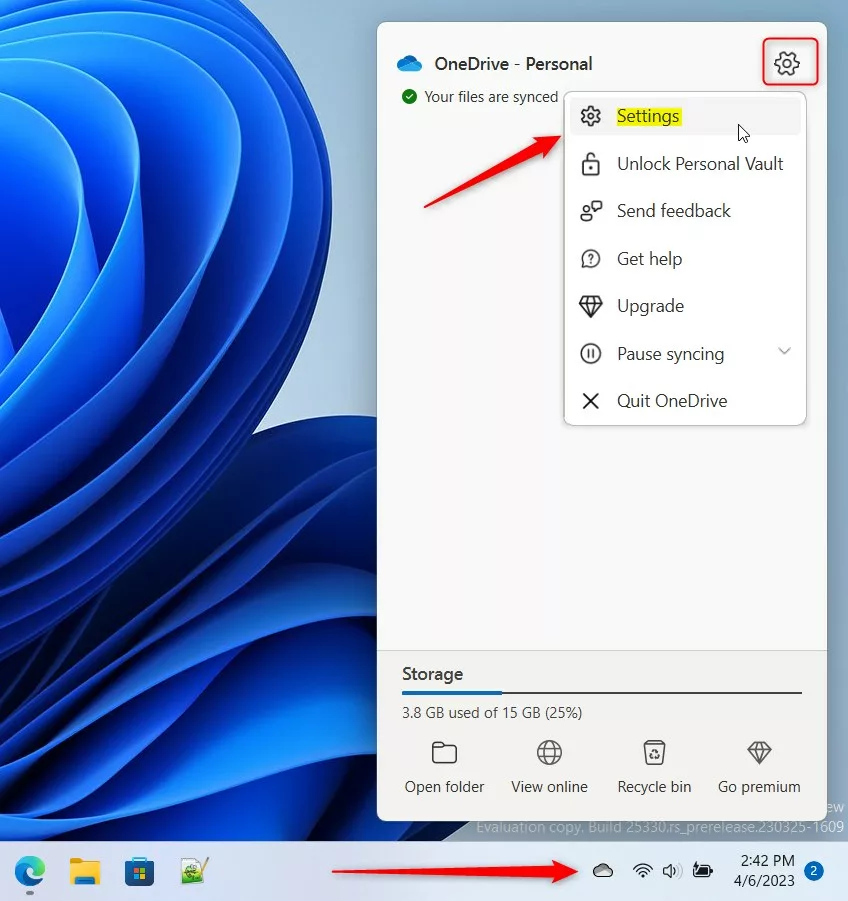
- Click the OneDrive icon in your Taskbar . If you don’t see it, click the small arrow (Show hidden icons) next to the clock first. You should see the OneDrive panel open above the taskbar .
- Select the gear icon and choose Settings. In some versions the gear is labeled Help & Settings. The OneDrive settings window should open.
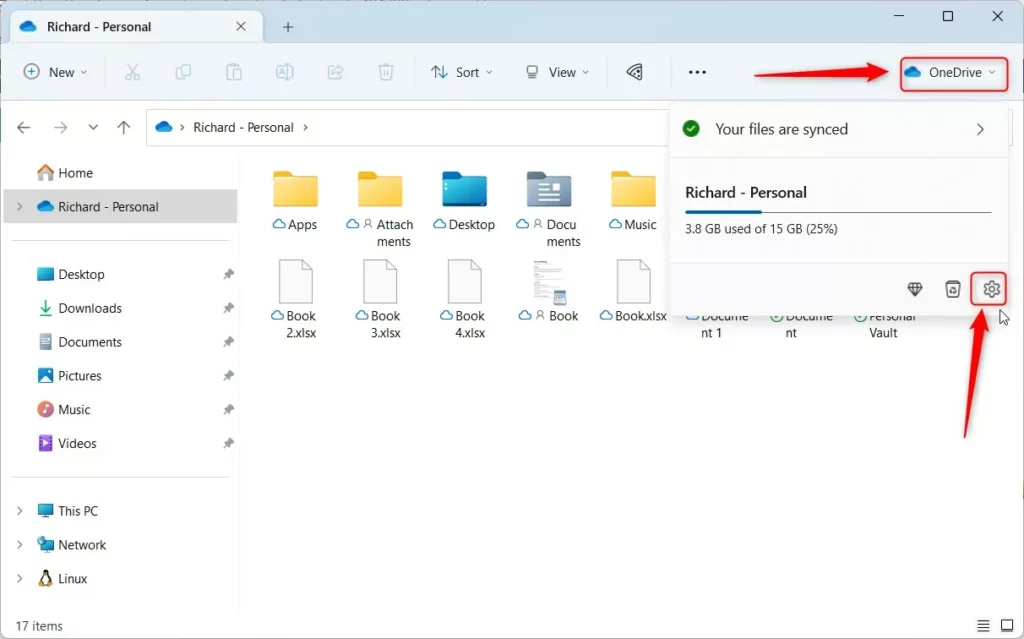
Alternatively, open your OneDrive folder in File Explorer , click the OneDrive button at the top, and select the Settings gear. This is handy when the taskbar icon is hidden or OneDrive isn’t showing in the notification area .
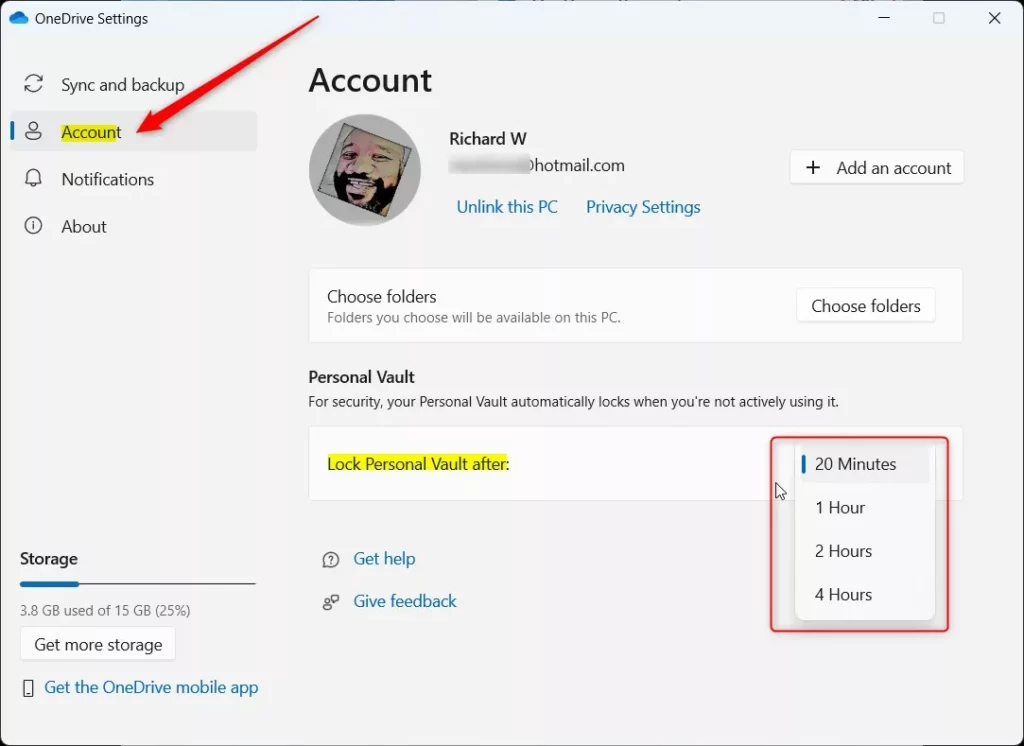
- When the window opens, click Account on the left. The right side shows your account details and folder settings.
- Look for Personal Vault. This section only appears once you have set up Personal Vault on this account. If you haven't, open your OneDrive folder in File Explorer and set up the vault first.
- Pick the time you prefer from the list: 20 Minutes, 1 Hour, 2 Hours, or 4 Hours. The new choice should show in the list straight away.
The change applies to the vault's next unlock. To undo it, reopen the same list and select 20 Minutes, which is the default.
Method 2Using the Windows Registry (Advanced)
This is the advanced method. You open Registry Editor, find the OneDrive key, and create a new value for the lock time. Back up your registry before you start, because a wrong edit can cause system errors. In Registry Editor, click File, then Export, choose All as the export range, and save the file somewhere safe. You can double-click that file later to restore the backup.
If the app settings are unavailable, use the Windows Registry Editor to configure the timeout. You need an administrator account, and Windows may ask you to confirm with a User Account Control prompt. Work-managed PCs may block registry changes, in which case your IT department controls the setting.
- Press Win + R, type
regedit, and press Enter. Click Yes if the User Account Control prompt appears. Registry Editor should open. - Navigate to:
HKEY_CURRENT_USER\SOFTWARE\Microsoft\OneDrive. You can paste the path into the address bar at the top of Registry Editor, or expand the folders on the left one by one. - If the OneDrive folder is missing, right-click the Microsoft folder and select New Key, naming it
OneDrive. The new key should appear under Microsoft. Select it before you move on.
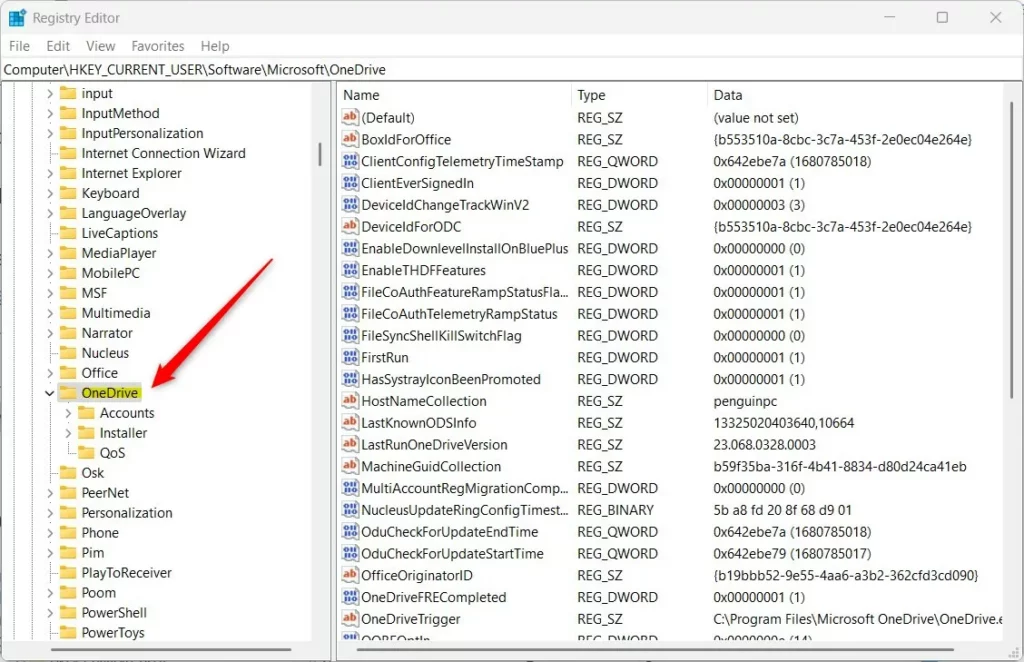
- Right-click in the empty space on the right side, with the OneDrive key selected on the left.
- Select New DWORD (32-bit) Value. A new entry appears in the right pane with its name highlighted for editing.
- Name the item
VaultInactivityTimeoutand press Enter. Type the name exactly, because a typo means OneDrive ignores the value. - Double-click it, set the Base to Decimal, and enter your value (0, 1, 2, or 4). Click OK. The value should now show in the right pane with your number beside it.
To undo the change later, right-click the value, choose Delete, and restart. OneDrive then goes back to its normal behavior.
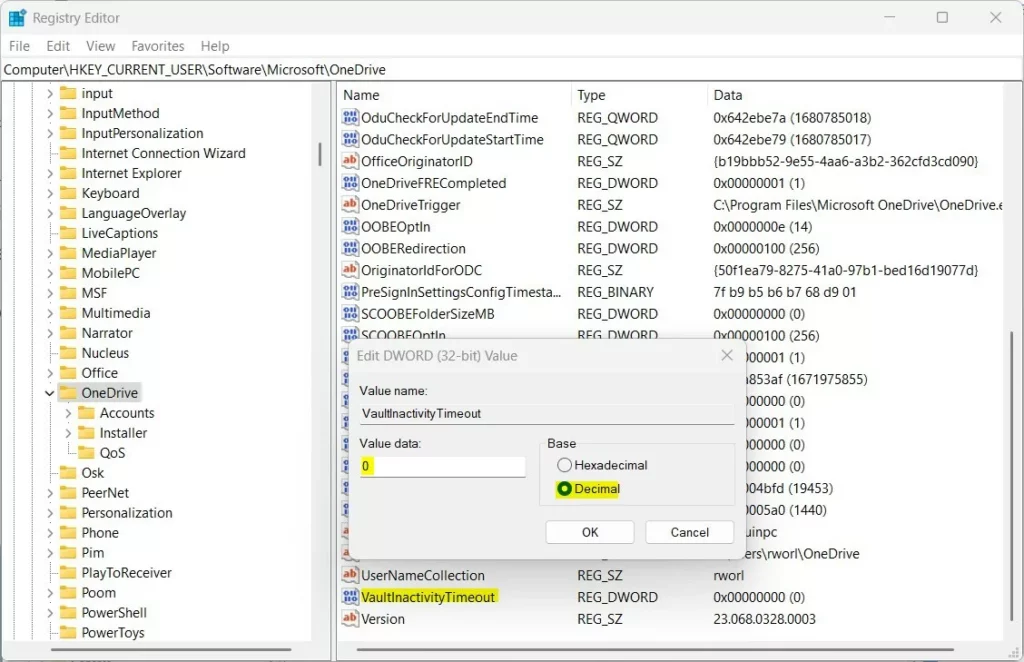
Restart your computer to apply the changes. Closing Registry Editor is not enough, because OneDrive reads the value when it starts. After you sign in again, open your vault, unlock it, and check that it stays open for the time you chose.
Troubleshooting Lockout Issues
If your OneDrive Personal Vault locks right away or sooner than you set, check your Windows Hello settings and make sure your computer isn't set to sleep too quickly. You can review sleep timers in Settings System Power & battery, under the screen and sleep timeouts. Also confirm that the value in the registry matches one of the allowed numbers, and that you restarted after creating it.
Summary
You can adjust your OneDrive Personal Vault timeout to balance security and convenience, extending the unlock time up to 4 hours using either the app settings or the Windows Registry. Use the app settings when you can, fall back to the registry only when the option is missing, and choose the shortest time that still lets you work comfortably.
Was this guide helpful?

About the Author
Richard
Tech Writer, IT Professional
Richard is a writer at Geek Rewind who turns complex IT tasks into clear, step-by-step guides. He draws on years of hands-on experience in system administration and enterprise IT operations, focusing on Windows, Linux and WordPress: the problems people actually run into, and the fixes that work. His server and WordPress guides come from systems he runs himself. Richard builds and maintains the platform behind Geek Rewind, from its Ubuntu servers and Nginx configuration to its custom WordPress plugins. Many new tutorials start with readers' questions, and he's always glad to answer them in the comments.



[…] default, your OneDrive Vault will automatically lock after a period of inactivity in Windows. Howerver, you can lock or unlock your Vault […]