How to Uninstall or Reinstall Recall on Windows 11

Recall on Windows 11 is an AI (artificial intelligence) tool that takes screenshots of your screen every few seconds so you can search your past activity later. It is only available on Copilot+ PCs. On a regular PC you won’t see it at all, and there is nothing to remove.
Reports tied Recall being switched on to update KB5036887. Current Windows 11 builds treat Recall as an opt-in feature, so check the setting on your own PC before assuming it is on or off.
If you prefer more privacy, you can turn Recall off or remove it. If you change your mind, restoring it takes only a few steps. This guide covers three methods: Settings, Windows Features and Windows Terminal.
You can uninstall Recall by opening Windows Features and unchecking it, or by using commands in Windows Terminal. Reinstalling involves checking the box in Windows Features or running the enable command in Terminal. Restart your PC after making changes.
What is Recall?
Recall saves a snapshot of your screen every few seconds. You can then scroll back through a timeline or search for something you saw earlier, such as a web page, a document or a chat. The snapshots are stored on your PC, but they can capture anything that was on screen. That is why many people want to control it.
How to Turn Recall On or Off in Settings
Turning off snapshots in Settings is the quickest option. It stops Recall from capturing your screen right away, and it leaves the feature installed so you can turn it back on later. Use this method if you only want to pause Recall.
If you don’t see Recall & snapshots in Settings, your PC probably isn’t a Copilot+ PC, or your Windows build doesn’t include the feature yet. If the toggle is greyed out, your work or school may be managing the setting through policy. In that case, ask your IT administrator.
- Click the Start button and open Settings. The Settings window opens with the category list on the left.
- Select Privacy & security in the left-hand list. The privacy options appear on the right.
- Click Recall & snapshots. You should now see the Recall controls, including the snapshot toggle.
- Switch the Save snapshots toggle off to stop Recall. Switch it on to start saving snapshots again. Recall stops capturing as soon as the toggle is off. You don't need to restart.
Alternative methods exist too, like pausing snapshots temporarily, excluding certain apps, or deleting all snapshots.
Recall is Now a Windows Feature You Can Add or Remove
A recent Windows update (KB5041865 Windows 11 build 26100.1591) lets you add or remove Recall as an optional component. Removing it completely gives you the most control over privacy, because the feature is no longer on your system at all. You can add it back later if you want it.
How to Add or Remove Recall Using Windows Features
The Windows Features window is the easiest way to take Recall off your PC without typing commands. It works the same on Windows 11 Home and Pro. The Recall entry only appears on PCs that support it, so if you can't find it, your device or build doesn't include it. You need an administrator account, and Windows will ask you to restart to finish the change.
- Press Windows key + R on your keyboard. The Run box opens in the bottom-left corner of the screen.
- Type
OptionalFeatures.exeand press Enter. This opens the Windows Features window. It may take a few seconds to build its list. - Scroll down the list until you find Recall.
- Check the box to add (turn on) Recall. Or uncheck it to remove (turn off) Recall. To undo a removal later, come back here and check the box again.
- Click OK to save your changes. Windows applies the change and then offers to restart your PC.
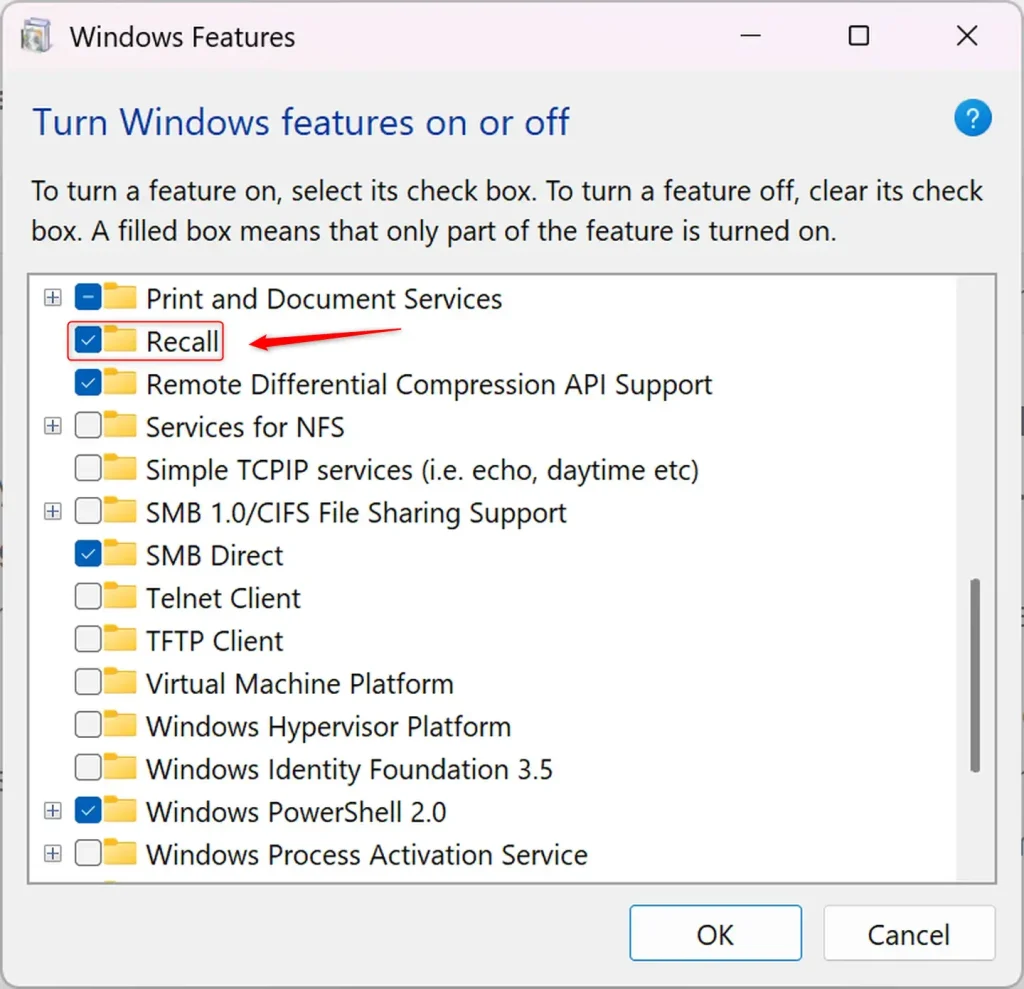
Windows applies these changes automatically, but they aren't finished until you restart. Save your work, then restart your PC. After the reboot, the Recall status is updated. Open Windows Features again if you want to confirm that the box is in the state you chose.
How to Uninstall or Reinstall Recall Using Commands
Windows Terminal is a reliable choice if you want to do the job from the command line, or if you manage several PCs. You run a command to remove Recall and another to bring it back. The terminal must be opened as an administrator, or the commands will fail with an access error.
⚠️ Admin privileges required
Steps:
- Open Windows Terminal as an administrator. To do this, right-click the Start button and choose Windows Terminal (Admin). On some builds this entry is labeled Terminal (Admin). If a User Account Control prompt appears, click Yes.
- In Windows Terminal, open a PowerShell or Command Prompt tab. PowerShell is usually the default tab, so you may already be in the right place.
- To install (enable) Recall, type this command and press Enter:
DISM /Online /Enable-Feature /FeatureName:"Recall" - To uninstall (disable) Recall, type this command and press Enter:
DISM /Online /Disable-Feature /FeatureName:"Recall"
PowerShell commands offer another viable method. Run them in the same administrator terminal, and read any message the command prints. An error usually means the terminal isn't elevated, or that the PC doesn't support Recall.
To enable Recall:

Enable-WindowsOptionalFeature -Online -FeatureName "Recall"
To disable Recall:

Disable-WindowsOptionalFeature -Online -FeatureName "Recall"
Restart the computer after running these commands so the changes apply correctly. If Windows asks you to restart as soon as a command finishes, do it then.
Summary
To disable Windows Recall, you can turn it off in the Settings app, remove it through Windows Features, or run a command in Windows Terminal. Recall takes screenshots of your screen every few seconds. Settings gives you a quick pause, while Windows Features or the terminal removes the feature entirely. Whichever you choose, you can reverse it later.
- Recall is a Windows 11 feature that takes snapshots of your screen every few seconds. It is only available on Copilot+ PCs.
- You can control Recall to protect your privacy by turning it off or uninstalling it.
- Turn Recall on or off from Settings under Privacy & security Recall & snapshots. No restart is needed.
- You can add or remove Recall from Windows Features or by using commands in an administrator Windows Terminal.
- Restart your PC after adding or removing Recall so the change applies properly.
- By managing Recall the way you want, you keep your computer privacy exactly how you like it.
Have a question about this guide?
Answered by AI from this guide. Good questions may be added to this page — please don't include personal details.
Did this guide fix your problem?

About the Author
Richard
Tech Writer, IT Professional
Richard is a writer at Geek Rewind who turns complex IT tasks into clear, step-by-step guides. He draws on years of hands-on experience in system administration and enterprise IT operations, focusing on Windows, Linux and WordPress: the problems people actually run into, and the fixes that work. His server and WordPress guides come from systems he runs himself. Richard builds and maintains the platform behind Geek Rewind, from its Ubuntu servers and Nginx configuration to its custom WordPress plugins. Many new tutorials start with readers' questions, and he's always glad to answer them in the comments.
No comments yet — be the first to share your thoughts!