How to Uninstall AI Components on Windows 11 PC

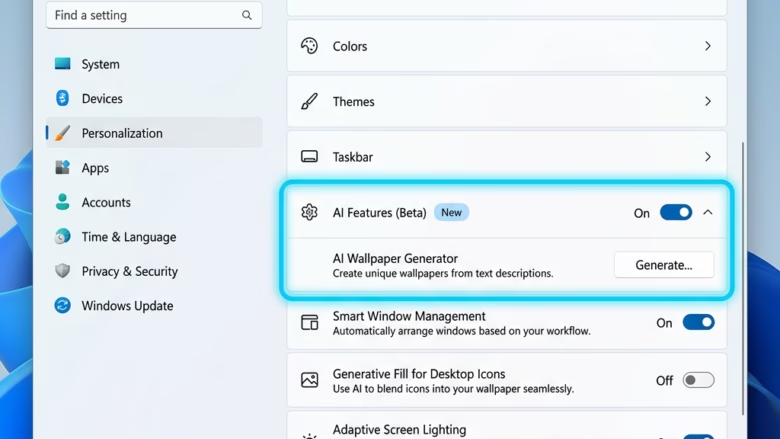
AI components in Windows 11 are built-in machine learning models, such as AI Phi Silica. They run on your own hardware to power smart features, and they take up storage space even if you never use those features. Recent updates, such as preview build 26300, add a removal tool at Settings System AI components, so you can clear out the ones you don’t want.
Before you start, check three things:
- You must be signed in to an administrator account, which is an account allowed to make system-wide changes. A standard account can’t remove these components.
- Your PC needs a compatible NPU, a specialized processor built to handle AI tasks. Without one, the AI components page may be missing or empty.
- Your Windows build must include the removal tool. If you are on a stable release that hasn’t received it yet, you won’t see the page. Check Settings Windows Update to see whether a newer build is available.
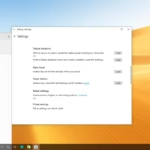
- Open Settings by pressing Win+I. The Settings window opens with a list of categories on the left.
- On the left side, click System. The System options appear on the right.
- On the right side, click AI components. You should see a list of the AI components installed on your PC. If you don’t see this entry, your build or hardware doesn’t support the tool (see the checks above).
- Click the AI component you want to remove. For example, you might see AI Phi Silica.
- If the option is available, click the Uninstall button. If the button is greyed out or missing, the component can’t be removed on your system, or you aren’t signed in as an administrator.
- Click OK to confirm. A confirmation prompt appears first, and the component is then removed.
- Restart your computer. This makes sure the changes are saved. After the restart, go back to Settings System AI components to check that the component is gone and that the storage space has been freed.
Open Settings by pressing Win+I, click System, then AI components. Select the component you want to remove, such as AI Phi Silica, click Uninstall, and restart your PC to free up storage space.
Here’s How:
Windows may also offer it again through Windows Update . Features that depend on a removed component may stop working until it is back.
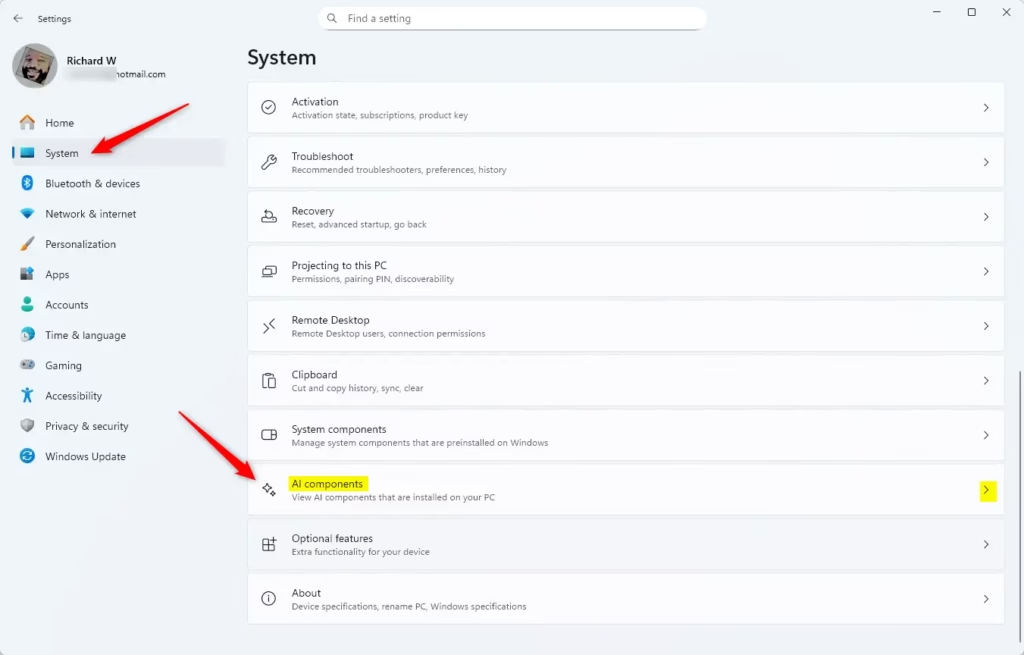
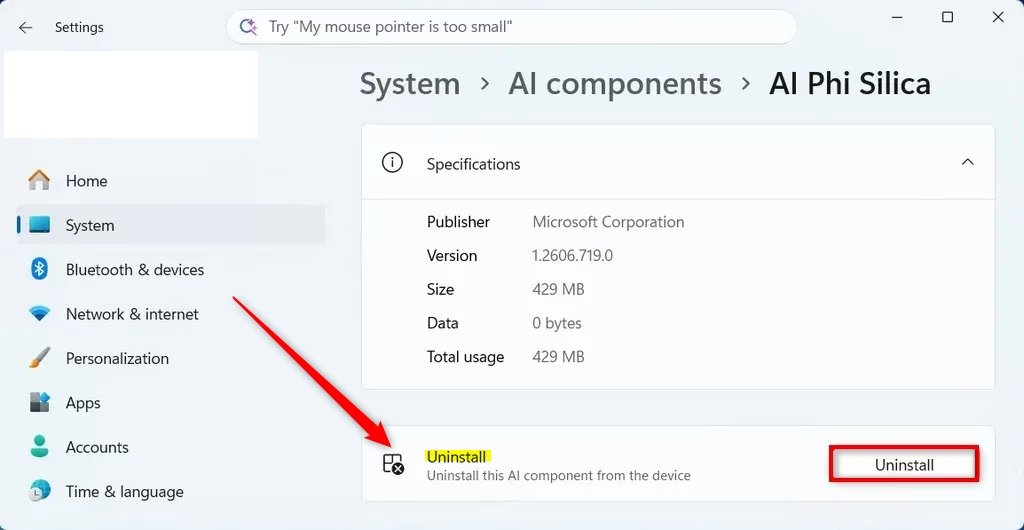
Select the component you want to remove, such as AI Phi Silica, click Uninstall, and restart your PC. Removing these built-in tools frees up disk space and stops their background processing.
Reference:
Summary
Remove Windows 11 AI features found under Settings System AI components This task requires administrative rights and a compatible NPU (a specialized processor designed to handle artificial intelligence tasks).
Was this guide helpful?
22% of readers found this helpful (9 votes)

About the Author
Richard
Tech Writer, IT Professional
Richard is a writer at Geek Rewind who turns complex IT tasks into clear, step-by-step guides. He draws on years of hands-on experience in system administration and enterprise IT operations, focusing on Windows, Linux and WordPress: the problems people actually run into, and the fixes that work. His server and WordPress guides come from systems he runs himself. Richard builds and maintains the platform behind Geek Rewind, from its Ubuntu servers and Nginx configuration to its custom WordPress plugins. Many new tutorials start with readers' questions, and he's always glad to answer them in the comments.


No comments yet — be the first to share your thoughts!