How to Move Windows 11 Taskbar to the Left

Moving the Windows 11 taskbar to the left puts the Start button and your open apps back in the bottom-left corner, where they sat in Windows 10, instead of in the center. Microsoft made the centered layout the default in Windows 11, but Settings has a built-in option to move everything back to the left.
The change takes less than a minute and applies right away. This guide covers two ways to do it: the Settings app, which is the easy way, and the Registry Editor, which is a backup option. Both are written for the current version of Windows 11, in both Home and Pro editions.
Open Settings , go to Personalization, then Taskbar. Expand Taskbar behaviors, click Taskbar alignment, and choose Left from the dropdown menu. Your taskbar icons will immediately shift to the left.
How to Move the Taskbar to the Left Using Windows Settings
The Settings app is the safest way to do this. You open Settings, go to Personalization, click Taskbar, and choose Left from the Taskbar alignment menu, which sits under Taskbar behaviors. Your app icons then move to the bottom-left corner. This works the same on Windows 11 Home and Pro, and you don’t need administrator rights.
- Open Settings . Click the Start button (the Windows icon at the bottom center of the screen), then click Settings. A faster way is to press the Win+I. The Settings window opens.
- In the left menu of the Settings window, click Personalization. The personalization options (Background, Colors, Themes and so on) appear on the right.
- On the right side, click Taskbar. You will see a list of taskbar items you can turn on or off, followed by a few collapsed sections.
- Scroll down to Taskbar behaviors and click it to expand the section. A list of options appears.
- Find Taskbar alignment, open the drop-down menu next to it, and select Left.
What happens? The taskbar icons move to the left side of your screen immediately. You don’t need to restart or sign out. The Start button now sits in the bottom-left corner, with your pinned and open apps next to it.
If the Personalization settings are greyed out or show a message about activation, your copy of Windows is probably not activated. Activate it first. If your PC is managed by a school or employer, an administrator may have locked the setting, and you will need to ask them to change it.
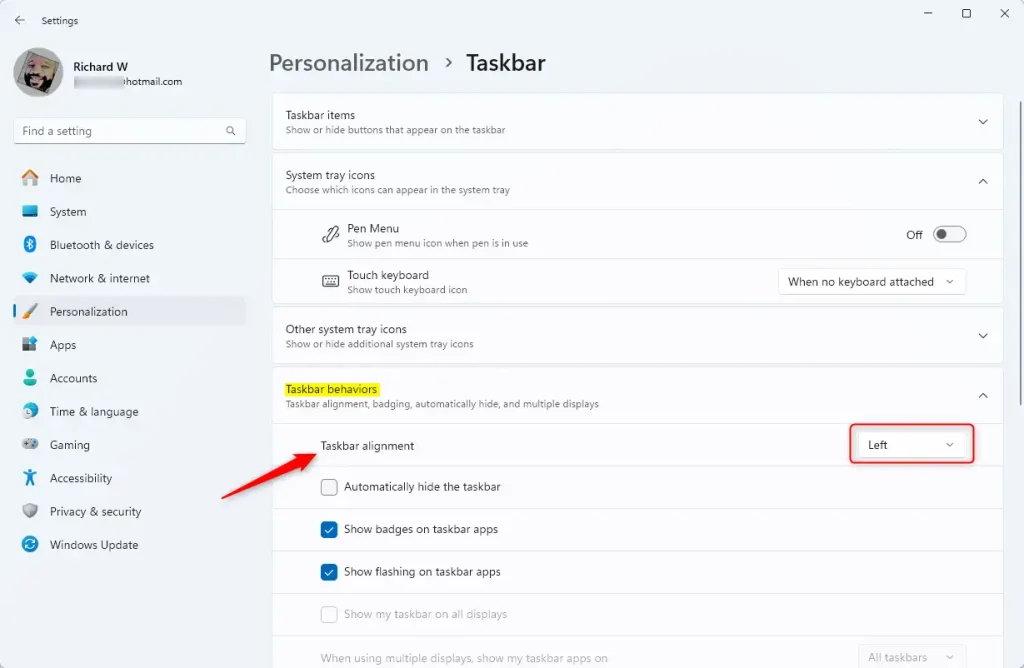
To go back to the default centered taskbar, follow the same steps and choose Center in the Taskbar alignment menu. The icons move back to the middle right away.
How to Move the Taskbar to the Left Using the Registry (Advanced)
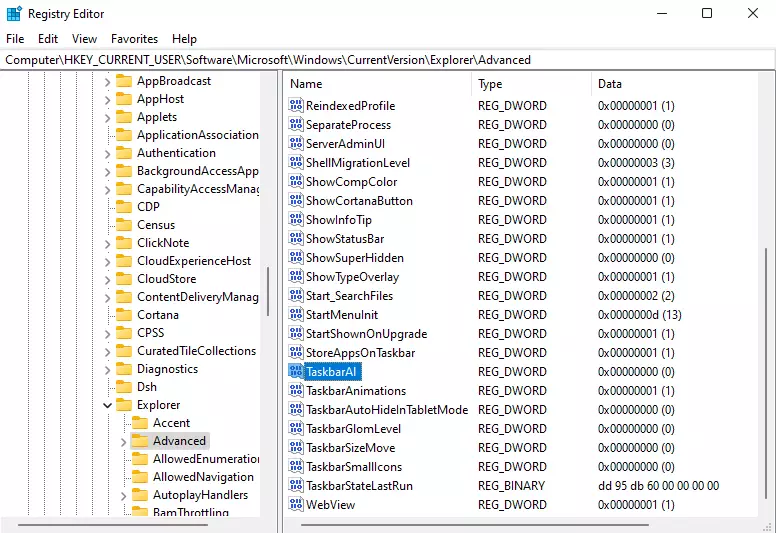
The Registry Editor does the same job by changing one value. Open the tool, go to HKEY_CURRENT_USER\Software\Microsoft\Windows\CurrentVersion\Explorer\Advanced, and set the value named TaskbarAl to 0. Use this method if the Settings page won't open or you want to script the change. Because the key is under HKEY_CURRENT_USER, it only changes the taskbar for your own user account.
Wrong changes can cause problems with your system. Change only the value described below, and don't delete anything else.
Here's how to do it:
- Press the Windows key + R to open the Run box.
- Type
regeditand press Enter. If a User Account Control prompt appears, click Yes. The Registry Editor opens. [Requires admin privileges] - In the left pane of the Registry Editor, navigate to this path. You can also paste it into the address bar at the top of the window and press Enter:
RegistryHKEY_CURRENT_USER\Software\Microsoft\Windows\CurrentVersion\Explorer\Advanced - In the right pane, look for a value named TaskbarAl. The last letter is a lowercase L, though in some fonts it looks like a capital I, which is why you may see it written as TaskbarAI. If you don't see the value, right-click an empty area in the right pane, choose New DWORD (32-bit) Value, and name it TaskbarAl.
- Double-click the value, and set its Value data to one of these, then click OK:
- 0 = Taskbar on the left
- 1 = Taskbar centered (default)
- Restart your computer, or sign out and back in, to see the change. After that, the taskbar should sit on the left. To undo it, set the value back to 1 and restart or sign out again. You can also change the alignment later in Settings Personalization Taskbar
Summary
Moving your Windows 11 taskbar to the left is quick, and it can make the screen easier to use, especially on wide monitors, where a centered Start button is a long way from the corner. It also gives you the same layout as older versions of Windows. If you change your mind, you can switch back at any time using the same setting.
Was this guide helpful?

About the Author
Richard
Tech Writer, IT Professional
Richard is a writer at Geek Rewind who turns complex IT tasks into clear, step-by-step guides. He draws on years of hands-on experience in system administration and enterprise IT operations, focusing on Windows, Linux and WordPress: the problems people actually run into, and the fixes that work. His server and WordPress guides come from systems he runs himself. Richard builds and maintains the platform behind Geek Rewind, from its Ubuntu servers and Nginx configuration to its custom WordPress plugins. Many new tutorials start with readers' questions, and he's always glad to answer them in the comments.



No comments yet — be the first to share your thoughts!