How to Add or Remove Phone Number for Copilot Tasks by SMS


Copilot tasks by SMS let you text your Windows AI assistant and get things done while you are away from your PC. You link a mobile phone number to your Microsoft account, and that link is how Copilot knows a text came from you.
This guide covers adding a number and removing one. You will want to do this when you get a new phone, change carriers, or stop using an old number. Keeping the list current means texts and task notifications only go to a phone you still control.
Before you start, have these ready:
- Sign in to the Microsoft account you use with Copilot. A work or school account may not offer the same options.
- Keep the phone you want to add within reach. Microsoft usually sends a verification code by text to confirm that the number is yours.
- Make sure the phone can receive SMS. Your carrier’s standard message rates may apply to the texts you send and receive.
Open the Copilot website or app on Windows 11, sign in with your Microsoft account, click Account then Text by SMS, enter your phone number, and click Send verification code. Enter the verification code texted to you and click Verify to link the number for SMS tasks.
What Are Copilot Tasks?
Copilot Tasks let you ask your AI assistant to run errands and manage workflows in everyday language. Think of it as handing instructions to a personal assistant. You describe the result you want, and Copilot works out the technical steps for you.
Two Types of Tasks
- Regular tasks run one time, right after you submit them. Example: “Order pizza for my family tonight.”
- Scheduled tasks run at a set time or repeat on a schedule. Example: “Email me a weekly summary of Microsoft stock performance.”
A regular task is finished within moments, so there is little to lose. A scheduled task keeps running for weeks or months. If you remove a number, check your scheduled tasks afterward so a recurring job does not depend on a phone that is no longer linked.
Why Use SMS for Copilot Tasks?
With SMS, you send instructions by text message and never open the Copilot app on your computer. The phone number linked to your account is how Copilot matches your text to you, so this is the number you add or remove in the steps that follow.
Once a number is linked, you can:
- Submit tasks by text without opening the Copilot app or website.
- Get instant notifications when your task is done.
- Schedule tasks to run once or repeat, all through text messages.
- Check progress and stop tasks if needed to keep sensitive actions safe.
This suits people who would rather text than type on a computer keyboard.
If you lose a phone or give up a number, remove it from your account promptly. Carriers sometimes reassign old numbers to new customers, and you do not want a stranger's texts reaching your assistant.
If you are replacing a phone, add the new number first, confirm that it works, and then remove the old one. That way you are never left without a working link. If you remove a number by mistake, you can add it again the same way you added it the first time.
Learn more about Copilot as your AI companion: Microsoft Copilot: Your AI companion.
For detailed information on using Copilot Tasks, refer to: Using Copilot Tasks - Microsoft Support.
Discover how Copilot Tasks turn answers into actions in this article: Copilot Tasks: From Answers to Actions | Microsoft Copilot Blog.
Option 1Add or Remove Phone Number from Copilot App or Website
Add Phone Number for Copilot Tasks by SMS
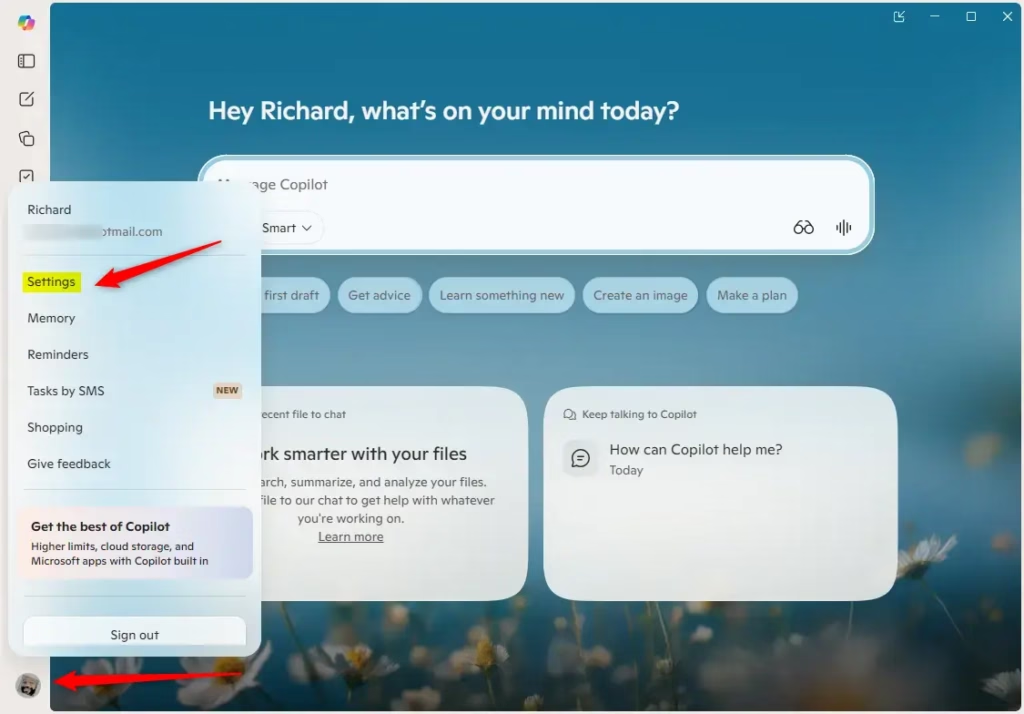
Adding your phone number for Copilot Tasks SMS requires opening the Copilot website or the Copilot app on Windows 11 and signing in with your Microsoft account. Once you sign in, you can locate the account menu and start the phone linking process.- Open the website or Copilot app on Windows 11.
- Sign in with your Microsoft account if you haven't already.
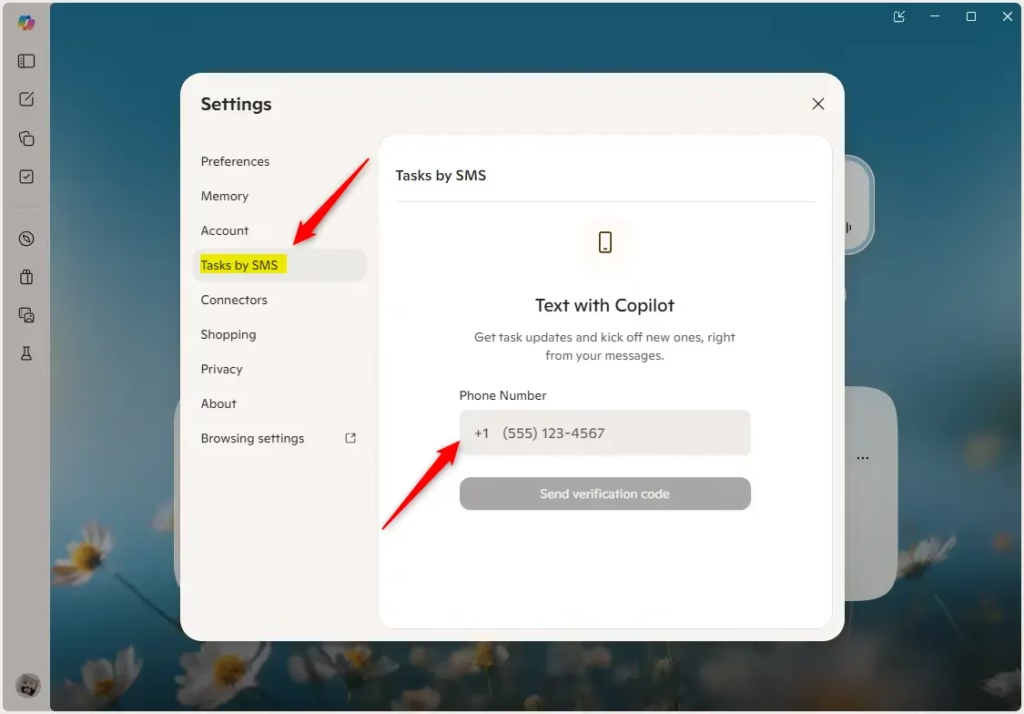
- In the app (full view only), click or tap the Account button on the left side, then click or tap Text by SMS.
- Enter the phone number you want to use, and click or tap Send verification code.
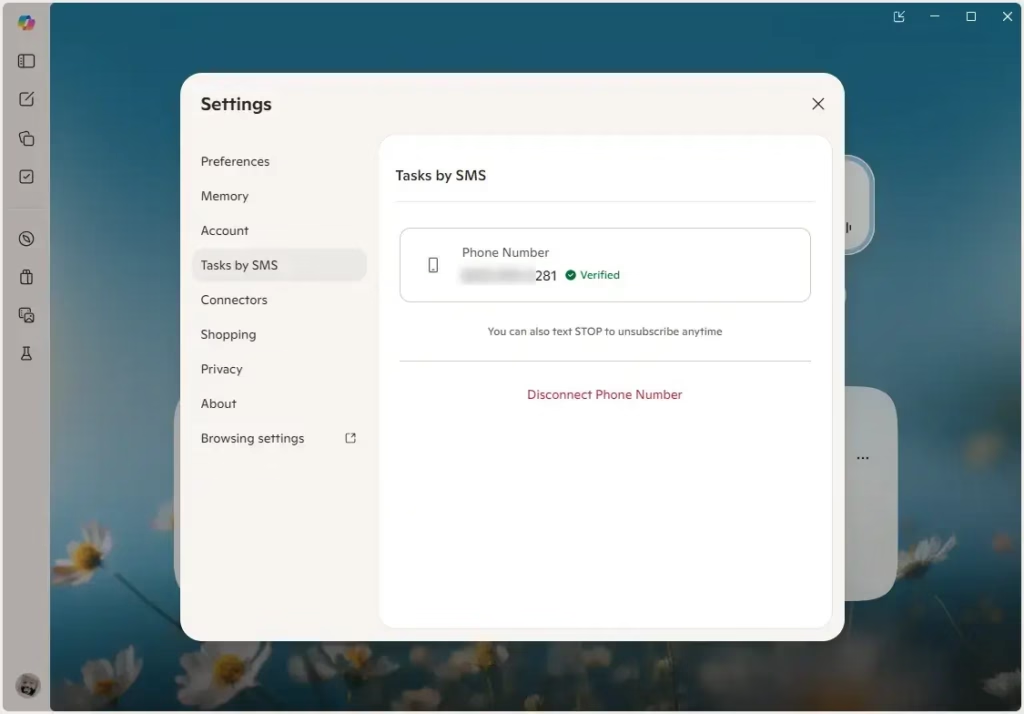
- Enter the verification code that was sent to your phone, and click or tap Verify.
- You will receive an SMS Tasks Connected text message on your phone to confirm the number was added.
Remove Phone Number for Copilot Tasks by SMS
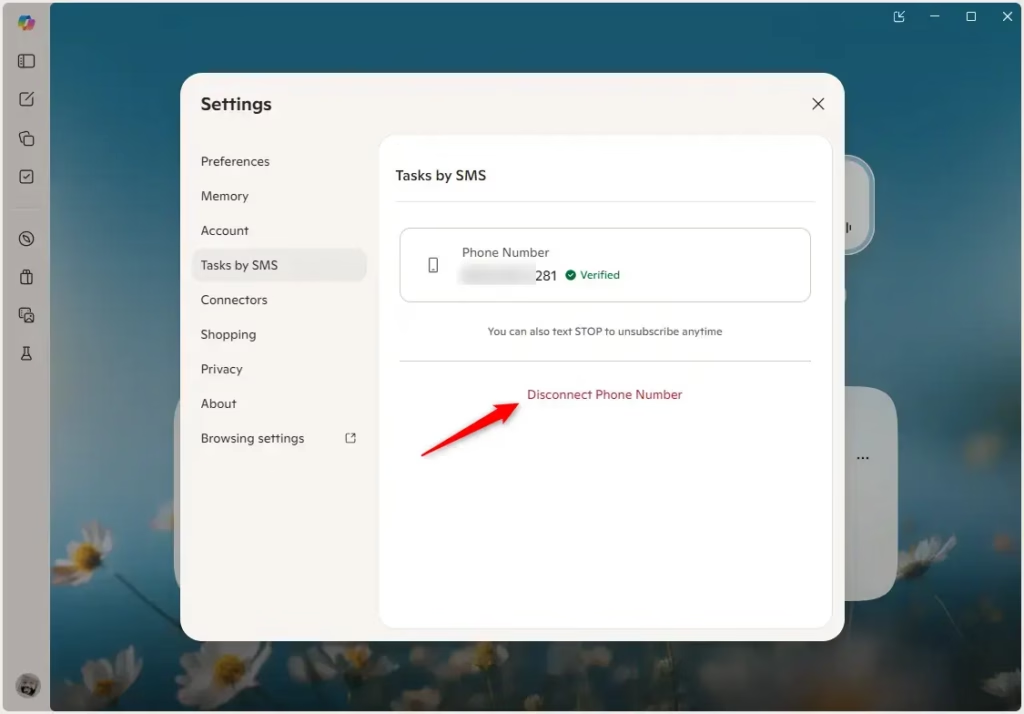
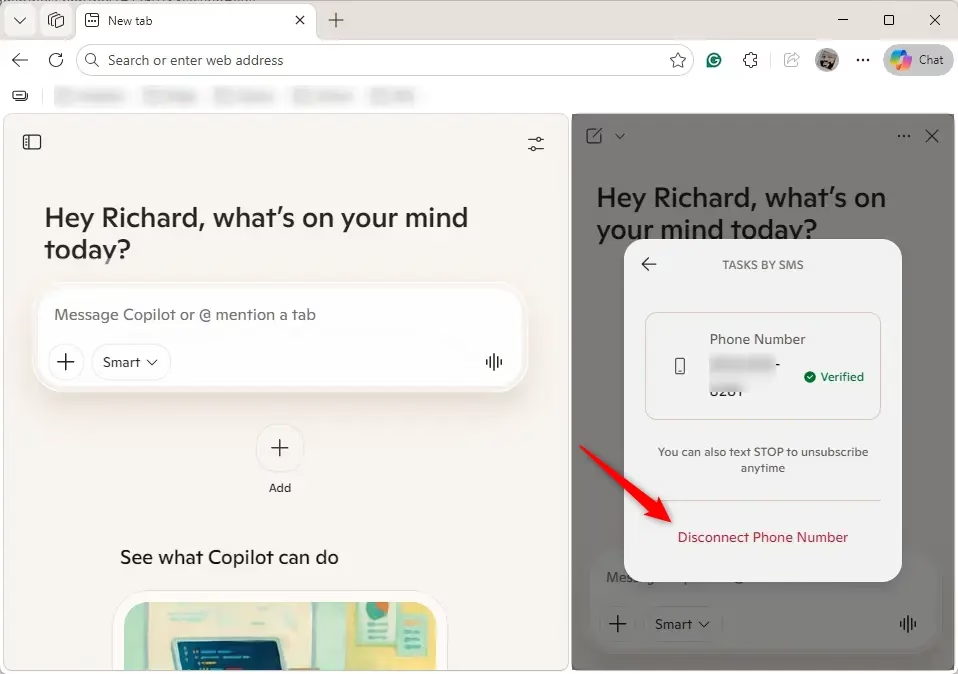
- Click or tap the Disconnect Phone Number link.
- You will receive an SMS Tasks Disconnected text message on your phone to confirm the number was removed.
Option 2Add or Remove Phone Number from Microsoft Edge
Add Phone Number for Copilot Tasks by SMS
- Open Microsoft Edge.
- Sign in with your Microsoft account if you haven't already.
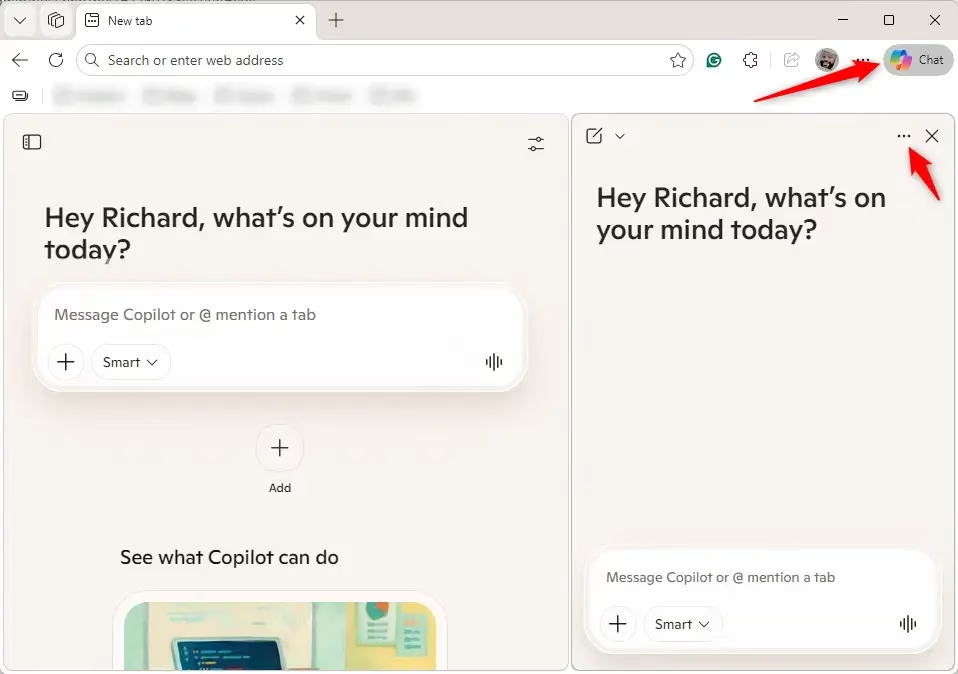
- Click or tap the Copilot icon in the toolbar.
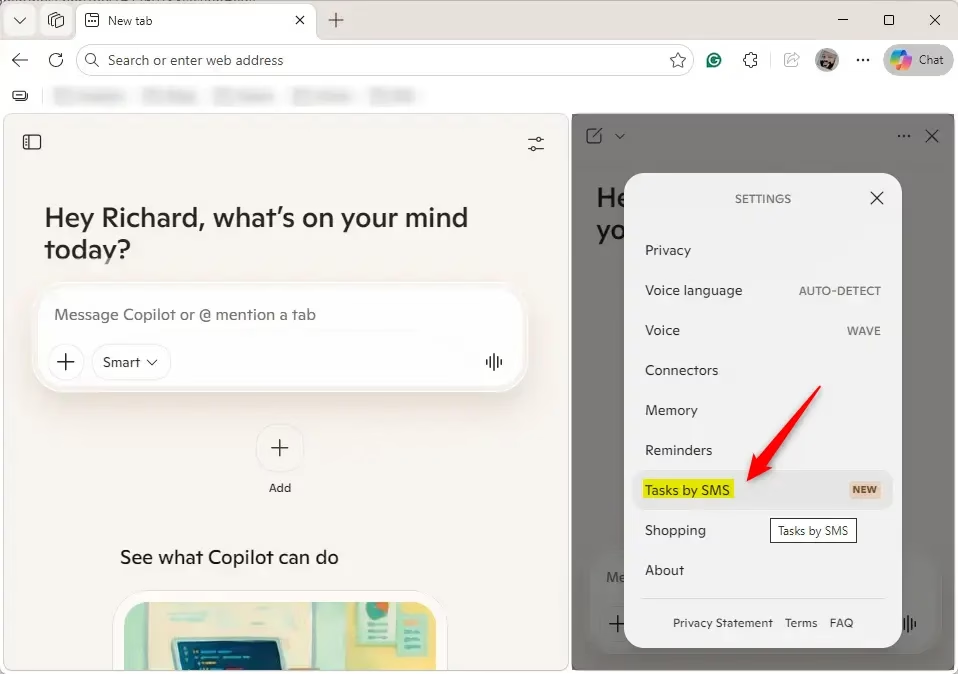
- Click or tap the More options button (3 dots), then click or tap Settings.
- Click or tap Tasks by SMS.
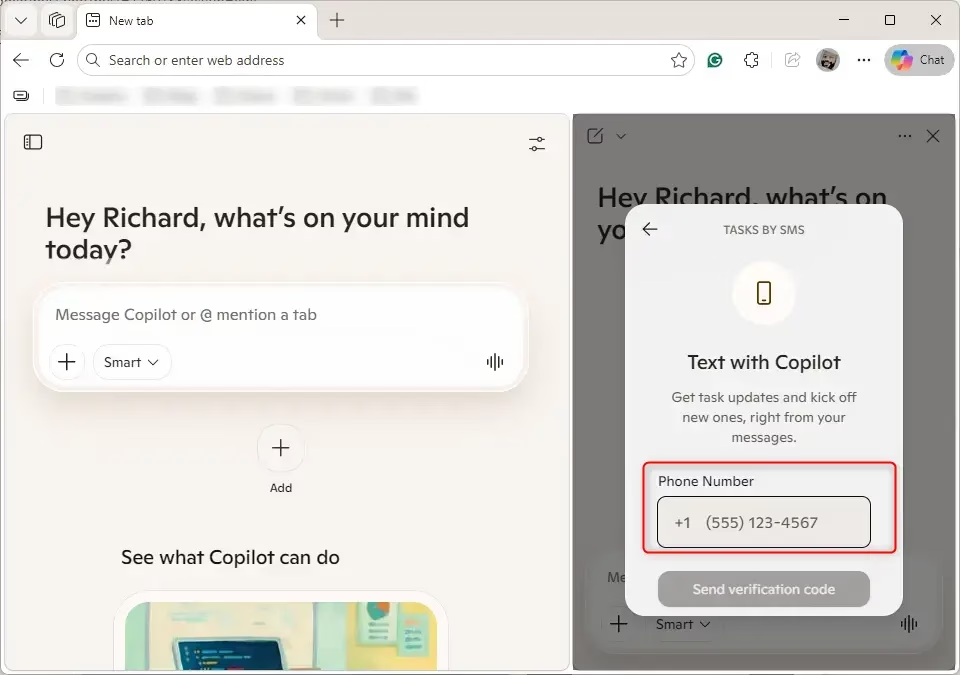
- Enter the phone number you want to use, and click or tap Send verification code.
- Enter the verification code that was sent to your phone, and click or tap Verify.
- You will receive an SMS Tasks Connected text message on your phone to confirm the number was added.
Remove Phone Number for Copilot Tasks by SMS
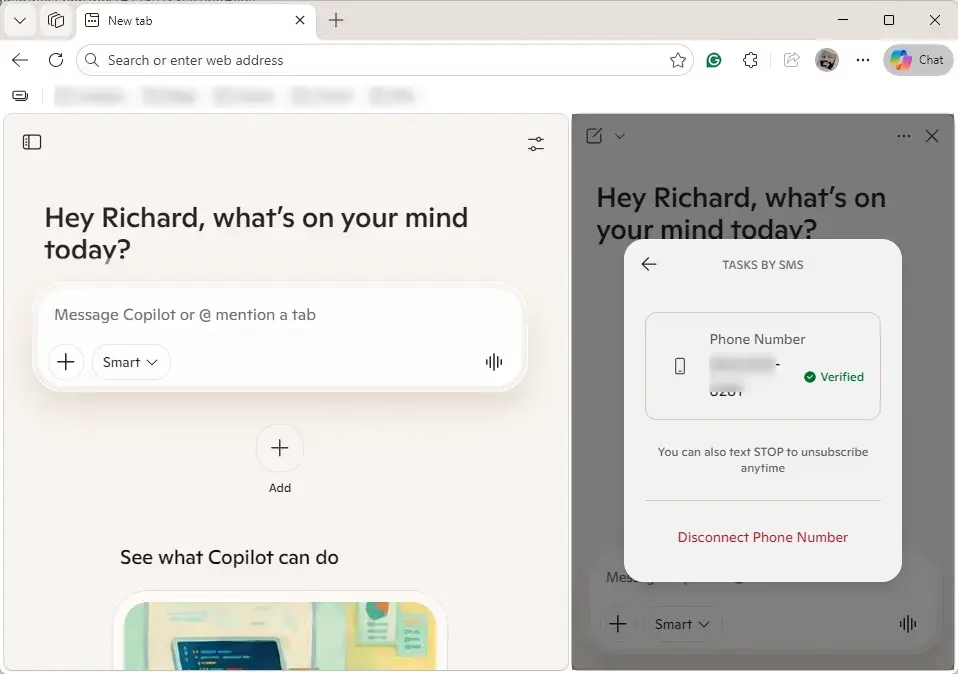
- Click or tap the Disconnect Phone Number link.
- You will receive an SMS Tasks Disconnected text message on your phone to confirm the number was removed.
Configuration is complete.
Summary
You can add a mobile number for Copilot Tasks using the Copilot app, website, or Microsoft Edge.
Have a question about this guide?
Answered by AI from this guide. Good questions may be added to this page — please don't include personal details.
Did this guide fix your problem?

About the Author
Richard
Tech Writer, IT Professional
Richard is a writer at Geek Rewind who turns complex IT tasks into clear, step-by-step guides. He draws on years of hands-on experience in system administration and enterprise IT operations, focusing on Windows, Linux and WordPress: the problems people actually run into, and the fixes that work. His server and WordPress guides come from systems he runs himself. Richard builds and maintains the platform behind Geek Rewind, from its Ubuntu servers and Nginx configuration to its custom WordPress plugins. Many new tutorials start with readers' questions, and he's always glad to answer them in the comments.
No comments yet — be the first to share your thoughts!